How to Fix Outlook Error 0x800CCC92?
Jenny Lowrence | March 26th, 2026 | Outlook Errors
Microsoft Outlook is a well known email client used by people for both business and personal communication. Sometimes Outlook users encounter errors that interrupt their workflow. The most frequently encountered issue is Outlook error 0x800CCC92, which occurs when there is a problem with your email server login or authentication settings in MS Outlook, thus the user is unable to send or receive emails. In this detailed guide, we’ll explore the various causes of this error and provide step-by-step solutions to solve error 0x800CCC92 in Outlook.
What is Outlook Error 0x800CCC92?
Error 0x800CCC92 in Outlook is a common send/receive error that occurs when the application fails to authenticate user login credentials with the mail server. This eans Outlook is unable to verify user email account details and preventing them from accessing their mailbox.
Common Cause for Error 0x800CCC92 in Outlook
- Incorrect username and password
- Wrong configuration settings in Outlook
- If PST file exceeds its size limit
- Sync problem between Outlook and server
- Corrupted Outlook profile
- Damaged Outlook data file
How to Fix Outlook Error 0x800CCC92?
Here, we;ll go through the detailed troubleshooting solutions to resolve error 0x800CCC92 in outlook. Check them and solve the error.
#1. Check Login Credentials
Entering the wrong email address and password can create issues like Outlook send/receiver error 0x800ccc92. To overcome this, users need to enter the correct login details.
#2. Check Server Settings
Incorrect server settings can trigger this error. So, check the Incoming Server, Outgoing Server, Port Number, and encryption and ensure that the mail server settings, such as POP, SMTP, and IMAP are correct.
#3. Reduce Oversized PST File Size
If your PST file exceeds its size limit, it may prevent you from sending and receiving emails and cause you to encounter Outlook error 0x800ccc92. So, split the PST file into smaller parts to resolve this error.
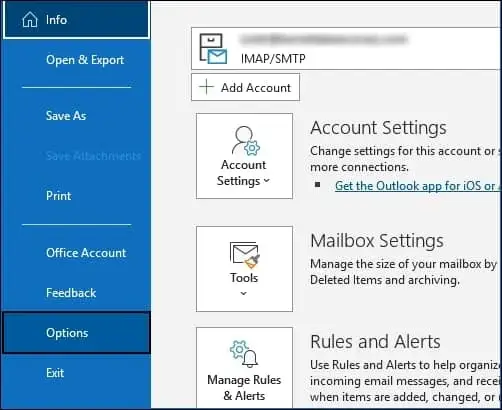
1. Open Outlook and go to File >> Options.
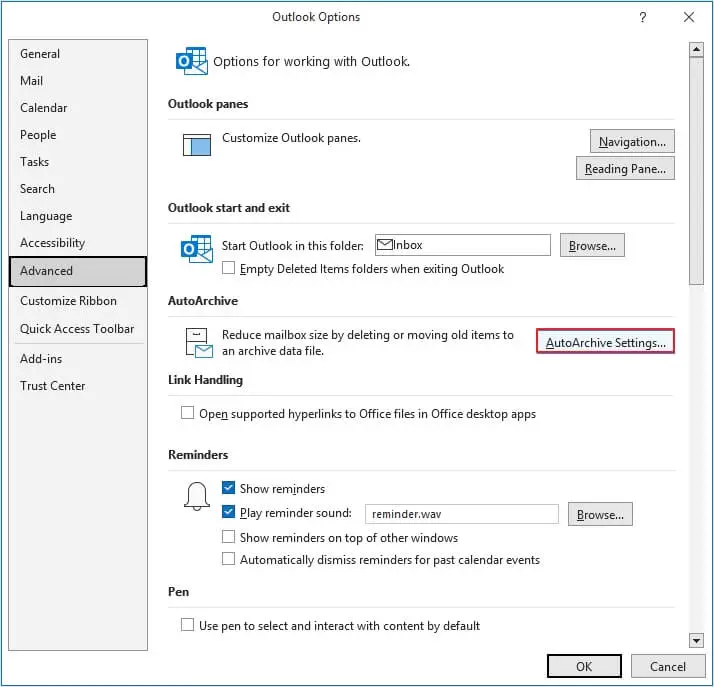
2. Click on Advanced options >> AutoArchive Settings.
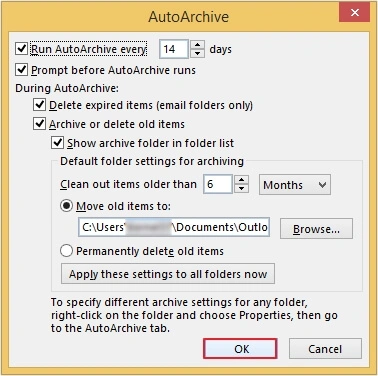
3. Make all the settings that are required for effective archiving.
#4. Clean Deleted Folders
1. Open Outlook and go to File >> Options.
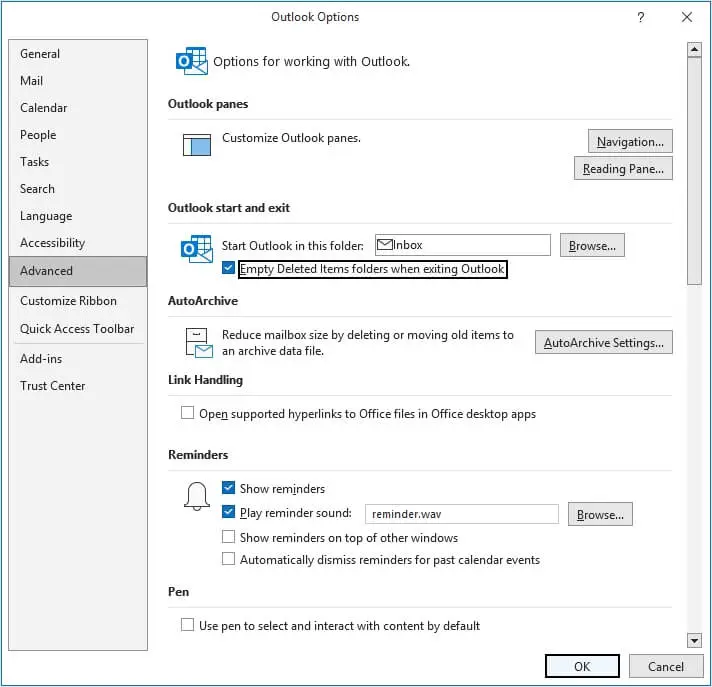
2. Click on Advanced options.
3. Enable the checkbox Empty Deleted Items folders when existing Outlook and click OK.
#5. Create a New Outlook Profile
A corrupted or damaged Outlook profile may cause an Outlook error Ox8OOccc92. Create a new profile to solve it.
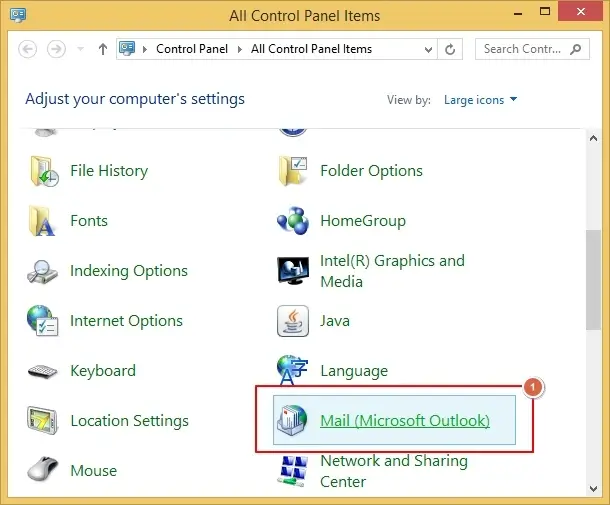
1. Open the Control Panel and click on Mail.
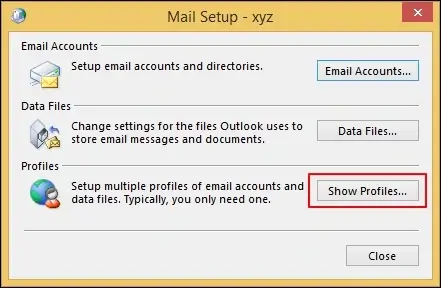
2. Click on Show Profiles.
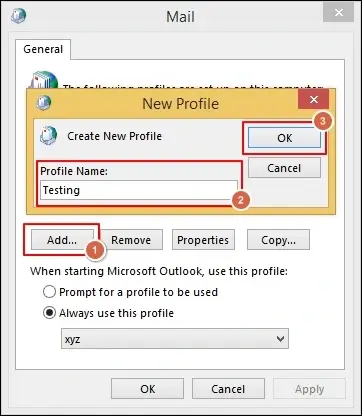
3. Now, click on Add button. Enter the profile name and click OK.
4. Follow the prompts to create and configure a new profile.
5. Once the profile is created, set the new profile as the default.
#6. Repair Corrupted Outlook Data File
A corrupted PST file might be cause of Outlook error 0x800ccc92. To fix corruption of Outlook data file, you can use Inbox Repair Tool.
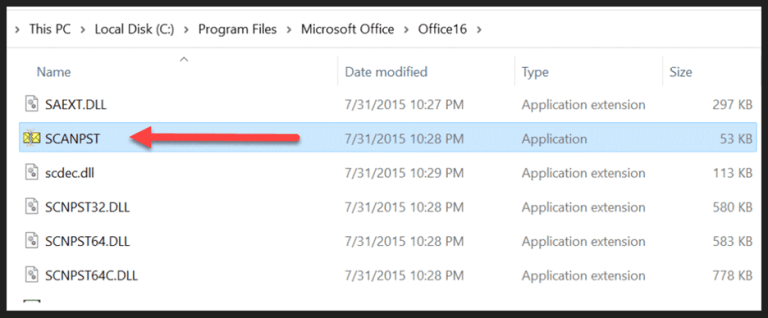
1. Open ScanPST.exe.
2. Click on Browse to add Outlook data file.
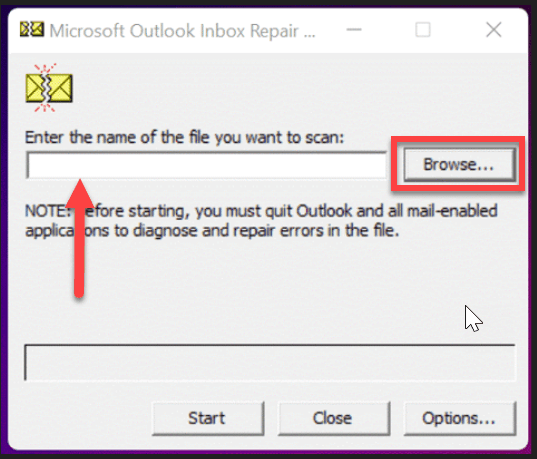
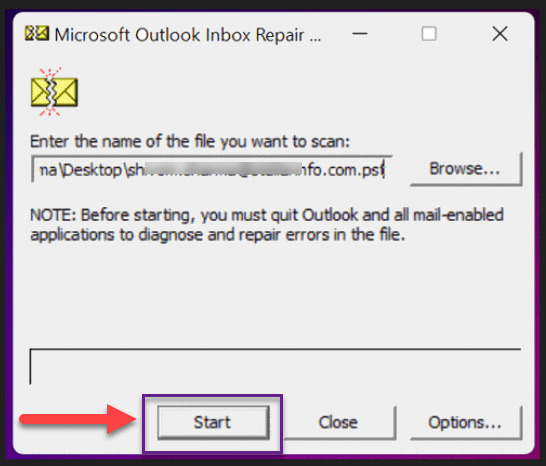
3. Click on Start to initiate file scan.
4. If errors detected, then click on Repair button.
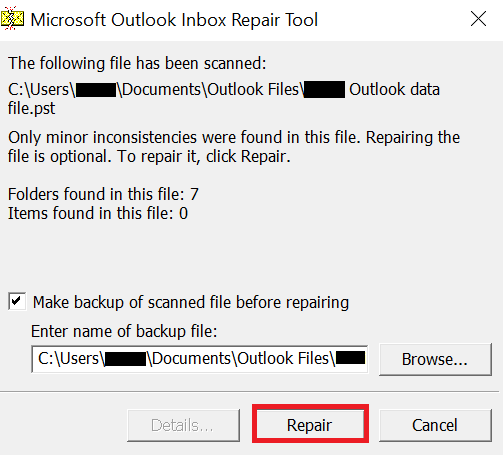
Once the repair is complete, restart Outlook and check error is solved or not. The Inbox Repair Tool is able to fix minor issues. However, if your file is highly corrupted, then this utility will fail to repair it. Advik PST Repair Tool is one stop solution to resolve Outlook PST file issues due to corruption. It will helps you to recover data from corrupted file and create a new healthy PST file.

Final Words
Handling Outlook error 0x800CCC92 can be annoying. But if you know what might be causing the problem , you can quickly fix it. Manual methods like entering correct login credentials, clearing deleted folders, splitting PST file, or creating a new Outlook profile can solve error. For minor PSt file corruption, the built-in ScanPST too can help. However, if the problem persists due to damaged PST file, using Advik PST Recovery tool ensures complete and safe recovery of your mailbox.
