How to Recover NEF Files from SD Card?
Jim Backus | November 15th, 2025 | Data Recovery
It can be stressful if NEF files are lost right before the submission. Don’t worry, you are on the right page. In this article, we will discuss the best possible methods to restore NEF files. We are covering both manual and professional methods to recover NEF files from SD card. Read this complete article to learn more.
Let’s get started!
How to Recover NEF Files from SD Card Manually
To restore the NEF file, we are using the command prompt method.
Note: Select the recovery mode between ‘Regular’ and ‘Extensive‘ for your file system.
For example, if your NEF files were recently deleted from NTFS drives, select ‘Regular’, or if your files were formatted of NTFS, exFAT or FAT, select ‘Extensive‘.
Follow the instructions below to start recovery process.
- Remove the SD card and connect it to a card reader or directly to your computer.
- Open the search bar and type command prompt.
- Run the command prompt as an administrator.

- Type “/n” switch to specify the file type, e.g.: winfr H: D:\Recovery /extensive /n *.nef
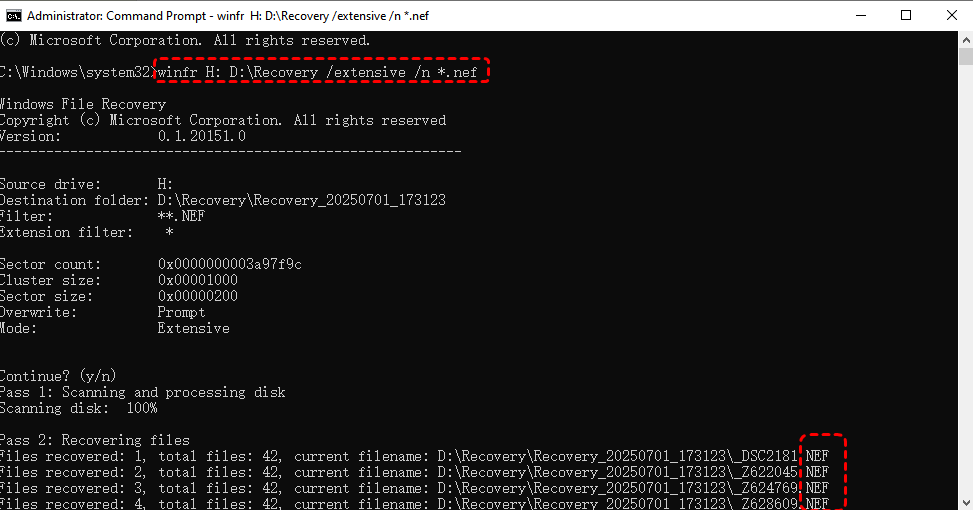
The command will restore all your lost NEF files and save them in a new folder.
Limitations
- You can not preview your restored NEF files.
- Does not work on damaged and formatted SD cards
- Command prompt works only when your SD card not overwrite.
These were some of the limitations of the command prompt. If that doesn’t work, you’ll need to use the next method to recover the files.
How to Restore NEF Files from SD Card Professionally
If your NEF files cannot be recovered via the command prompt method, you can try Advik Data Recovery Software. This wizard simply scans your SD card and shows you a preview of the scanned files. This tool can recover both accidentally deleted files and files lost through formatting. It has simple user interface which make easy to use for non tech users. You can preview your files before recovery.
Download the software and recover files up-to 5 GB for absolutely FREE.

Steps to Recover NEF Files from SD Card
- Open tool and choose recovery option.

- Select the drive with stored NEF files, then click NEXT to start the scan.

- Choose files and click on SAVE.
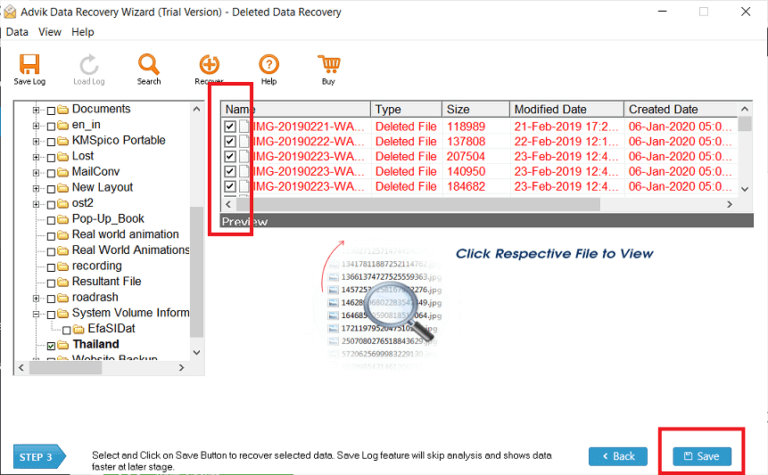
- Now wait for few seconds your recovery process started click OK.

Done! After few minutes your file will be restored.
Benefits of Using Recovery Tool
- Useful for beginners and non-tech users.
- This wizard can recover files up-to 5gb for free.
- This tool can give a preview of your old deleted file.
- You can recover data from SD card after formatting.
- Recover permanently lost, deleted files from any SD card..
- This tool can recover all type of files such as JPEG, TIFF, DNG and raw files, etc.
- Restore NEF files after deletion using Shift + Delete.
- Supports on 1000+ multimedia formats.
Important Features of NEF Files
Here are key features that describe NEF files –
- These files are much larger than JPEGs.
- NEF files store data from unprocessed images from the camera sensor.
- These files store important metadata such as ISO, shutter speed, aperture, and others.
- NFE files are stored in a different format, so the original format is never changed.
Final Thoughts
In the above blog, we covered both manual and professional methods to recover NEF files from SD card. We found command prompt method can not show preview and does not work on damaged SD cards. However, with the suggested tool you can easily recover NEF files and also preview the NEF files before recovery. Additionally, we have also discussed the features of NEF files.
We have given information about two methods, now select one method as per your need to restore NEF files. If you are unable to recover your NEF file using either of the two methods mentioned above, you can contact our technical team.