How to Reduce Outlook PST File Size? [2026 Updated]
Jackson Strong | November 20th, 2025 | Data Backup
Are you facing difficulty managing the oversized PST file? Do not panic, this blog will solve your problem. In this technical post, we are going to discuss the best possible ways to reduce Outlook PST file size using manual and professional approach. So, stay tuned to this post to compress Outlook data file and keep it running smoothly.
Microsoft Outlook is a popular email client. It stores emails, contacts, calendar events, notes, journals, and other data in PST file. It can store complete mailbox data in a single file. Sometimes, PST files can become excessively large, which can affect the performance of Outlook and may cause data corruption. That’s why many users want to compact the size of PST files.
Why Reducing PST File Size is Important?
There are various benefits of shrinking Outlook PST file. Some of them are mentioned here;
- Large PST files can slow down Outlook, causing delays in sending and receiving emails. By reducing PST file size, you can improve Outlook performance.
- Oversized PST files are prone to corruption, leading to data loss.
- Reducing the size helps in better disk space utilization.
- Smaller PST files are easier to migrate.
How to Reduce Outlook PST File Size Manually?
There are some possible ways to shrink PST file size.
#1. Using Compact Function
- Open Outlook application on your system.
- Go to File and click on the Info tab.
- Click on Account Settings and select the Account Settings option.
- Choose Data Files option and click on Settings button.
- Now, click the Compact Now button and press Ok.
#2. Enable Auto Archiving
- Open Outlook and click File >> Info.
- Go to Tools and click on Clean Up old items.
- Enable Archive this folder and sub-folders.
- Select Files or Folder to archive and click OK button .
#3. Delete Unnecessary Emails
- Open Outlook on your system.
- Navigate to the Inbox and specific folders.
- Choose emails that are not important and delete them.
- Empty the Deleted Items folder to permanently remove them.
How to Reduce PST File Size Without Outlook?
Try the Advik PST Splitter Tool to compress Outlook data file. The software can easily split large PST file into smaller parts to reduce Outlook PST file size. It preserves all email attributes and key elements during the process. Thus, no data loss will occur. It can reduce the size of multiple PST files in a single attempt. It offers a size variation option for large-sized Outlook Archives to PST files according to size.
Download the free version of this tool to check its working procedure without any cost.


Steps to Compress Outlook Data File
1. Run the Advik PST Splitter Tool on your system.
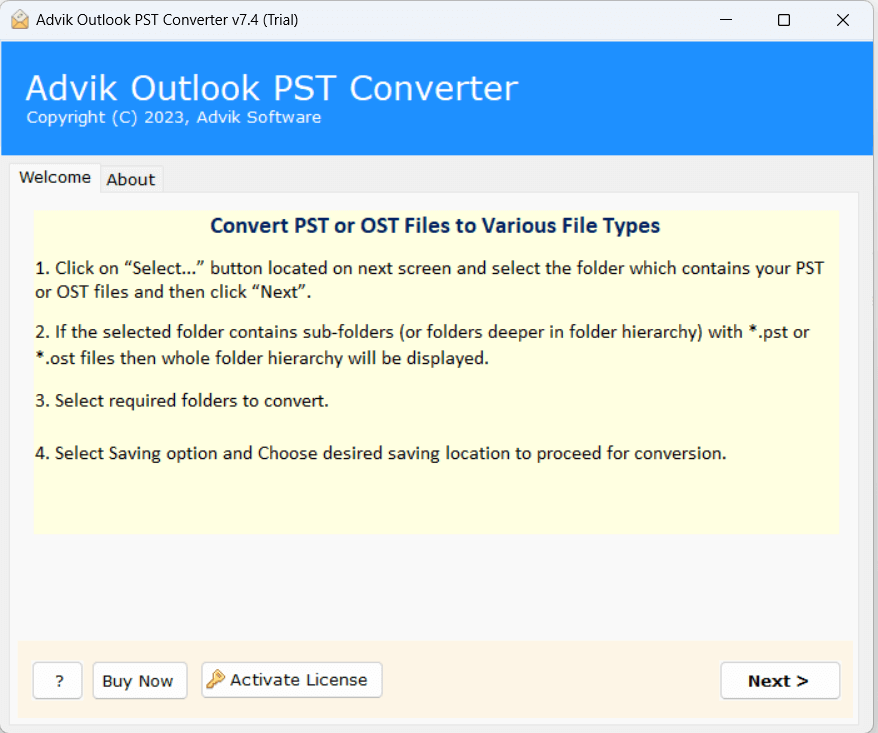
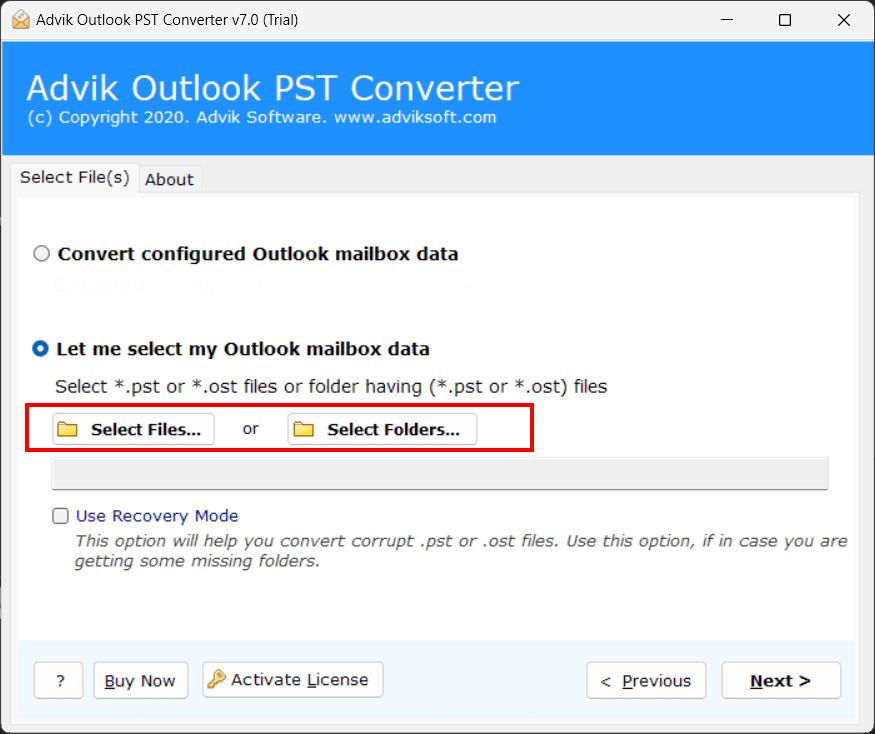
2. Add PST file that you want to reduce and click Next.
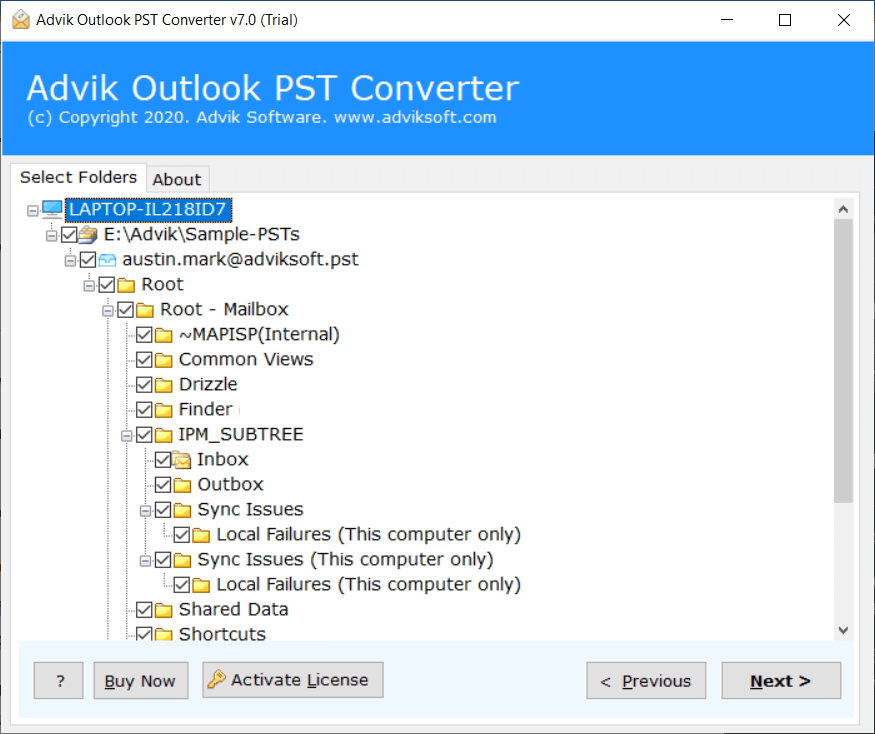
3. Select the mailbox folders and press Next button.
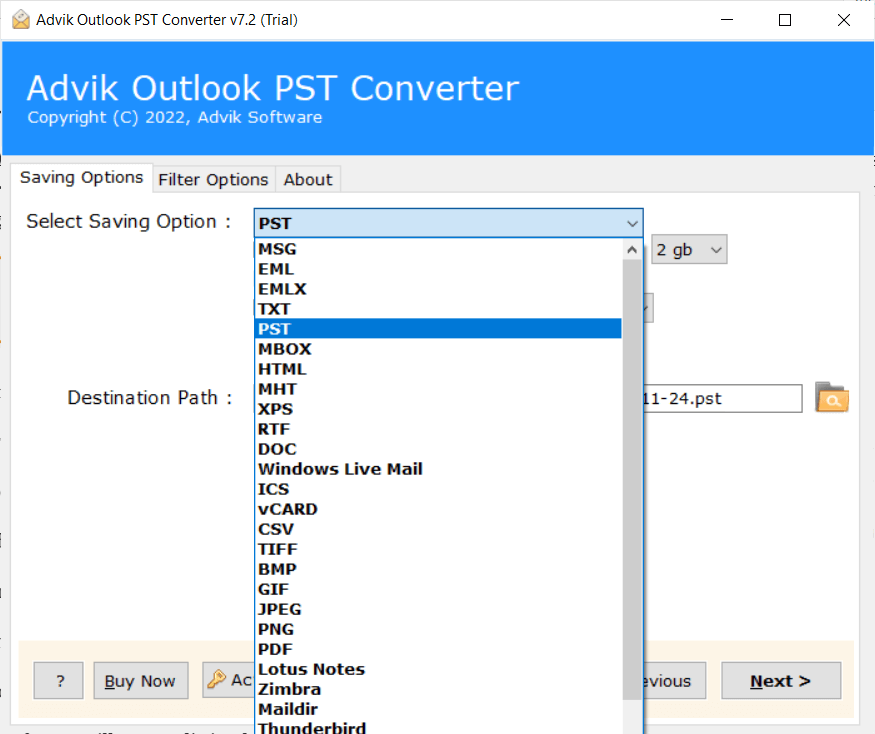
4. Now, choose PST as a saving option.
5. Enable Split PST check box and choose size variations
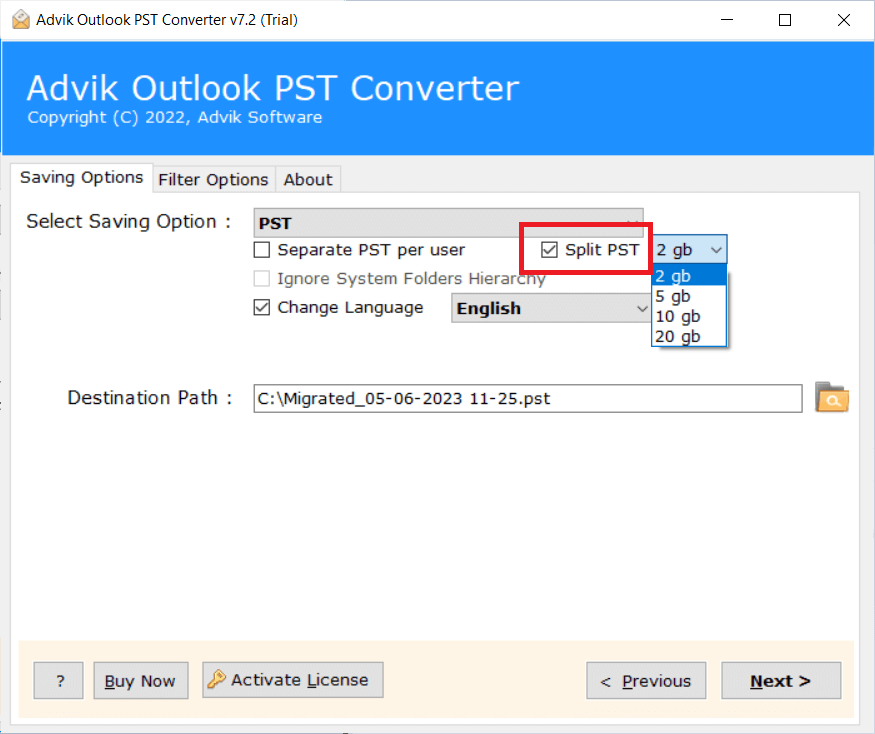
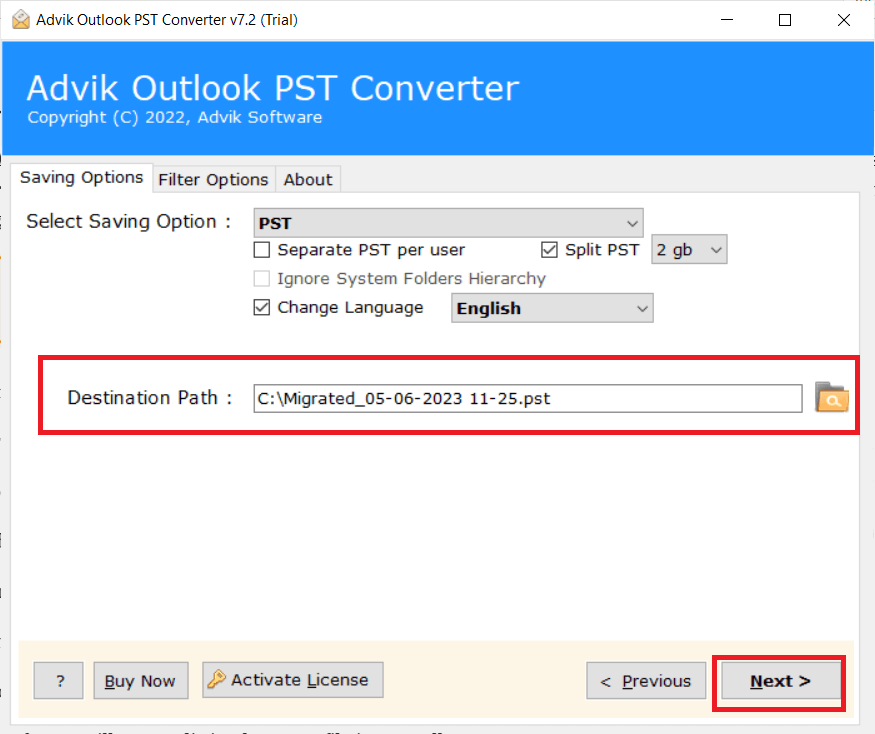
6. Browse target location and click Next button.
7. The software will start splitting PST file.
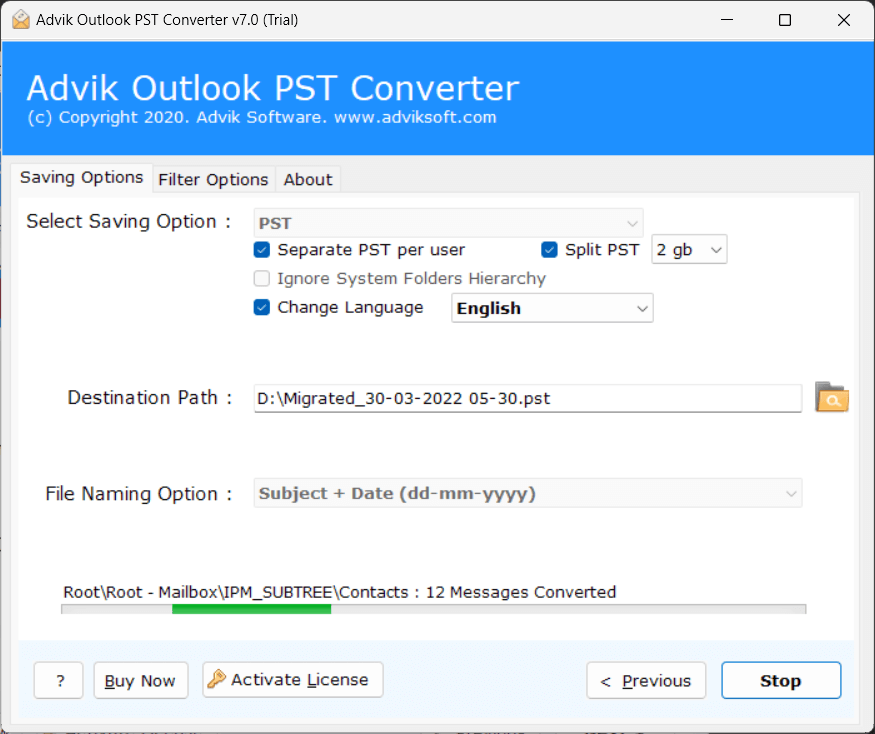
Done! That’s how you can split your file and reduce PST file size.
Benefits of Using Automated Tool
- The software can reduce the size of multiple Outlook PST files at once.
- It preserves key elements of PST file during the process.
- The tool maintains the folder hierarchy while reducing file.
- There are no file size limitations to reduce large PST files.
- With this utility, you can shrink corrupted PST files.
- The tool can reduce large PST files by date, size, folder, etc.
- This utility supports PST file of all Outlook editions.
- A simple GUI to compress Outlook PST file without any hassle.
- It is compatible with all versions of Windows operating system.
Conclusion
Managing the size of Outlook PST file is essential for smooth email operations, better storage management, and avoiding data corruption. In this post, we have discussed some different ways to reduce Outlook PST file size. Wheather you can apply manual tricks or use automated solutions to compress Outlook data file file.
Frequently Asked Questions
Q1. What do I do when my PST file is too big?
Ans. You can compress Outlook data file by deleting unwanted emails, emptying Deleted Items, using Compact Now feature, or splitting the PST file into smaller parts.
Q2. Why is Outlook PST file size not reduced?
Ans. Outlook doesn’t shrink the PST file size immediately after deleting items. The space is only freed when you use Compact Now, or when Outlook automatically compacts the file during idle time.
Q3. Does archiving reduce PST file size?
Ans. Yes, archiving moves older emails to a separate PST file and reduce the size of your PST file.
Q 4. How do I reduce the size of my PST file without Outlook?
Ans. You can use an automated solution to decrease PST file size.
Q 5. What is the maximum PST file size Outlook can handle?
Ans. Outlook 2013 and later versions support up to 50 GB PST file size. However, it’s recommended to keep the Outlook PST file size limit below 10-12 GB for optimal performance.
