How to Save Multiple Attachments from Multiple Emails in Outlook?
Summary: Outlook desktop saves all attachments from one message at a time using Save All Attachments. There is no built-in option to select many emails and save every attachment from them in one step. For a folder containing multiple emails, a short VBA macro can loop through the messages and save their attachments automatically. To save multiple attachments from multiple emails in Outlook, a professional tool reads the mailbox and saves every attachment with the sender and date in the file name.
MS Outlook is a very popular email client that is used by almost every business professional because it is effortless to use, maintain, and customize. It allows users to work with emails, contacts, calendars, tasks, notes, etc.
For Microsoft Outlook users, extract attachments from multiple Outlook emails is a common need, especially when inboxes grow with years of emails and important files. Whether you want to copy all attachments, reduce storage, and improve workflow. This task is important in many situations, like legal cases, compliance checks, and many more.
Method 1. Save All Attachments from One Email in Outlook
If you only need to save attachments from a single email, then you can use the Outlook built-in “Save All Attachments” option.
With Outlook, you can easily save your desired multiple attachments in one place by following the given steps below;
Step 1. Open MS Outlook on your Windows PC.
Step 2. From your Outlook inbox, select the email with attachments from which you wish to download the attachments in bulk.
Step 3. Right click on it choose the Save All Attachments option.
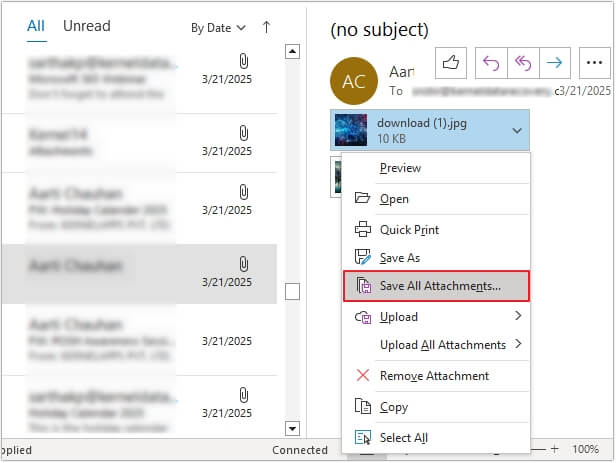
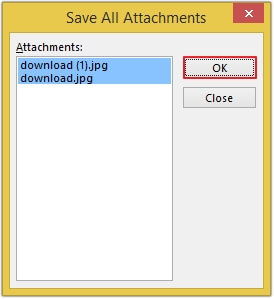
Step 4. A new dialog box will appear, click OK.
Step 5. Now, browse the location to save resultant files and click OK.
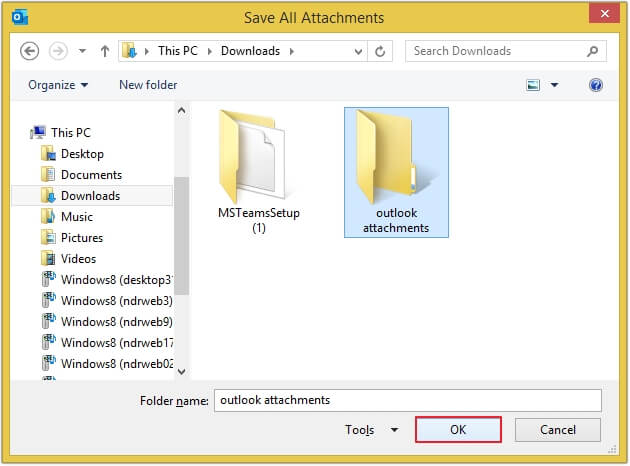
Outlook normally uses the Documents folder as the default location, although you can select another folder when saving. This method works well when you have only a few emails that contain attachments; repeating these steps for every message quickly becomes inconvenient.
Method 2. Download Attachments from Outlook Emails Using VBA
You can save email attachments in Outlook using VBA by selecting several emails. The macro can analyze selected messages to check whether they have attachments and save them to a particular folder.
1. Open Microsoft Outlook and press Alt + F11 to open the VBA Editor.
2. Click Insert in the menu bar and select Module.
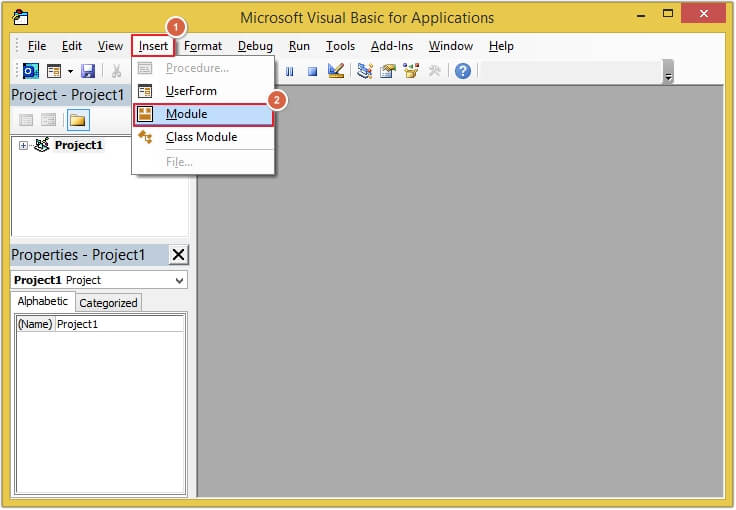
3. Paste the VBA macro code below into the module.
Public Sub Download_Attachments()
‘If execute in excel, for sample.
‘ADD ‘Tools > References… Microsoft Outlook 16.0 Object Library
On Error GoTo Err_Control
Dim OutlookOpened As Boolean
Dim outApp As Outlook.Application
Dim outNs As Outlook.Namespace
Dim outFolder As Outlook.MAPIFolder
Dim outAttachment As Outlook.Attachment
Dim outItem As Object
Dim DestinationFolderName As String
Dim saveFolder As String
Dim outMailItem As Outlook.MailItem
Dim inputDate As String, subjectFilter As String, sFolderName As String
Dim FSO As Object
Dim SourceFileName As String, DestinFileName As String
Set FSO = CreateObject(“Scripting.FileSystemObject”)
Set FSO = CreateObject(“Scripting.Filesystemobject”)
sFolderName = Format(Now, “yyyyMMdd”)
sMailName = Format(Now, “dd/MM/yyyy”)
DestinationFolderName = “C:\Users\agonzalezp\Documents\Automatizaciones”
saveFolder = DestinationFolderName & “\” & sFolderName
subjectFilter = “NUEVA” & ” ” & sMailName ‘REPLACE WORD SUBJECT TO FIND
OutlookOpened = False
On Error Resume Next
Set outApp = GetObject(, “Outlook.Application”)
If Err.Number <> 0 Then
Set outApp = New Outlook.Application
OutlookOpened = True
End If
On Error GoTo Err_Control
If outApp Is Nothing Then
MsgBox “Cannot start Outlook.”, vbExclamation
Exit Sub
End If
Set outNs = outApp.GetNamespace(“MAPI”)
Set outFolder = outNs.GetDefaultFolder(olFolderInbox)
If Not outFolder Is Nothing Then
For Each outItem In outFolder.Items
If outItem.Class = Outlook.OlObjectClass.olMail Then
Set outMailItem = outItem
If InStr(1, outMailItem.Subject, subjectFilter) > 0 Then ‘removed the quotes around subjectFilter
For Each outAttachment In outMailItem.Attachments
If Dir(saveFolder, vbDirectory) = “” Then FSO.CreateFolder (saveFolder)
outAttachment.SaveAsFile saveFolder & ” – ” & outAttachment.fileName
Set outAttachment = Nothing
Next
End If
End If
Next
End If
SourceFileName = “C:\Users\agonzalezp\Documents\Automatizaciones\*.xlsx”
DestinFileName = saveFolder
FSO.MoveFile SourceFileName, DestinFileName
If OutlookOpened Then outApp.Quit
Set outApp = Nothing
Err_Control:
If Err.Number <> 0 Then
‘MsgBox Err.Description
End If
End Sub
4. Click Debug and select Compile Project.
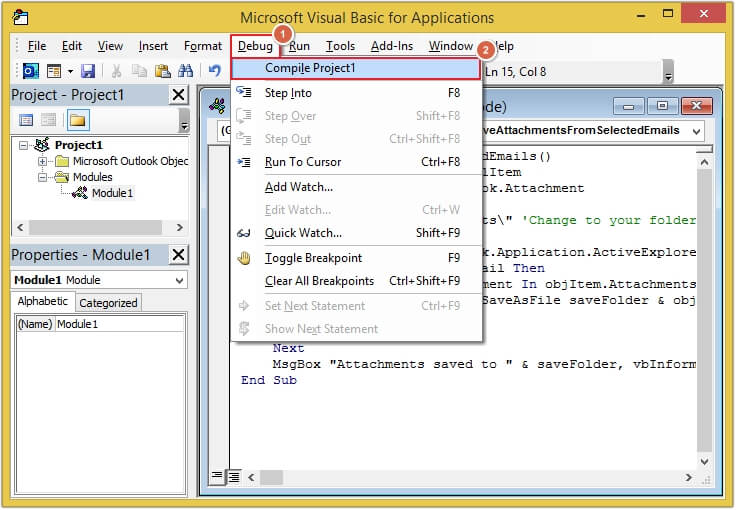
5. Save the macro and close the editor.
6. Choose the required emails and press Alt+F8 to run the macro.
7. Check the folder for extracted attachments.
Method 3. Save Multiple Attachments from Multiple Emails in Outlook?
If you want a simple solution to extract all attachments from multiple emails in Outlook, then try the Advik Outlook PST Converter on your Windows PC. With this utility, you can download all attachments from multiple emails in Outlook at once. It also offers advanced email filters options to save attachments from selected emails.
Moreover, this reliable tool provides a file-naming option with which you can save the resultant attachment files by selecting the appropriate naming pattern. Apart from this, the tool can also extract attachments from PST.
Click on the Free Download button and run it on your Windows PC.

Steps to Bulk Extract Attachments from Multiple Outlook Emails
Step 1. Run the tool on your Windows PC.
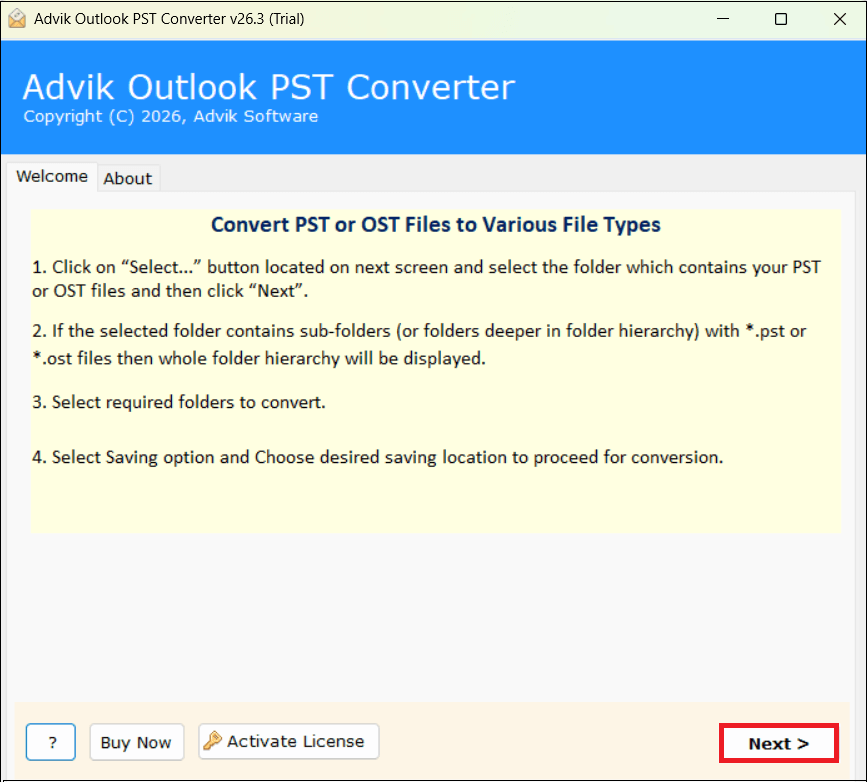
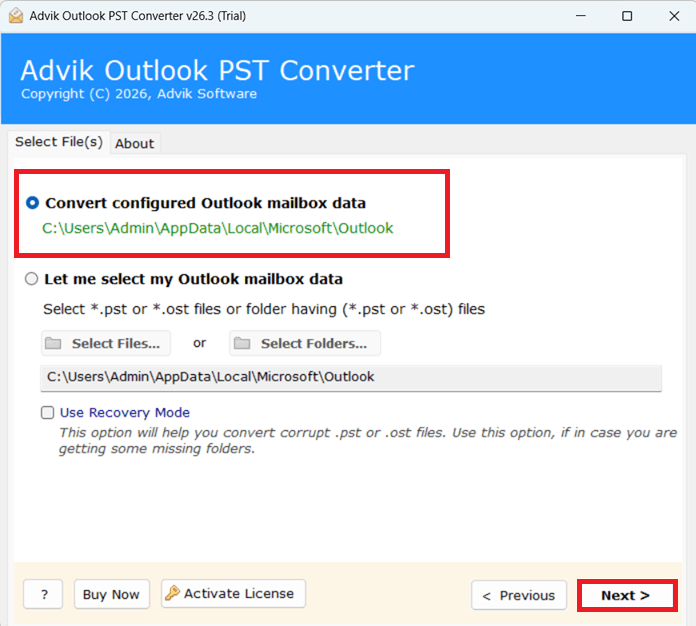
Step 2. Select Outlook Profile then Click Next.
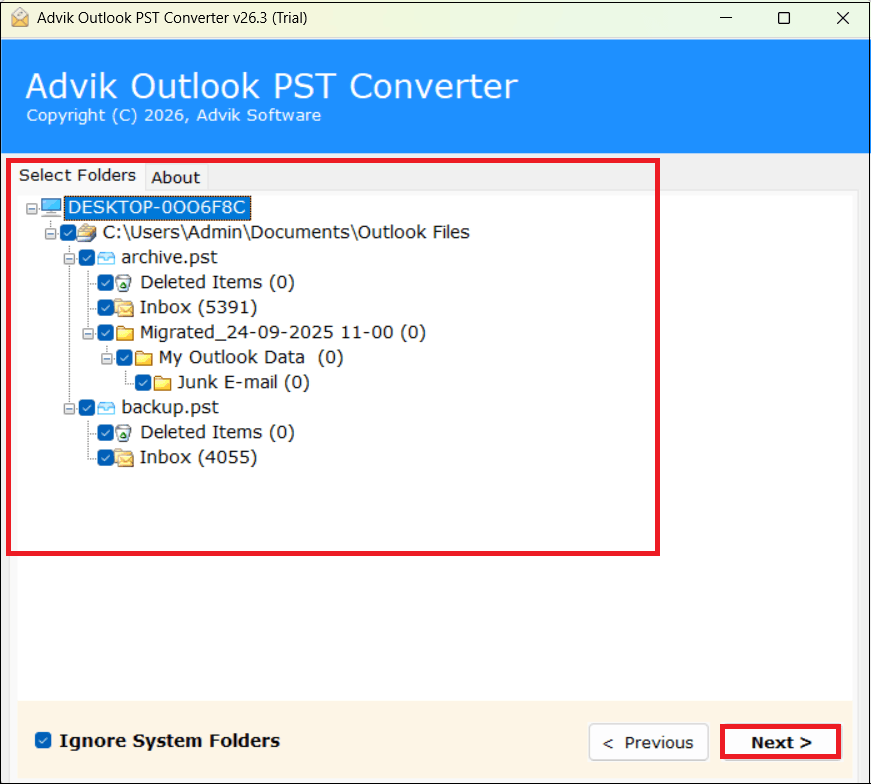
Step 3. Select email folders to save attachments and click Next.
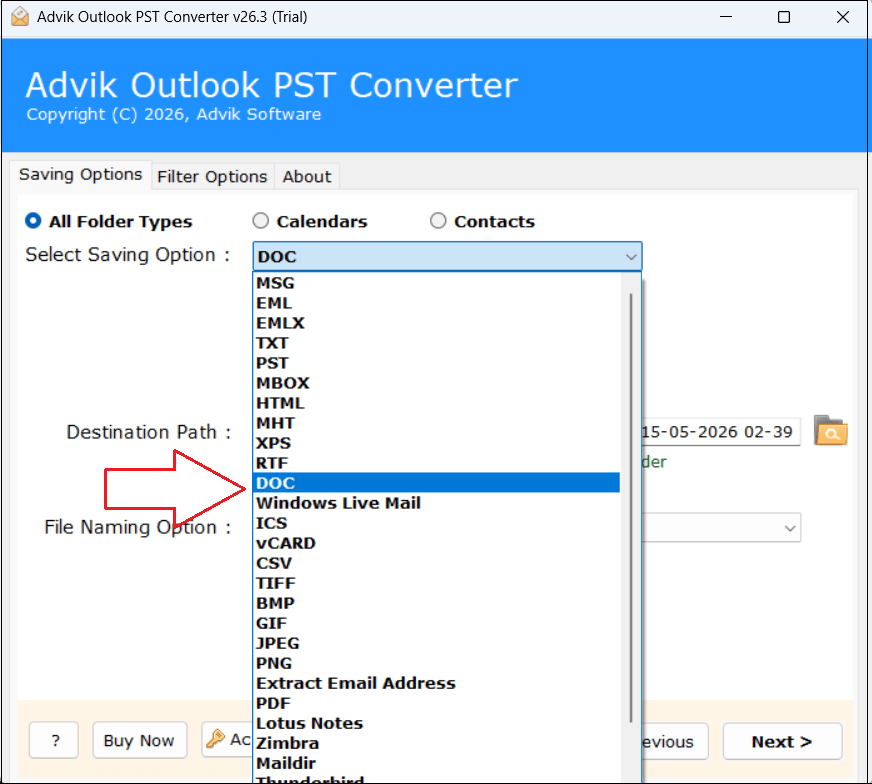
Step 4. Now, choose DOC as a saving option from the list.
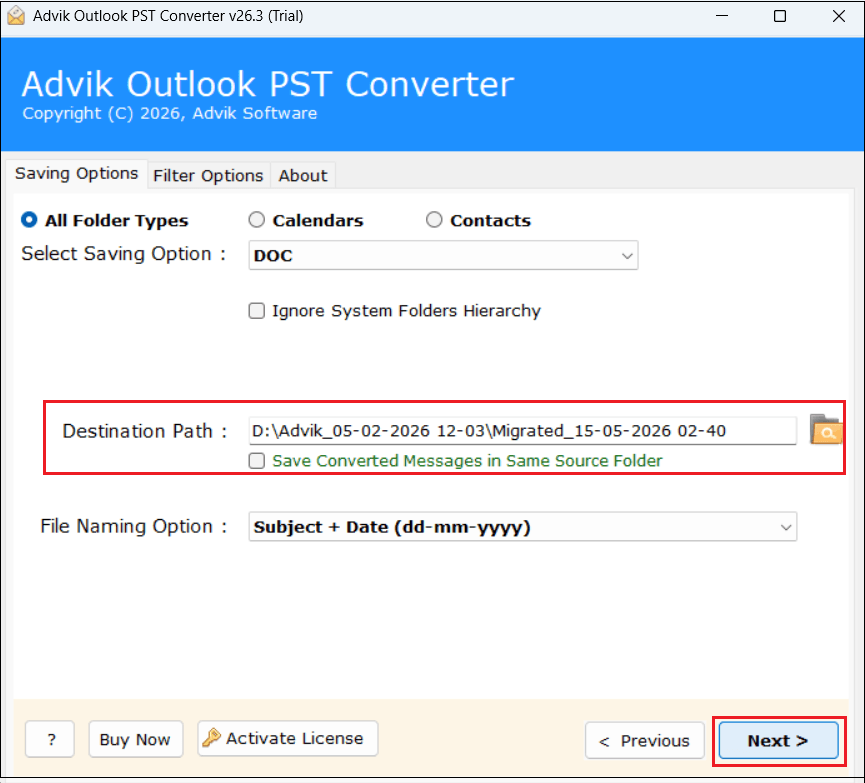
Step 5. Choose target location and click the Convert button.
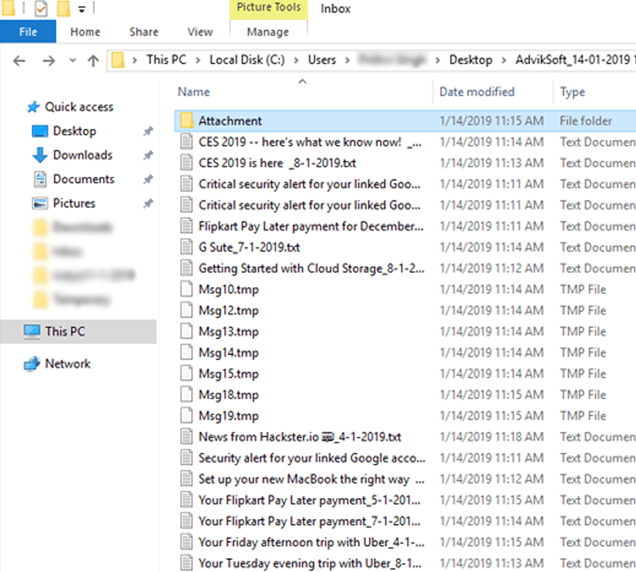
The software will start converting Outlook emails into Text format. However, it will also start saving multiple attachments from multiple emails from Outlook to a separate folder.
Common Problems and Fixes
Bulk attachment extraction can fail for several simple reasons. Here are some sitautions and what to do.
| Problem | Possible Cause | Fix |
|---|---|---|
| Macro are disabled | Outlook security settings can blocking VBA | Review the Trust Center settings and only enable trusted macros. |
| Run time error | The macro encountered an unexpected issue | Check the selected folder and destination path then run the macro again |
| Path not found | The destination folder does not exist or the path is incorrect | Selected email formats |
| Permission Denied | Windows does not allow Outlook to write to the selected location | Choose a folder where your Windows account has write permission |
| No attachments were saved | The selected folder contains no supported mail item with attachments | Select the correct Outlook folder and check a message manually for attachments |
Conclusion
Saving attachments from one Outlook email is easy with the built-in Save All Attachments option. The problem starts when attachments are spread across many emails.
In Classic Outlook, a VBA macro can automate the process and save attachments without opening each message. If you need to save multiple attachments from multiple emails in Outlook then a professional utility is a more practical approach.
All methods are workable. You can choose any solution as per your requirement.
Frequently Asked Questions
Q1. Does the VBA method work in new Outlook?
Ans. No. Microsoft currently states that macros are not supported in the new Outlook for Windows. The VBA approach is intended for supported versions of classic Outlook for Windows.
Q. 2 How do I save all the Outlook attachments between Feb 2026 to Aug 2026?
Ans. The automated solution provides date range filter options which allows you to choose specific date range.
Q3. Can I download multiple attachments from multiple Outlook emails at once?
Ans. Yes. VBA macro allows you to save multiple attachments from multiple emails in Outlook. You have also opt for the automated solution mentioned here.