How to Save Outlook Emails to Dropbox?
Jenny Lowrence | March 23rd, 2026 | Outlook
Nowadays, data security is a major concern for both personal and professional users. Microsoft Outlook stores emails, attachments, contacts, calendar events, and many more, but keeping them only in one place can be risky. That’s why many users prefer to save Outlook emails to Dropbox.
Dropbox is a cloud storage service that allows users to store, access, and share files over the internet instead of keeping them only on their computer. It works like an online drive where users can upload documents, photos, videos, and other data securely.
In this article, we” guide you on how to backup Outlook emails to Dropbox. Here, we will provide two different ways to upload Outlook emails to Dropbox.
- Manual Method using Outlook Import/Export Feature
- Professional Tool to save emails in bulk
Before proceeding with the solutions, let’s understand the reasons for saving emails from Outlook to Dropbox.
Why Save Outlook Emails to Dropbox?
Uploading Outlook emails to Dropbox offers multiple advantages. Here are some;
- Secure Backup: Saving emails in Dropbox creates a safe cloud backup. It protects data from system crashes, accidental deletion, and more.
- Access Anywhere: Once saved emails in Dropbox, you can access your emails anytime, anywhere, from any device with an internet connection.
- Easy Sharing: Dropbox allows you to easily share emails with colleagues without complex steps.
- Better Data Management: In Dropbox, you can organize emails into folders, making it easier to manage and locate important data.
How to Backup Outlook Emails to Dropbox for Free?
To manually save Outlook emails to Dropbox, download and install Dropbox on your system. It will automatically create a folder on your PC, any files placed here will sync to the cloud.
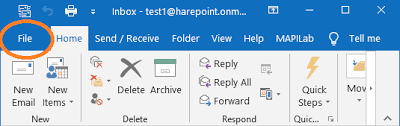
1. Open Outlook and go to File tab.
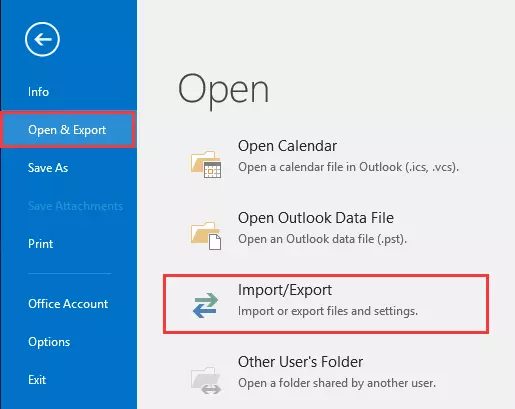
2. Click on Open & Export and select Import/Export.
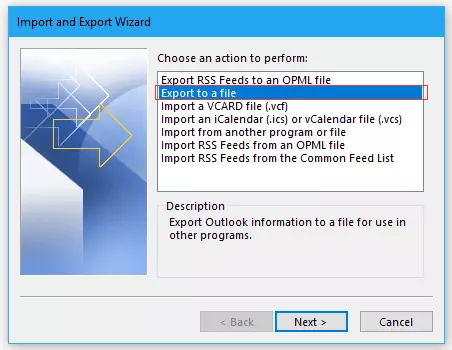
3. Choose Export to a File and click Next.
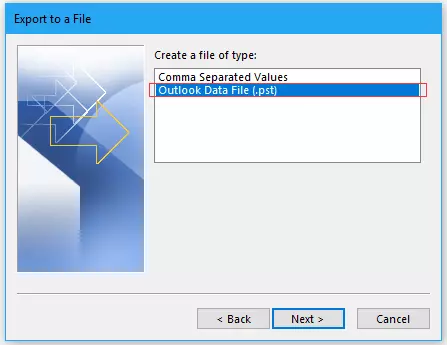
4. Select Outlook Data File (.pst) and press Next.
5. Choose the Outlook folders & subfolders.
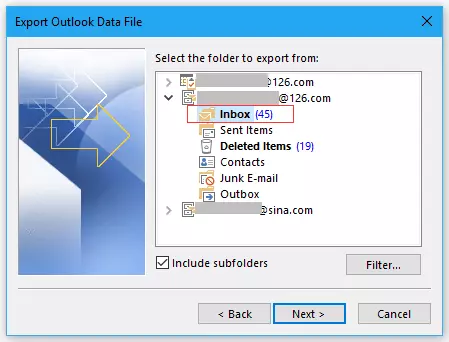
6. Click on Browse to choose Dropbox folder path and click Finish.
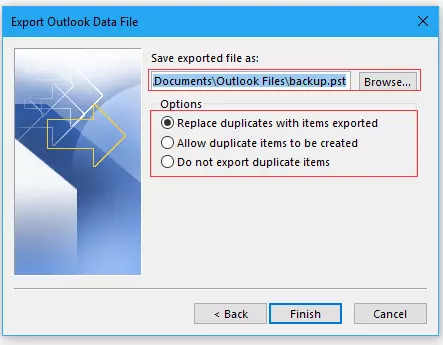
This is how you can manually save emails from Outlook to Dropbox. However, PST file gets corrupted if its size is large.
How to Upload Outlook Emails to Dropbox Automatically?
If you face any issues with the manual solution, then check out the Advik Outlook PST Converter. The software can quickly save Outlook emails to Dropbox without any hassle. It offers multiple saving options to export Outlook emails. With this utility, you can backup Outlook to Dropbox, including emails, contacts, and calendars. Additionally, it also offers advanced filter options to save selected emails. It preserves 100% data integrity and mailbox folder hierarchy as well during the process.
Download the free demo version to analyze its working procedure.


Steps to Save Outlook Emails to Dropbox
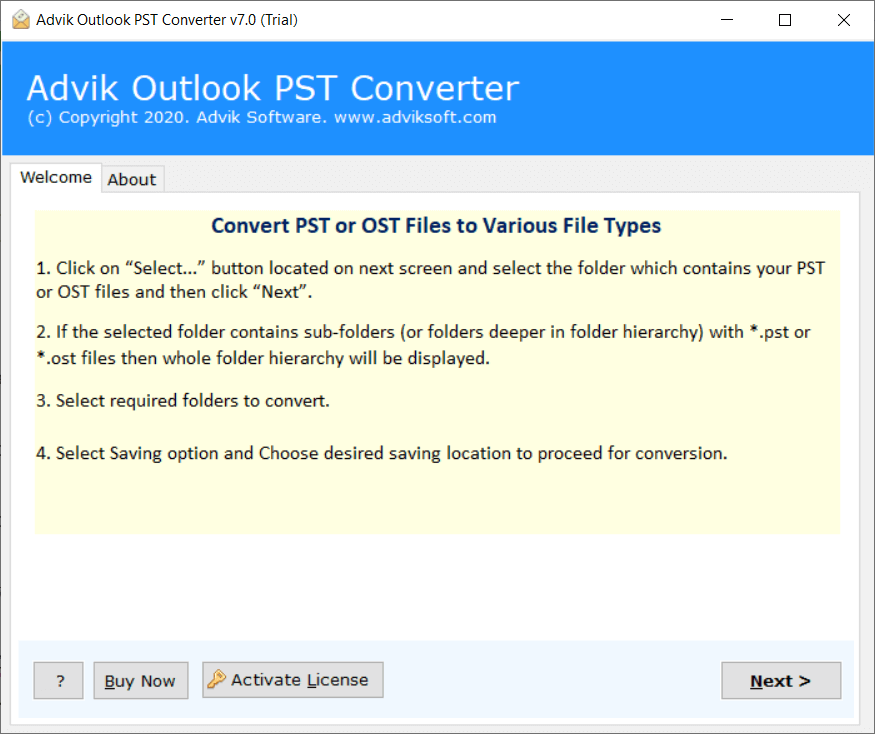
1. Run this software on your system.
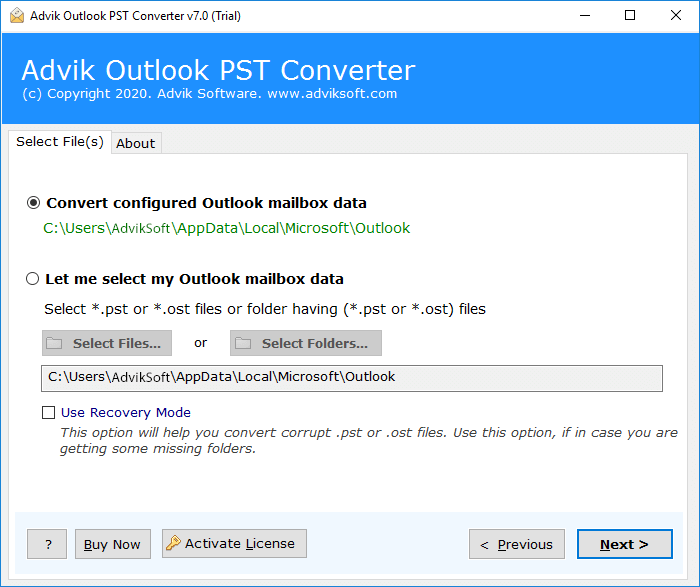
2. Choose your Outlook profile and click Next.
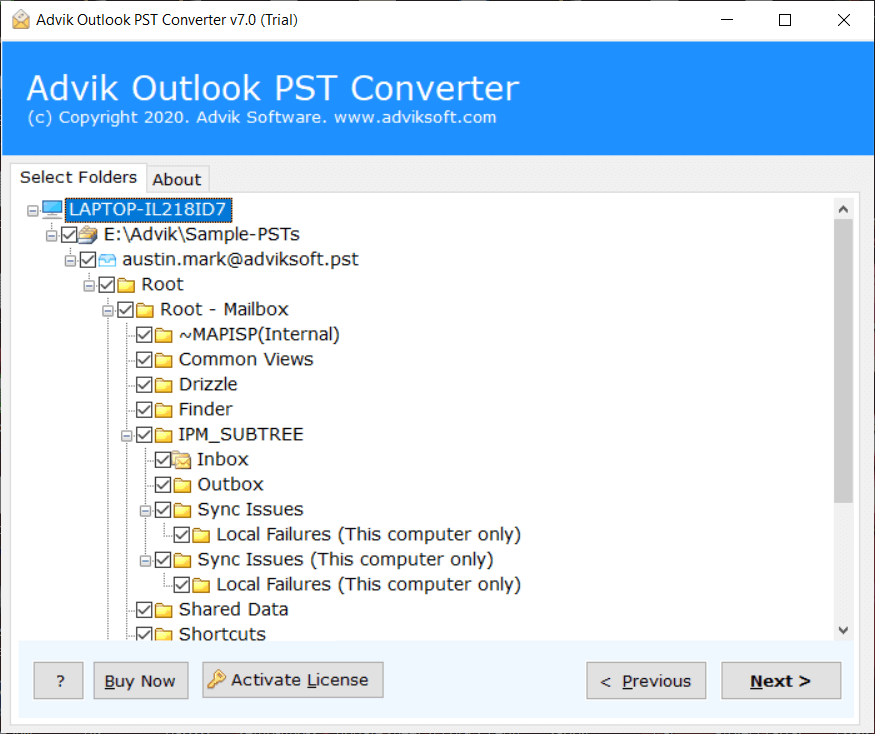
3. Select the required mailbox folders and click Next button.
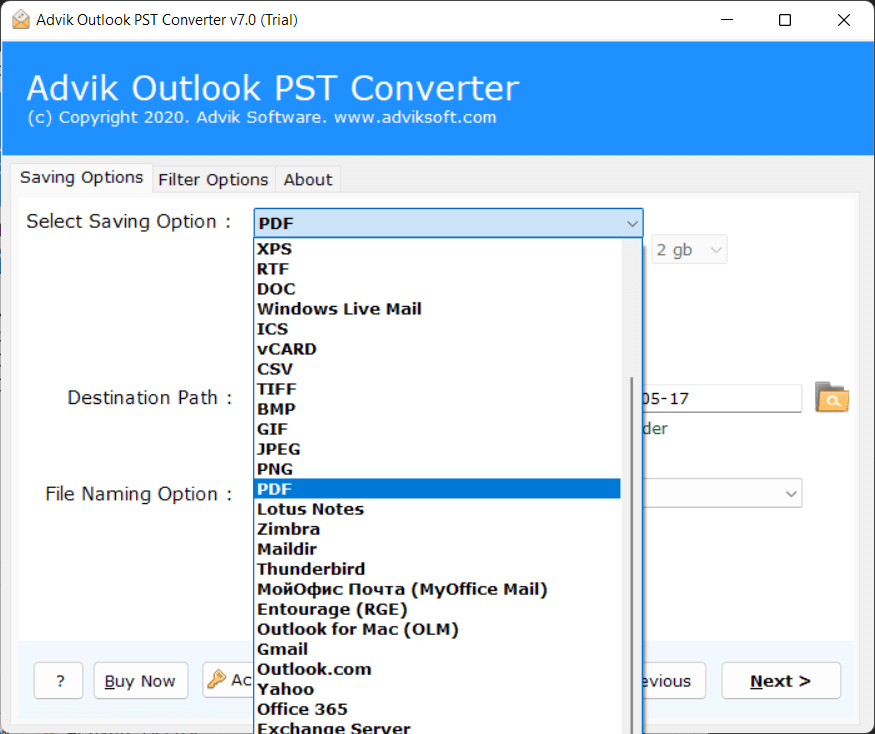
4. Choose PDF as a saving option.
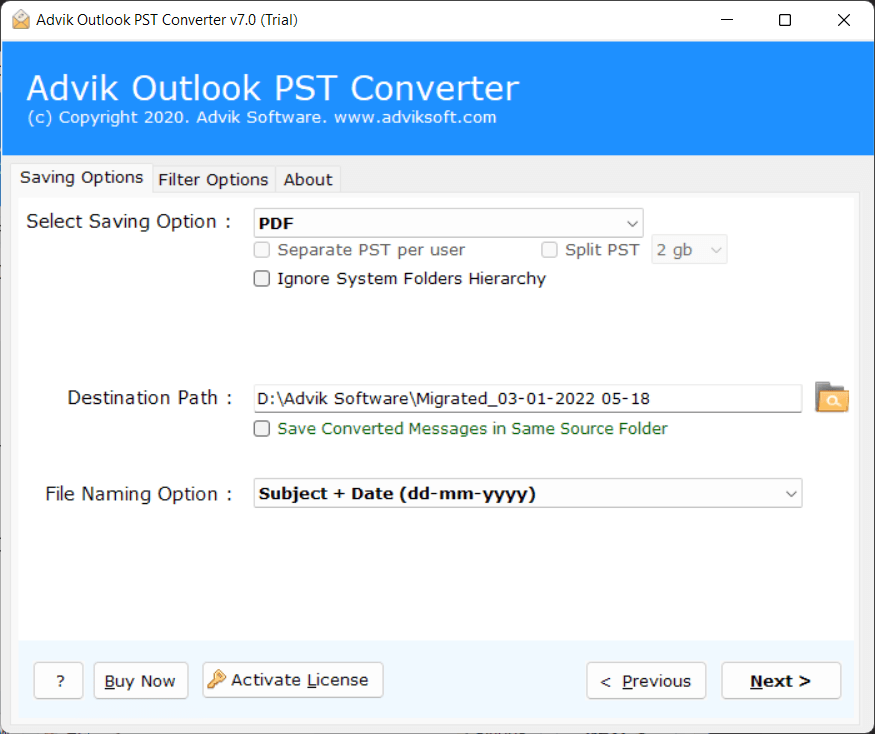
5. Choose the Dropbox folder and click Next button.
The software will start saving Outlook emails to Dropbox. Once the process is complete, you will get a pop-up message with a complete log report.
Why Choose Automated Tool Instead of Manual Solution?
There are several advantages of using this utility. Some of them are:
- The software can backup Outlook to Dropbox, including emails, contacts, and many more at once.
- It provides advanced email filter options to save emails based on date range, to, from, subject, etc.
- The tool offers multiple saving options to export Outlook to MBOX, EML, PDF, HTML, TXT, etc.
- This program preserves all email attributes like attachments, hyperlinks, and signature while uploading.
- It maintains the original structure and hierarchy of Outlook mailbox folders even after the process.
- The software is designed in such a way that both technical or non-technical users can easily use it.
- This utility supports all the latest and old versions of MS Outlook and Windows operating systems.
Conclusion
In the above blog, we have discussed about save Outlook emails to Dropbox. Here, we have provided ultimate solutions to backup Outlook emails to Dropbox in the best possible manner. Both methods are tried and tested, so you can use any of them depending on the limitations and benefits. After reading this informative guide, anyone can easily upload Outlook emails to Dropbox. If you have any further queries on this topic, contact our technical support experts and get the proper instructions.
