How to Fix Thunderbird SMTP Error?
Jenny Lowrence | March 16th, 2026 | Mozilla Thunderbird
Are you facing the Thunderbird SMTP error while sending messages? You’re not alone. Many users face the same error when Thunderbird cannot connect to the outgoing mail server. In this article, we will explain the common cause of Thunderbird SMTP error – cannot send messages, and provide several troubleshooting steps to fix it.
Mozilla Thunderbird is a free and open-source email platform. It offers several advanced features to manage emails, contacts, calendars, etc. As with other email platform it is not far away from issues. One common error is the SMTP error in Thunderbird. This error is usually occurs when Thunderbird fails to connect with the outgoing mail server.
Common Reasons for Thunderbird SMTP Error
Here are some reasons behind SMTP error, cannot send messages:
- Incorrect SMTP Server Settings: Wrong outgoing server name, port, or encryption can prevent Thunderbird from sending emails.
- Wrong Username & Password: Incorrect login credentials may cause authentication failure with the SMTP server.
- Poor Internet Connection: An unstable internet connection can interrupt communication with the SMTP server.
- Firewall or Antivirus Blocking: Security software may block Thunderbird from connecting to the mail server.
Methods to Fix Thunderbird SMTP Error
In this section, we’ll discuss multiple techniques to solve SMTP error in Thunderbird. Try them one by one and check which one works for you.
1. Check SMTP Settings
1. Open Thunderbird on your system.
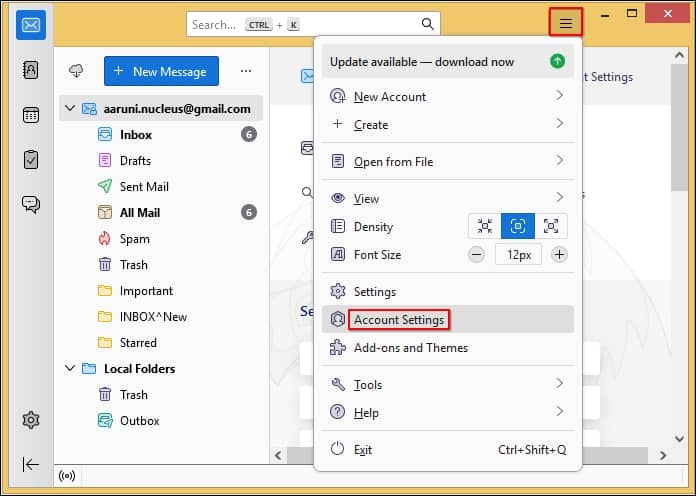
2. Click on Menu icon and select Account Settings.
3. Choose Outgoing Server (SMTP) from the Account Settings.
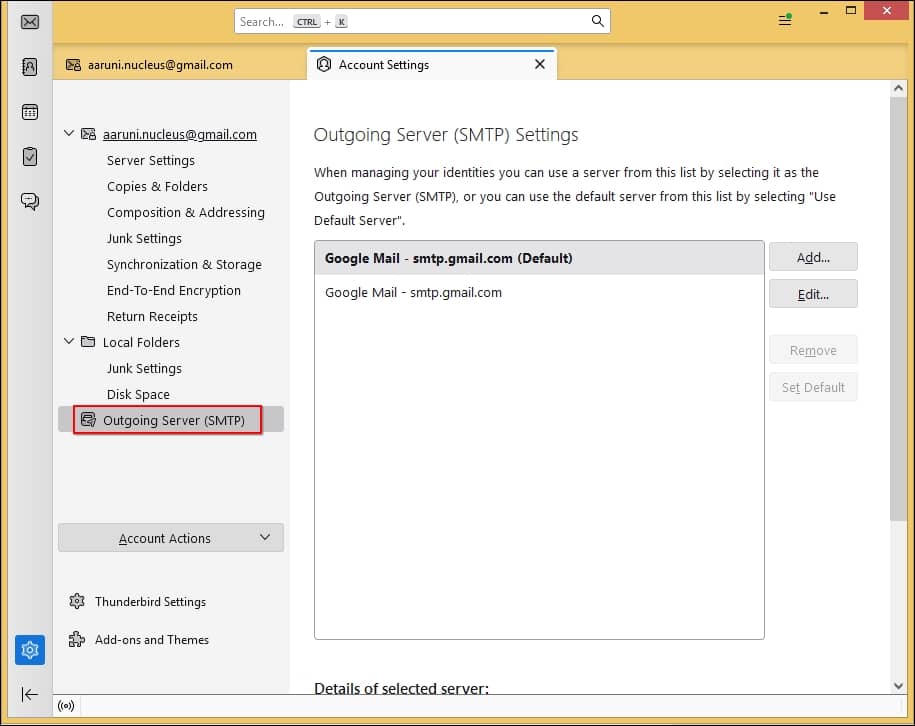
4. Check SMTP server details are correct for the configured email account.
2. Check Outgoing Email is Not Blocked
Sometimes, antivirus and firewall applications may block the emails of Thunderbird, which leads to the Thunderbird SMTP error. Go to Settings and turn them off to check if the firewall or antivirus software is causing the issue.
Some ISPs block outgoing mail from port 25. So try to change the port number 465 or 587 to check error is solved or not.
3. Check Internet Connection
Sometimes SMTP error appears due to an unstable internet connection. Restart your internet router and try to open websites to verify connectivity. After that, restart Thunderbird and send emails again.
4. Reset SMTP Password
If the SMTP password is wrong cause of this error. Delete and reset the password to solve it.
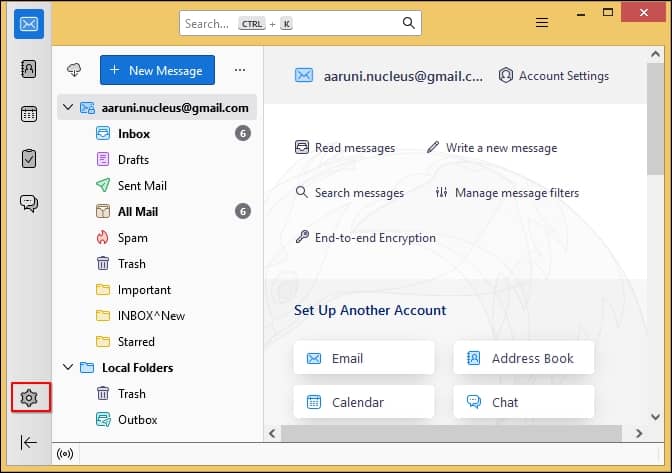
1. Open Thunderbird and go to Settings.
2. Click on password and select Saved Passwords.
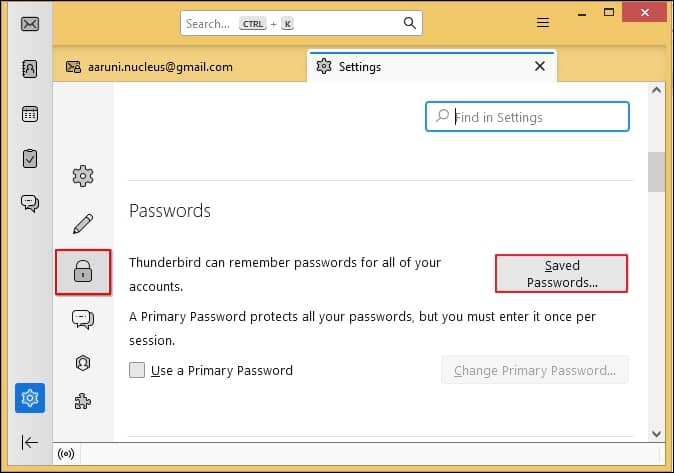
3. Choose the SMTP password and click on Remove.
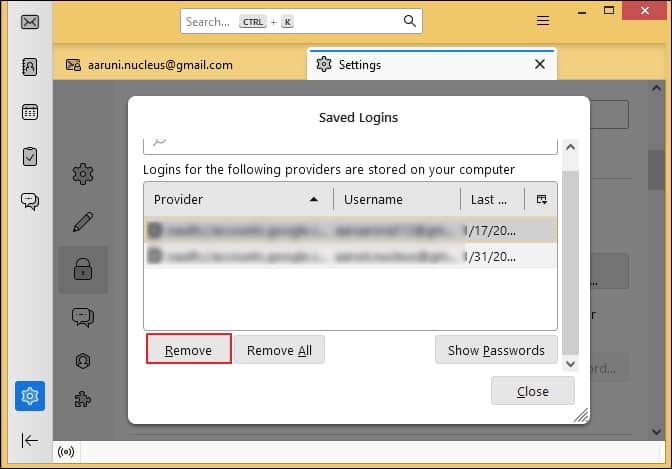
4. Once the password is removed, configure the email account and try to send an email.
5. Migrate Thunderbird to Another Email Client
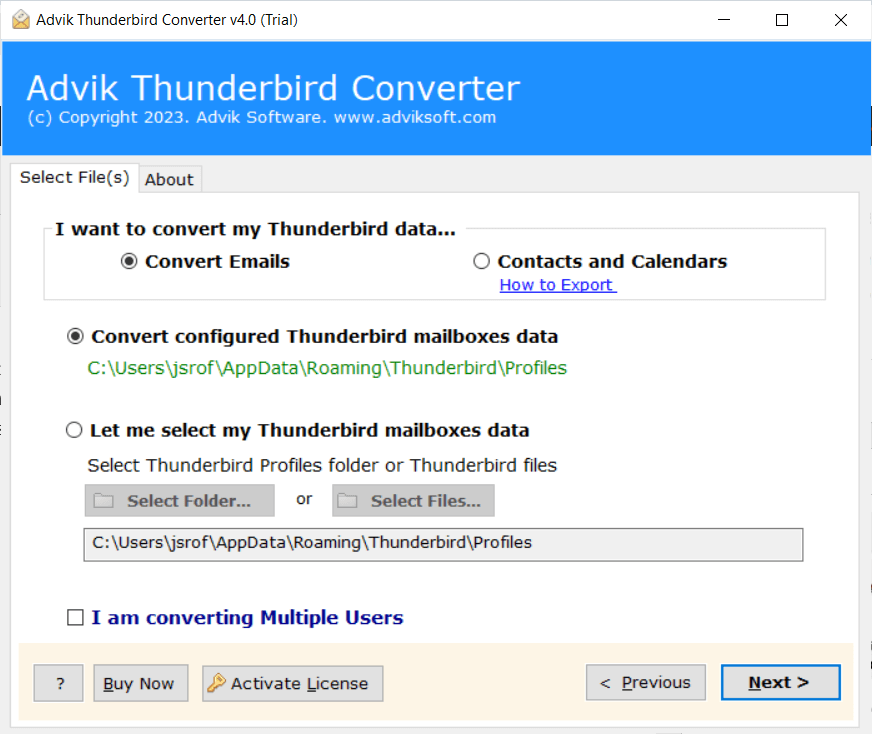
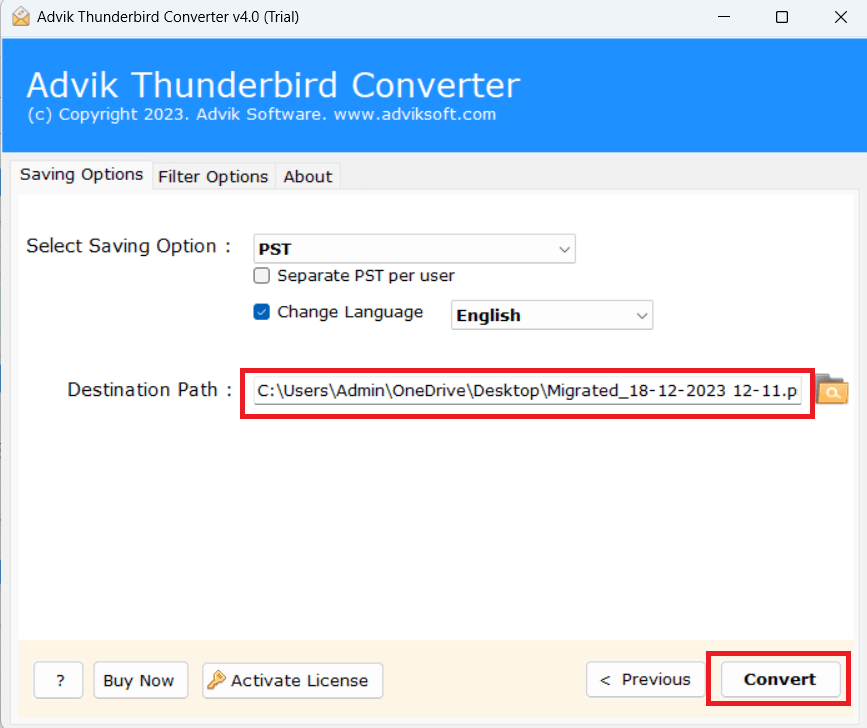
If you are still facing Thunderbird SMTP error after applying the above manual tricks. We suggest that you migrate your data to another email client like Outlook. Tey the Advik Thunderbird Converter that will help you to migrate Thunderbird mailbox data. With this utility, you can export Thunderbird to PST, which can later be imported into Outlook. This is a secure and authentic program that preserves the mailbox folder hierarchy as well during the process. It offers various saving options to export Thunderbird emails into multiple formats.


1. Run the tool and choose your Thunderbird profile.
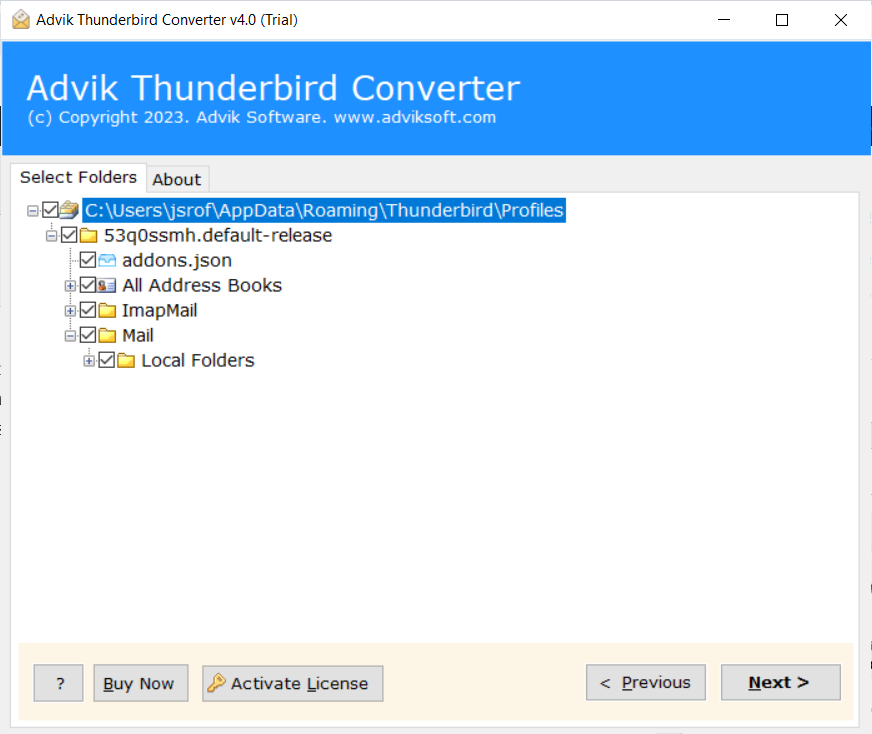
2. Choose the mailbox folders & subfolders.
3. Select a saving option from given list.
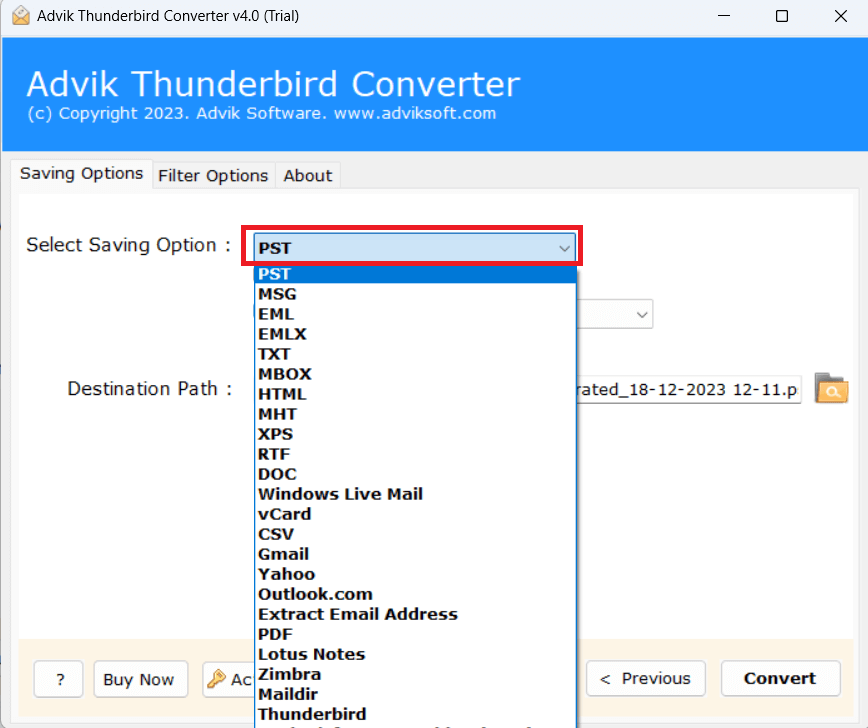
4. Browse target location and click Convert.
Conclusion
SMTP error in Thunderbird can prevent users from sending emails. It’s a frustrating issue, but it can be solved with the right steps. In this post, we have explained several methods to fix Thunderbird SMTP Error – cannot send messages. By applying these solutions you can resolve the problem and send Thunderbird emails again.