How to Transfer Centurylink Email to Gmail?
Christopher Plummer | January 6th, 2026 | Email Migration
“How do I transfer my CenturyLink email to Gmail?” If you are also looking for a solution to the same query, then this post is for you. This blog will guide you with two easy ways to migrate email from Centurylink to Gmail account with attachments. You can choose any of the solutions, as both manual and professional methods are explained in step-by-step instructions. So, let’s get started.
CenturyLink is a well-known telecommunications company in the United States that provides a wide range of services. It offers email services to ist internet customers. CenturyLink email is a standard ISP-providedemail account. If the user cancels or changes their internet plan, they may lose the email address. So, many users want to transfer CenturyLink email to Gmail account. Why Gmail? Because:
- Gmail stays forever without dependency of internet provider.
- Gmail works on all mobile devices and computers.
- Provides advanced security features to keep emails safe.
- Smooth integration with all the Google services.
Let’s move ahead without any delay!
How to Forward Centurylink Email to Gmail for Free?
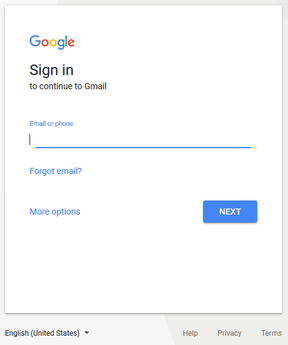
- Log in to your Gmail account using your email and password.
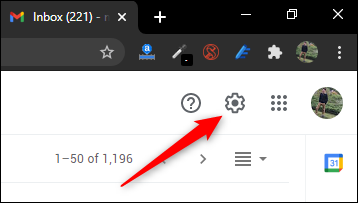
- Select Settings from the menu in the top-right corner of the page.
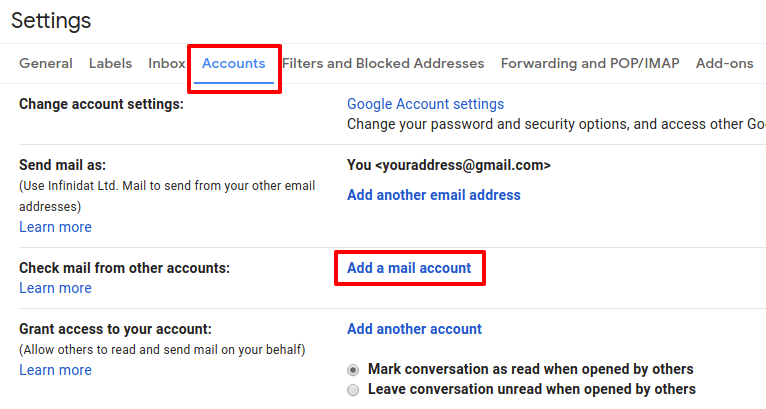
- Then, go to Accounts and Import tab >> Add a mail account.
- Now, enter your complete centurylink.net email address and click the Next button.
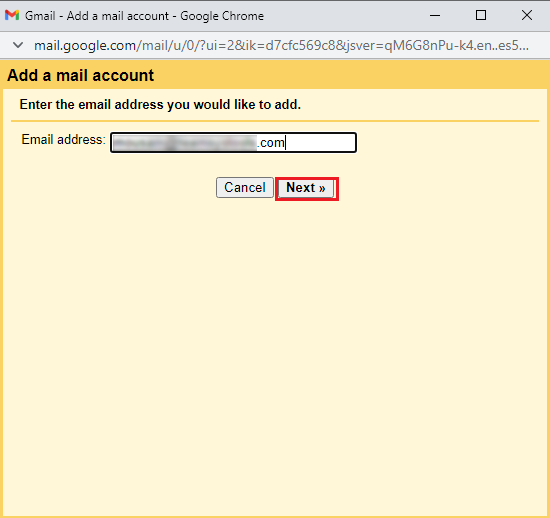
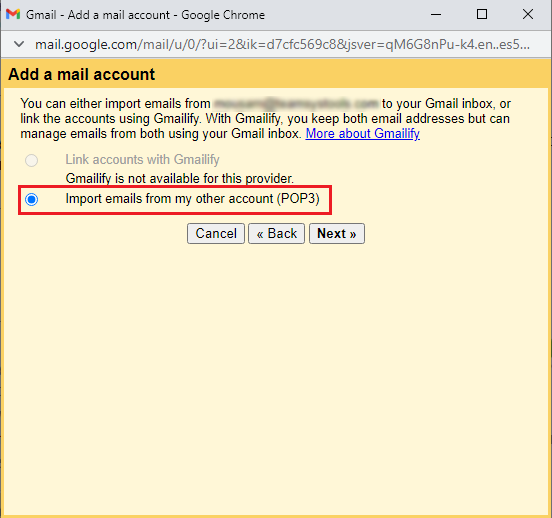
- Then, Select Import emails from my other account (POP3) in the next step.
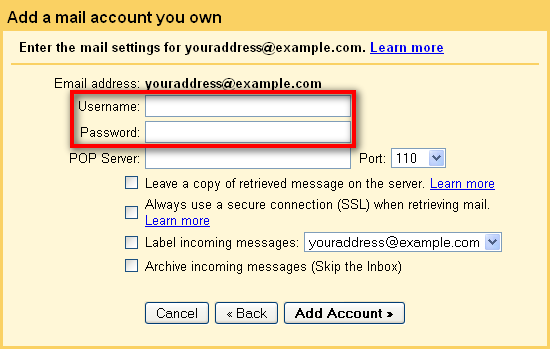
- After that, enter your username and password in the respective field.
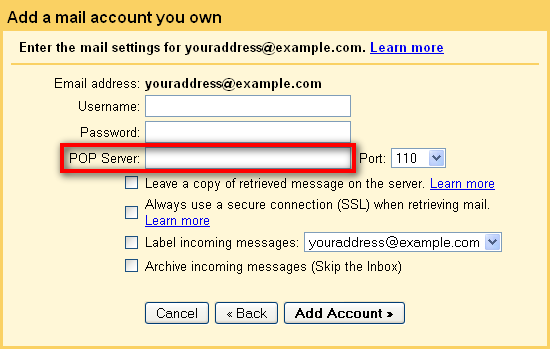
- In the POP Server column, type pop.centurylink.net & click Add Account.
- Lastly, select No and click the Finish button.
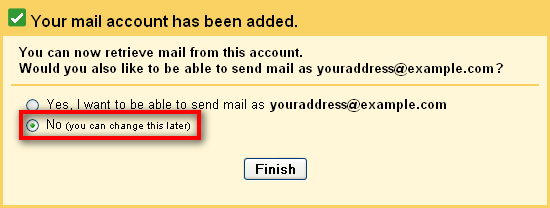
Done! This is how you can manually transfer emails from Centurylink to Gmail account.
However, this method only exports the INBOX folder from Centurylink to Gmail and may take some time depending on your mailbox folders.
So, what are your options for transferring Centurylink emails to Gmail? Refer to the below solution to overcome these issues.
How to Transfer Centurylink Email to Gmail Automatically?
Advik Email Migration Tool allows you to migrate all emails from Centurylink to Gmail account, including attachments in a few simple steps. Also, it transfers complete mailbox folders from Centurylink to Gmail account. You can even choose selective Centurylink emails based on various email filters such as To, From, Subject, Cc, Bcc, etc.
Download the FREE demo version of this tool to evaluate it at no cost.
Available for both Windows & Mac OS.


Steps to Migrate Email from Centurylink to Gmail Account
- Install and run the suggested tool and select Centurylink as the email source.
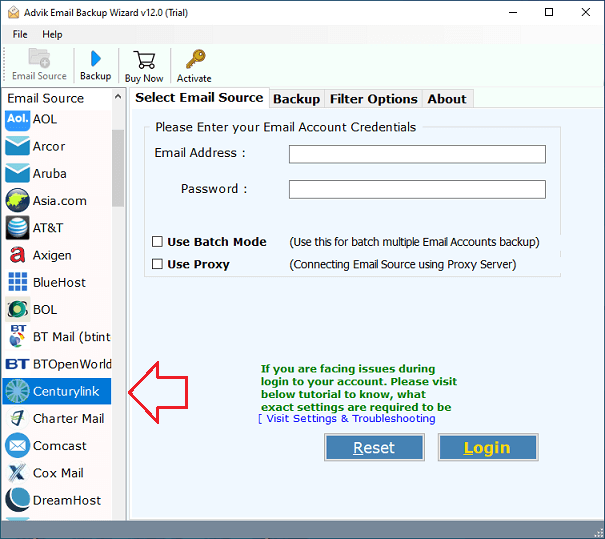
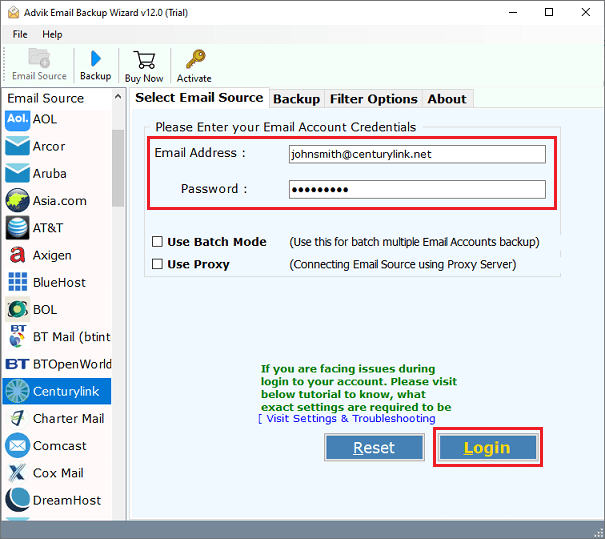
- Now, enter your Centurylink email account credentials and click the Login button.
- Choose the specific folder or all folders as per your needs.
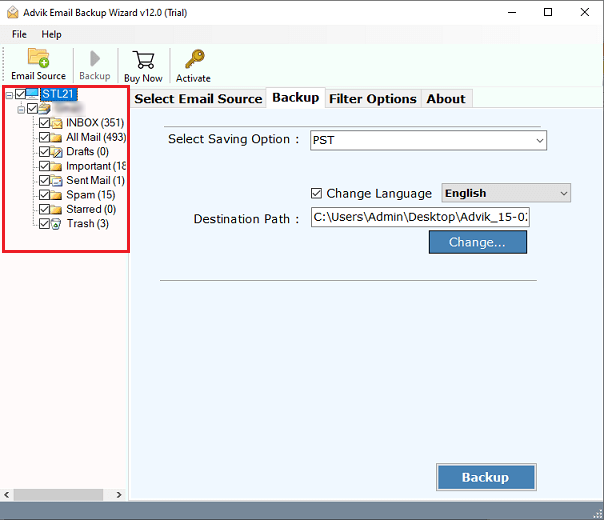
- Next, select Gmail as your saving option from the list.
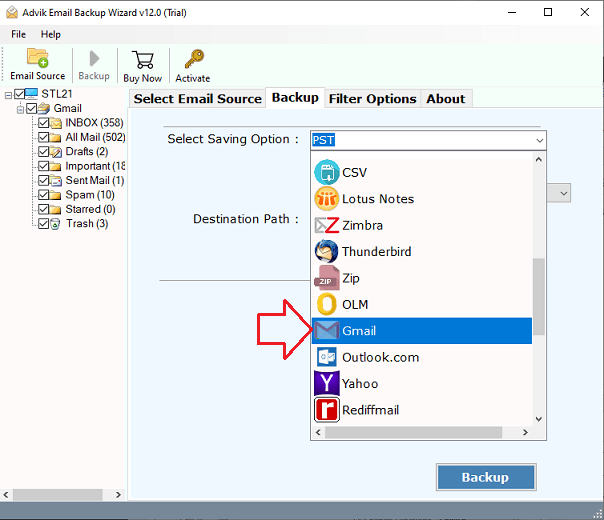
- Lastly, enter your Gmail account credentials & click the Backup button.
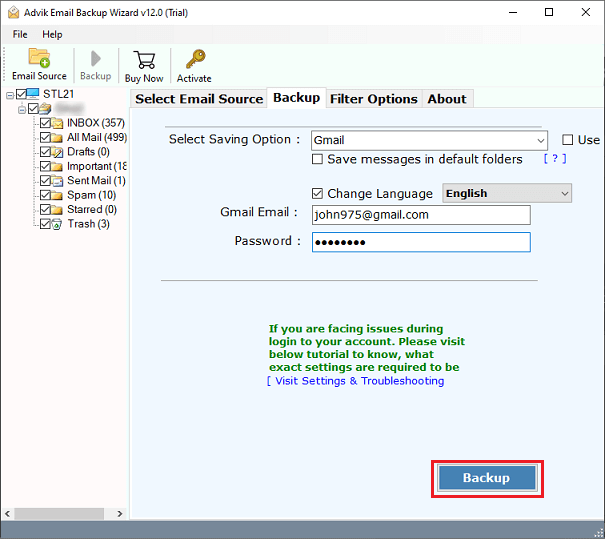
Completed! This starts the transfer of emails from CenturyLink to your Gmail account.
Here is a list of some amazing benefits of this utility;
- Maintain mailbox folder hierarchy throughout the migration process.
- Preserve email data integrity of Ceturylink emails.
- Migrate Centurylink email to Gmail with all email data properties.
- Advanced email filter option to transfer selective emails.
- Compatible with both Windows and Mac OS versions.
You can also watch a video guide to understand in a better way.
Watch How to Transfer Emails from Centurylink to Gmail
Final Thoughts
Migrating Centurylink emails to Gmail can be difficult, especially for users who are unfamiliar with its working process. However, there are several easy ways to import Centurylink to Gmail. We’ve explored two unique methods to transfer Centurylink to Gmail without interruption. Furthermore, we discussed a quick method to complete this process.