How to Transfer Domain Email to Google Workspace?
Jackson Strong | December 23rd, 2025 | Data Backup
Migrating domain email to Google Workspace is a common requirement for businesses seeking reliable, secure, and feature-rich email services. Google Workspace offers Gmail with your custom domain, along with powerful collaboration tools like Drive, Meet, Calendar, Docs, etc. If you are also looking for a solution to transfer Domain email to Google Workspace, then you have come to the right place. In this guide, we are going to explain two different ways to migrate domain emails to Google Workspace. Here, we’ll walk you through the complete step-by-step instructions, making the migration smooth and hassle-free.
Let’s get started without any further delay!
How to Transfer Domain Email to Google Workspace Manually?
Google provides a built-in tool called Data Migration Service that allows you to migrate emails from other email servers.
1. Sign in to Google Workspace Admin Console
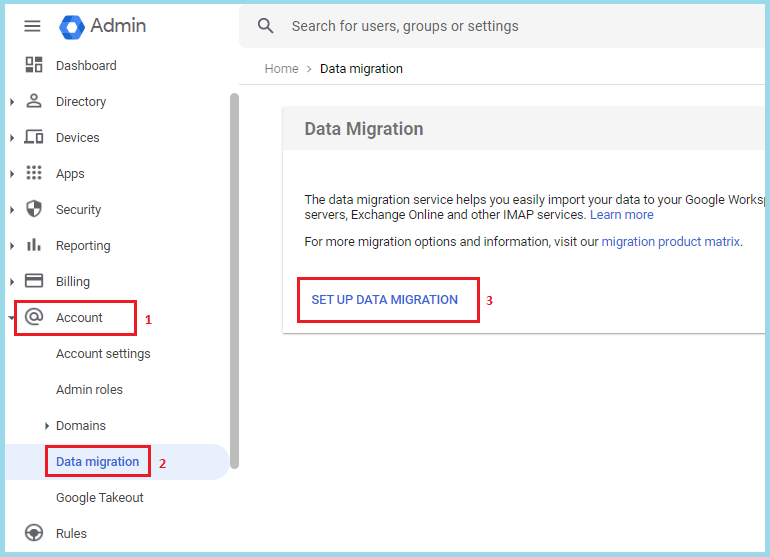
2. Go to Account >> Data Migration >> Set Up Data Migration.
3. Choose the source email server type(IMAP, Exchange, or other).

4. Enter your domain account credentials.
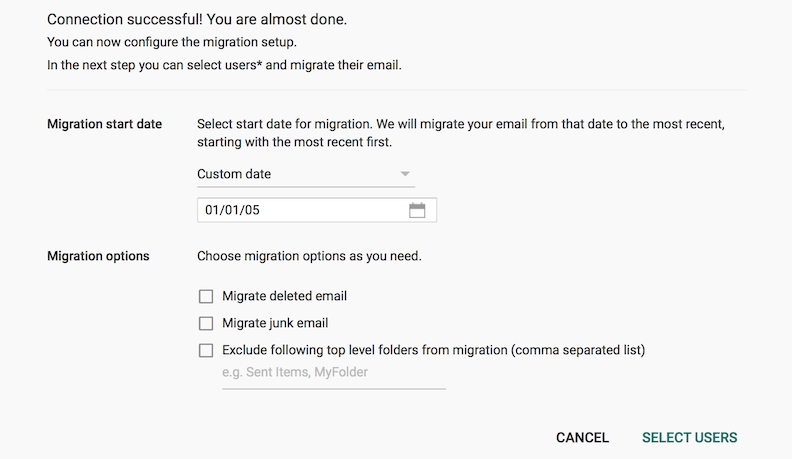
5. Choose the start date for migration and select Email as data type.
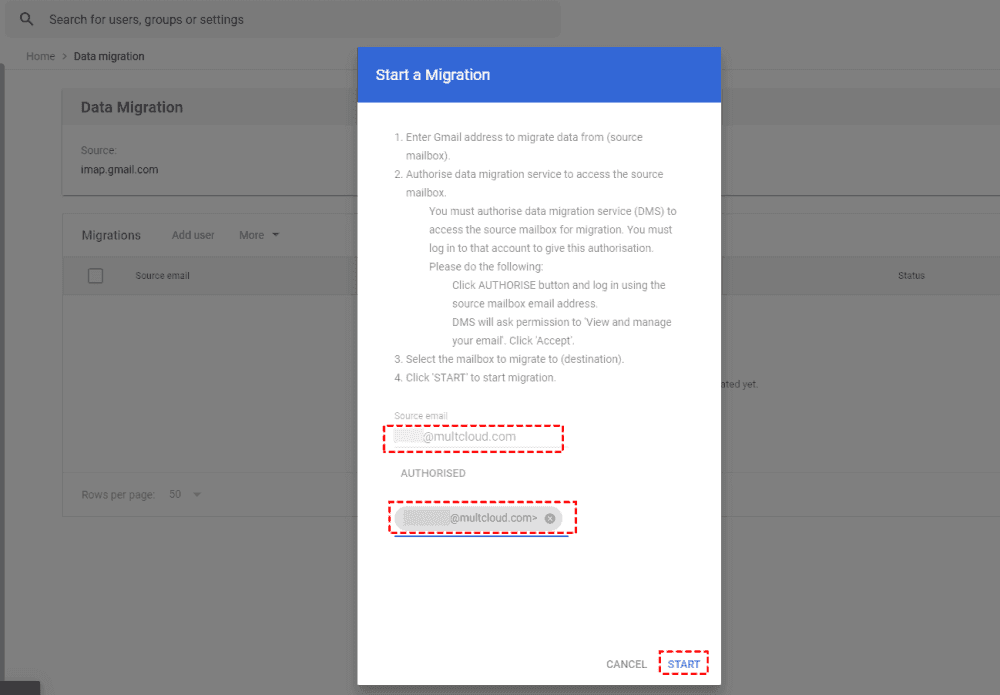
6. Add the destination, which is your Google Workspace email address.
7. Click on the Start button to begin the transfer process.
Now, all your domain emails will be transferred into Google Workspace account.
How to Migrate Domain Emails to Google Workspace Automatically?
Try the Advik Email Migration Tool on your system. With this tool, you can transfer domain email to Google Workspace in just a few simple clicks. It can move all emails in a single attempt. Apart from this, it allows you to choose specific emails or folders for migration. The tool preserves all email attributes and folder structure while transferring.
Download the tool now and enjoy its free demo version.


Steps to Transfer Emails from Domain to Google Workspace
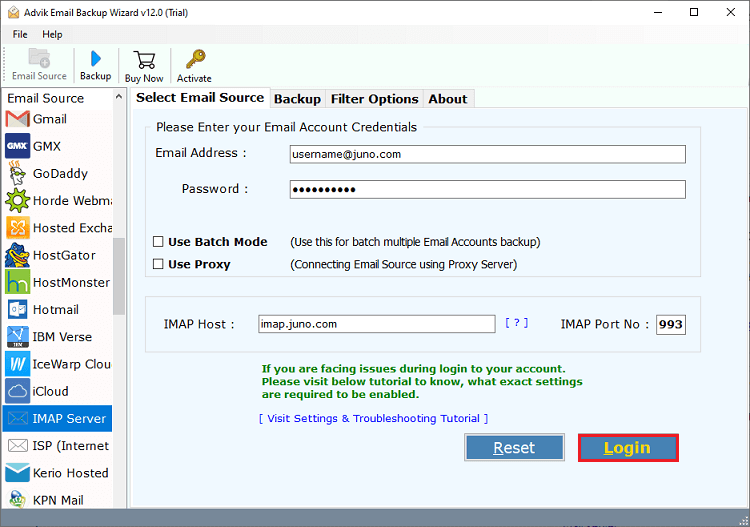
1. Run the tool and choose your Domain email.

2. Enter your Domain account credentials to sign in.
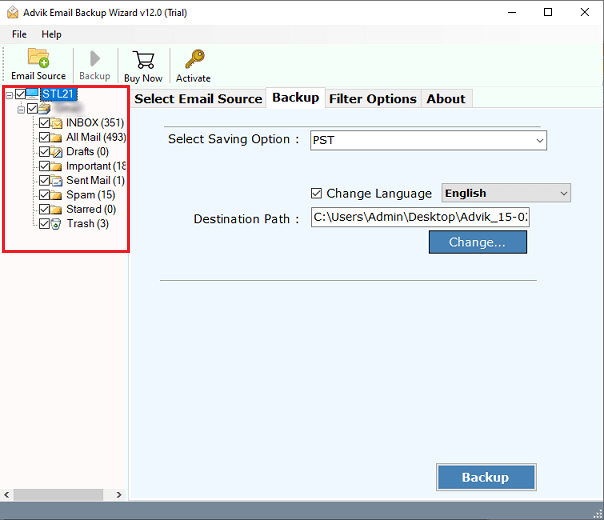
3. Select the mailbox folders that you want to transfer.
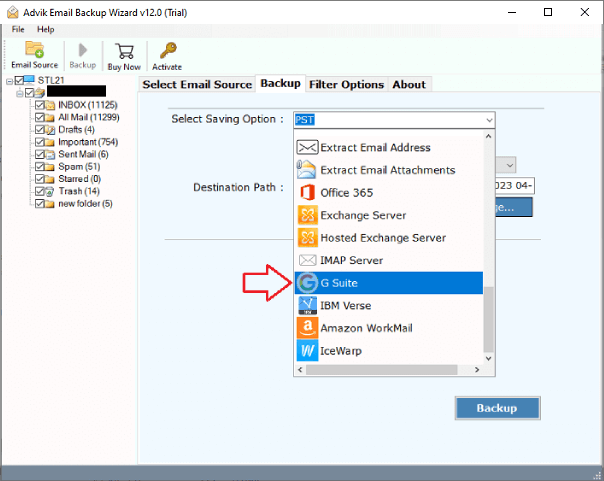
4. Choose G Suite as a saving option.
5. Enter Google Workspace account login details and click the Backup button.
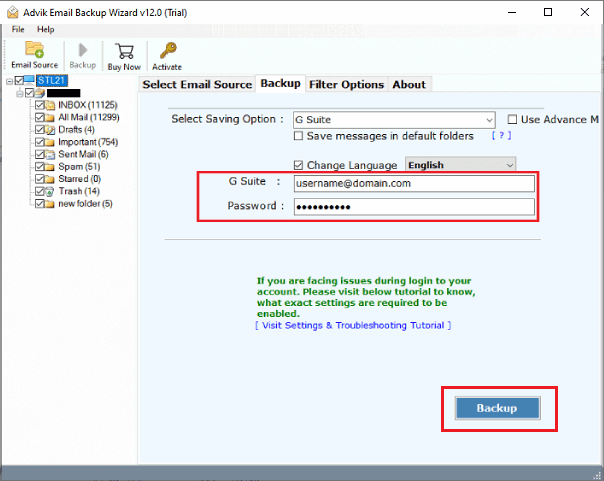
The software will start transferring domain emails to Google Workspace. Once the process is complete, log into your Google Workspace account and check the migrated emails here.
Advantages of Using Automated Solution
- Migrate the entire mailbox, including emails, attachments, and other data items in a single attempt.
- Batch mode to migrate emails from multiple domain accounts to Google Workspace at once.
- Advanced email filter options to migrate domain emails based on date range, to, from, subject, etc.
- Preserves all key elements and data properties while transferring domain emails to Google Workspace.
- Keeps the original structure of mailbox folders even after the migration.
- Multiple saving options to migrate domain email to Office 365, Gmail, Yahoo, and many more.
- A simple user graphical interface helps users to migrate domain email to Google Workspace without technical expertise.
- Widely compatible with all versions of both Mac and Windows operating systems.
Conclusion
Transferring domain emails to Google Workspace enhances producitivity, security, and reliability. While Google’s manual migration method works well for small setups, it may not be ideal for large migrations. In that case, using a professional solution can save time and effort. In this article, we have explained both methods to transfer domain email to Google Workspace. You can choose any method that best fits your needs.