How to Transfer Emails from One Webmail Account to Another?
Jenny Lowrence | February 12th, 2026 | Email Migration
Switching from one Webmail account to another often becomes necessary when changing hosting providers, upgrading email services, or improving storage and security. However, the biggest challenge during this transition is how to transfer emails from one Webmail account to another without losing attachments and folder structure.
If you’re planning to migrate one Webmail account’s emails to another Webmail account, it’s essential to ensure a smooth transition. In this article, we’ll explore the two best methods that will help you to move emails from one Webmail account to another. Whether you prefer a manual approach using IMAP settings or a professional solution, this guide will walk you through the complete process step-by-step.
So, without wasting your precious time, let’s start the process.
How to Transfer Emails from One Webmail Account to Another for Free?
If both Webmail accounts support IMAP, you can migrate emails using a desktop email client like MS Outlook or Thunderbird.
Follow the steps below to move Webmail emails to another Webmail account via Outlook:
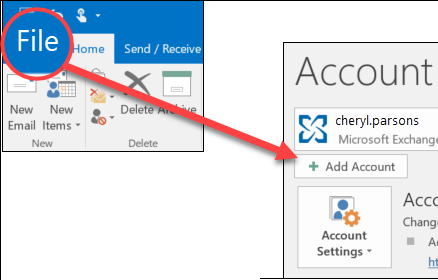
1. Launch Outlook and go to File >> Add Account.
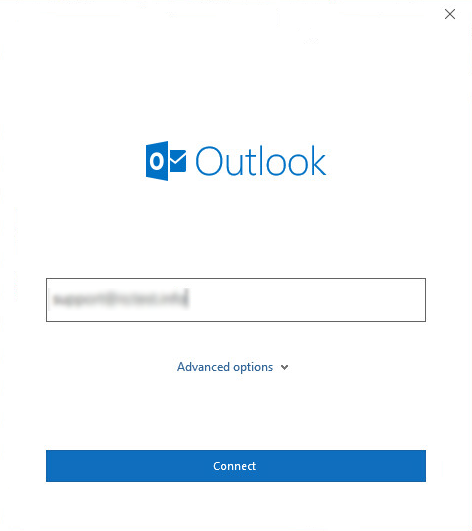
2. Enter the source Webmail account email address and click Connect.
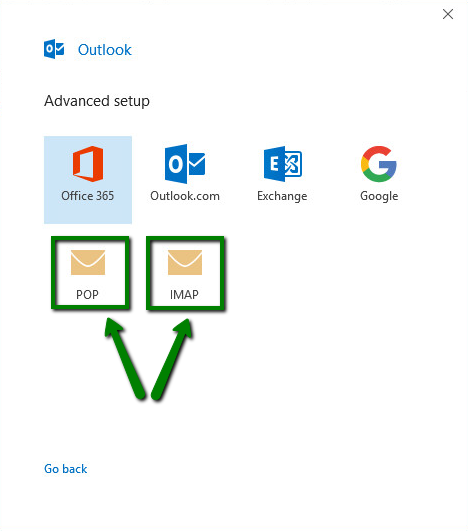
3. Choose IMAP as the Account type.
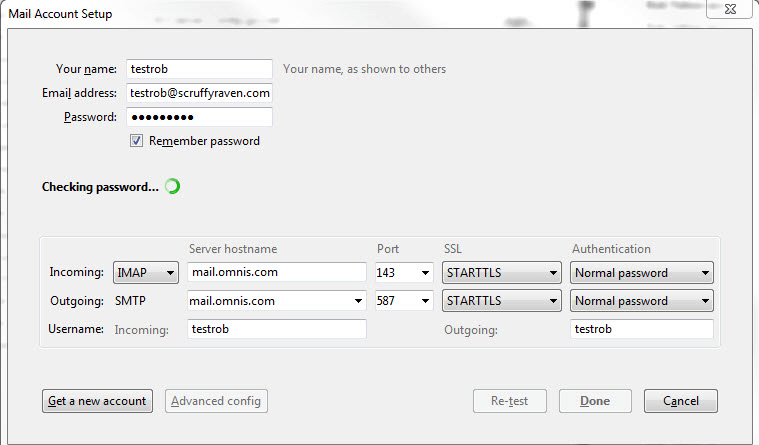
4. Enter the IMAP Settings details of your source Webmail account and click Next.
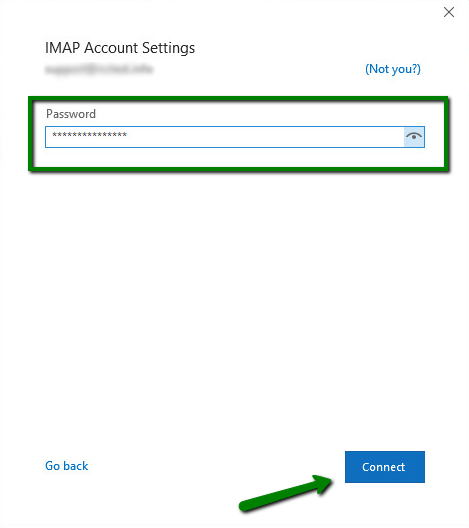
5. Next, type the password of the source Webmail account and click Connect.
6. Wait some time, Outlook will sync all emails from your source Webmail.
7. Now, repeat the steps to add targeted Webmail account to Outlook.
8. After configuration, drag and drop emails from the source Webmail account to targeted Webmail account.
The process is complete! However, this method is time-consuming for large mailboxes and requires technical knowledge to implement it.
How to Migrate Emails from One Webmail Account to Another Automatically?
If you want a simple and direct solution, then try the Advik Email Migration Tool on your system. The software can transfer Webmail emails to another Webmail account without any configuration. You just need to enter the login details of both accounts to begin the process. With this utility, you can transfer emails from one Webmail account to another in bulk.
Additionally, it provides advanced filter options for selective email migration. The tool preserves data integrity and folder structure while migrating. You can download the free version to analyze its working procedure without any cost.


Steps to Transfer Webmail Emails to Another Webmail Account
1. Run the tool on your Mac and Windows PC.
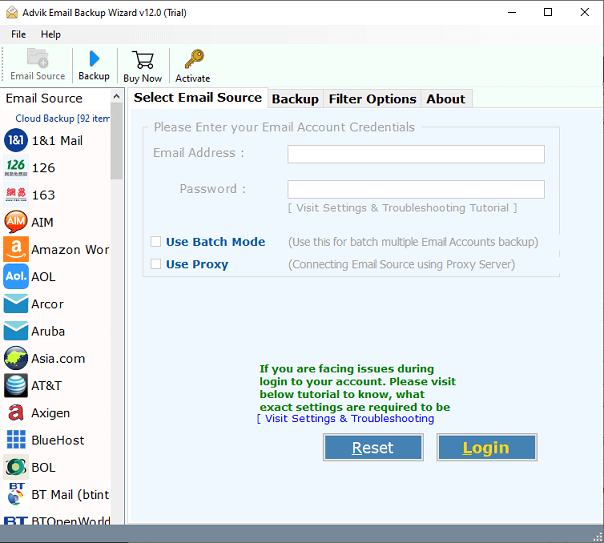
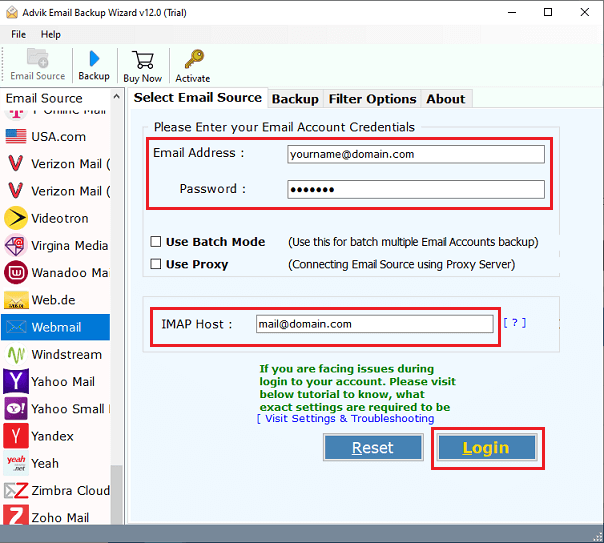
2. Choose Webmail as the email source and enter your source Webmail account login details to sign in.
3. Next, select the mailbox folders that you want to migrate.
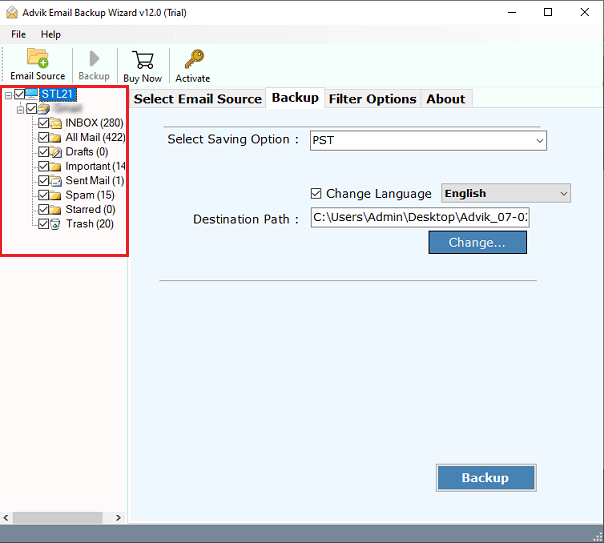
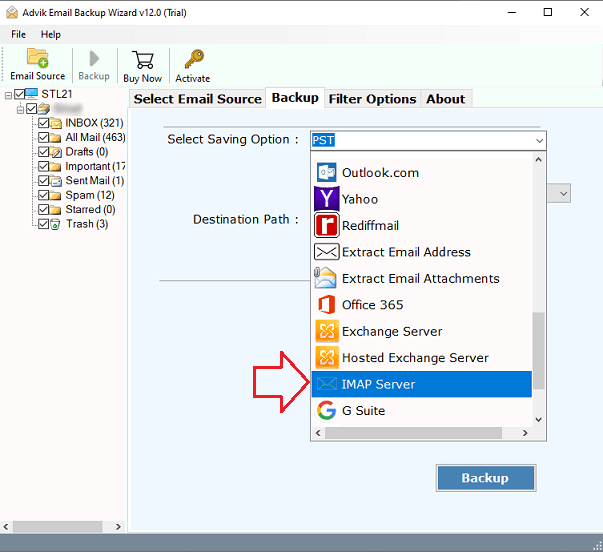
4. Choose IMAP Server as a saving option.
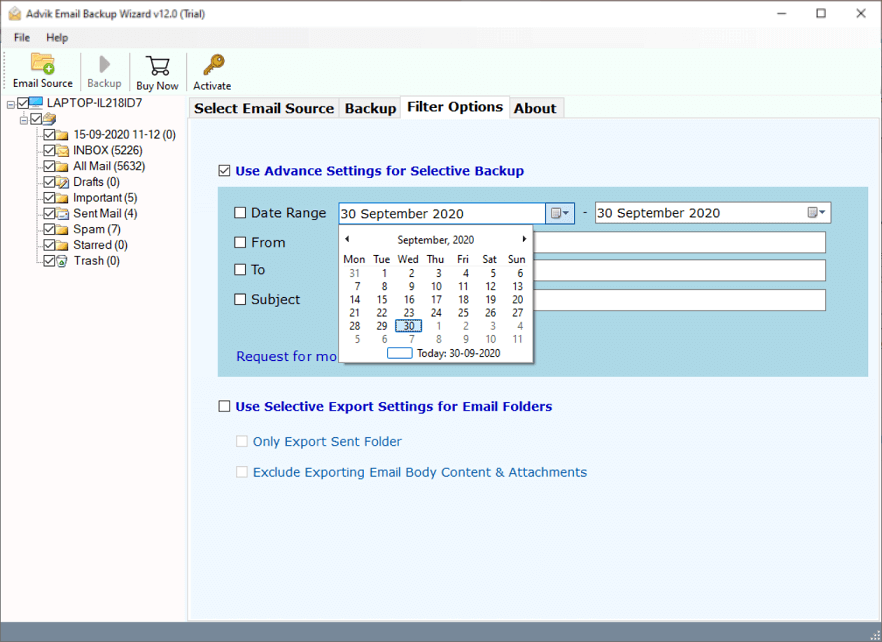
5. Apply filter options to migrate selected emails. (Optional)
6. Enter the destination Webmail account login details and click the Backup.
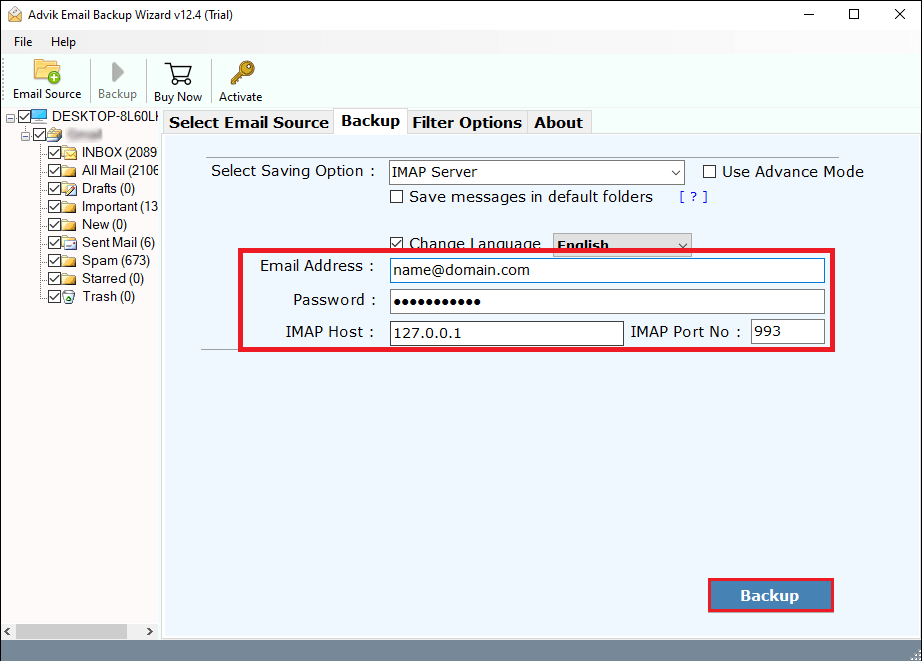
The software will start migrating emails from one Webmail account to another. Once the process is complete, you will get a pop-up message with a complete log report.
Key Features of This Automated Tool
- Simple GUI: The software has been programmed with advanced algorithms. Anyone can use this utility without any technical knowledge.
- Independent Tool: This is a standalone application. You don’t require any external application to complete the migration process.
- Move All Folders: It can transfer all folder such as inbox, sent items, drafts, etc., from your previous Webmail account to new Webmail account.
- Selective Migration: Sometimes, users need to transfer only selective emails. It offers various advanced filter options to migrate emails based on date range, to, from, subject, etc.
- Preserve Data Integrity: The tool assures the maintenance of the formatting of data throughout the process to migrate emails from one Webmail account to another.
Final Words
In this post, we have discussed how to transfer emails from one Webmail account to another. You can manually migrate emails between Webmail accounts using a free IMAP method through an email client, but it takes time. For faster, safer, and bulk migration, choosing the automated tool is a smart way.
Pick the method that fits your mailbox size and move your emails without losing email messages.