How to Transfer Hotmail to Google Workspace?
Jackson Strong | January 15th, 2026 | Email Migration
Hotmail has been a popular free email service for years. It is widely used by users for email management. However, as their needs grow, they look for a more secure, collaborative, and professional email solution. Google Workspace is one of the most popular choices due to its advanced features, better spam protection, and seamless integration with Google apps. That’s why many users want to transfer Hotmail to Google Workspace.
In this blog, we will discuss how to migrate Hotmail emails to Google Workspace, including manual steps and a professional solution.
Let’s move ahead without any further delay!
Method 1. How to Transfer Hotmail to Google Workspace?
If you are using a business domain and have domain access to Google Workspace, you can use Google’s built-in Data Migration Service.
Follow these steps:
1. Log in to your Google Admin Console.
2. Choose Account from the Menu and click Data Migration.
3. Click the Set Up Data Migration button.
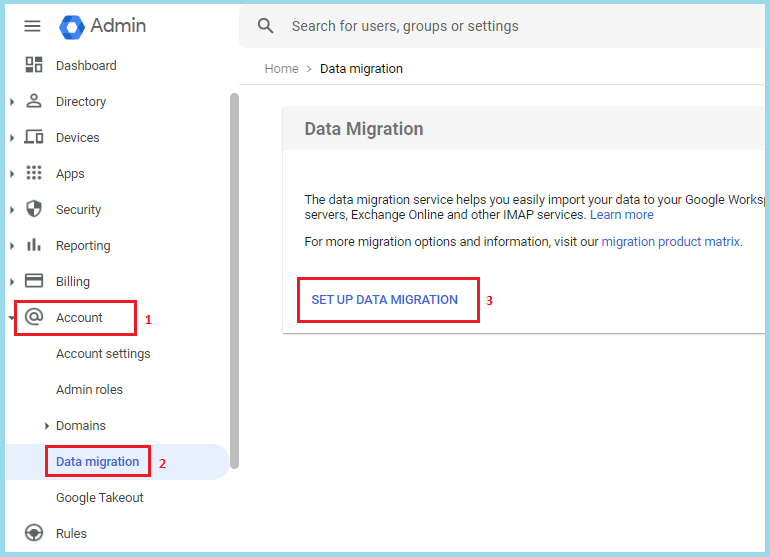
4. Select Other IMAP Server as the Migration Source and email as the data type.

5. Enter Hotmail IMAP Server details:
- IMAP Server: imap-mail.outlook.com
- Port: 993 (SSL)
6. Now, enter your Hotmail email address and password.
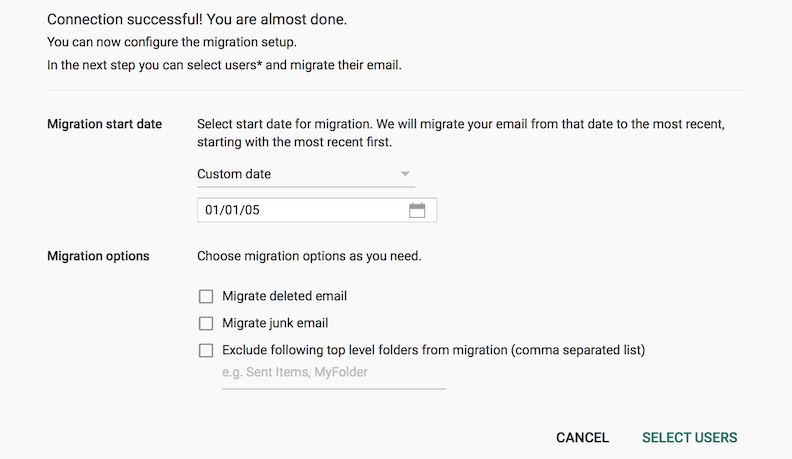
7. Next, set your migration start date and choose any migration options.
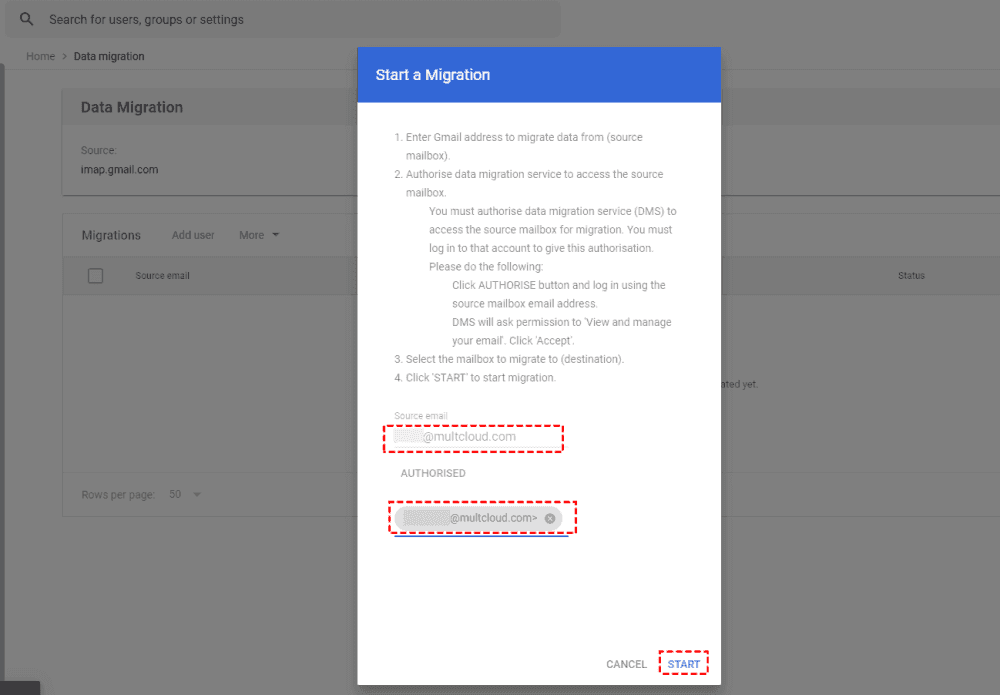
8. Add the destination, which is your Google Workspace email address.
9. Click on the Start button to migrate Hotmail to Google Workspace.
Pros and Cons of Manual Solution
- No additional software installation is required
- Free solution using built-in migration options
- Suitable for transferring a small number of emails
- Time-consuming for large mailboxes.
Method 2. How to Migrate Hotmail to Google Workspace?
If you want a bulk email transfer, using a professional tool like the Advik Email Migration Tool is the best choice. The software can directly transfer Hotmail to Google Workspace in just a few simple clicks. Just enter the login details of both email accounts to begin the Hotmail to Google Workspace migration process. With this utility, you can migrate the entire mailbox at once. The tool preserves data integrity and mailbox folder hierarchy as well.
Click on the below link to download it for FREE.


Steps to Transfer Hotmail Emails to Google Workspace
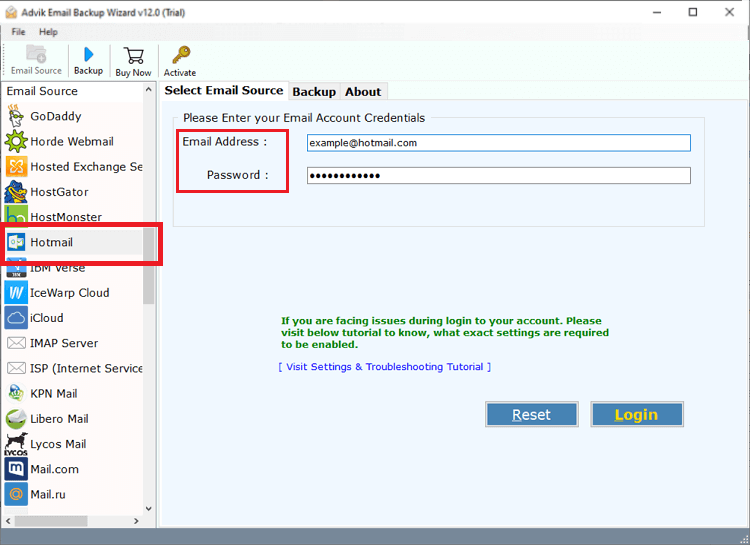
1. Run the tool and sign into your Hotmail account.
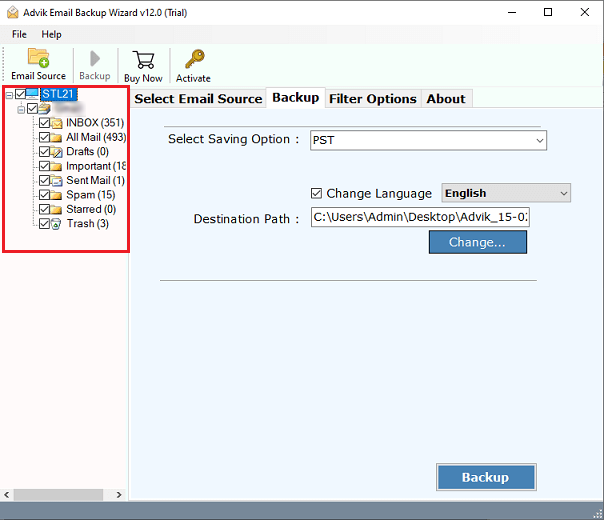
2. Choose the required mailbox folders to transfer.
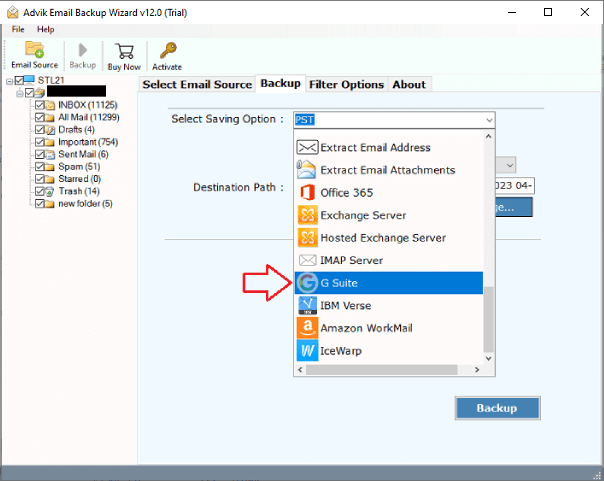
3. Select G Suite as a saving option.
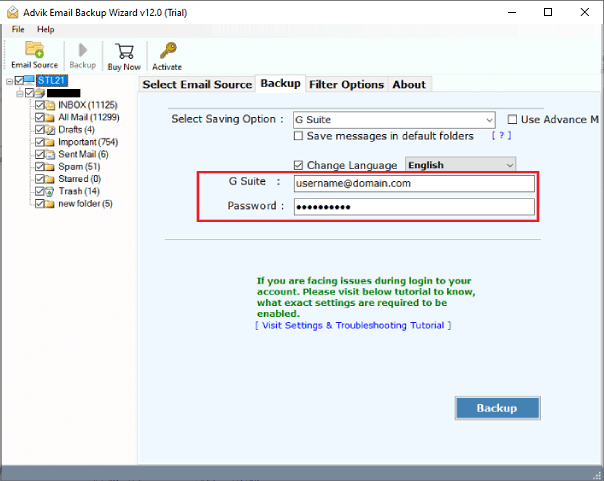
4. Enter your Google Workspace login details.
5. Click the Backup button to begin the migration process.
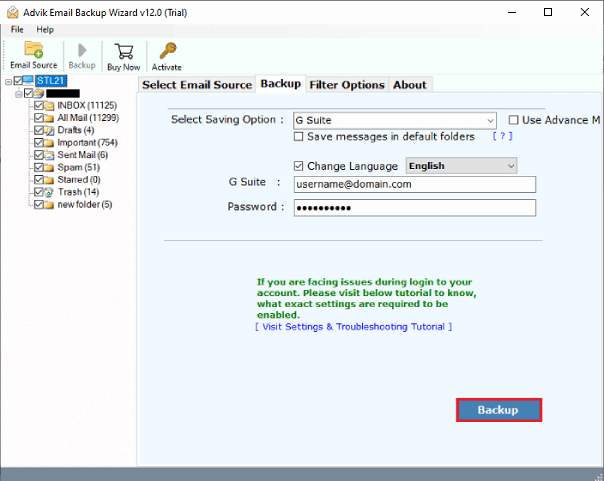
Done! That’s how you can transfer emails from Hotmail to Google Workspace.
Advantages of Using an Automated Tool
- Migrate all emails from Hotmail to Google Workspace at once.
- Advanced email filter options for selective email migration.
- Batch mode to transfer emails from multiple Hotmail accounts to Google Workspace.
- Preserves folder structure during the Hotmail to Google Workspace migration.
- Maintains all email attributes and properties while transferring.
- Simple and user-friendly interface for all types of users.
Conclusion
In this blog, we have discussed how to transfer Hotmail to Google Workspace. You can manually migrate Hotmail emails to Google Workspace using Data Migration Service, but if you have a large number of emails, then it takes a lot of time to complete the migration process. The professional solution is a more effective solution for larger migrations. You can choose any method as per your needs.
FAQs – Hotmail to Google Workspace Migration
Q1. Does the tool allow me to move Hotmail email items in a selective manner into my Google Workspace account?
Ans. Yes, you can take the help of filter options, which will enable you to selectively transfer Hotmail emails to G Suite.
Q2. How many emails can I migrate from Hotmail to Google Workspace with the free version?
Ans. You can migrate 25 emails from each Hotmail folder with the free version of the tool.
Q3. Does this software support Windows 11 OS?
Ans. Yes, it supports all Mac and Windows OS, including Windows 11.