How to Transfer Rogers Email to Another Account?
Jenny Lowrence | March 30th, 2026 | Email Migration
Nowadays, email migration has become a common need, especially when users want advanced features, enhanced security, or simply a more reliable platform. If you are using Rogers email service and are now planning to move your data to another account, then you have come to the right place. In this write-up, we are going to explain how to transfer Rogers email to another account using manual and professional methods. Read this article till the end and choose any method that best fits your needs.
Rogers is a Canadian telecommunications and media organization that works in the field of remote correspondence, communication, and internet service providers. Within the service, it also offers a webmail platform to send and receive emails. Many users want to migrate their Rogers email to another platform due to security concerns, account deactivation, or when they change email service providers for better accessibility and advanced features.
Let’s move ahead to learn each process in detail.
How to Transfer Rogers Email to Another Account Manually?
There is no direct manual way to migrate emails from Rogers to another account. However, you can do it using email client like Outlook, Thunderbird, etc.
Follow the below given steps to move Rogers email to another account via Outlook:
- Launch the Outlook application on your system.
- Click on File tab and choose Add Account.
- Enter your Rogers account details to set up with Outlook.
- Now, repeat the steps to add targated account into Outlook.
- After configuration, both accounts mailbox folders are visible in the left panel.
- Next, choose the Rogers emails that you want to migrate.
- Drag & drop these emails into destination account.
Done! This is how you can manually transfer emails from Rogers to another account.
Drawbacks of Manual Solution
The manual approach is free but it has several limitations:
- To transfer emails, an email client must be installed on your system.
- Users must have a technical expert to configure email accounts.
- It takes lot of time if you have a large number of emails.
- It does not maintain the folder hierarchy.
How to Move Rogers Email to Another Account Automatically?
Now, try the Advik Email Migration Tool on your system. The software will help you to transfer Rogers email to another account directly. With this utility, you can migrate all emails in a single attempt. Also, it allows you to move selected folders as per your needs. The tool retains all email attributes and mailbox folder hierarchy during the process.
Click on the below link to download it for FREE.


Steps to Transfer Emails from Rogers to Another Account
1. Run the tool on your Mac/Windows PC.
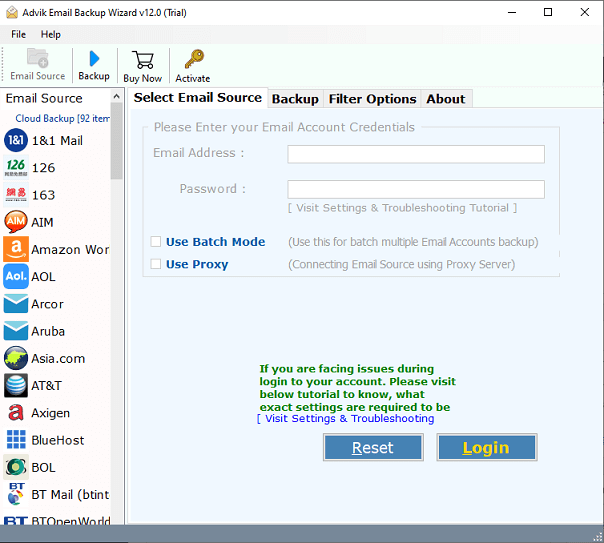
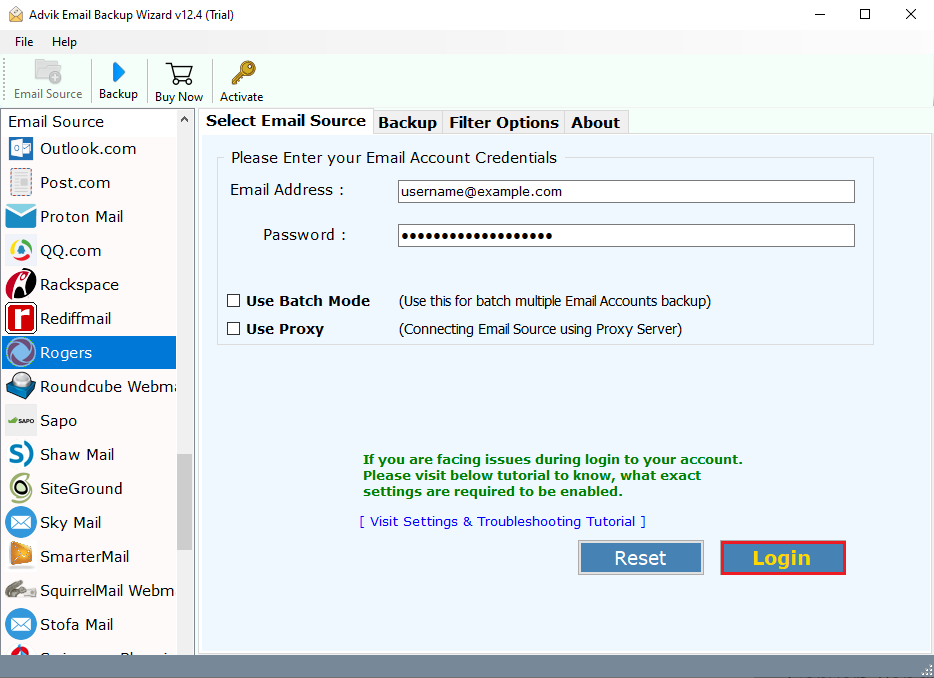
2. Choose Rogers as email source and enter its login details to sign in.
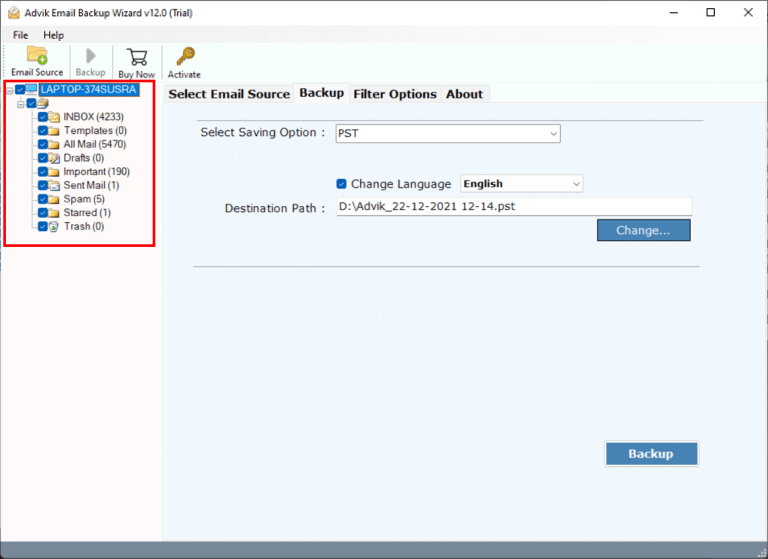
3. Choose the mailbox folders & subfolders to transfer.
4. Select the destination account (Gmail, Yahoo, Office 365, IMAP, etc.) from saving option.
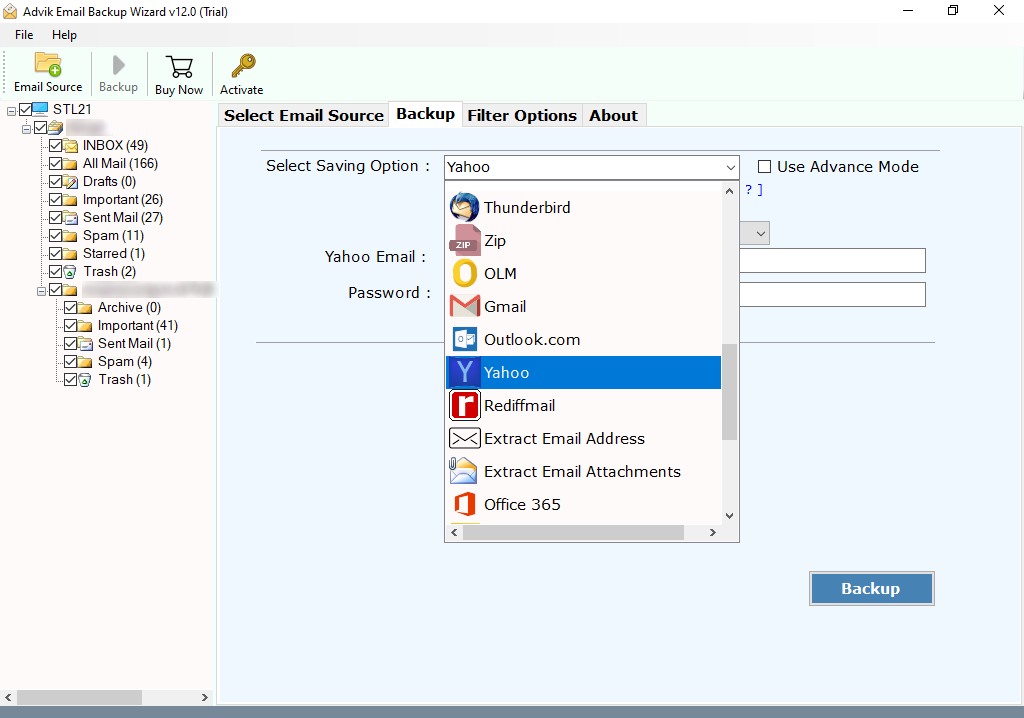
5. Enter the login details of targated account and click Backup.
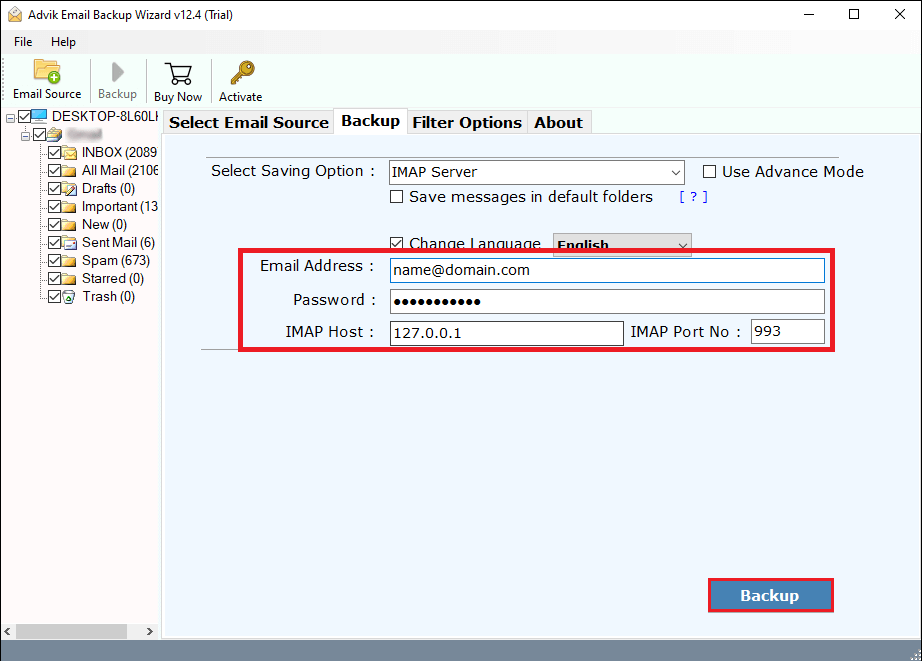
The software will start transferring emails from Rogers to another account. Once the process is complete, log into destination account and check the migrated emails here.
Why Choose Automated Tool Instead of Manual Solution
The manual and professional solution will help you to complete the migration process but automated tool offers various advanced features which make the process simple and efficient.
- The software can directly transfer Rogers email to another account without any configuration.
- The tool can move all email folders from Rogers to another account in a single attempt.
- It offers various advanced filter options to migrate emails based on date range, to, from, subject, etc.
- Also, with this utility, users can migrate Rogers to Office 365, Gmail, Zoho mail, and many more.
- The software preserves all email attributes such as attachments, hyperlinks, signature, etc.
- This program maintains the original structure of Rogers mailbox folders during the process.
- It is designed in such a way that both technical or non-technical users can easily operate it.
- The tool is compatible with all tge latest and old verions of both mac and Windows OS.
Conclusion
In this post, we have discussed how to transfer Rogers email to another account. Here, we have explained both manual and automated solutions to move Rogers email to another account. You can manually migrate emails using email clients but this is a lengthy and complicated process. If you want a simple and direct solution then choosing the professional tool is the best option. You can download the free demo version of the above-suggested tool which allows you to transfer 25 emails from each folder to test its working procedure.