How to Archive Emails in Zoho Mail? – Complete Guide
Email overload is one of the biggest producitivity challeges faces by professional users. If your Zoho inbox is overflowing with newsletters, project updates, and old conversations. In such a scenario, archiving Zoho emails is the wisest solution. In this article, we are going to discuss how to archive emails in Zoho Mail.
Email archiving in Zoho Mail allows users to move emails out of their inbox and store them in a separate archive folder. Archived emails are not deleted; they are preserved securely and restored whenever required.
Why Should You Archive Emails in Zoho Mail?
Here are some reasons why users prefer archiving emails:
- Keeps inbox clutter-free
- Helpful to manage mailbox storage effectively
- Retains important email messages
How to Archive Zoho Mail Emails to Computer?
The Zoho Mail archive function enables you to keep older emails in your inbox while preventing clutter. When you archive an email, it stays in the same folder but is no longer displayed in the list of emails. As a result, retrieval and reference are made simpler.
Follow the step-by-step instructions below to complete this activity manually:
Step 1. First, visit the official Zoho Mail website and sign in using your active account.
Step 2. Select the emails you wish to archive, then select Archive from the menu.
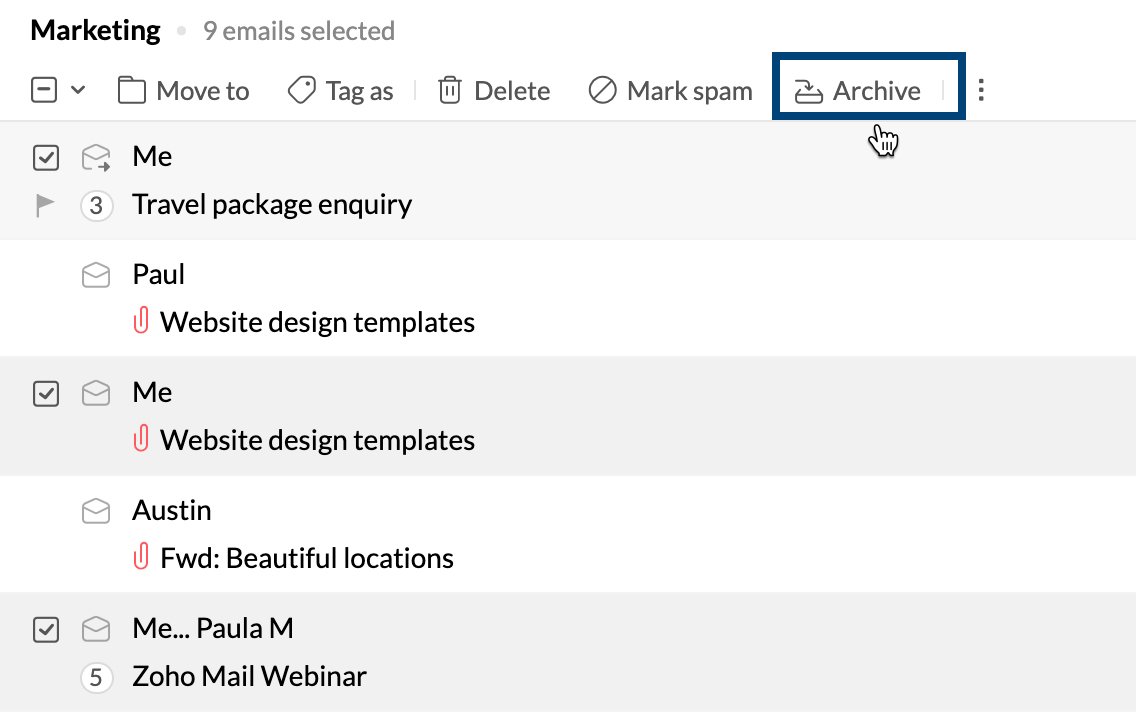
The emails are no longer listed but are still there in the folder as archived emails as a result. Because the emails are still in your account after you archive them, your account’s storage usage is not decreased.
Step 3. The emails will still be in the same folders even after being archived.
Step 4. Then, Go to the View Archived option in the mailbox and click on it.
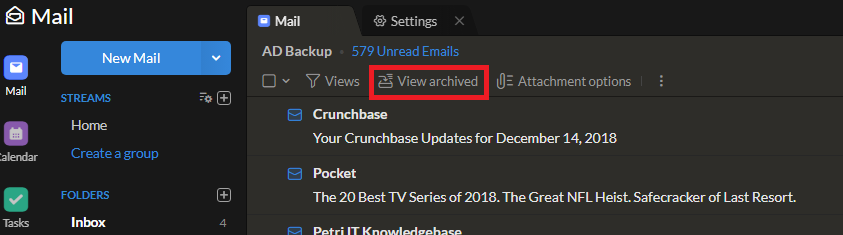
Step 5. Choose the Unarchive option after selecting all of your archived emails.
Step 6. Go to the Settings menu once they are once more archived in the Inbox folder.
Step 7. A new window will then open; scroll down to see the Import/Export Emails option here.
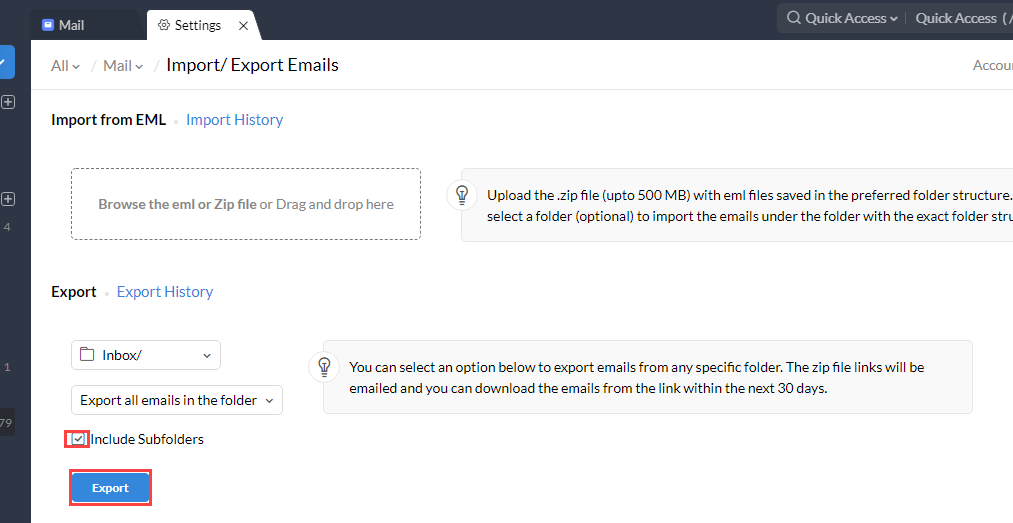
Step 8. Select Folder from the drop-down menu in the Export or Export history section, then pick the folder containing Zoho Mail’s preserved emails.
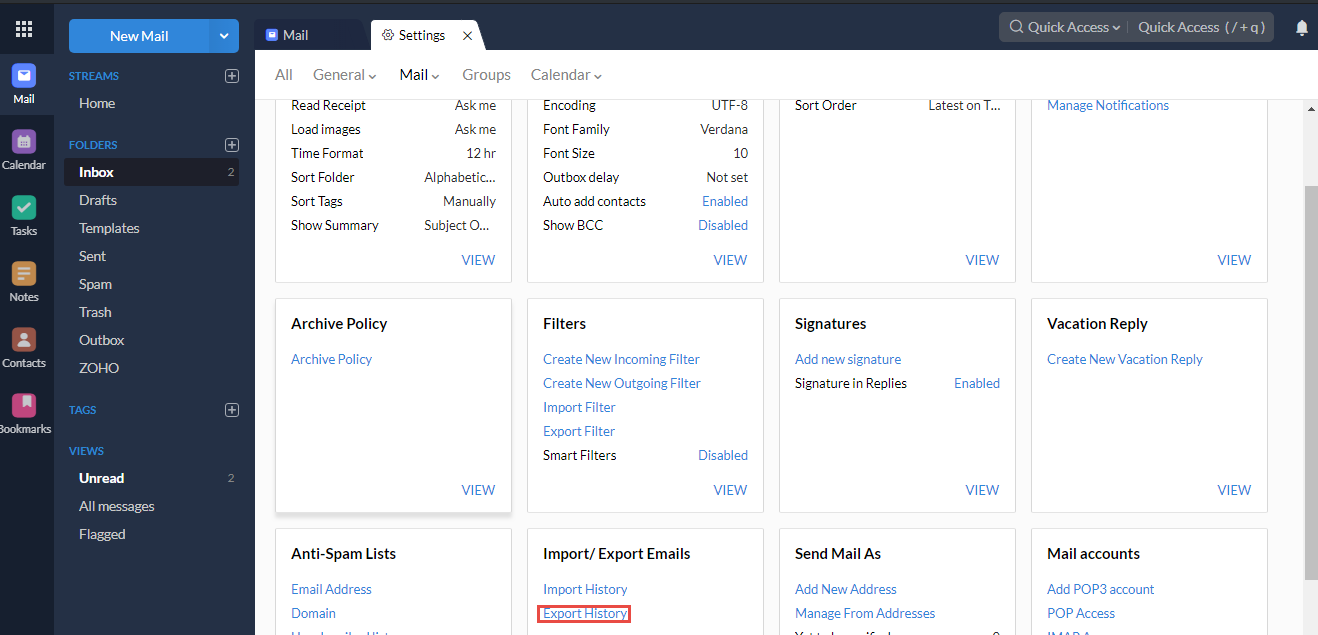
Step 9. Choose any option from the Export date menu according to your needs.
Step 10. You only need to select the Sub-folders option if you also want the subfolders. Finally, use the Export button to finish this procedure. After the completion of the procedure, you will receive a ZIP file link.
After you will extract the ZIP file you will receive an EML file from it. All of the Zoho emails that you chose to archive are included in this.eml file.
How to Archive Emails in Zoho Mail?
Advik Zoho Backup Tool to quickly archive & download emails in Zoho Mail to multiple formats. This tool allows users to export multiple emails from the Zoho Mail account. It enables users to create a bulk backup of Zoho Mail emails without any trouble. This software allows you to take backup of unlimited Zoho Mail accounts without any limits.
It is a professional solution that allows users to easily archive emails in Zoho Mail with various advanced email filter options. This tool offers complete conversion from Zoho Mails to 15+ popular file formats & 15+ webmail accounts, such as you can migrate from Zoho Mail to Gmail, Office 365, Outlook.com, Exchange Server, Thunderbird, IBM Verse, Amazon Work Mail, and many more.
The Tool Comes up with a free trial version that allows you to easily check its efficiency and effectiveness.


Steps to Archive Emails in Zoho Mail
Step 1. First of all, install and run Advik Zoho Mail Backup Tool on your system.
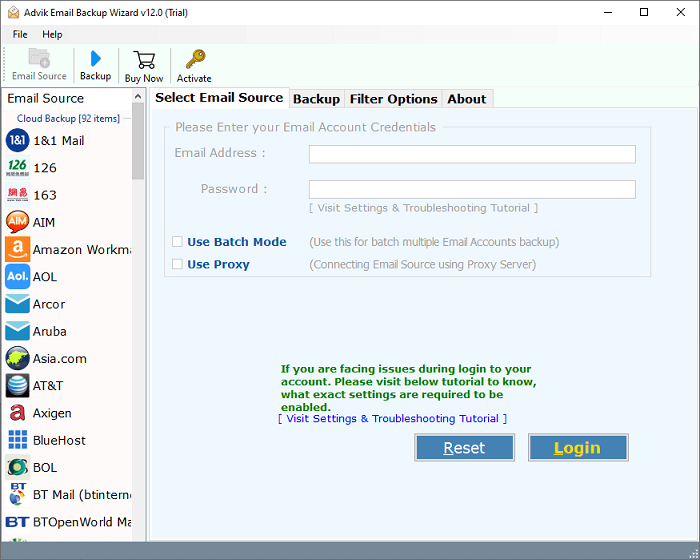
Step 2. On the left side of the screen, scroll down the menu and choose the “Zoho Mail” option.
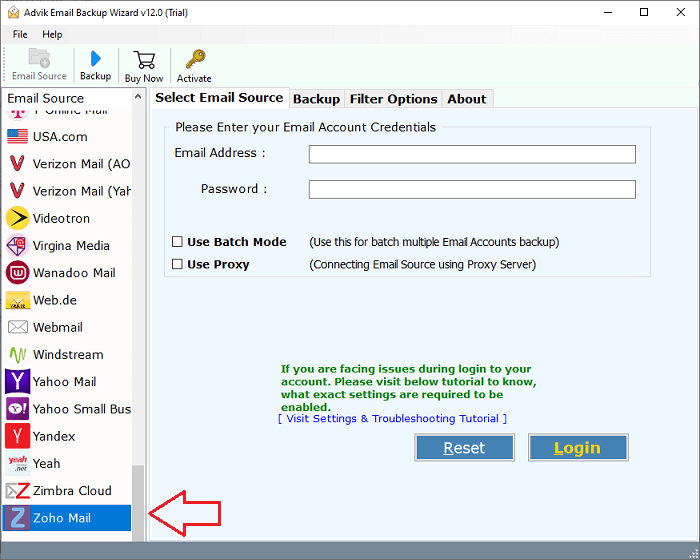
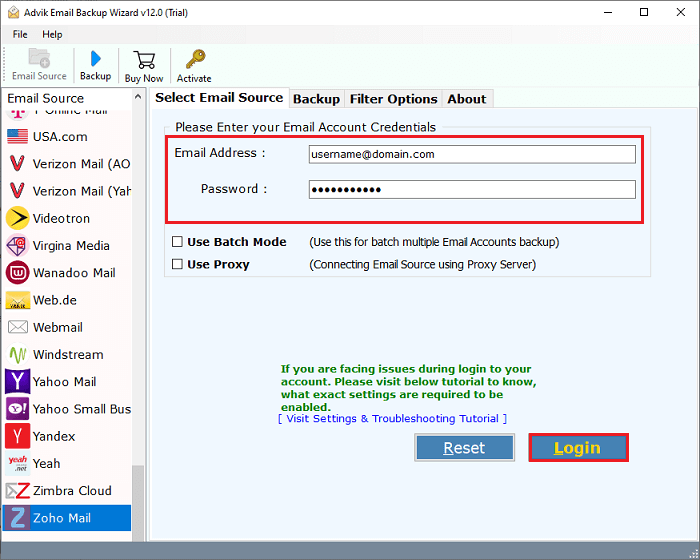
Step 3. After that, enter the login credentials of your Zoho Mail account and press the “Login” button.
Step 4. Thereafter, this tool will automatically load all of your mailboxes on the software panel, and choose the required folders that you want to archive.
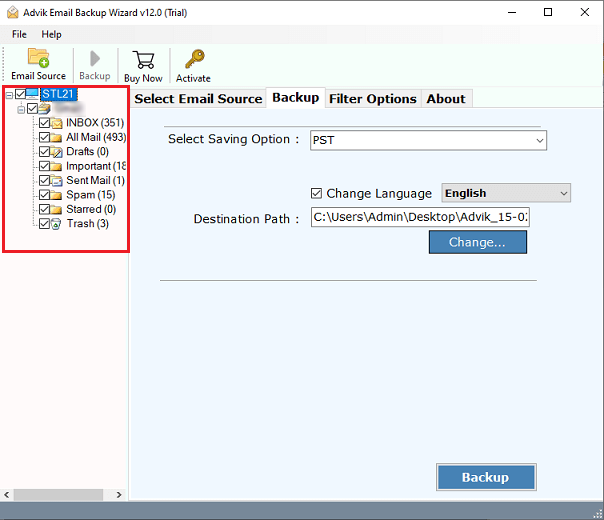
Step 5. Now, Move your cursor towards “Select Saving Option” and choose your most preferred file format. You are free to choose any of your desired options.
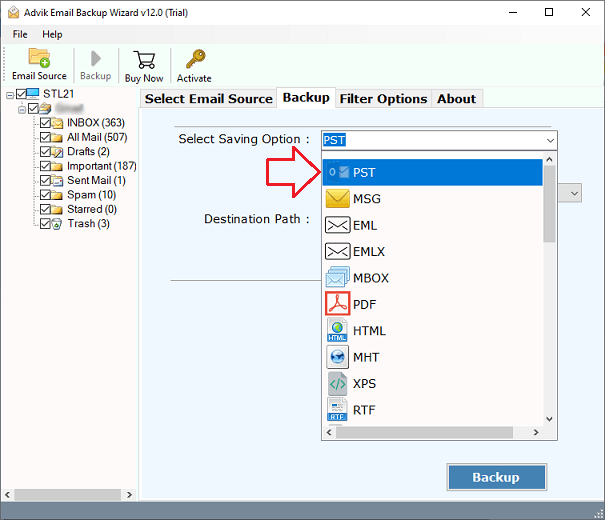
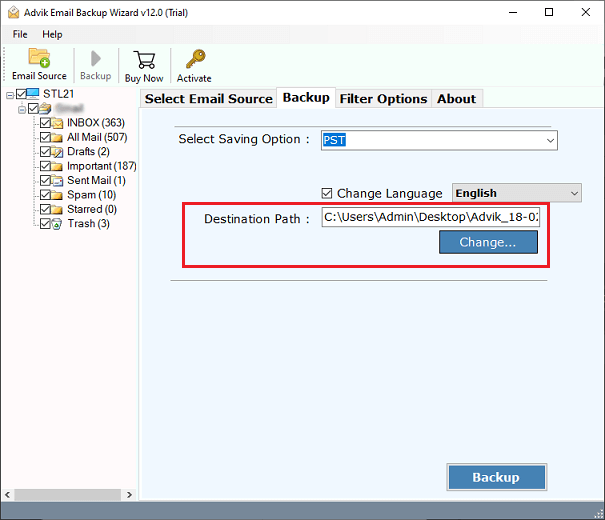
Step 6. After that, choose the destination path to save your resultant data file.
Step 7. Finally, tap on the “Backup” button to start Zoho Mail Email Backup Process.
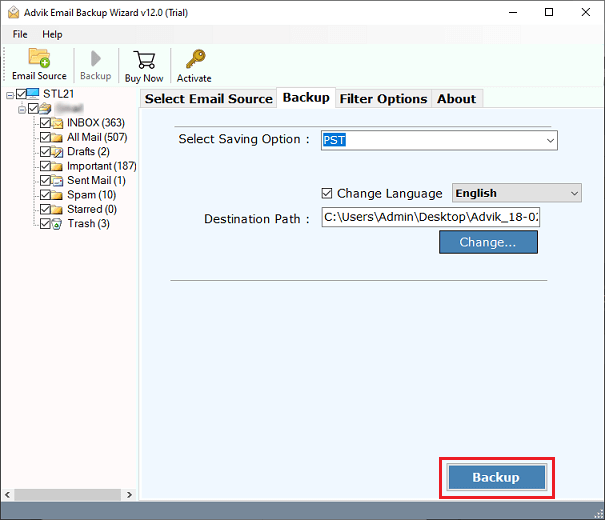
After you are done with the above steps, check out the exported Zoho Mail emails on your chosen location.
Watch How to Archive Zoho Emails Locally
Final Verdict
In this blog, we have explained two different ways to archive emails in Zoho Mail. The manual solution is quite long. Thus, it is best to work with an automated tool. The above-suggested tool will help you to archive Zoho Mail emails in bulk. You can download its free demo version to check ist working procedure.