How to Archive Thunderbird Emails? Step-by-Step Guide
Jenny Lowrence | March 17th, 2026 | Data Backup, Mozilla Thunderbird
Is your Thunderbird inbox filling with emails? finding important messages can become frustrating when your mailbox is cluttered. Archiving emails is a simple way to organize your inbox without losing any data. In this post, we will discuss how to archive Thunderbird emails manually and professionally.
Thunderbird is a free and open-source email client. It is most widely used platform by individuals and businesses for sending, receiving, and managing emails efficiently. However, managing emails in Thunderbird can become difficult as your inbox keeps growing with daily communication. Over time, it not only makes it harder to find important emails but can also slow down the performance.
Arching is the process of copying old messages to other location for controlling storage space. Storing the essages in an archive folder improve the performance of Thunderbird.
Why Archive Thunderbird Email?
Here are some benefits of saving Thunderbird emails:
- Free up storage space in your mailbox.
- Archived emails can be easily accessed from any device.
- Helps to keeps your inbox organized.
- Improve Thunderbird performance.
- Preserves important emails for future reference
How to Archive Thunderbird Emails Manually?
Here, we will discuss two manual techniques for archiving Thunderbird emails.
#1. Archive Emails in Thunderbird Using Built-In Option
1. Open Thunderbird on your system.
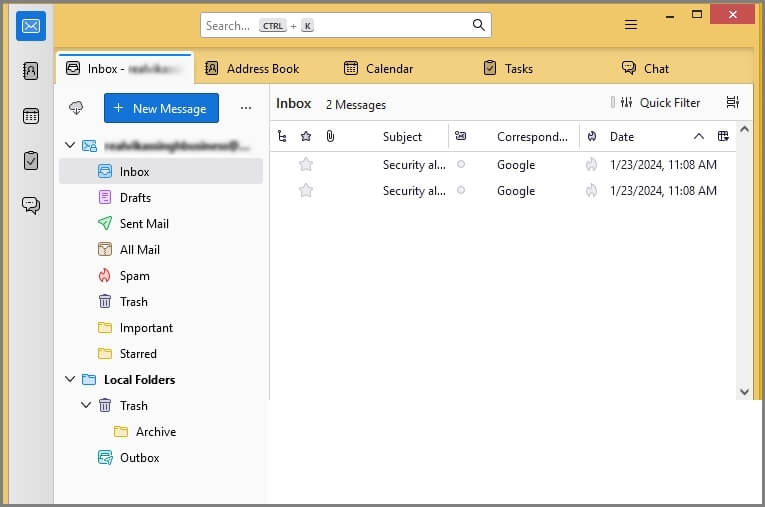
2. Select the email that you want to archive.
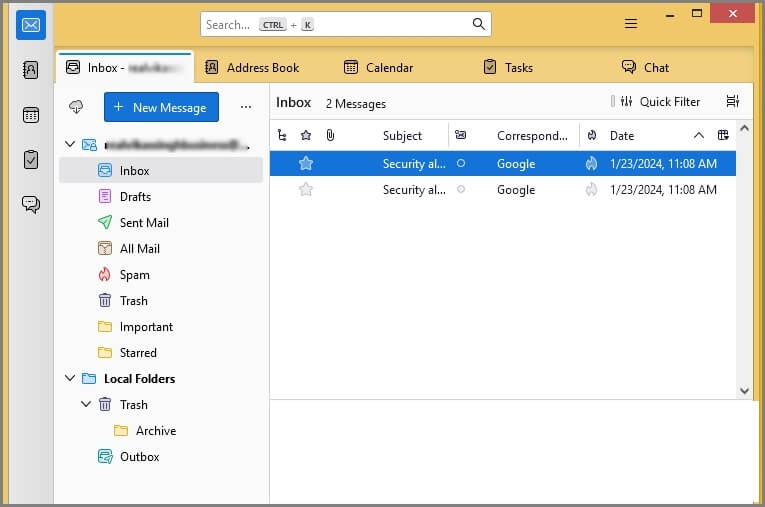
3. Right-click on it and choose Archive.
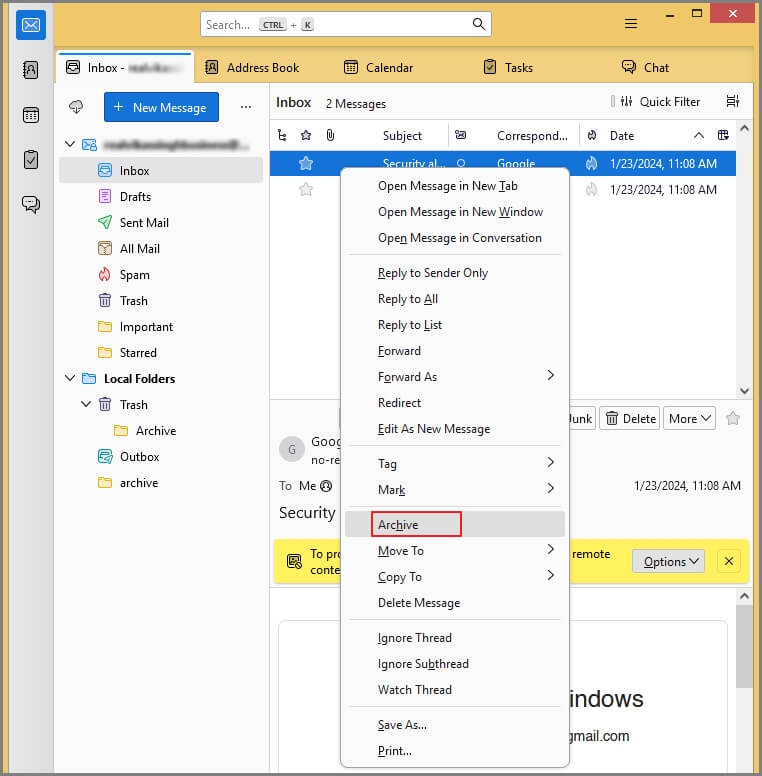
The email will be saved in the Archive Folder. Categorize emails by year, month, or single folder.
#2. Archive Thunderbird Emails Using Move To
1. Open Thunderbird on your system.
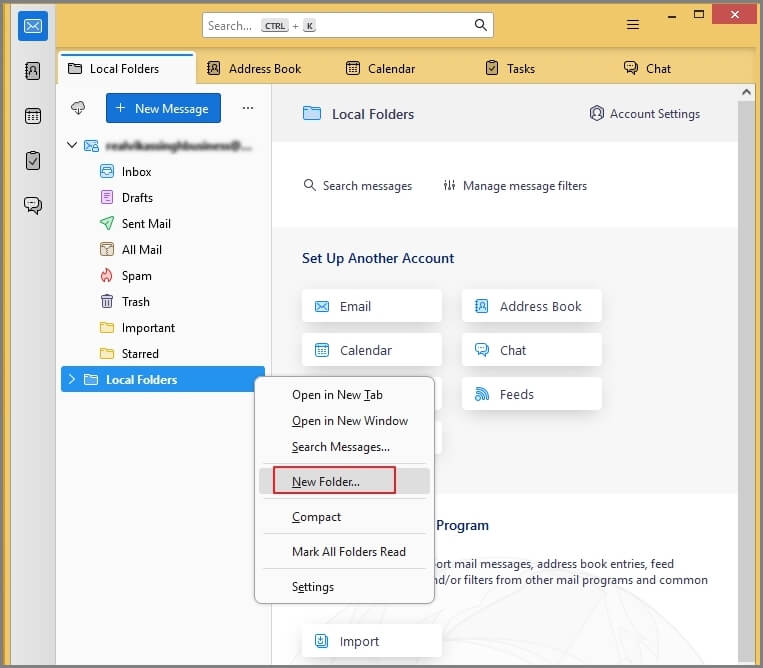
2. Right-click on Local Folders and choose New Folder.
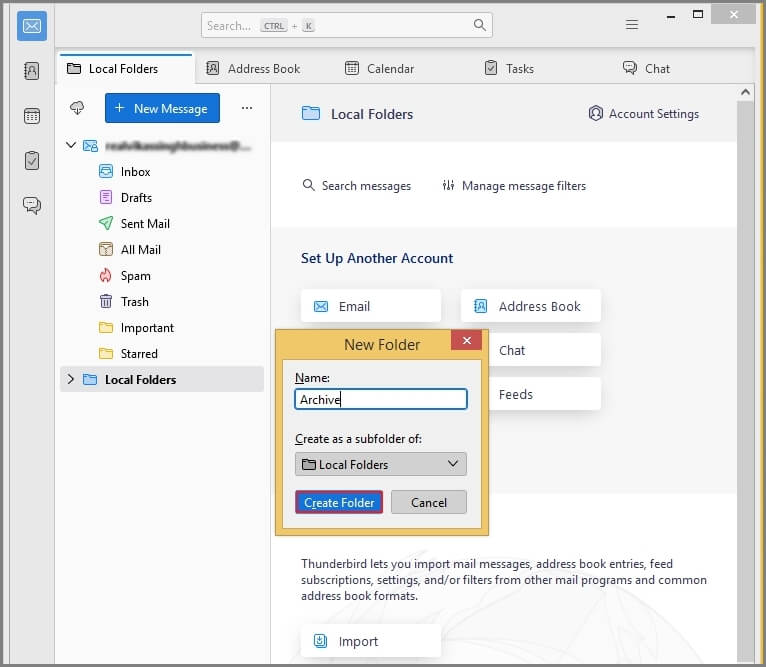
3. Enter the name of folder and click on Create Folder.
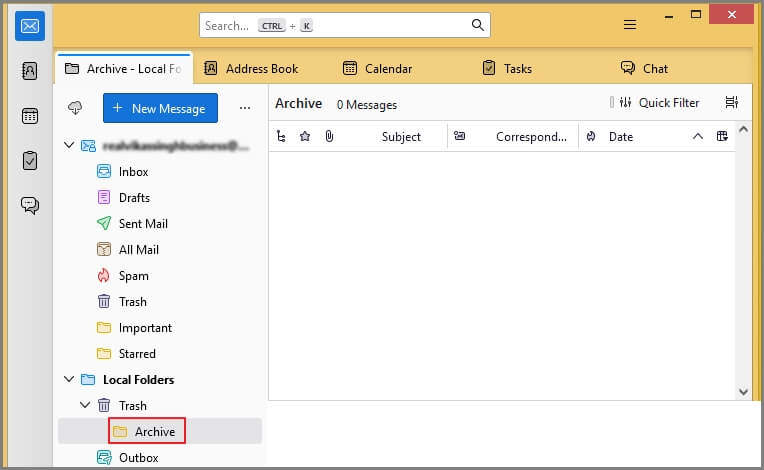
4. Now, this new folder will be showing under the Local Folders.
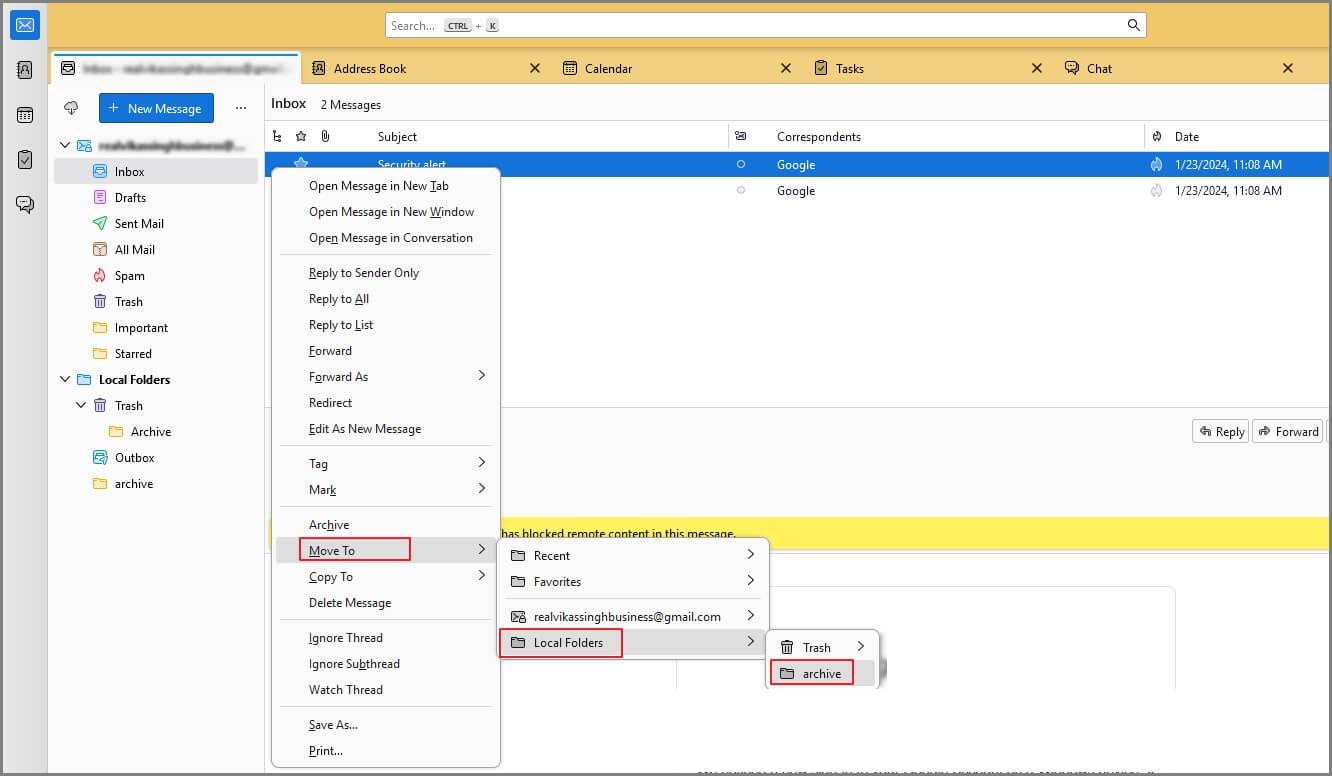
5. Select the emails that you want to archive and click Move To >> Local Folders >> Archive.
Thunderbird Archive Settings
Users may find difficulty in saving Thunderbird emails in the Archive folder. So, users must have set the right settings in the email client for accurate Thunderbird archive emails locally. Follow the steps:
- Open Thunderbird and right click on your email ID.
- Click on Settings >> Account Settings.
- Choose the Copies & Folders option from the left pane.
- Now, go to the Message Archive section and check the settings.
- Click on Archive Folder in the Local Folder for Thunderbird archive email locally.
- Choose the Email Account option to set the Thunderbird archive folder location server only.
- With this, you can choose and change the location of the Archive folder in Thuncderbird.
Limitations of Manual Methods
- With the manual method, you can archive only 2000 emails.
- Users need to repeat the steps for each email that is time-consuming.
- Non-technical users face difficulty to follow Thunderbird auto archive process.
How to Archive Emails in Thunderbird Automatically?
If you want to archive Thunderbird emails in bulk, try the Advik Thunderbird Converter. With this utility, you can save Thunderbird emails into multiple formats. It can archive all emails at once. Additionally, it also allows you to choose specific emails or folders for archiving. The tool maintains the email folder structure intact during the process.
Download the FREE demo version to analyaze its working procedure.


Steps to Archive Thunderbird Emails
1. Run the tool on your system.
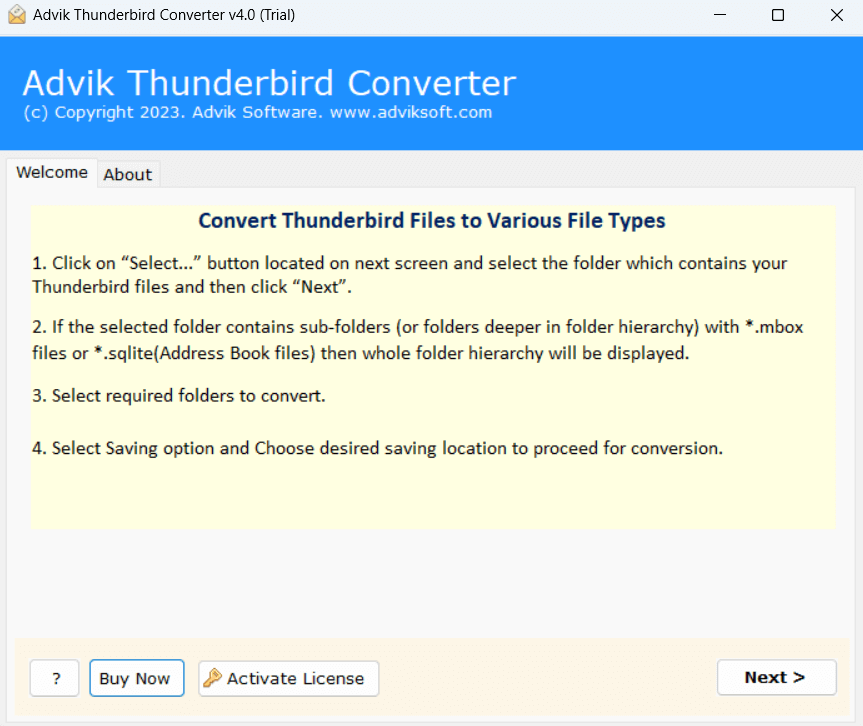
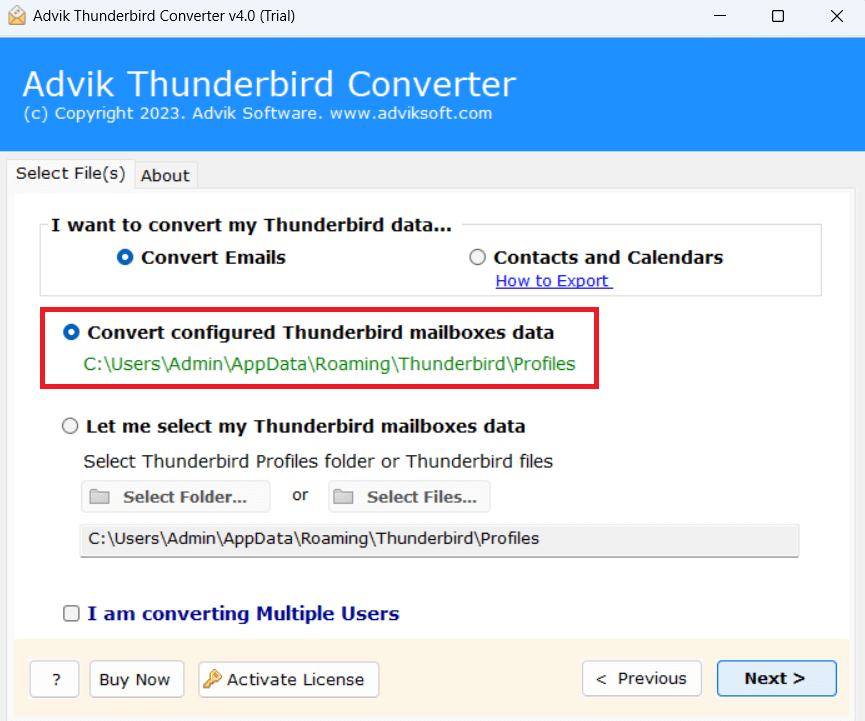
2. Choose your Thunderbird profile and click Next.
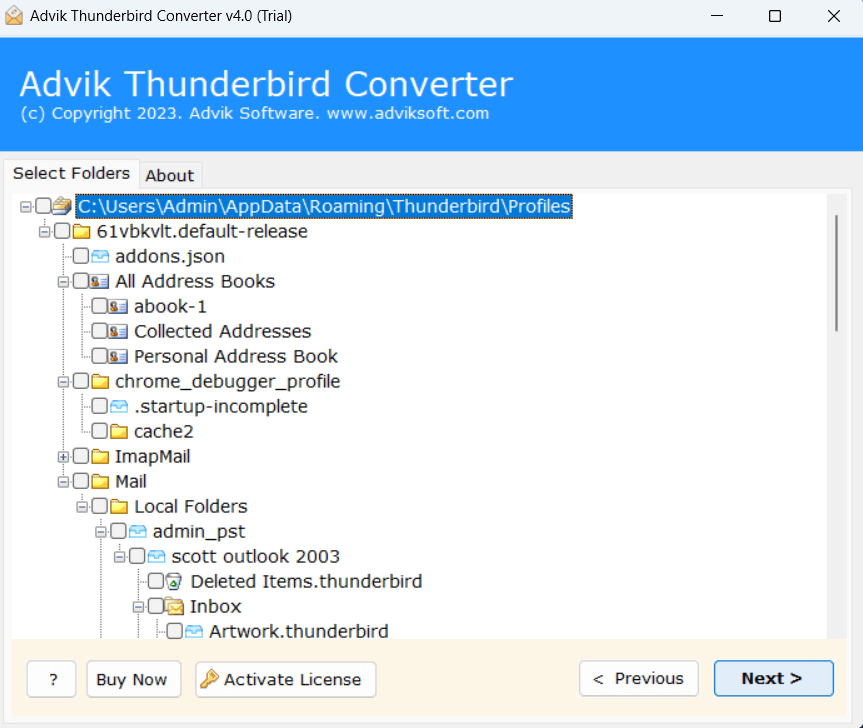
3. Select mailbox folders and press Next.
4. Choose a saving option from given list.
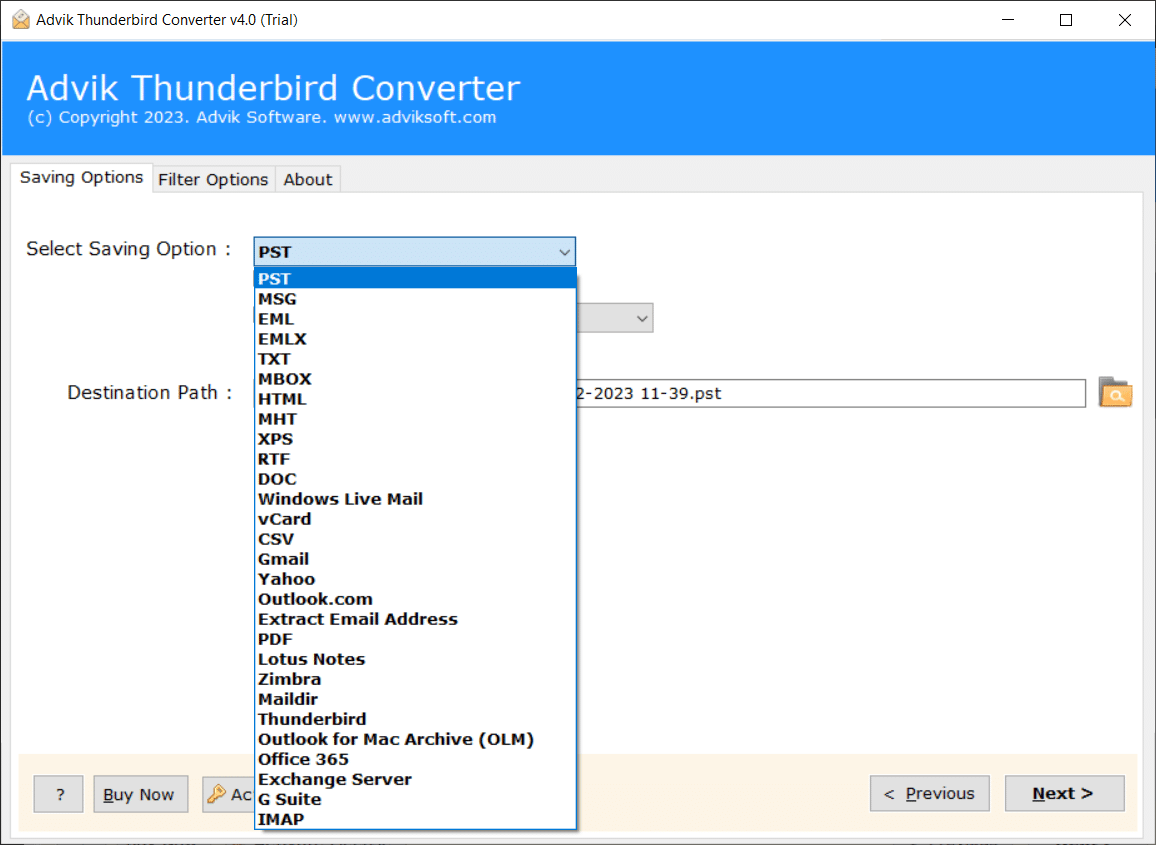
5. Browse the target location and click Next.
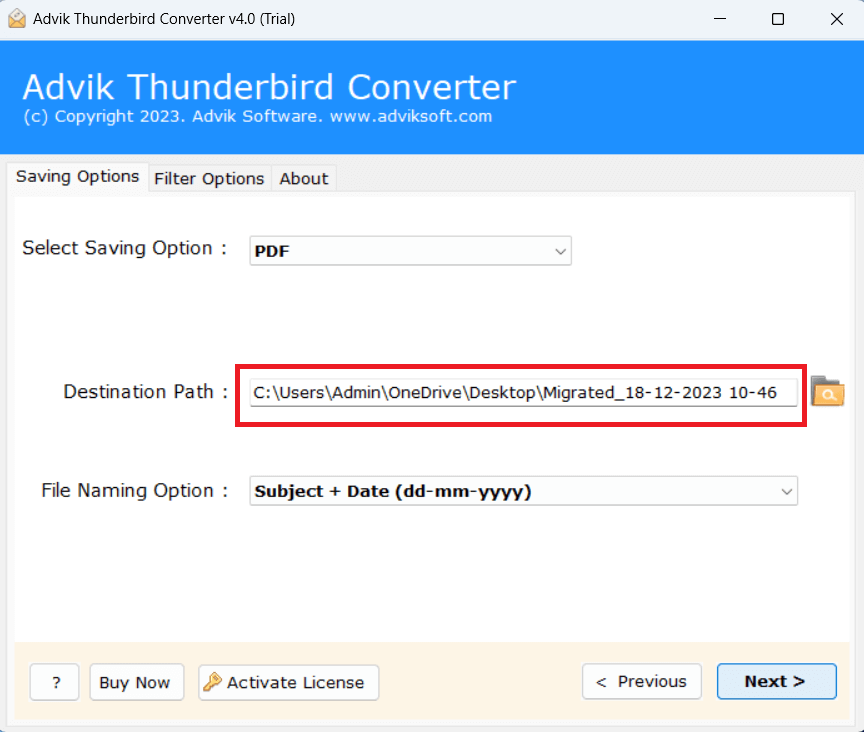
The software will start archiving emails in Thunderbird. Once the process is complete, you will get a pop-up message with a complete log report.
Why Choose Automated Tool?
The software offers several advanced features that make the archive process simple and effective. Some of them are;
- With this archive solution, you can save all Thunderbird emails in one go.
- It offers advanced email filter options to archive selected Thunderbird email.
- This tool can archive Thunderbird to PST, PDF, MBOX, EML, HTML, CSV, etc.
- The software preserves email integrity while archiving Thunderbird emails.
- It keeps the original structure of mailbox folders even after the process.
- Also, it allows you to import Thunderbird to Gmail, Yahoo, Office 365, etc.
- A simple and easy to use interface for both technical or non-technical users.
Final Words
In this post, we have discussed how to archive Thunderbird emails. Here, we have offered manual and automated methods for Thunderbird archive emails. If you have fewer emails then manual methods work well, but if you have thousands of emails then professional solution will be useful for you. Now, you can decide which method is best suited for your needs.