How to Backup GoDaddy Emails to Hard Drive?
Creating regular backups of your email data is crucial to ensure data integrity and recovery in case your account gets blocked or the server crashes. In GoDaddy, we can create a full backup using either the built-in option to save single emails or an alternate option for bulk GoDaddy email backup.
In this guide, we will learn the complete procedure of the methods for performing full backup, highlight the necessary permissions & explain how to backup GoDaddy emails to hard drive securely in easy steps.
Things to Know Before Backing Up GoDaddy Emails
- Must Enable IMAP in your GoDaddy Email Account
- Gather all the required Login Credentials
- Ensure that you have proper space on your computer
- Decide in which file format you will backup GoDaddy Emails
After having all these with you, now let’s get backup to understand the complete process to backup GoDaddy mailbox emails.
Method 1. Manual Way to Backup GoDaddy Emails to Hard Drive/PC etc
GoDaddy provides to save single emails as .eml file through its GUI. Follow the steps below to understand how.
- First of all, sign in to the GoDaddy login page using your professional email account credentials.
- Go to the inbox folders, and select the email you want to download.
- Tap on the More Actions icon on the right side.
- Choose Save As a file option to download emails as an .eml file.
Now, repeat the same steps for the remaining emails. It doesn’t support exporting multiple emails at a time.
Note: To download emails in bulk, using an email client or a dedicated tool is suggested.
Method 2. Professional Way to Backup GoDaddy Emails Automatically
Try the Advik Godaddy Email Backup Tool on your system. It is an advanced approach to backup GoDaddy emails to hard drive, or USB thumb drive. Using this tool, you can save the complete GoDaddy mailbox at once without any data loss. It provides various advanced filter options to download particular emails based on Date Range, To, From, Cc, Bcc, Subject, etc. It preserves data integrity and folder hierarchy throughout the GoDaddy email backup process.
Download the software and try it for Free. The trial version will export 25 emails from each folder.


Steps to Backup GoDaddy Emails to Hard Drive
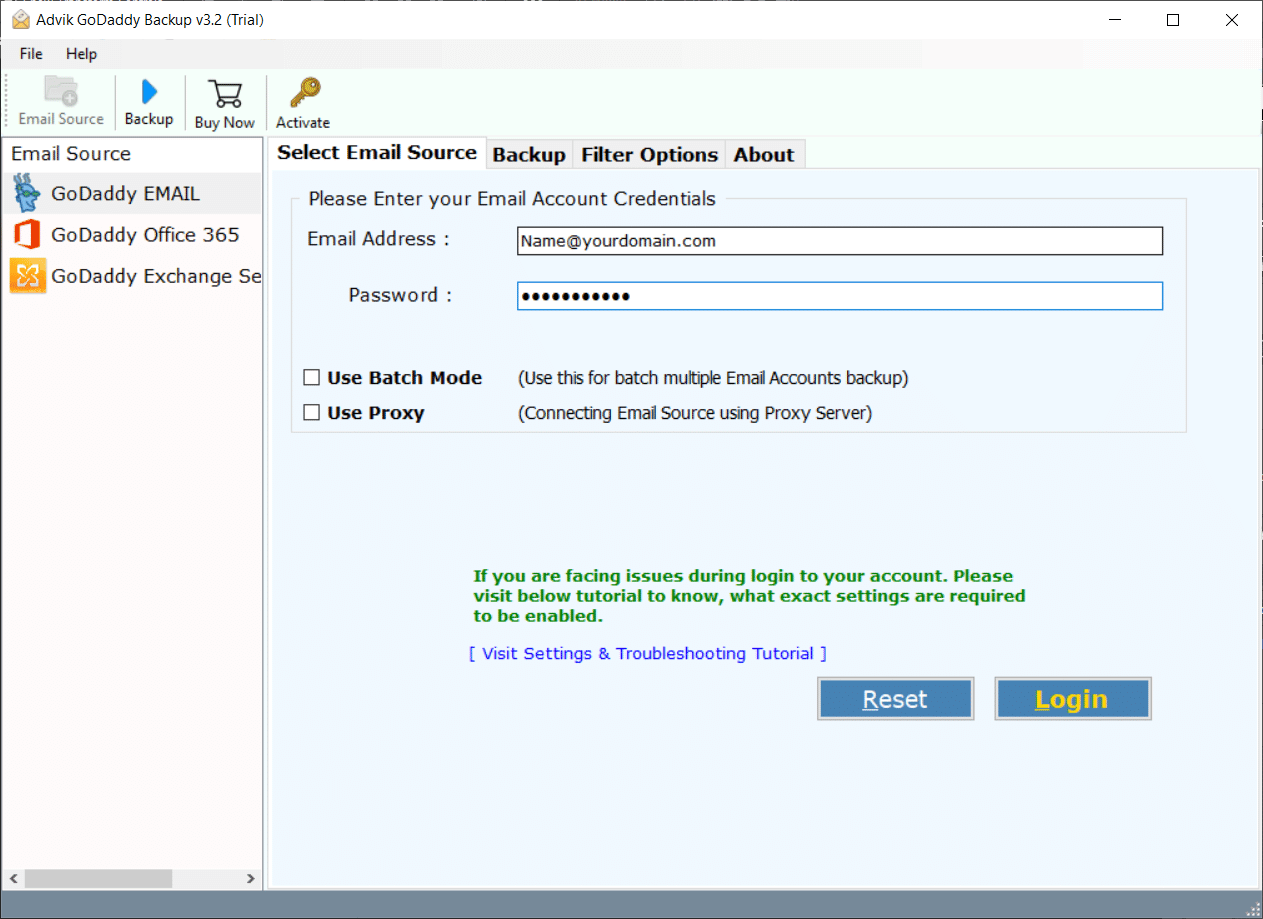
- Run the GoDaddy Email Backup tool and sign in with its login credentials.
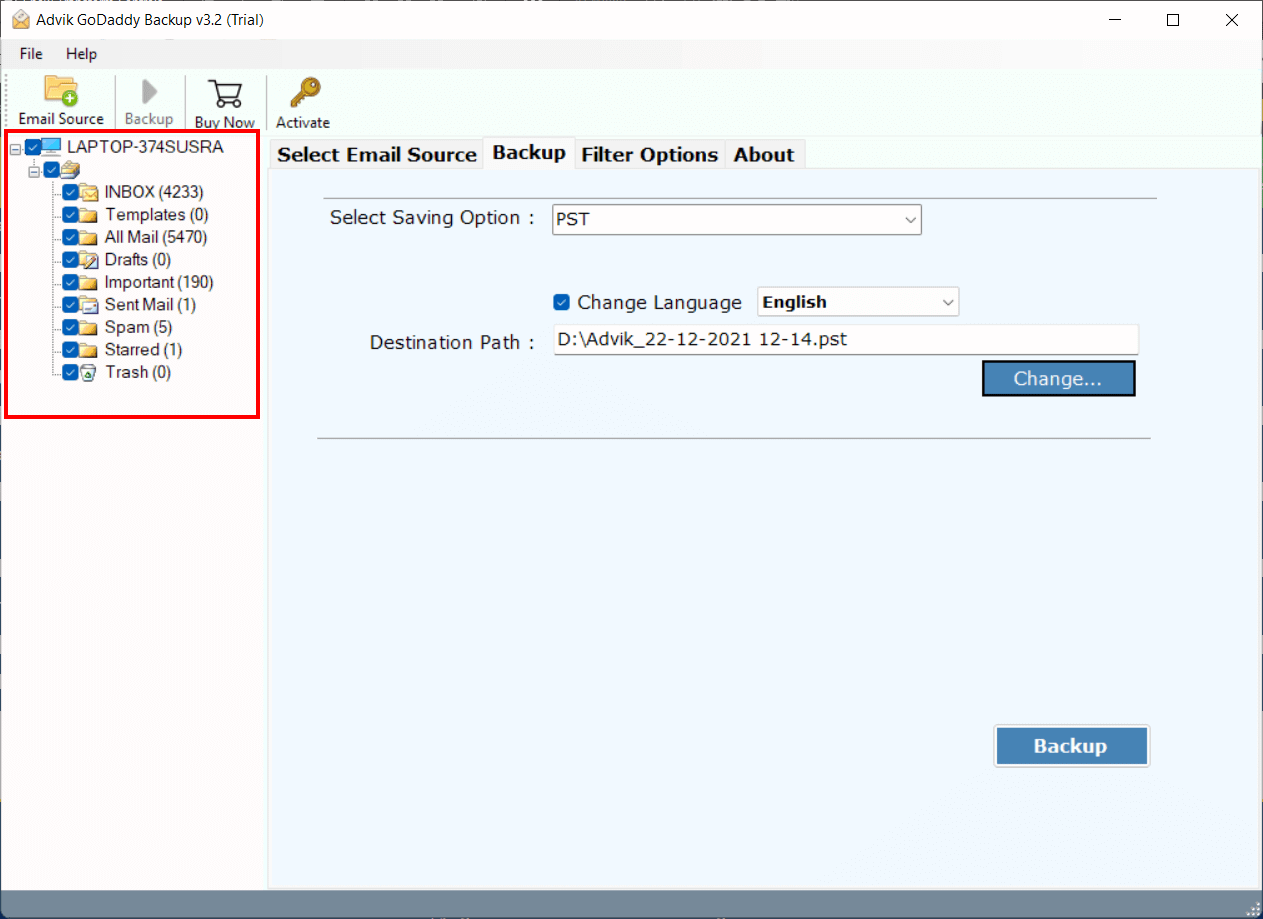
- Select mailbox folders and click the Next button.
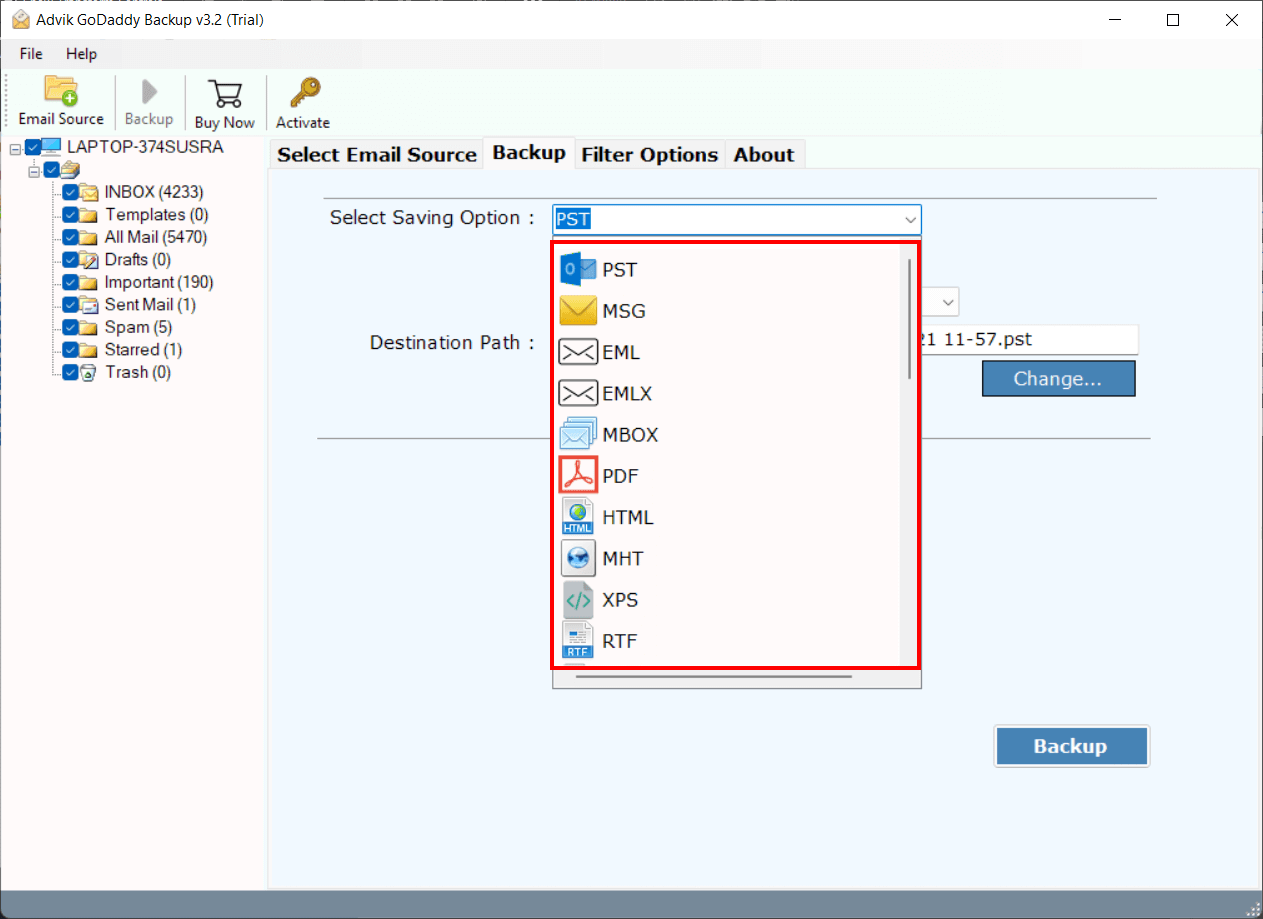
- Select a Saving Option from the list.
- Choose the destination location and Click the Backup button.
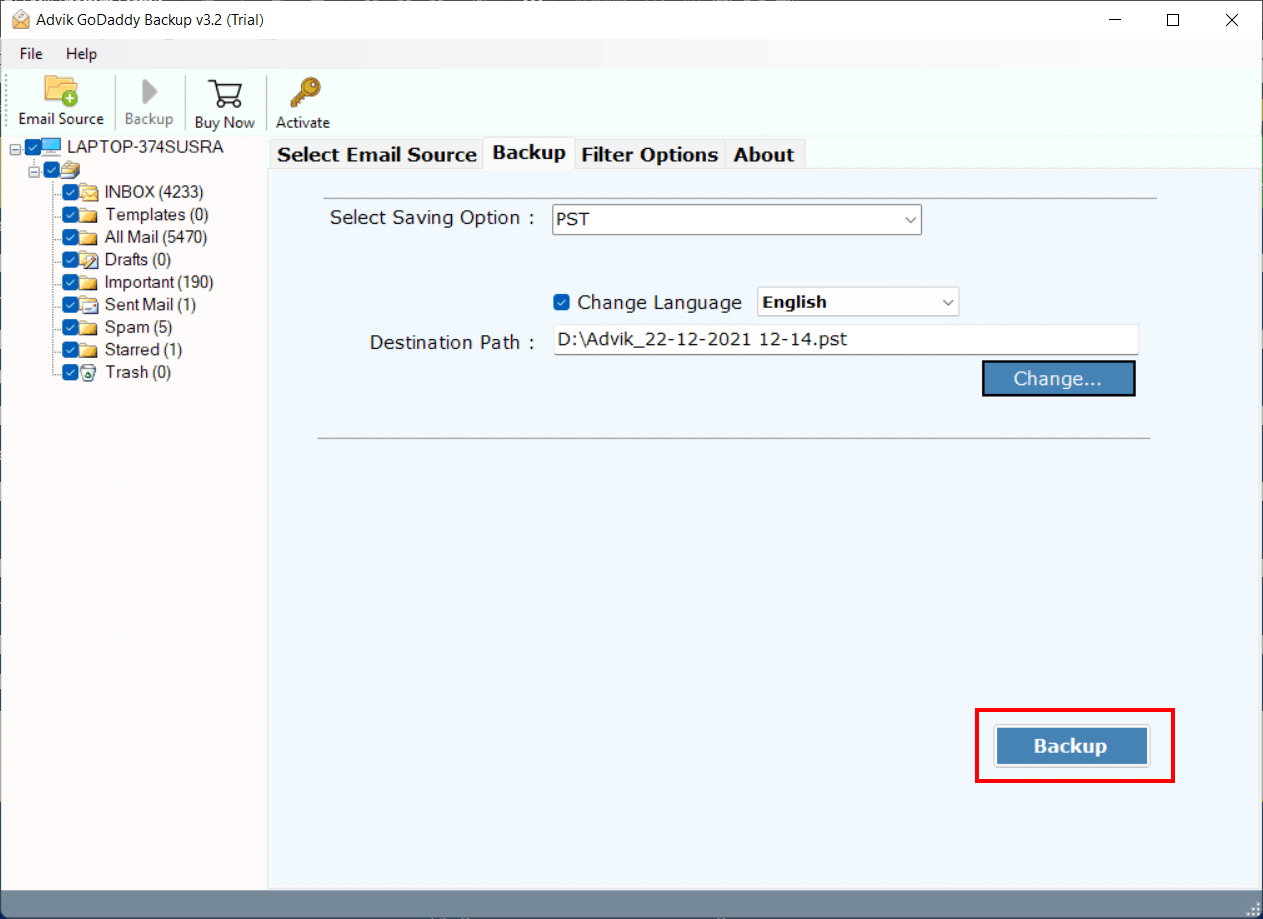
This is how you can backup GoDaddy mailbox to hard drive or pen drive.
You can choose several file formats as per your requirements. The emails will be downloaded along with attachment files.
Watch How to Download GoDaddy Emails to Flash USB Drive
Key Features of the GoDaddy Email backup Tool
- Entire Data Backup: The software can backup GoDaddy email to hard drive in bulk. You can save the entire mailbox in a single attempt.
- Email Filters for selective Backup: The software provides options to selectively backup emails from Godaddy. Users can filter by Date Range, From, To, Subject, etc.
- Backup any GoDaddy Mailbox: Users can backup any folder within their GoDaddy email account, including inbox, sent items, drafts, and custom labels.
- Backup Multiple Users: It supports batch backup of multiple GoDaddy users simultaneously. Users can upload a CSV file with email account details for easy backup.
- Supports Multiple File formats: With this software, users can also convert GoDaddy Emails to PST, PDF, MBOX, and 10+ File Formats to save backup copies.
- Preserves Folder Structure: It maintains the original folder hierarchy when downloading emails from GoDaddy email account. Thus, no data loss will take place.
- Error-Free Operation: It is a reliable tool to download emails from GoDaddy. Such as that it ensures accurate results quickly without any issues.
- Download Emails with Attachments: It efficiently exports emails from GoDaddy along with embedded attachments. Including images, videos, and document files.
- Data Integrity Maintenance: Ensures data integrity during the GoDaddy email download process. Email key elements such as to, from, bcc, cc, subjects, attachments, hyperlinks etc.
- Compatible with Windows OS: The software works on all versions of Windows operating systems. Such as Windows 10, 8.1, 8, 7, XP. (Including both the latest and previous versions).
Final Words
In the above article, we have discussed how to backup GoDaddy emails to Hard Drive. Here, we have mentioned both manual and automated solutions to save GoDaddy emails to external drive. With the manual approach, you can save only one email at a time, while the automated solution allows you to download all emails in a single attempt. You can choose any method according to your needs.
Frequently Asked Questions
Q1. Can I backup GoDaddy emails with attachments?
Ans. Yes, you can backup your GoDaddy emails along with attachments using both the methods explained in this article.
Q2. Is IMAP required?
Ans. Yes, GoDaddy IMAP settings are required to add your account for email backup.
Q3. Does it support multiple accounts?
Ans. Yes, the software allows you to take backup of multiple GoDaddy email accounts at one time.
Q4. Is the backup secure?
Ans. Yes, this tool provides a 100% safe and secure GoDaddy email backup process. Rest assured about your data safety and security.
Q5. Can I restore emails later?
Ans. No, to restore GoDaddy emails backup to your account, you have to use a specialized tool to transfer backup file format.