How to Export GoDaddy Emails to PST File?
To export GoDaddy emails to PST, you have to configure the GoDaddy mailbox with Microsoft Outlook and use it’s in built export option. Or, you can also use a dedicated solution to generate PST files directly without Outlook. In this guide, we have explained both methods with their use in different scenarios and when to use each option.
GoDaddy professional email is a popular choice for businesses and individuals to manage emails with custom domain names. It provides security of mailbox data stored in the cloud, but many users prefer to create PST as a backup for offline access, email migration and for their personal needs.
PST stands for (Personal Storage Table) is a mailbox storage format used by Microsoft Outlook to store emails , contacts , calendars , tasks and other mailbox items in one file. When exported, the PST file can be opened locally on Microsoft Outlook without the need to access the original mailbox.
The techniques in this guide were tested with a GoDaddy professional email account, Microsoft Outlook 2021, Microsoft 365 Outlook, and Windows 11 Professional. The export process was successfully verified in Outlook using the exported PST files.
In this article you will learn why users export GoDaddy emails to PST, benefits of PST file format and best ways to create PST files and help you to decide the right methods as per your requirement.
Table of Contents
- Why Export GoDaddy Email to PST?
- Methods to Convert GoDaddy Emails to PST
- Method 1: Export GoDaddy Mailbox to PST Using Outlook
- Method 2: Download GoDaddy Emails in PST Without Outlook
- Watch How to Export GoDaddy Mailbox to PST
- Benefits of Using an Automated Tool
- Manual vs Automated Method Comparison
- Conclusion
- Frequently Asked Questions
Why Export GoDaddy Emails to PST?
GoDaddy stores its email accounts mailbox data on cloud servers. It provides the flexibility to the users to access the data from anywhere but most of the users want to create PST backup for offline access, migration and data security.
Below are some common reasons to export GoDaddy mailbox to PST:
- Save critical emails locally
- Read email when you’re offline
- To open and work with e-mail messages in Microsoft Outlook
- Move mail box data to another computer or Outlook profile
- To satisfy business archive and compliance requirements
- Recover data from accidentally deleted important emails
- Long-term storage of business correspondence.
How to Export Emails from GoDaddy to PST? Top 2 Ways!
GoDaddy Webmail doesn’t have a direct PST export function. Users generally select one of the following methods:
Method 1: Configure GoDaddy account with Outlook & export mailbox data into PST file.
Method 2: Use specialised tool to save PST files directly without Outlook.
Let’s go through both methods step-by-step.
Method 1. How to Convert GoDaddy Email to PST Using Outlook’s Export Feature
Microsoft Outlook features a built-in Import/Export Wizard, which gives users the ability to create PST files from their set up email accounts. If your GoDaddy mailbox is already linked to Outlook, you can export your mailbox data using the steps below.
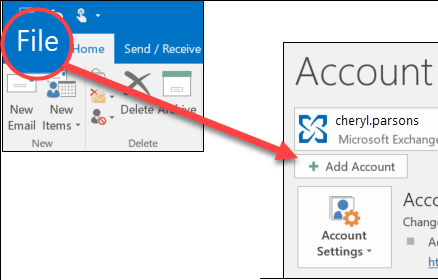
1. Launch the Outlook application and click File >> Add Account.
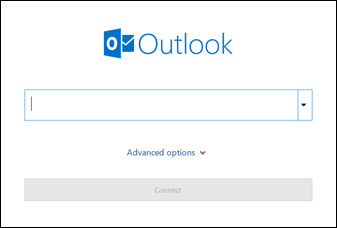
2. Enter GoDaddy account login details and click Connect to configure it.
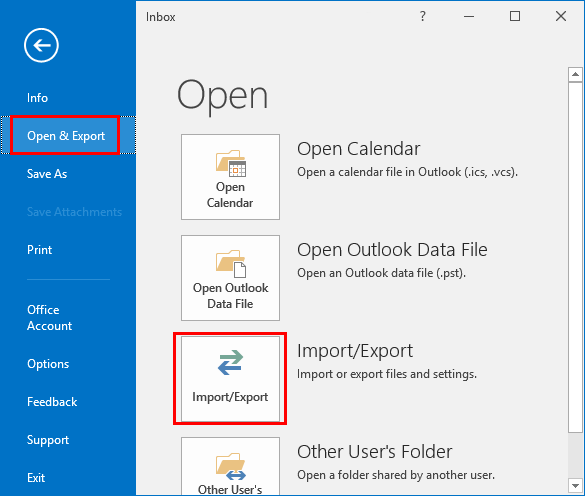
3. After configuration, navigate to File >> Open & Export >> Import/Export.
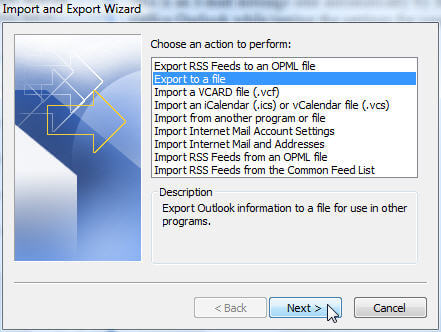
4. Choose Export to a File and click Next.
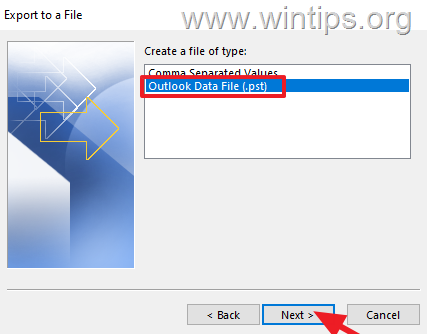
5. Select Outlook Data File (.pst) and press Next.
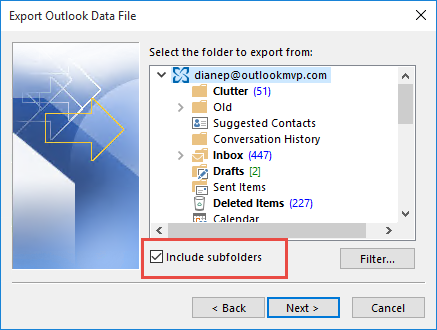
6. Now, choose the GoDaddy email folder and tap on Next.
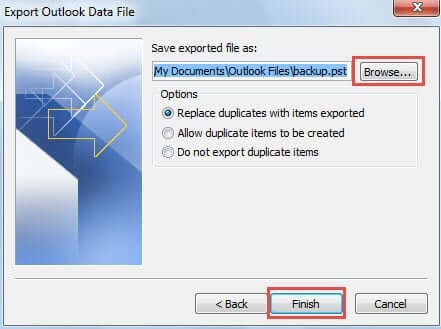
7. Browse target location and click Finish button.
Done! That’s how to export GoDaddy mailbox to PST file with Outlook.
Please take these points into account before choosing this Outlook method:
- You must have Microsoft Outlook installed.
- Mailbox must be fully synchronised before export.
- There is no option for advanced email filters.
- Each account will have to be exported individually.
- Processing large mailboxes can be time consuming.
- In some Outlook installations, the import/export option may be greyed out.
- Not good for bulk mailboxes export.
How to Export Emails from GoDaddy to PST Automatically?
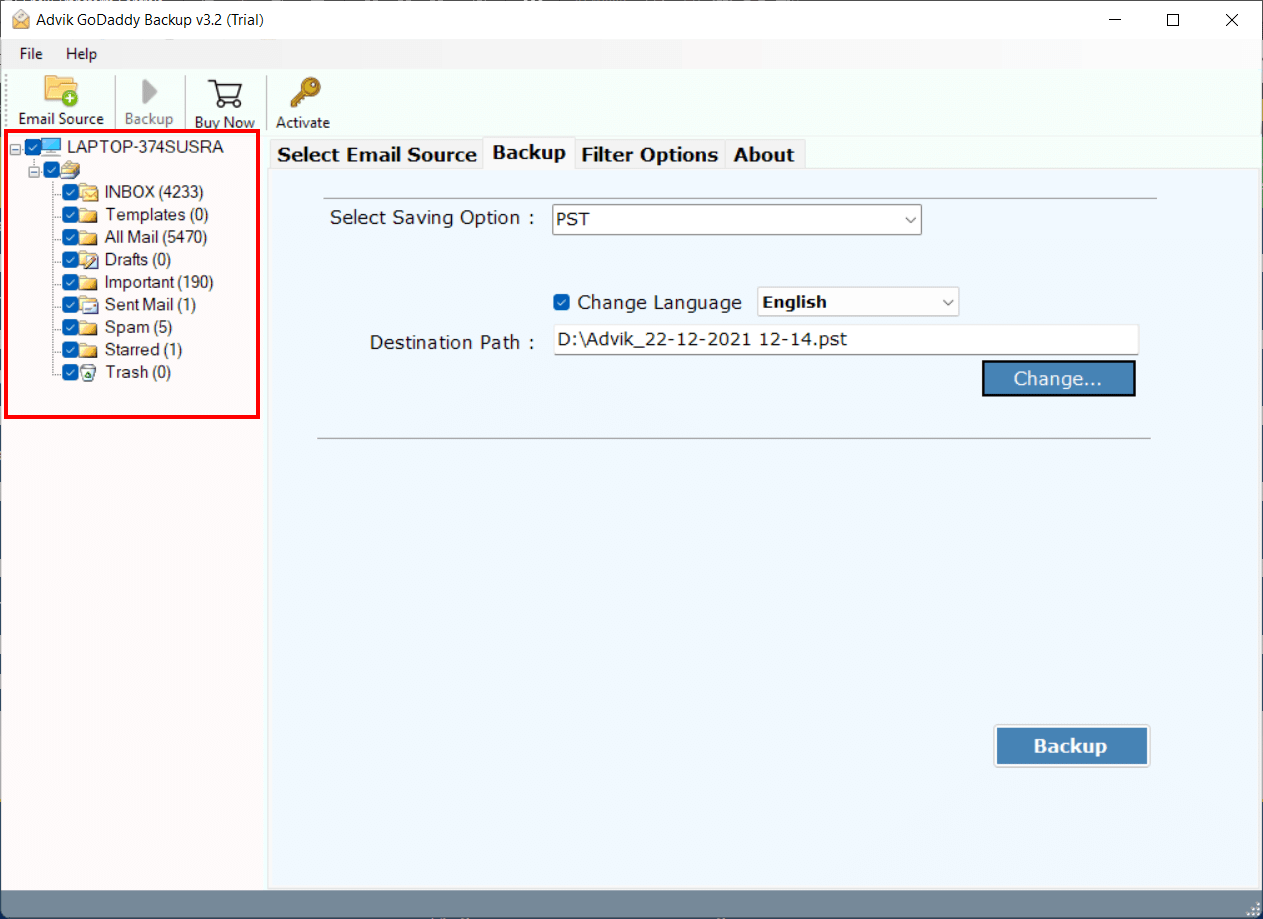
If you need to export large mailboxes, multiple accounts or want to export selective emails, then you can use a dedicated solution made for this. Advik GoDaddy Backup Tool allows users to export GoDaddy emails directly to PST format without using Outlook. The software maintains mailbox structure, email properties, attachments and folder hierarchy throughout the export process.
Download the FREE demo version to check its working procedure.


Steps to Export GoDaddy Emails to PST File
- Run the suggested solution & sign in with your login credentials.
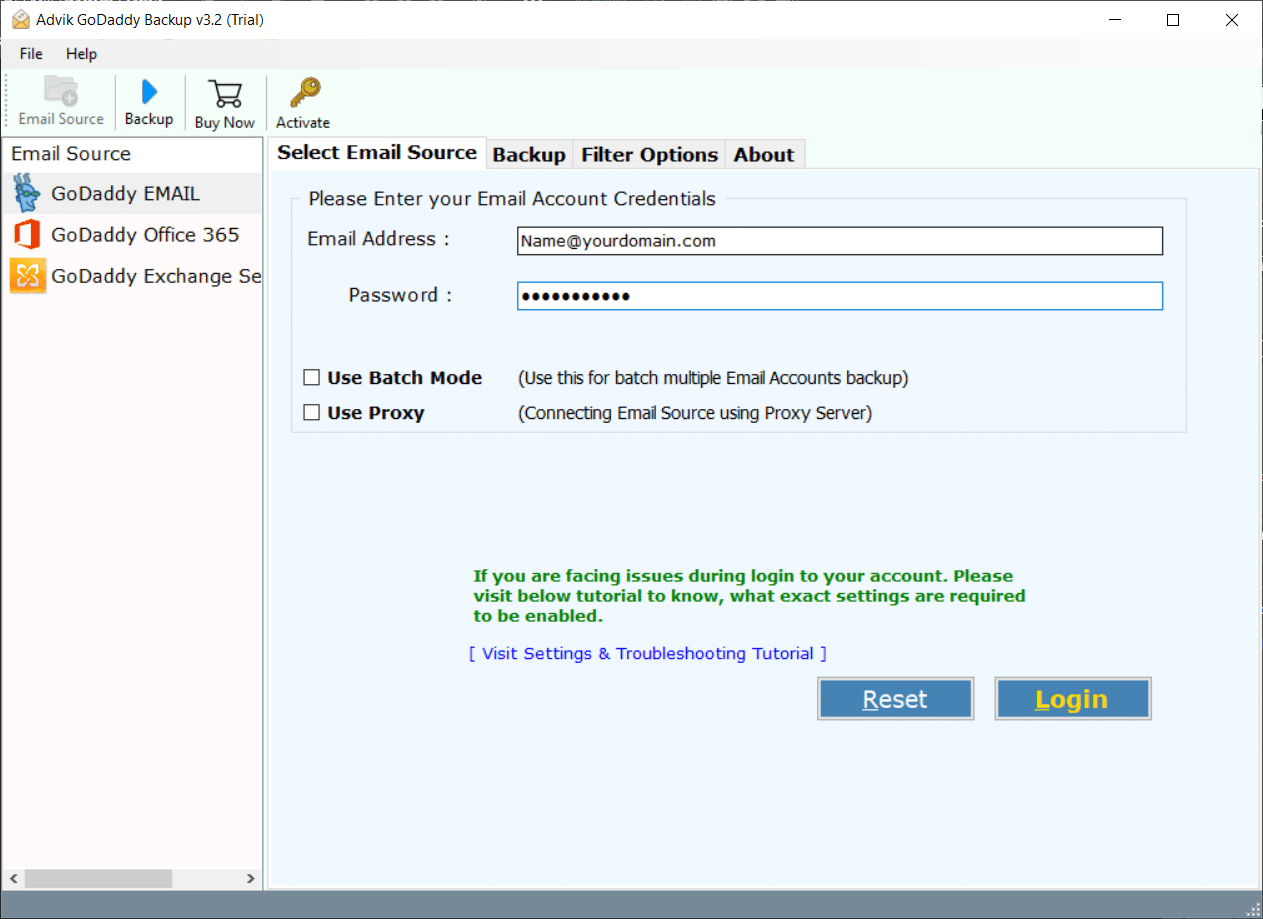
- Select mailbox folders and click Next.
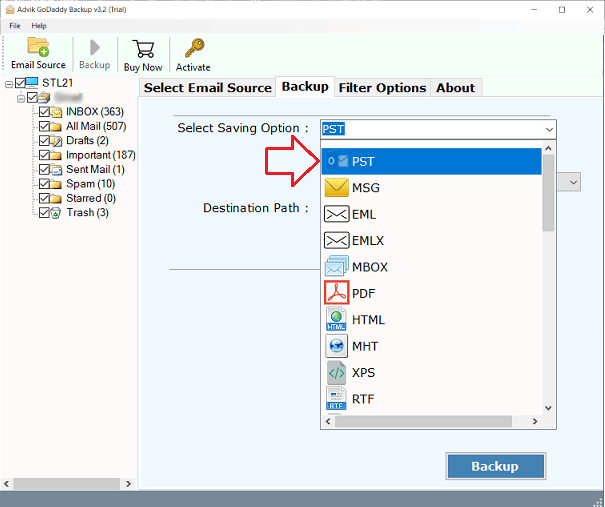
- Select PST as a saving option from the list.
- Click Backup and analyze the process.
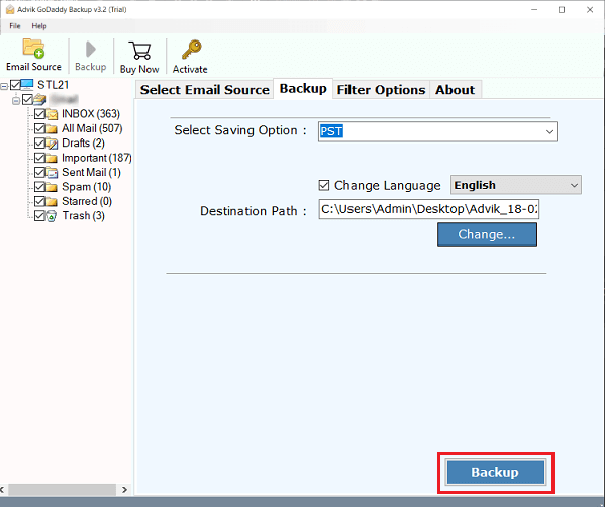
Done! The software will create a PST file containing the selected mailbox data.
Watch How to Export GoDaddy Mailbox to PST
Benefits of Using an Automated Tool
- Directly export GoDaddy email to PST without Outlook.
- Export all email folders from GoDaddy to PST in a single attempt.
- Also, convert GoDaddy emails to MBOX, EML, PDF, and many other formats.
- Preserves all email attributes such as attachments, hyperlinks, signatures, etc.
- Retains the original structure of mailbox folders even after the process.
- Simple and user-friendly graphical interface for all types of users.
- Compatible with all the latest and older versions of Windows OS.
Manual vs Automated Method Comparison
| Feature | Outlook Method | Automated Tool |
|---|---|---|
| Outlook Required | Yes | No |
| Technical Knowledge | Medium | Low |
| Large Mailbox Support | Limited | Yes |
| Multiple Accounts | No | Yes |
| Email Filters | No | Yes |
| Batch Export | No | Yes |
| Folder Selection | Yes | Yes |
| Time Required | Higher | Lower |
Which Method Should You Choose?
The right approach depends on your needs.
If you have Outlook installed and just want to do this from time to time, this is a practical and cost effective way of exporting a small mailbox from your GoDaddy email account into PST file.
However, if you are looking to export large mailboxes, multiple accounts and need advanced filter options to export selective emails, then using an automated tool will be a better solution for you.
So, choose a method according to the size of your mailbox and any other needs.
Conclusion
We have covered two easy methods to export GoDaddy email to PST format in this guide. The Outlook method is good for those who already have Outlook installed and want to export few mailboxes. If you have large mailbox and multiple accounts, a professional backup solution can save time and cut down on manual effort. Pick the method that best fits your needs and requirements.
Frequently Asked Questions
Q1. Is it possible to export GoDaddy Email to PST without Outlook?
Ans. Yes, by using any third-party tool, you can export GoDaddy emails directly to PST format.
Q2. Does the PST have any attachments?
Ans. Yes, PST file is created with email attachments using Outlook or professional export tools.
Q3. Is it possible to export selected folders?
Ans. Yes, both discussed methods above allow users to choose specific mailbox folders before exporting.
Q4. Is it possible to export multiple GoDaddy accounts at once?
Ans. You will need to export each account separately using the Outlook method. Some professional tools support multiple account batch export.
Q5. Can PST be used for long term email backup?
Ans. Yes. PST is the standard mailbox storage format for Microsoft and is widely used for email backup, migration and offline access.
Q6. Which Outlook versions support PST files?
Ans. It supports to open PST file in Outlook 2024, 2021, 2019, 2016, 2013, and lower versions of MS Outlook.