How to Backup HostGator Emails to Computer?
Christopher Plummer | February 14th, 2026 | Data Backup
Are you worried about losing crucial data in your HostGator account? Do not panic. Saving HostGator emails to hard drive is the best way to safeguard them. In this article, we will show you how you can backup Hostagator emails to computer seamlessly. Read this blog and explore both manual and automated solutions to download emails from HostGator to PC with attachments.
HostGator is a web hosting provider that offers a wide range of services, including shared hosting, VPS hosting, dedicated servers, etc. Even, it also provides free webmail services to the users to send and receive emails. Often, the need arises to backup mailbox data for security and legal compliance. Apart from this, if you save emails locally, you can access them any time, even without an internet connection.
So, let’s get started!
How to Backup HostGator Emails Manually on Computer?
There is no direct way to download HostGator emails to computer. Using email clients such as Outlook, Thunderbird, etc., you can do it.
Follow the steps below to save HostGator emails locally via Outlook.
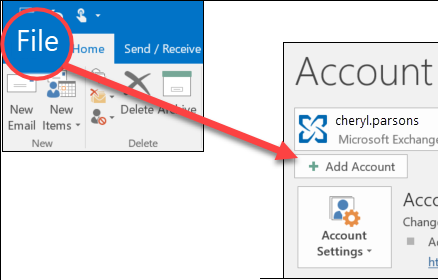
1. Open Outlook and go to File >> Add Account.
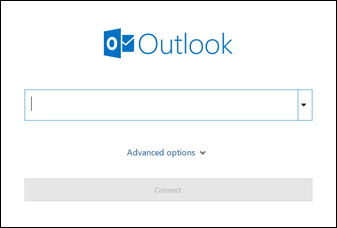
2. Set up HostGator email account with Outlook.
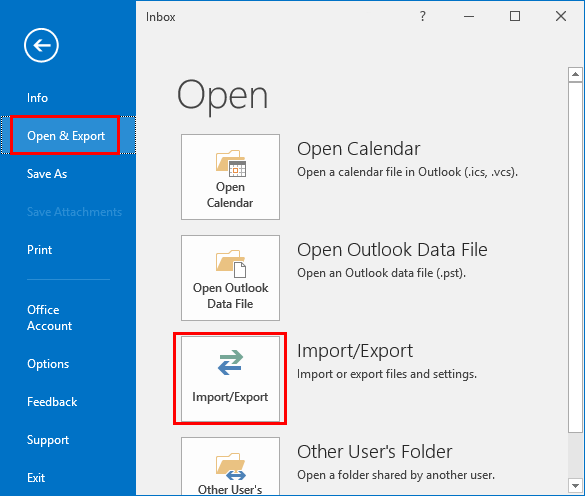
3. After that, click File >> Open & Export >> Import/Export.
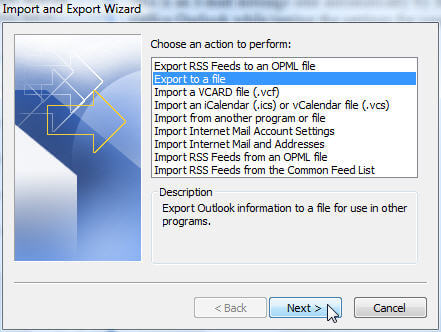
4. Choose Export to a File and click Next.
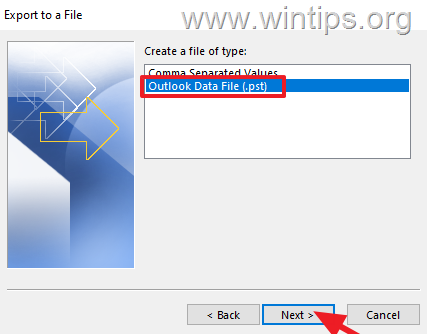
5. Select Outlook Data File (.pst) and press Next.
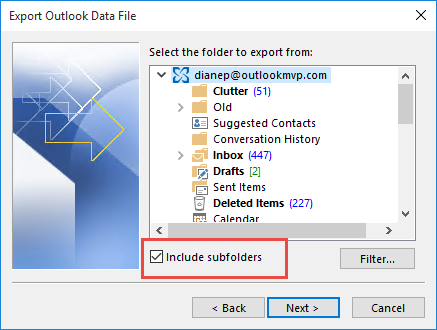
6. Choose HostGator email folder to export.
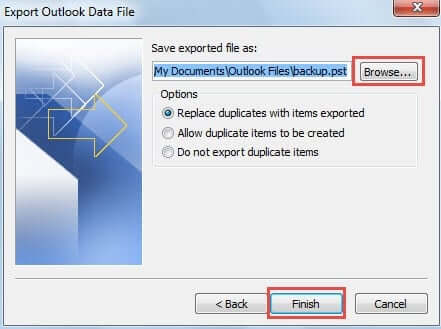
7. Click on Browse to choose destination path and click the Finish button.
Done! That’s how you can export HostGator emails to hard drive/computer/PCs into PST format using Outlook.
How to Download Emails from HostGator Automatically?
Advik Email Backup Wizard is one of the best approaches to backup HostGator emails to PC. The software also lets you download HostGator emails to hard drive or flash drive directly. This program will help you export all emails from Hostgator with the same mailbox folder hierarchy. Also, you can save Hostgator webmail emails in multiple formats such as PST, PDF, MBOX, EML, HTML, and many more.
Download the software and try it for FREE. The trial version will download 25 emails from each folder.


Steps to Backup HostGator Emails to PC
1. Launch HostGator Backup Software on your PC.
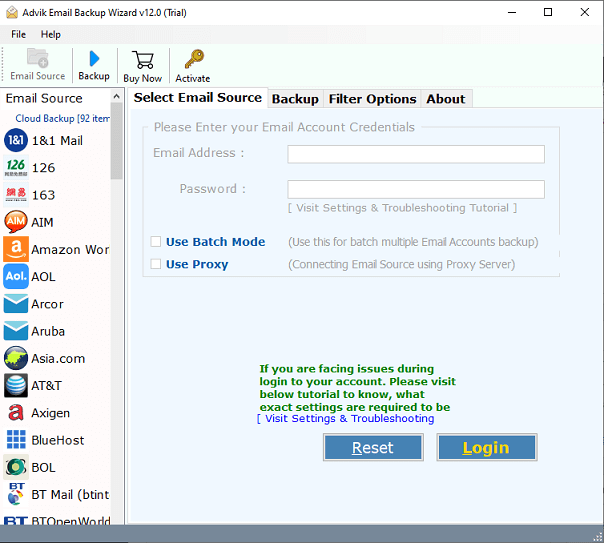
2. Select HostGator as email source from software.
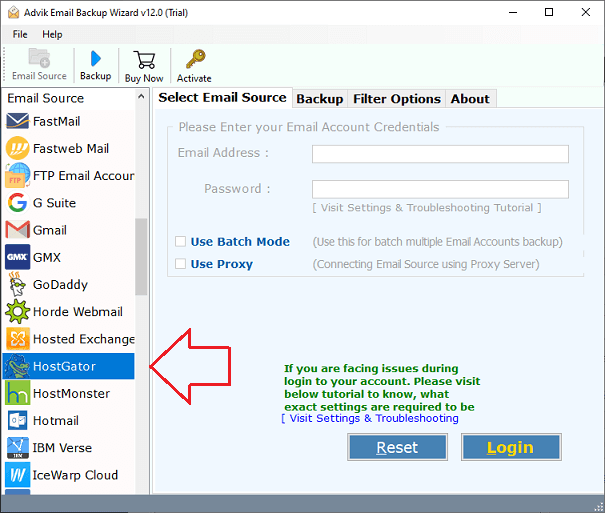
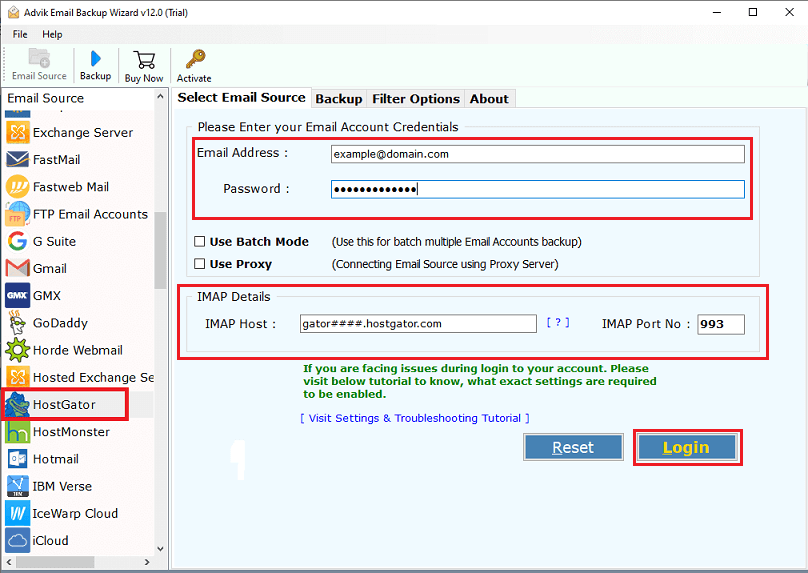
3. Enter your HostGator email account credentials and click Login.
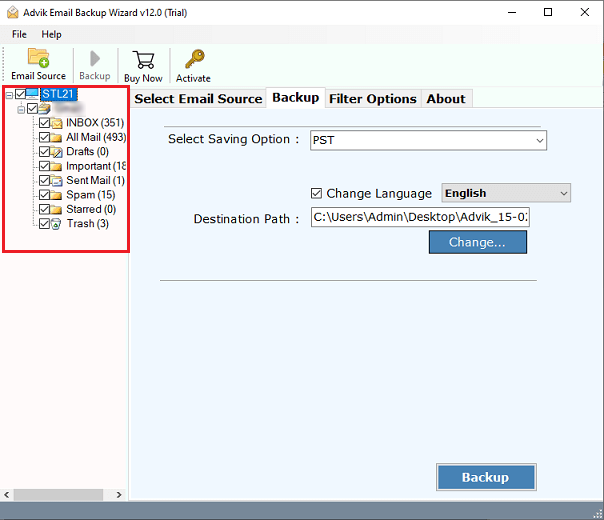
4. After login, choose email folders to transfer.
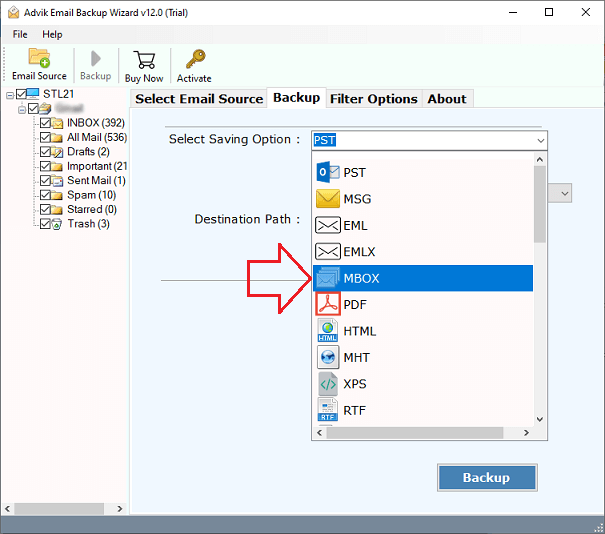
5. Select any file format in which you want to download emails.
6. Select desired Destination Path to save backup file.
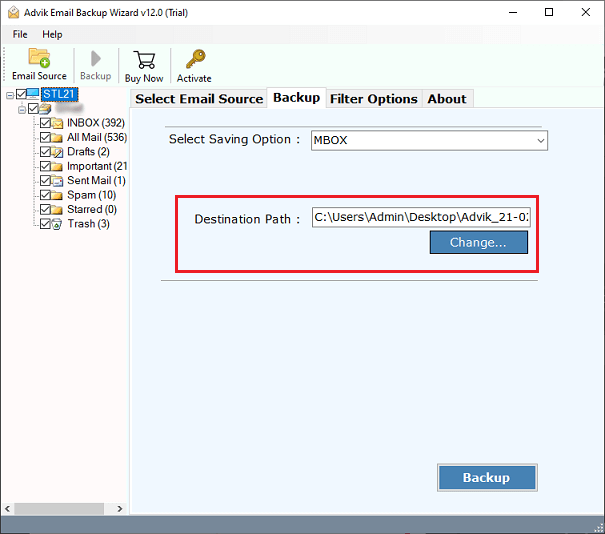
7. Click Backup button to start process.
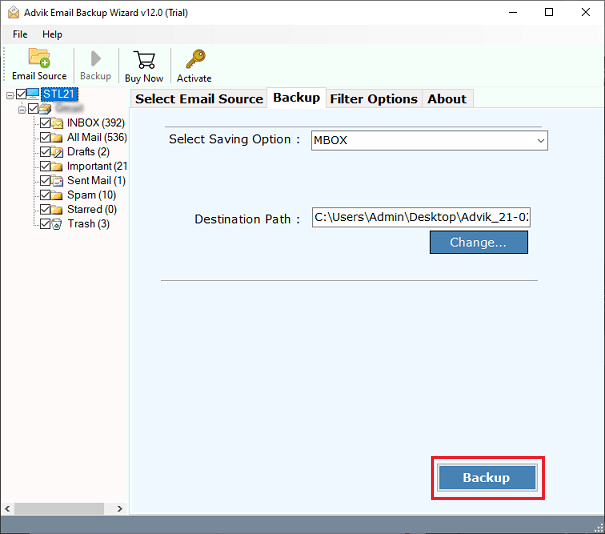
The software will immediately start downloading all emails from Hostgator to computer. You will be notified with a pop-up message after the successful backup process.
Key benefits of using HostGator Email Backup Tool
- Directly download emails from HostGator to your system.
- Backup HostGator emails into 30+ formats.
- Save the entire HostGator mailbox in a single attempt.
- Preserves all email attributes during the HostGator backup process.
- Retains the original structure of mailbox folders even after the process.
- Also, transfer emails from HostGator to Gmail, and other email platforms.
- Advanced email filter options for selective HostGator email backup.
- A user-friendly interface is helpful for both technical and non-technical users.
- Compatible with all versions of both Mac and Windows operating systems.
Final words
I hope this article is helpful for you. Here, we have mentioned both manual and automated solutions to backup HostGator emails with attachments. You can choose any method and save HostGator emails to your system easily. However, the manual method is suitable if you have the necessary knowledge, as a lack of expertise could lead to data loss and other issues. To avoid these challenges, we’ve also provided an alternative solution.
