How to Backup IMAP Emails to Computer
Step-by-step guide on how to backup IMAP emails to computer. Explains how to copy IMAP emails manually via built-in tools and specialized apps. Highlight the value of creating full account backup. So, let’s get started!
This article will explain how to backup IMAP emails to PC using different methods so that you have wider options to make a wise decision.
Why is it Important to Backup IMAP Emails?
Your IMAP account contains lot of emails and other data and if it gets hacked due to any reason then you will lose access to your email data permanently.
Also, your data store data on server, which means your emails depend completely on server availability.
It can also be important that your emails include important data. Taking regular backups helps protect your data from uncertain issues.
Now, we will discuss simple ways to save IMAP emails locally. Let’s get started.
How to Backup IMAP Emails to Computer Manually?
The Import/Export feature of Outlook is one of the quickest ways to export all IMAP emails to a local folder. You can add an IMAP email account to Outlook and carry out this task effectively.
Follow the steps below to complete the IMAP backup manually:
Step 1. Open the Outlook Application on your system.
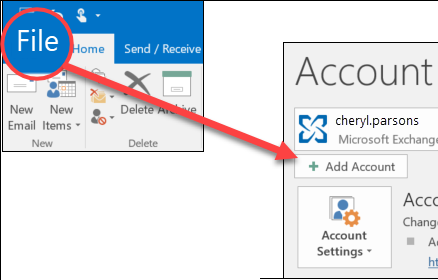
Step 2. Next, go to the menu and select File >> Add Account.
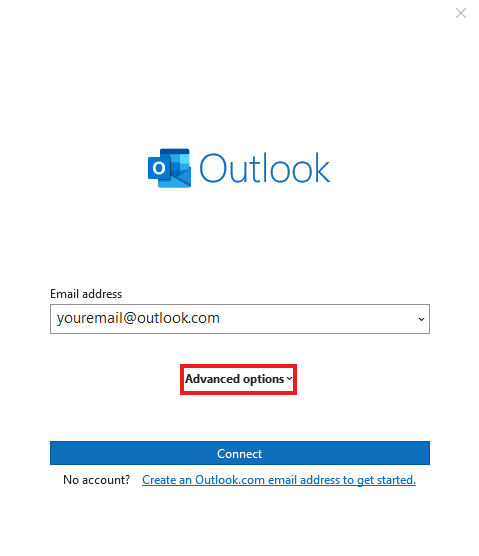
Step 3. Enter your email address and click Connect.
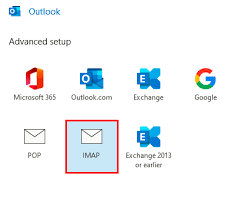
Step 4. Next, click on IMAP in advanced setup.
Step 5. Enter IMAP configuration details & click Next.
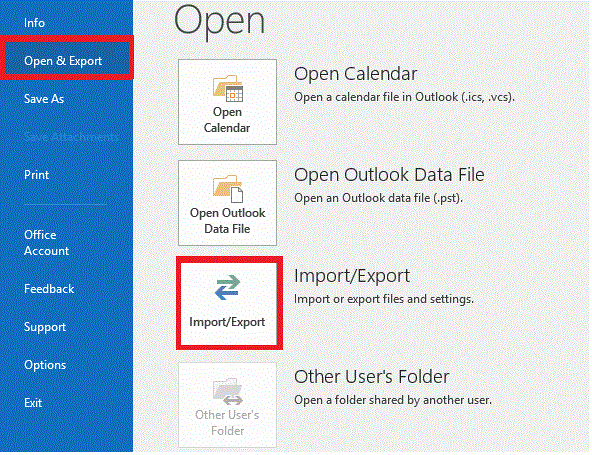
Step 6. Go to File tab >> Open & Export >> Import/Export option.
Step 7. Now choose export to a file option, then click Next.
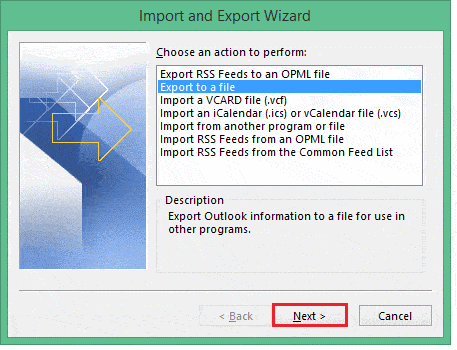
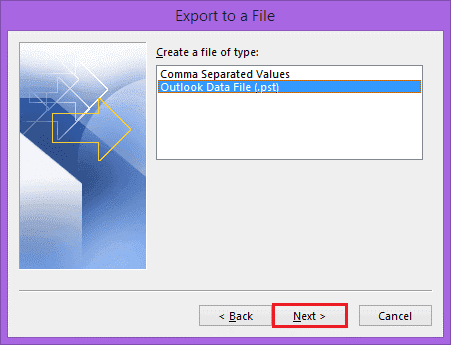
Step 8. Select Outlook Data File (.pst) from the list and click Next.
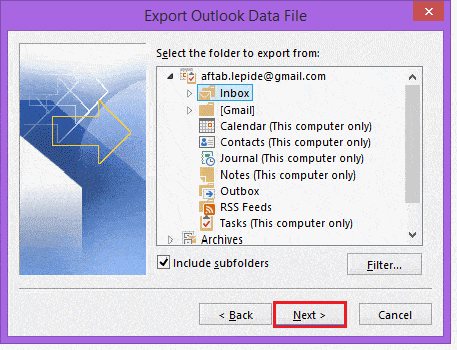
Step 9. Choose the IMAP email folder you wish to backup.
Step 10. Lastly, choose the location to save the file & click Finish.
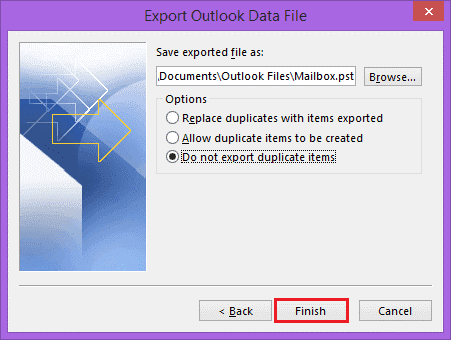
Microsoft will start exporting IMAP emails to PST file. This file can be used as a backup file for future use. As it can be transferred to another system or Outlook.
Note: This is a lengthy and time-consuming process.
How to Download All Emails from IMAP to Computer Securely?
The manual method is tricky and requires extra steps. For a quick and easy solution, download and install Advik Email Backup Wizard on your system and backup IMAP emails locally in just a few simple clicks. With this utility, you can save IMAP emails without any configuration. This tool can download all IMAP emails at once. Also, it allows you to choose specific emails or folders for selective IMAP backup. Additionally, it will maintain folder hierarchy and keep all the email attributes safe during the process.
Click below to download and try the software for FREE. It is compatible with all Windows and Mac OS versions.


Steps to Backup IMAP Emails to PC/Computer
Step 1. Run the software on your computer.
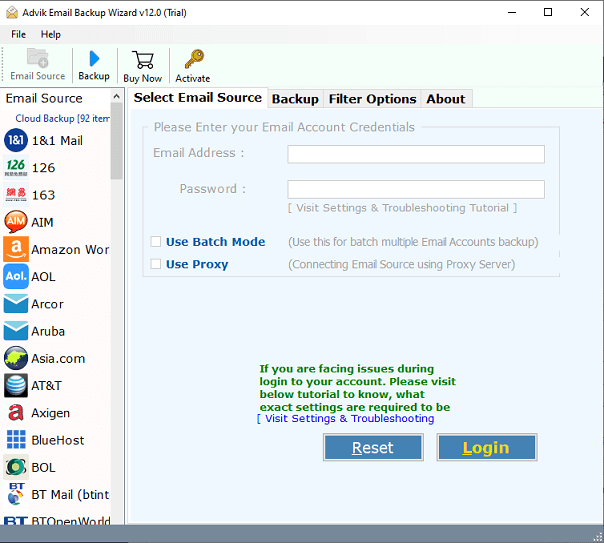
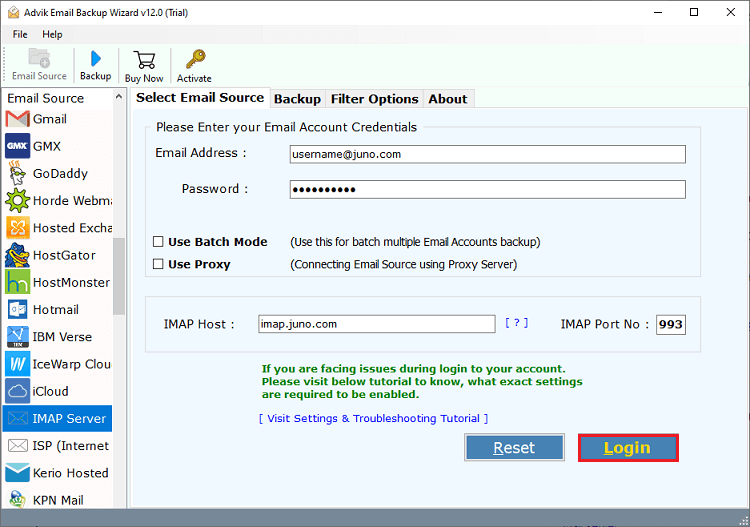
Step 2. Choose IMAP as an email source and sign in.
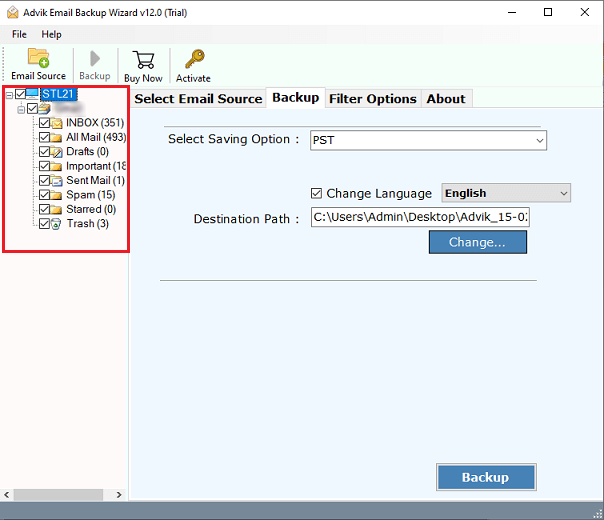
Step 3. After that, select the mailbox folders to download.
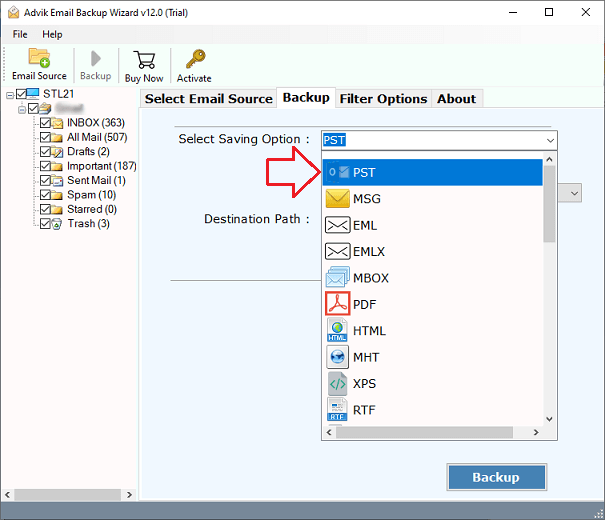
Step 4. Choose any file format from the saving options.
Step 5. Next, browse the target location and click the Backup button.
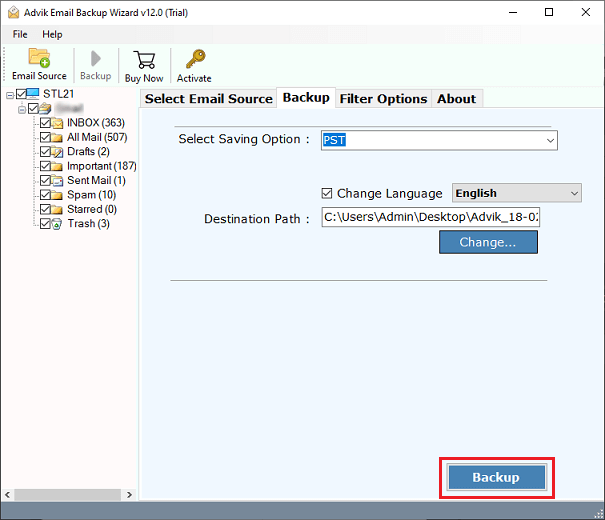
The software will start downloading emails from IMAP account with attachments. Once the process is finished, the software will create a full log report with complete details.
Watch: How to Backup IMAP Mailbox to Hard Drive
Why Opt for an Automated Solution Instead of Manual Methods?
- Backup IMAP Email to Different Formats: This tool allows you to save your entire IMAP mailbox with just a few clicks. It supports backing up your emails into various formats. It includes MBOX, MSG, EML, DOC CSV, and many more. These different file formats give users flexibility and easy access to their emails.
- Selective Email Backup: The IMAP Backup Tool includes an advanced filter option that lets users selectively backup specific IMAP mailbox items. Users can filter emails by choosing to select date ranges, To, From, Cc, Bcc, etc.
- Maintains Data Integrity: The Tool works well in preserving key elements. It doesn’t alter any of these and maintains its originality. Such as To, from, Bcc, Cc, hyperlinks, attachments, etc. Additionally, it also preserves the folder hierarchy during the IMAP backup process.
- Save IMAP Emails in Bulk: This IMAP Mail Backup Tool lets you bulk backup IMAP mailbox in one go. It’s ideal if you’re short on time and need to archive many emails. Just upload the details of multiple IMAP email accounts in a .csv file and check the Batch mode feature.
- Compatible with Windows and Mac OS: The Utility supports all versions of Windows and Mac OS for backing u IMAP email accounts. Users can easily install this application on any version of Windows or Mac, whether it’s a new or old version.
Conclusion
I hope we were able to help you with the right solutions you have been looking for. Here, we have mentioned both manual and automated solutions to backup IMAP emails to PC. You can choose any method as per your need and availability.
Frequently Asked Questions
Q1. Can I backup IMAP emails along with attachments?
Ans. Yes, you can backup IMAP emails with all attachments with complete mailbox folders.
Q2. Is it possible to download emails from multiple IMAP accounts at the same time?
Ans. The tool supports batch mode through which you can backup emails from multiple IMAP accounts in a single process.
Q3. I want to download IMAP emails within a specific date range?
Ans. Yes, the software provides advanced email filters that let you backup emails based on date range, sender, recipient, subject many more.