How to Backup MDaemon Emails to Computer?
Multiple reasons initiate users to backup MDaemon emails. Though MDaemon Mail Server offers any services to users, users still need a reliable solution to download their emails to the local system. This blog will discuss tw differnt types of approaches, one for the MDaemon server and another for MDaemon webmail services. So, go through this blog and choose as per your needs and requirements.
Method 1: How to Download MDaemon Emails to PC? [Desktop Version]
Check out the Advik MDaemon Converter to easily backup MDaemon emails to hard drive. All you need to do is export MDaemon emails from the desktop app and then install this utility to complete the MDaemon backup process. It offers various saving options to export MDaemon to PST, PDF, MSG, HTML, MBOX etc. The software preserves data integrity and mailbox folder hierarchy during the process.
Download this free software and check the performance and efficiency of this wizard for free.


Steps to Backup MDaemon Emails to Computer
1. Install and Run Advik MDaemon Converter on your Computer.
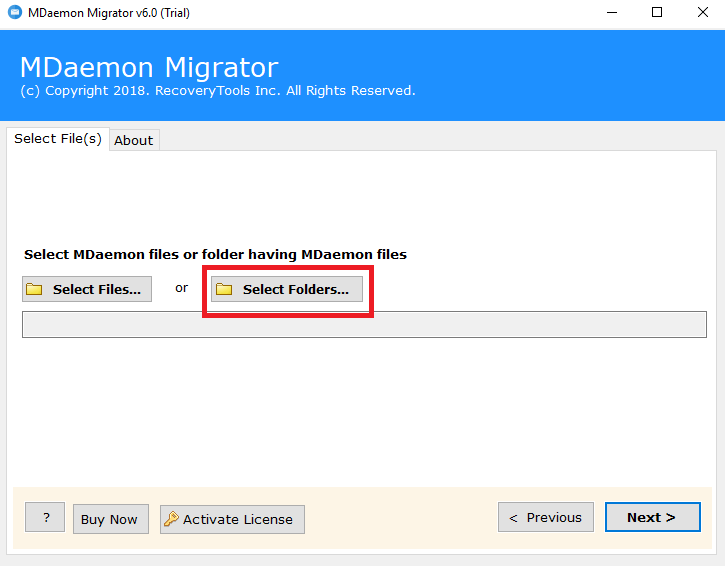
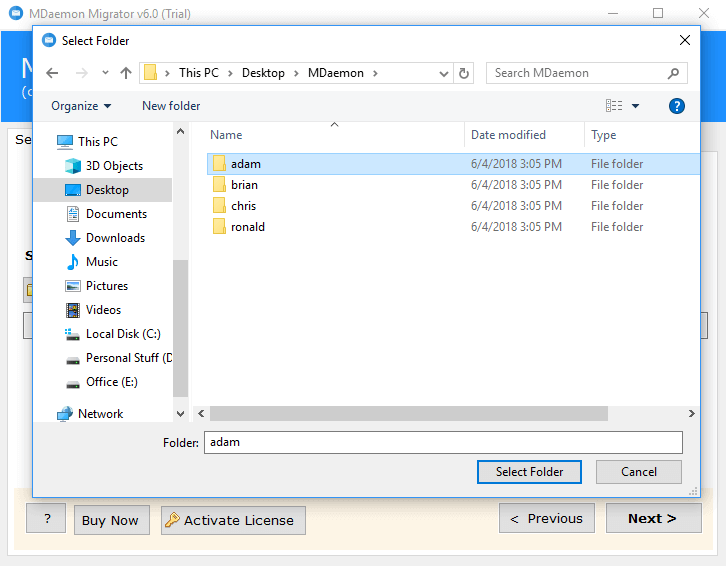
2. Now, choose MDaemon files or a folder having MDaemon files. Browse and add MDaemon mailbox folders.
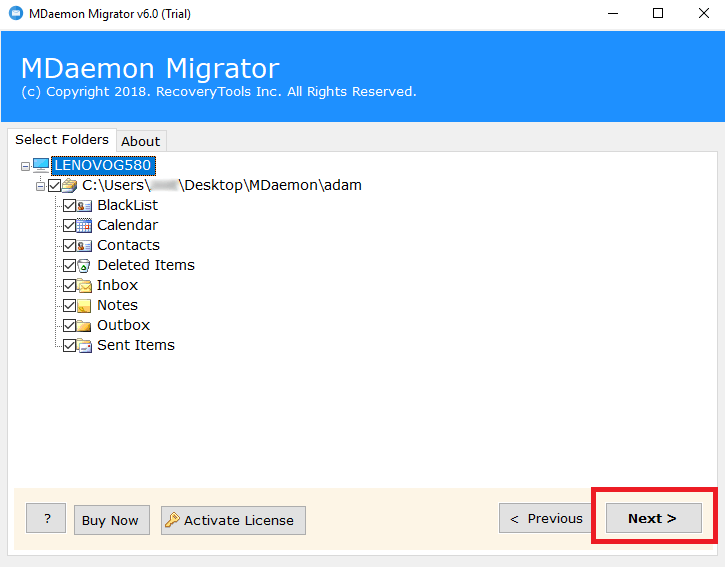
3. Choose the required folders and subfolders of your MDaemon Mailbox to backup.
4. Select your desired file format from the list of multiple saving options. Here we will choose “MBOX” as a saving option.
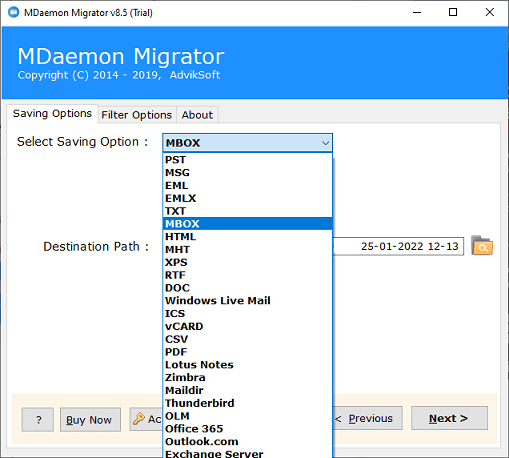
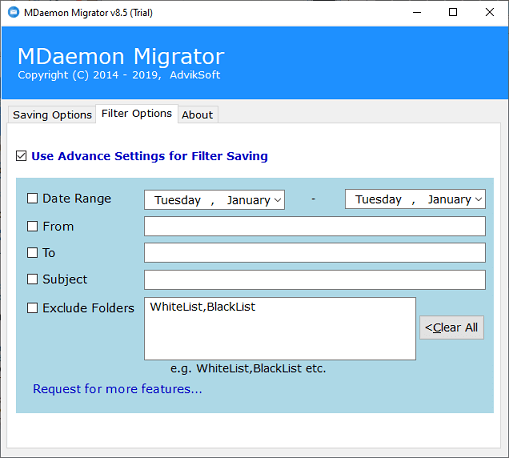
5. You can also apply filter options to enhance the MDaemon Backup process.
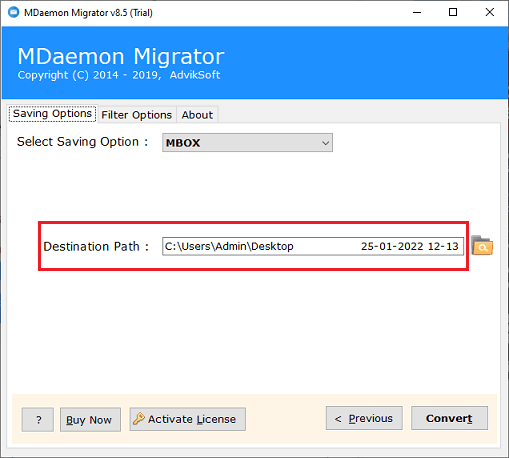
6. Choose the desired destination Path to locate your MDaemon backup files.
7. Finally! Click on the “Convert” Button to start the Backup process.
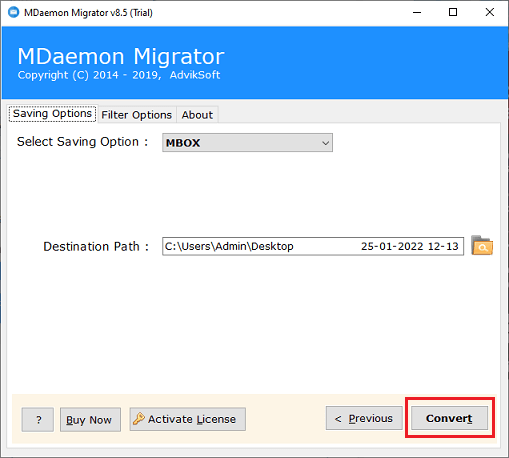
This tool will instantly complete the MDaemon Backup Process. This is one of the easy and simple ways to download emails from MDaemon to Computer locally.
Why Should You Choose Advik MDaemon Converter Tool?
Here are some reasons to choose this utility. Some of them are;
- Well-established formats like Outlook PST, MSG, MBOX, EML, XML, PDF files.
- User-Friendly Interface
- Maintain Folder Structure
- Advanced Email Filter Options
- Preserves Data Integrity
Method 2. How to Backup Emails from MDaemon Cloud to PC? [Mail Server]
Try the Advik Email Backup Wizard to backup MDaemon emails to computer. The software is designed with many useful functions that can help you to download emails from MDaemon Cloud in various file formats according to your choice. It offers popular file formats such as PST, MSG, EML, EMLX, PDF, HTML, CSV, ZIP, MBOX and more. With this utility, you can save the entire mailbox at once. Also, it offers email filter options for selective email backup.
Download this free tool and analyze the MDaemon Backup Process now:
Steps to Save MDaemon Emails to Computer
1. Install and run Advik Email Backup wizard on windows machine.
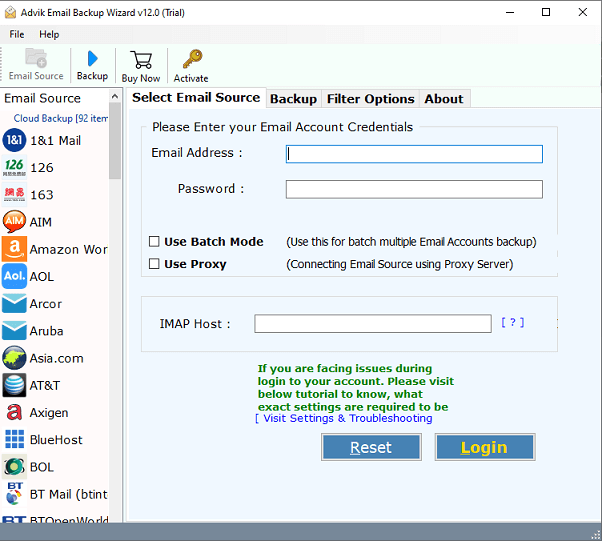
2. Select “MDaemon Cloud” from the list of various email source.
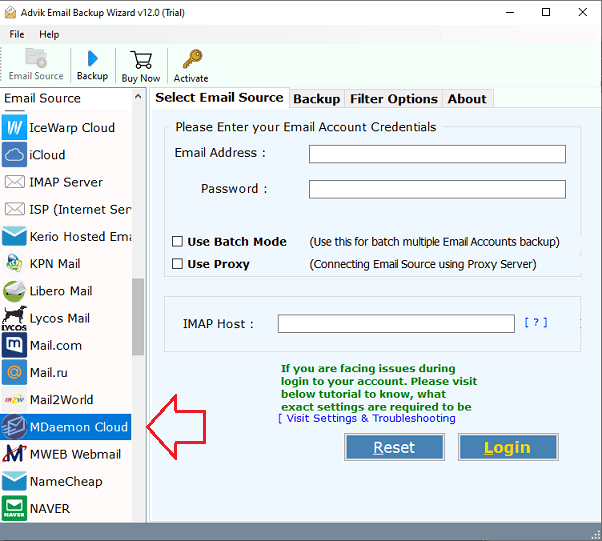
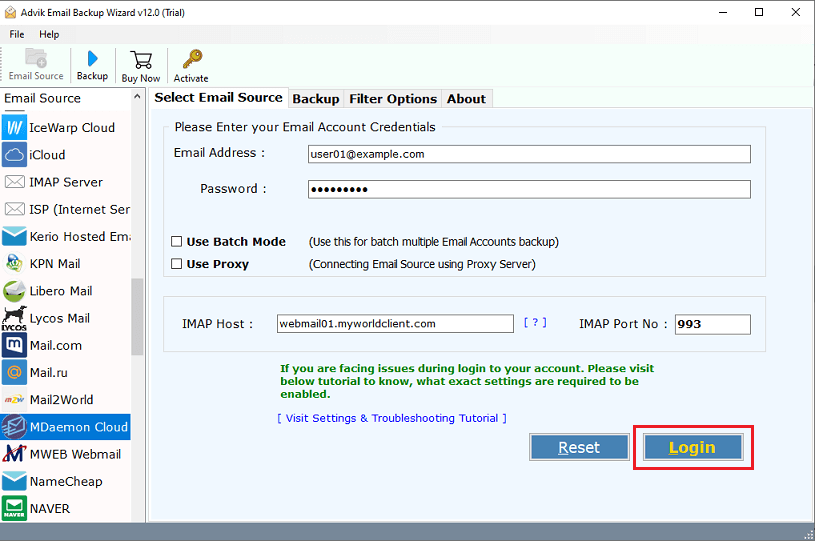
3. Now, Enter the following details in the login panel
Email Address: MDaemon email address
Password: MDaemon account password
IMAP Host: webmail01.myworldclient.com
IMAP Port No: 993
Press “Login” Button after filling up the above details in the interface.
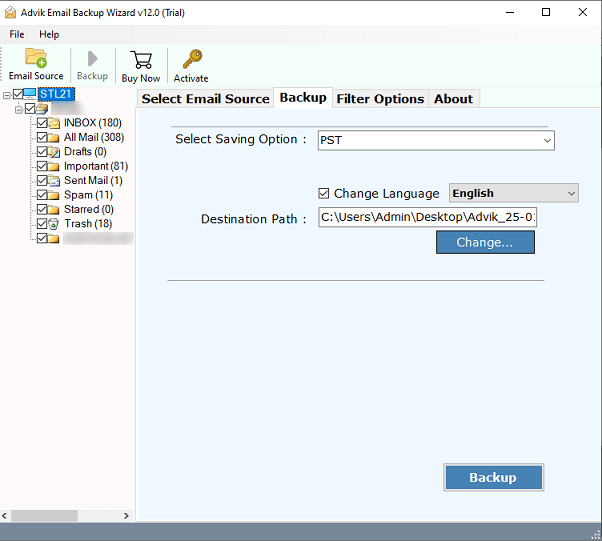
4. Choose the email folders from which you need to backup MDaemon emails.
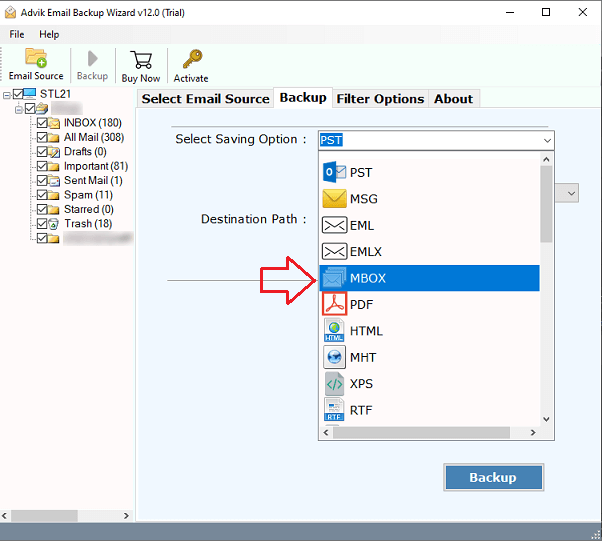
5. Select the desired saving option from the list.
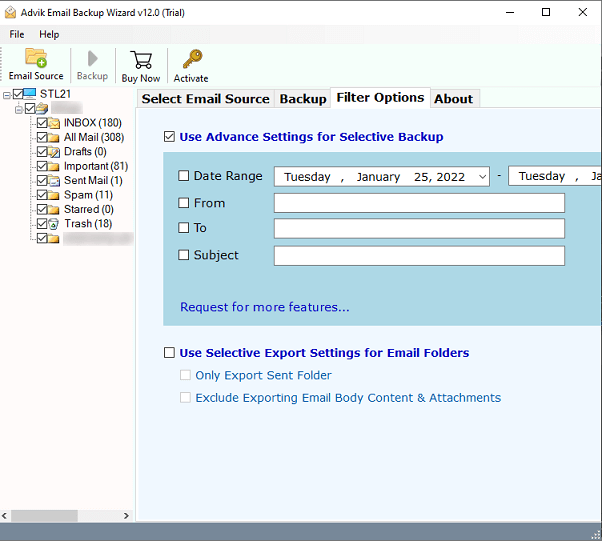
6. You can also use the Advanced Filter options to Backup Selective Emails.
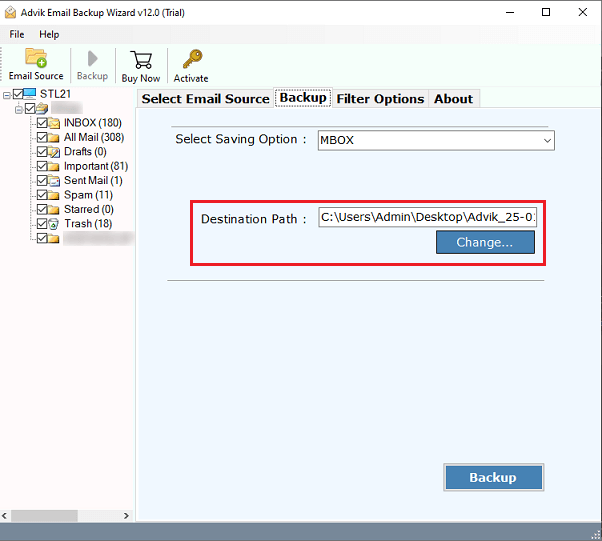
7. Choose the destination location to save the resultant backup files.
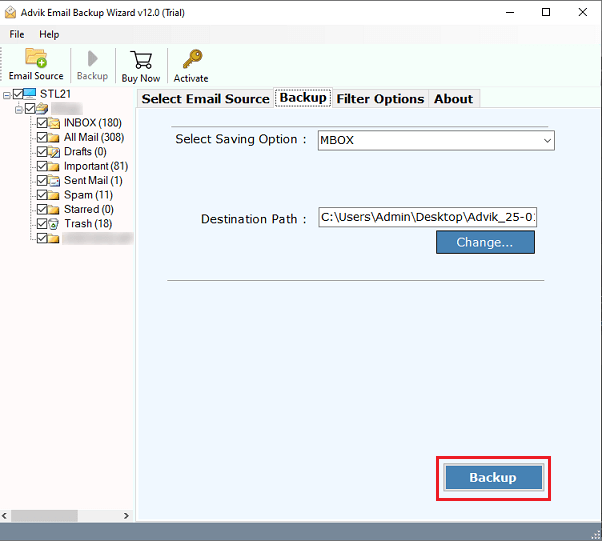
9. Initiate the MDaemon backup process by clicking on the “Backup” button.
Highlighted Features of the Best MDaemon Email Backup Wizard:
1. Maintains the structure of email folders:
During the backup process, the software preserves the original folder structure of MDaemon emails. This program allows users to simply backup MDaemon emails with all of their components and elements.
2. Back up Attached Emails in Bulk:
This MDaemon Backup tool has a lot of fantastic features. It allows the users to Backup emails from MDaemon in batch mode also. This saves both time and energy of the users. This Email backup wizard is the quickest solution that produces desired results.
3. Offer a variety of file-saving options:
This MDaemon Email Backup Utility is a reliable tool for exporting emails from various cloud email accounts to PST, PDF, MBOX, HTML, XPS, RTF, ZIP, DOC, TXT, EML, EMLX, MSG, and other file types.
4. Create backup of all MDaemon emails:
Advik Email Backup Tool is a program that automatically backs up multiple emails from your Inbox, Spam, Sent, Draft, and other folders. You can also use date range, email address, and subject filters to backup just important or chosen emails from a Webmail account.
5. Maintain email properties:
Email attributes are preserved when you save emails to a specified file format. It’s a program with a sophisticated algorithm. Also, It completes the task flawlessly in the lowest amount of time.
Final Words
In this article, we have covered the reasons and two best methods with simple steps for saving MDaemon emails to computer. Download the suggested solutions if you want to backup MDaemon emails to PC directly. Users can simply download MDaemon emails on their computer with the help of this application. In addition, you can test the MDaemon backup tool’s free trial version to test the software’s functionality before purchasing it.