How to Convert MBOX to HTML File? Step-by-Step Guide
A lot of users look for a way to convert MBOX to HTML to open their emails without any email software. MBOX files cannot be viewed directly, and you need tools like Thunderbird or Apple Mail to access them. This can be inconvenient when you just want to quickly view or share a few emails.
In real-life situations, users often need HTML files to open MBOX file in web browser, create a readable backup, or share emails in a simple format. HTML files are easy to access on any device and do not require any special software.
If you are also looking to export MBOX emails to HTML, this guide will help you. Here, we will explain both manual and professional methods step-by-step. This guide is based on practical workflow understanding and commonly used email client behavior.
Before starting the process, it is important to understand both file types.
MBOX vs HTML: Which Format is Better for Email Storage?
MBOX File: MBOX is a mailbox file format that stores multiple emails in a single file. It is commonly used by email clients like Mozilla Thunderbird, Apple Mail, and Eudora. This format is mainly used for email backup because it keeps all emails from a folder in one place, along with attachments and metadata. However, accessing a single email is not very convenient, as you usually need to open the entire file in an email client. This makes searching or viewing individual emails slower and less user-friendly.
HTML File: HTML is a web-based format that can be opened easily in any browser. It converts each email into a separate web page, making it simple to read, view, and share emails without an email application.
HTML files are more user-friendly for quick access and sharing because they display emails in a clean, readable format. They can be opened on almost any modern browser without additional configuration.
Final Comparison: MBOX is a better file format for secure email backup and to store large volumes of emails, while HTML is ideal for easy access, quick access and for sharing so the best choice depends on your specific needs.
Why Convert MBOX Emails to HTML Format?
Converting MBOX files into HTML format is useful in many real-life situations, especially when you want quick and easy access to your emails without depending on any email application. Below are some common reasons explained in simple words:
Easy Access Without Any Email Software: MBOX files cannot be opened directly on your system. You always need an email client like Mozilla Thunderbird or Apple Mail to read them. But when you convert MBOX to HTML, each email becomes a simple web page. You can open it in any browser, like Chrome or Edge, without installing any extra software.
Simple Sharing of Emails: HTML files are easy to share with others. Instead of sending a full MBOX file (which may not open on another system), you can share individual HTML files. The receiver can open them easily in a browser. This is helpful for business users, legal purposes, or when you want to share important email conversations with someone.
Readable and Organized Backup: HTML format stores emails in a clean and structured way. You can save emails as separate files or in folders, making them easy to manage. Unlike MBOX, where all emails are stored in a single file, HTML lets you access each email individually. This makes your backup more readable and user-friendly.
Works on Any Device (Universal Compatibility): One of the biggest advantages of HTML is that it works everywhere. You can open HTML files on Windows, Mac, Linux, or even on mobile devices. There is no need for any specific platform or application.
Things to Know Before Conversion
As no method doesn’t guarantee 100% data safety and security, it’s important to keep these points in mind:
- Always keep a backup of your MBOX file
- Large files may take more time
- Manual methods require technical steps
- Look into the merits and demerits of both methods first
How to Save MBOX Emails as HTML Without Data Loss?
This method is completely free and works well when you have only a few emails to convert. It uses Mozilla Thunderbird, which is a popular email application that supports MBOX files.
- First, download and install Mozilla Thunderbird on your system.
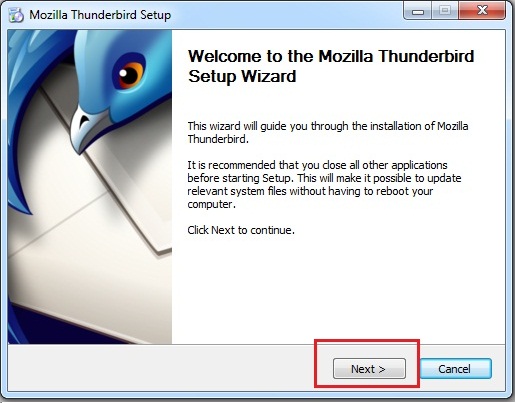
- Once installed, open the application and let it set up properly.
- You don’t necessarily need to configure an email account for this process.
- To import your MBOX file, you need to install an add-on called ImportExportTools NG inside Thunderbird.
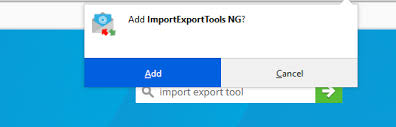
- After installing, go to Local Folders in Thunderbird.
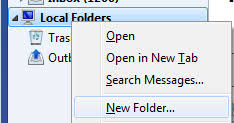
- Right-click and choose the import option.
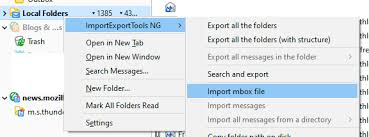
- Select your MBOX file from your system.
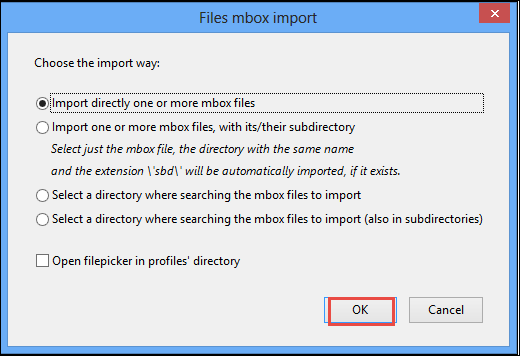
- Your emails will now appear inside Thunderbird folders.
- Now, browse through the imported mailbox and open the emails you want to convert.
- You can view all email details like subject, sender, attachments, and content directly inside Thunderbird.
- Next, open the selected email.
- Click on email >> ImportExportToolsNG>> choose HTML format as the saving option.
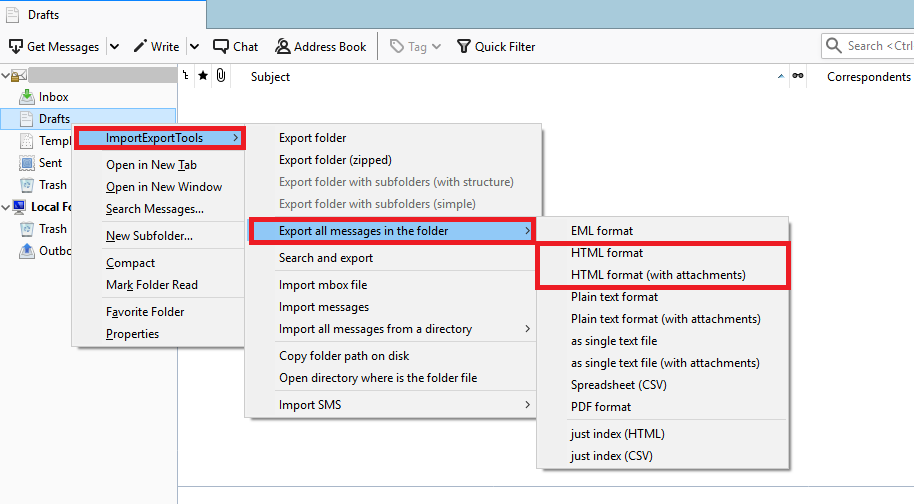
- Select a location on your system and save the file.
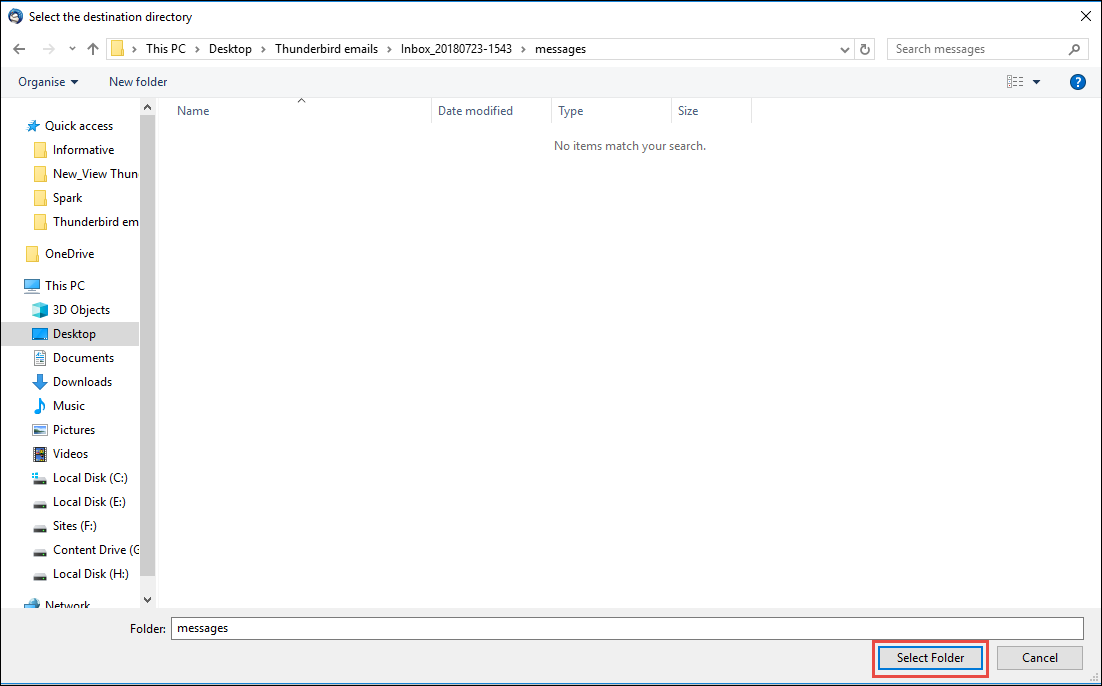
Each email will be saved as a separate HTML file that you can open in any web browser.
Note: This method is suitable only for limited emails because it involves manual repetition for each file.
How to Bulk Convert MBOX Files to HTML Files with Attachments?
When users need to convert a large number of MBOX emails into HTML files, doing it manually becomes slow and repetitive. This is where a tool like Advik MBOX Converter becomes helpful. It is designed to complete the whole conversion process accurately, especially for bulk conversion.
Instead of saving emails one by one, this tool allows users to load complete MBOX files or folders at once. This means you can convert hundreds or even thousands of emails into HTML format in a single process. One of the most important things users look for is attachment support. During conversion, the tool keeps all email attachments safely and properly linked with the converted HTML files.
The software also maintains the original email structure, including subject, sender details, formatting, and inline images. This ensures that the HTML output looks exactly like the original email.
Download this tool for free and explore its more features and complete working process at no cost.


Steps to Batch Convert MBOX Emails to HTML Files
Step 1. Launch the software on your system. From the main screen, choose either Select Files or Select Folders to add your MBOX data.
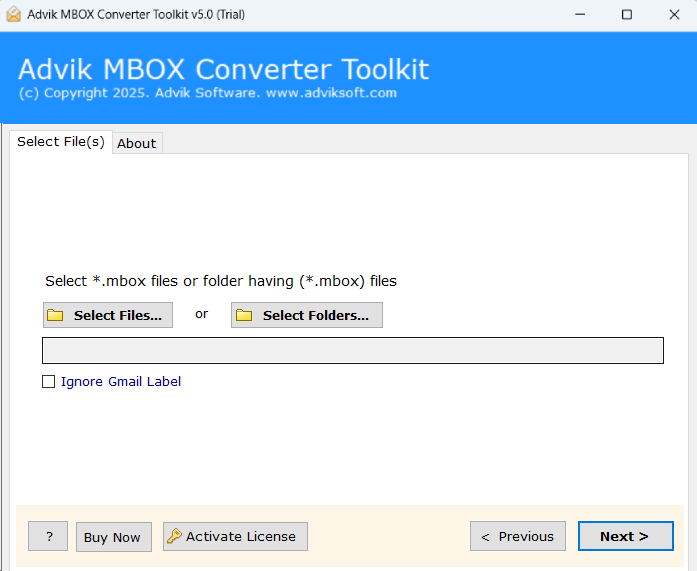
Step 2. After adding files, you will see all mailbox folders in the panel. Select the folders or emails that you want to convert.
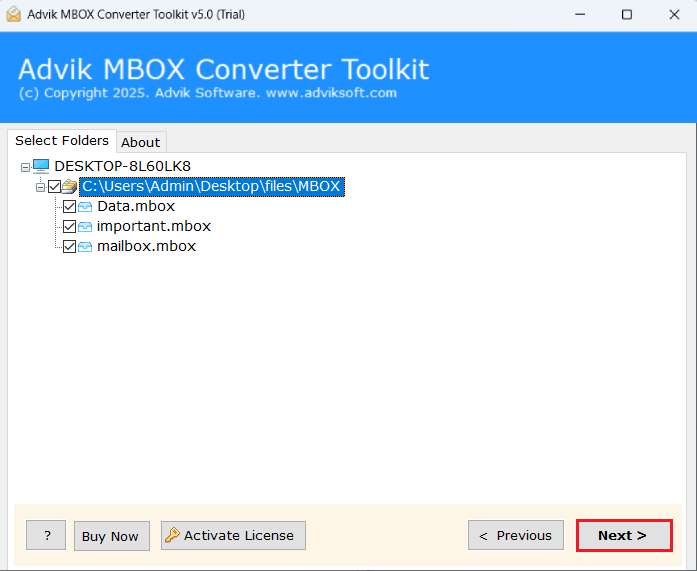
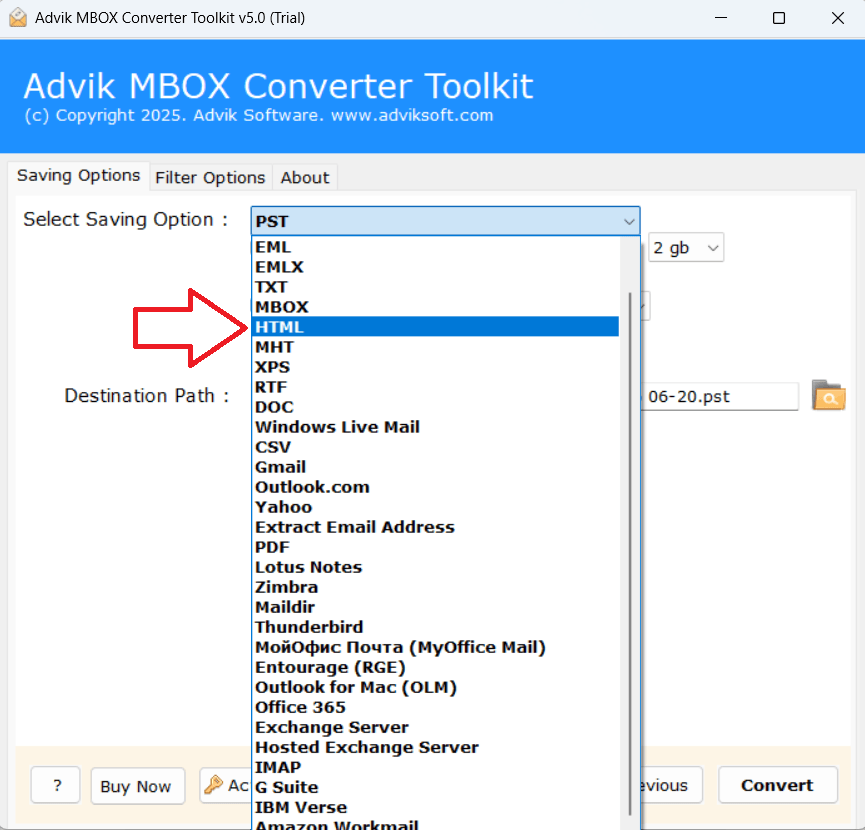
Step 3. Now, choose HTML as the saving format from the list of available options.
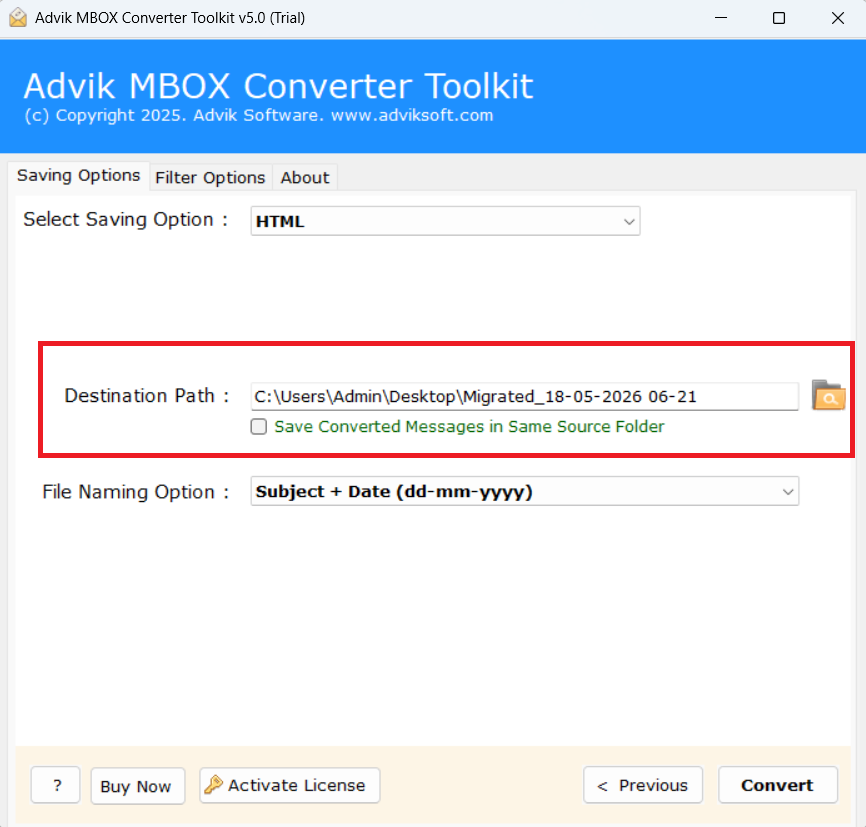
Step 4. Select a destination path where you want to save the converted HTML files on your system.
Step 5. Finally, click on the Convert button to start the conversion process.
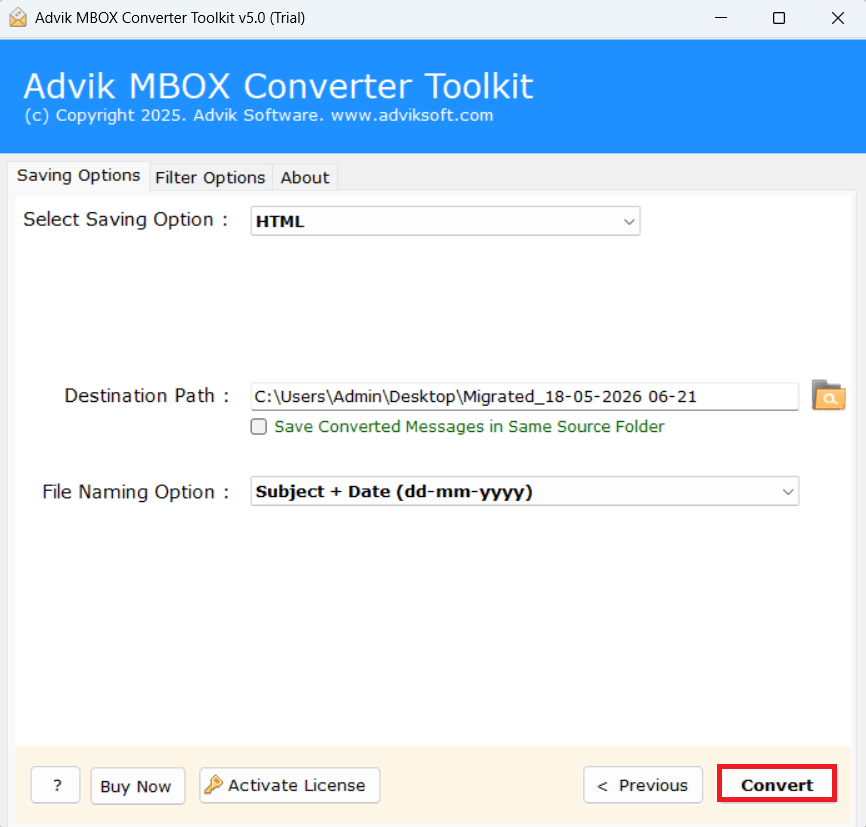
Once the process starts, the tool will convert all selected MBOX emails into HTML format. After completion, a confirmation message will appear on your screen.
Click OK, and you will be redirected to the selected location where all your converted HTML files are saved. You can now open them easily in any web browser without any issue.
Manual vs Professional MBOX to HTML Conversion: Which is Better?
- Bulk Conversion Support: This feature allows you to convert multiple MBOX files at the same time. If you have large mailbox data or several MBOX files, the software can process everything in a single go. It saves a lot of time and effort compared to the manual method, where you have to repeat the same steps again and again for each email.
- Convert with Attachments: The tool keeps all your email attachments (like PDFs, images, documents, etc.) safe during the conversion process. When you convert MBOX to HTML, the attachments remain properly linked or saved with the emails.
- Selective Conversion Option: Instead of converting the entire mailbox, you can choose only specific emails or folders that you need. This is useful when you don’t want to convert unnecessary data.
- Maintains Folder Structure: The software keeps the original folder hierarchy the same after conversion. For example, folders like Inbox, Sent, Drafts, or any custom folders will remain organized in the same way. So, that, you can easily find and manage your emails without confusion after conversion.
- Simple Interface: The tool is designed with a simple and user-friendly interface. All options are clearly visible, and the steps are easy to follow, even for beginners. You don’t need any technical knowledge to use the software. Anyone can complete the conversion without difficulty.
- Preview Before Conversion: Before starting the conversion, the software lets you preview your emails. You can check the content, attachments, and details to make sure everything is correct. It helps you avoid mistakes and ensures that you are converting the right emails.
Which Method Should You Choose?
See, choosing an appropriate method for your query depends on the situation or need for which you are looking for this method. So, choose the manual method if you have only a few emails and want a free option. And, if you want fast, accurate, and bulk conversion without hassle, most users prefer a professional solution because it saves time, reduces effort, and gives better results without complicated steps.
Conclusion
We hope that after reading this comprehensive guide all your doubts are clear regarding how to convert MBOX to HTML files. You must have understood that MBOX to HTML is not as difficult as it seems. The right method depends on your situation. If you have small data, the manual method can work. But for large mailboxes, a professional solution saves time and effort.
The key is to understand your requirement first and then choose the method accordingly.
FAQs
Q1. Can I open MBOX files without email software?
Ans. No, MBOX files require an email client. That’s why converting to HTML makes them easier to access.
Q2. Is HTML format safe for email storage?
Ans. Yes, HTML keeps email content readable and can be stored safely on your system.
Q3. Can I convert multiple MBOX files at once?
Ans. The manual method does not support this. You need a professional solution for bulk conversion.
Q4. Will attachments be saved in HTML?
Ans. HTML files do not store attachments the same way emails do. Instead, they can either link to external files (like documents or images) or include certain data directly within the HTML code. This means attachments are usually saved separately but remain accessible when linked properly.