How to Save Zoho Mail as PDF Format?
Jenny Lowrence | January 11th, 2026 | Data Backup, Zoho Mail
Emails are an essential part of professional and personal communication. While Zoho Mail keeps your emails stored securely in your inbox, there are times when you may need to save Zoho Mail as PDF format for documentation, sharing, or legal purposes.
If you’re looking for a simple way to convert Zoho emails to PDF, you’re in the right place! This guide will walk you through the steps to:
- Save Zoho emails as PDF for free
- Export Zoho Mail to PDF files automatically
Let’s get started!
Why Convert Zoho Mail to PDF Files?
PDF is one of the most reliable file formats for saving emails while keeping their original formatting intact. It is easy to open, read, and share across different devices without any changes in structure or content.
Moreover, saving Zoho emails as PDFs offers a clean and organized way to store important messages. It also allows you to protect sensitive emails with a password for enhanced security. Here are some key benefits of converting Zoho Mail to PDF:
- PDFs ensure that emails remain unchanged over time, making them ideal for legal and official records.
- You can apply password protection to safeguard confidential emails from unauthorized access.
- PDFs can be opened on PCs, laptops, smartphones (Android & iOS), and tablets, allowing you to view emails anytime.
- If your Zoho Mail storage is running low or you need a backup, PDFs help store emails efficiently without data loss.
- PDF files are compact and universally supported, making it easy to share important emails without formatting issues.
In short, saving Zoho Mail emails as PDFs allows you to secure, organize, and access important emails effortlessly, even without an internet connection.
How to Save Zoho Mail as PDF Document File?
You can use the Print command to convert Zoho Mail to PDF file. However, it will save one email at a time and to perform bulk export you can repeat the process for all emails. Now follow the given instructions –
1. First login to your Zoho Mail account using login details.
2. Now open the email you want to export.
3. Then click on the More action button >> Print.
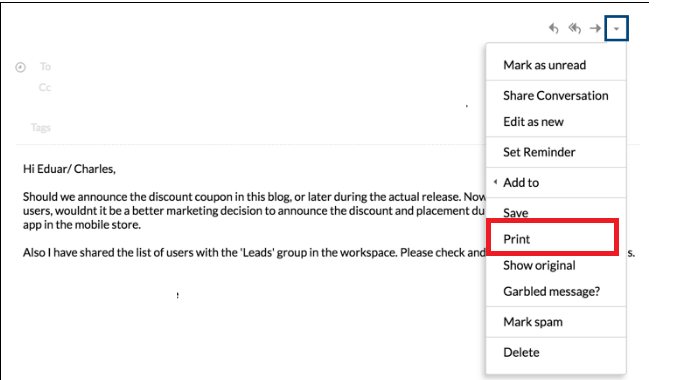
4. Further, the print preview of the selected email will be visible, click on Print.
5. Choose Microsoft Print to PDF as the targeted location and hit Print.
6. Enter the file’s name and save the exported data file.
7. Repeat the same process for all emails you want to convert.
Although this is a free way to convert Zoho Mail to PDF, it will take a lot of time if you have thousands of emails. Alternatively, you can perform the conversion process using the automated tool.
How to Export Emails from Zoho Mail to PDFs Automatically?
Unfortunately, Zoho Mail does not provide a built-in feature to save multiple Zoho emails as PDFs at once. The only way to do this manually is to repeat the steps above for each email. For bulk email conversion, using the Advik Zoho Mail Backup Tool can help automate the process. With this tool, you can export multiple emails or entire folders into PDF format in one go. The software will effortlessly save Zoho mail as PDF along with attachments. While converting Zoho emails, there will be no data loss.
Click the link and download the demo version of the software.


Steps to Convert Zoho Emails to PDF Files in Bulk
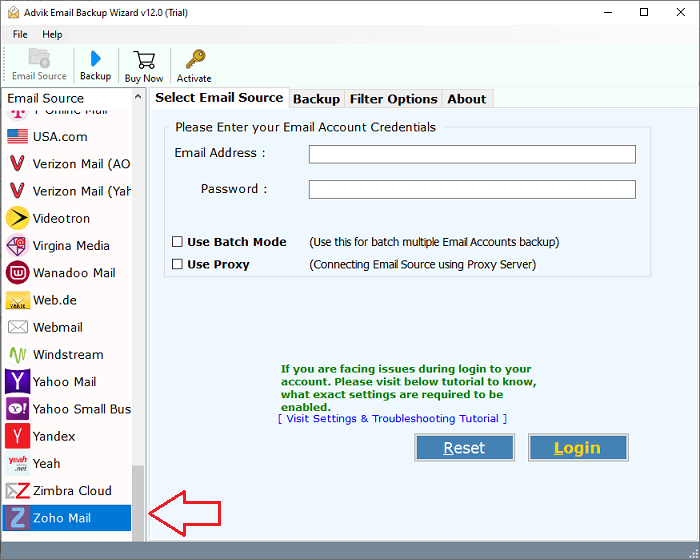
Step 1. Run this tool & choose Zoho Mail from the email source.
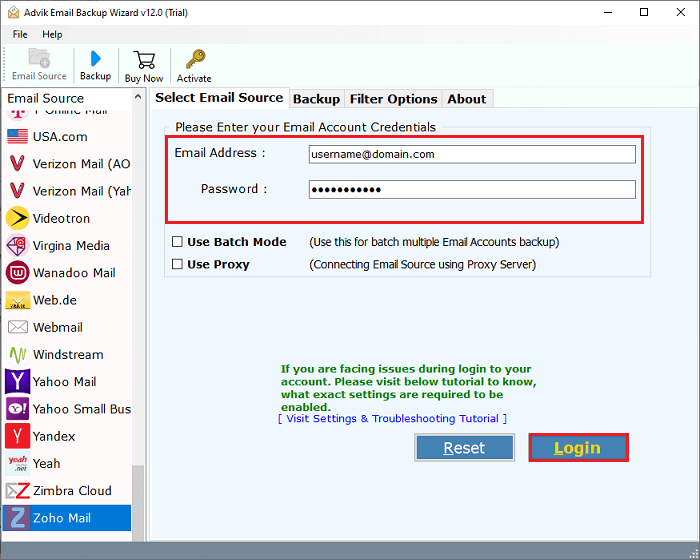
Step 2. Enter your Zoho Mail login details and hit the Login button.
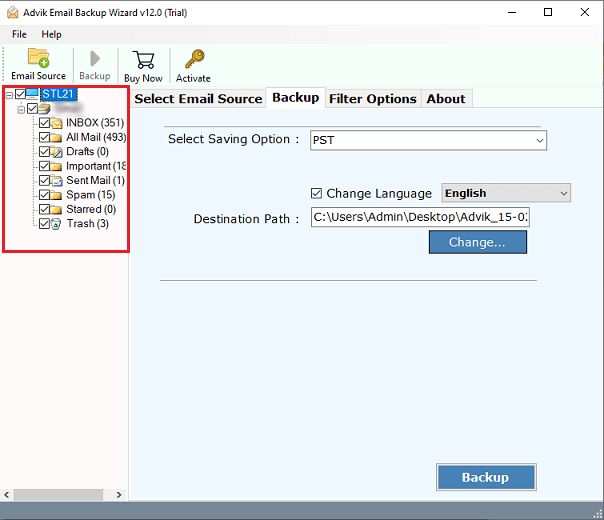
Step 3. Select the email folders you want to export.
Step 4. Choose PDF from multiple saving options.
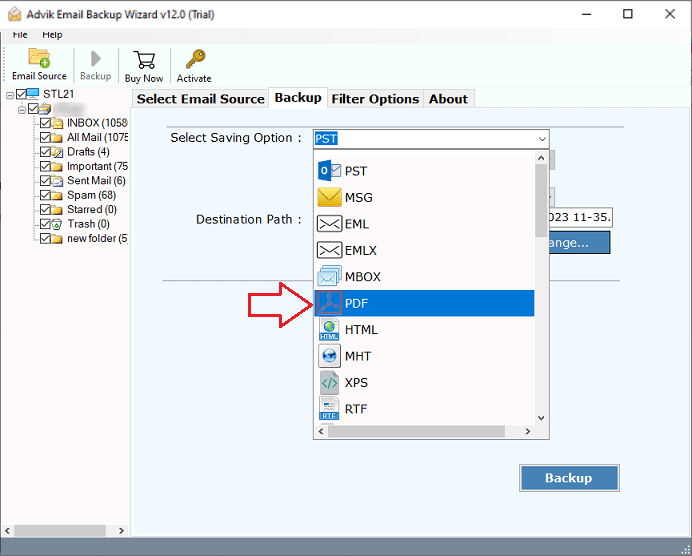
Step 5. Browse the targeted location and hit the Backup button.
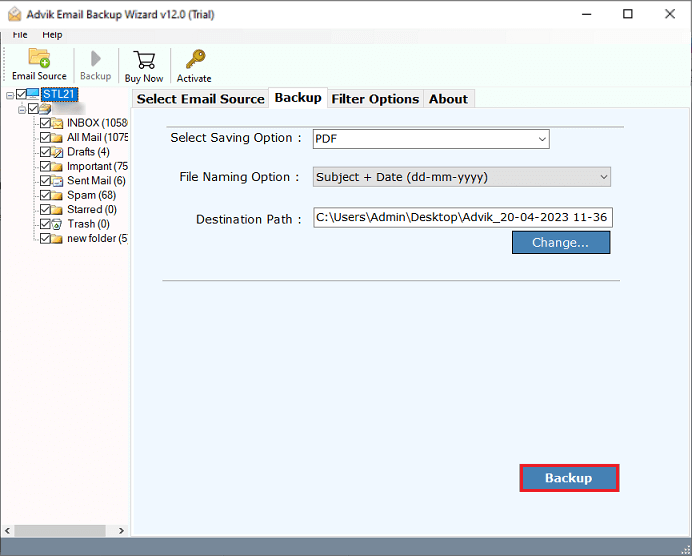
Done! Here starts the conversion process. In a few seconds, the tool will convert all emails from Zoho Mail to PDF format.
Watch How to Save Zoho Emails as PDF File
Additionally, with this tool, there are various other prominent features, including-
- The software will preserve email key elements and attributes.
- Maintain email folder and sub-folder hierarchy and structure.
- Advance filter options to convert selective emails only.
- Allow to select email folders that are needed to export.
- Option to convert Zoho Mail to PST and many other file formats.
- Works on both Windows and Mac systems.
- Bulk convert Zoho emails to PDF without any data loss.
Conclusion
Now that you know how to convert Zoho Mail to PDF files. Here, we have explained both manual and automated solutions to save Zoho emails as PDF. For occasional conversions, the manual method works well, but for bulk exports, a Zoho Mail to PDF Converter can save time and effort. Also, you can try the free demo version of this utility.
Frequently Asked Questions
Q1. How do I save Zoho Mail as a PDF?
Ans. Open the Zoho email that you want to download as a PDF, click on More options and choose Print option and then choose the location to save it and click on the Save button. Apart from this, you can also do it with a professional tool.
Q2. Is it possible to download Zoho emails as PDF in bulk?
Ans. Yes, the automated tool can export multiple emails into PDF at once.
