How to Export All Emails from Gmail? (Free & Automatic Ways)
Quick Answer: Gmail does not provide a single button to download your entire mailbox directly. The easiest official method is Google Takeout, which export all emails from Gmail account. You can also download individual emails as .eml files with a Gmail backup tool when you need selective or regular backups.
Table of Contents
- Which Method Should You Use?
- Method 1: Export All Emails from Gmail with Google Takeout
- Method 2: Export Some Gmail Labels
- Method 3: Export a Single Gmail Email
- What Do You Get After Exporting Gmail Emails?
- Method 4: Export Multiple Emails from Gmail
- Watch Video Tutorial
- Common Problems and Fixes
- Conclusion
- Frequently Asked Questions
Which Method Should You Use?
The right method depends on how many Gmail emails you want to save and how often you need to do it.
Manual vs Automated Methods Comparison
| Your Requirement | Recommended Method | Output Format |
|---|---|---|
| Export all Gmail emails | Google Takeout | MBOX |
| Export emails from selected labels | Google Takeout | MBOX |
| Download one or a few emails | Download Message option | EML |
| Export Gmail mails in multiple file formats | Gmail backup tool | PST/MBOX/EML/PDF and other formats |
For a one-time copy of your complete Gmail account, Google Takeout is the most straightforward option. If you only need a few emails, downloading then individually is simple. For recurring backups or more control over the emails you save, a dedicated Gmail backup wizard can be more convenient.
Method 1. Export All Emails from Gmail with Google Takeout
Google Takeout is a free service by Google that helps you export Gmail emails to MBOX format. Here’s how you can do it step-by-step:
Step 1. Open your Gmail and go to the Manage your Google Account option.
Step 2. Click on Data & Privacy >> Download your data.
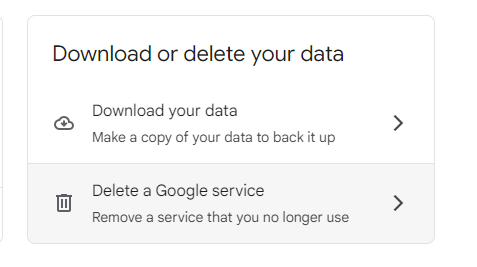
Step 3. You will be directly directed to the Google Takeout page.
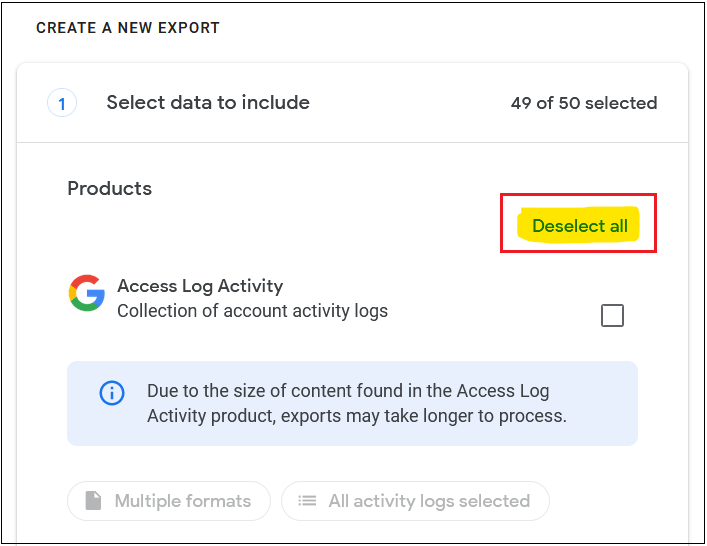
Step 4. Choose the data to include and deselect all that you do not want to include. Click Next button.
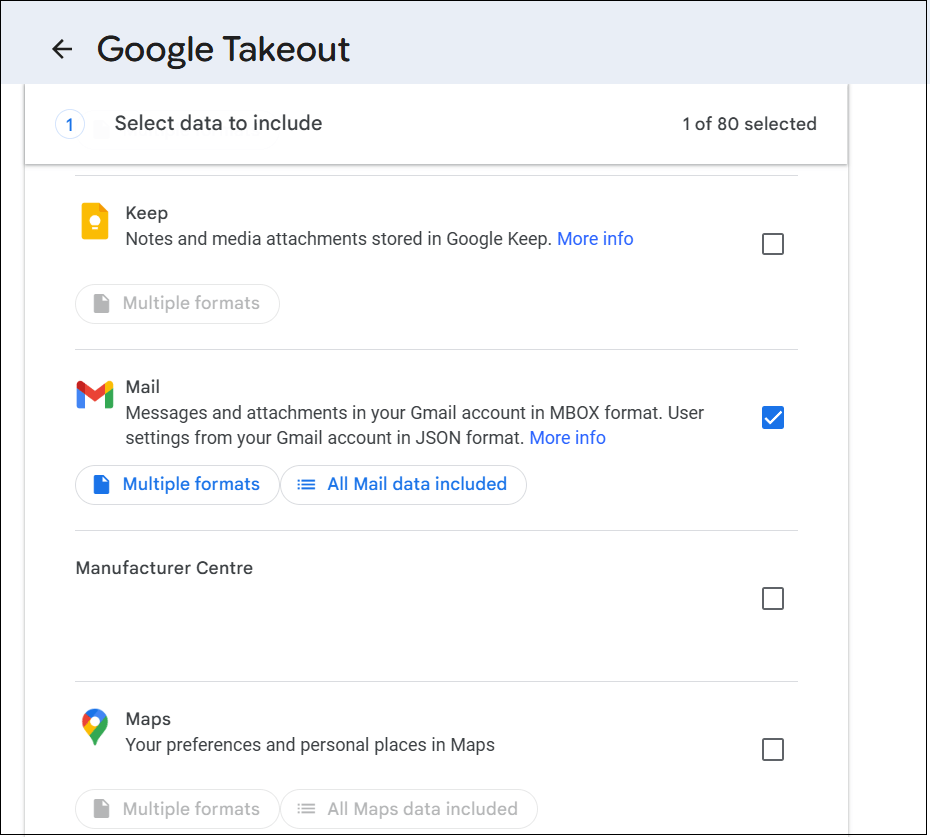
Step 5. Select the Mail option and click Next step.
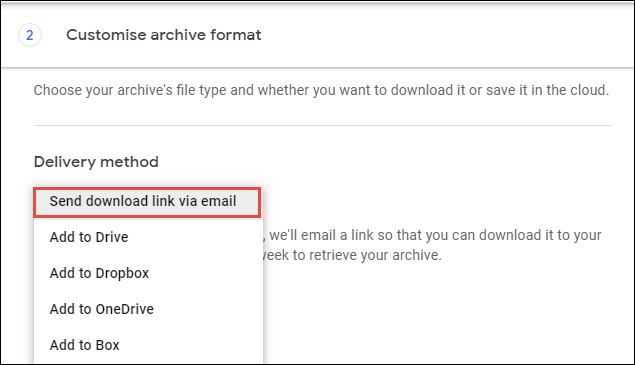
Step 6. Choose Send a download link via email from Delivery Method.
Step 7. Select the Frequency, File Types & Size, and click Create Export.
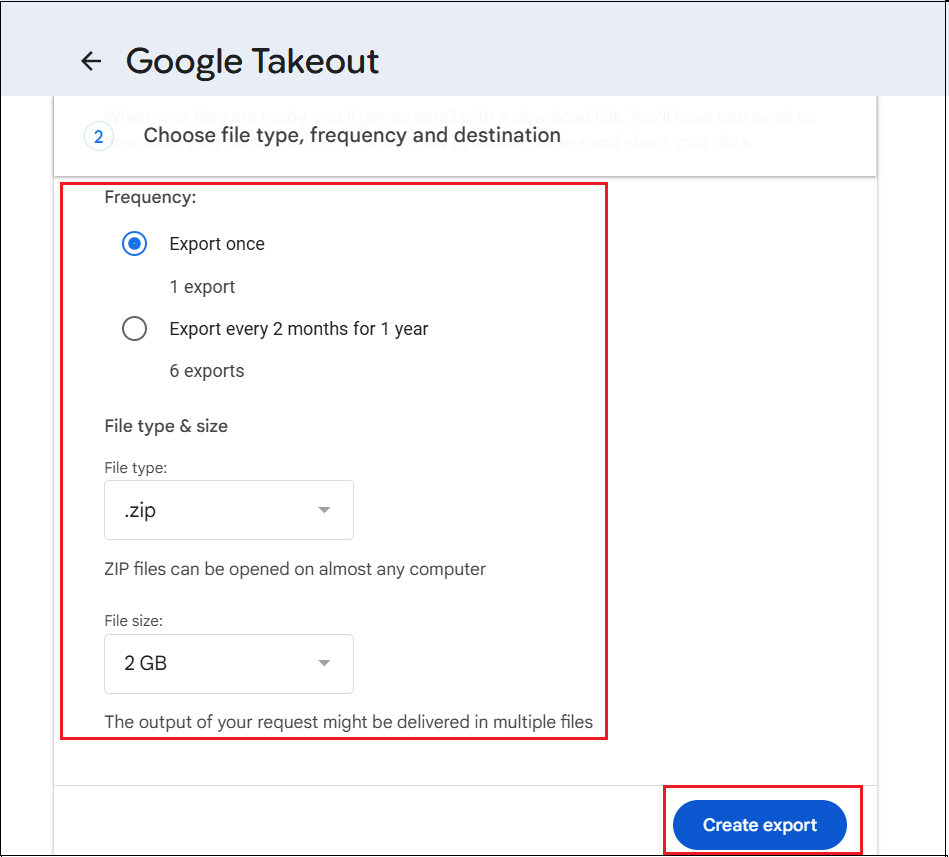
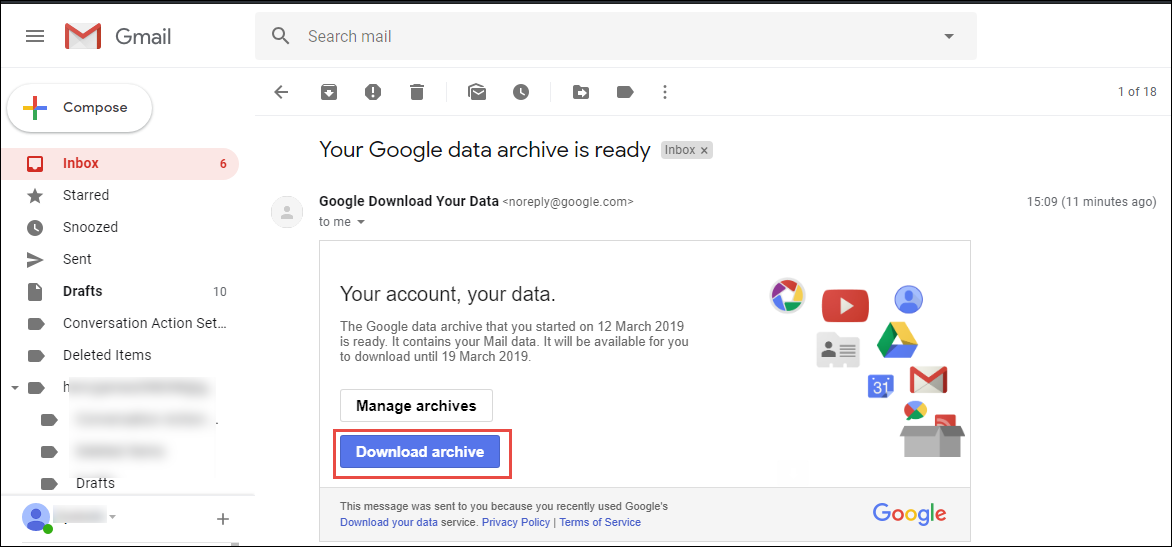
Step 8. It will start downloading your email archive. Once it’s done, you will receive an email with a download link.
Step 9. Click Download Archive and extract the .zip file to get the .mbox file.
Challenges You Might Face
- May take 24 to 48 hours to create a download file.
- No Email Filter Option Available
- Don’t have Folder Selection Option
Method 2. Export Only Some Gmail Labels
Sometimes users do not need to export all Gmail emails. They want to export only work emails, important messages, project-related emails, sent emails, a custom Gmail label and specific categories. Google Takeout also lets you select specific Gmail labels.
Steps to Export Selected Gmail Labels
1. Visit https://takeout.google.com/settings/takeout and sign in.
2. Click the All Mail data included option in the Mail box.
3. Uncheck the Include all messages in Mail option and select your particular label or folder.
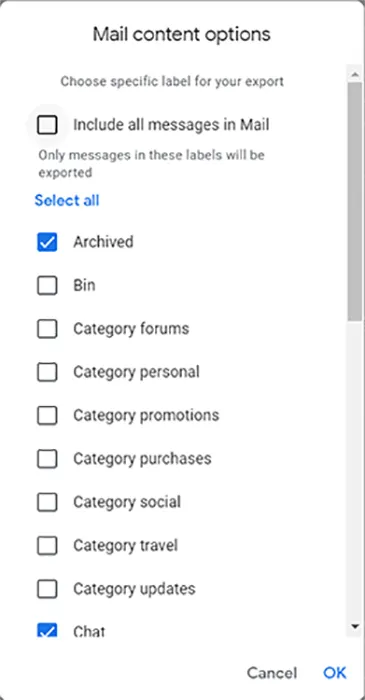
4. Click the OK button to export Gmail labels.
5. Choose Send a download link via email.
6. Scroll down and choose .zip as the File Type option.
7. Choose the desired file size from the given options.
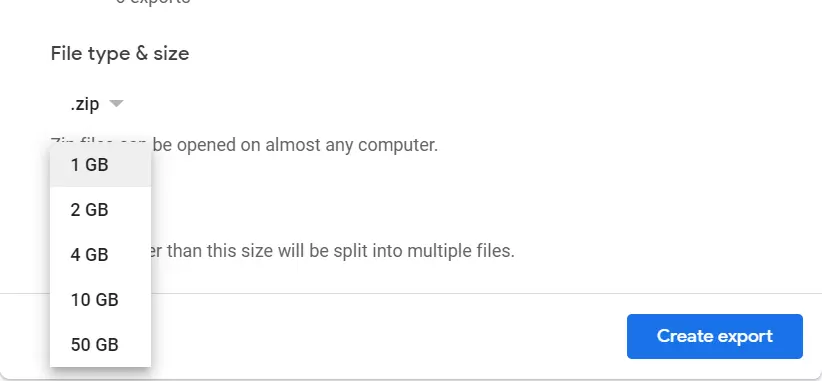
8. Click the Create Export button to start the process of downloading Gmail labels.
9. Once it is downloaded, you will receive an email with a download link.
10. Click Download Archive to download the exported file.
This is useful when you want to create a smaller copy of your Gmail data instead of exporting the entire mailbox.
For example, if you only need work-related messages, selecting the relevant Gmail label can help avoid downloading unrelated personal emails.
Note: Gmail labels and folders do not exactly the same way as folders in desktop email applications. When you open the resulting MBOX file, label information may be represented through email headers rather than traditional folders.
Method 3. Export a Single Gmail Email
If you only need one or a few messages, creating a complete Takeout archive is unnecessary. Gmail provides a built-in Download Message option to save individual emails as EML files.
1. Sign in to your Gmail account in a browser and open an email.
2. Click on the three-dot icon and select Download Message.
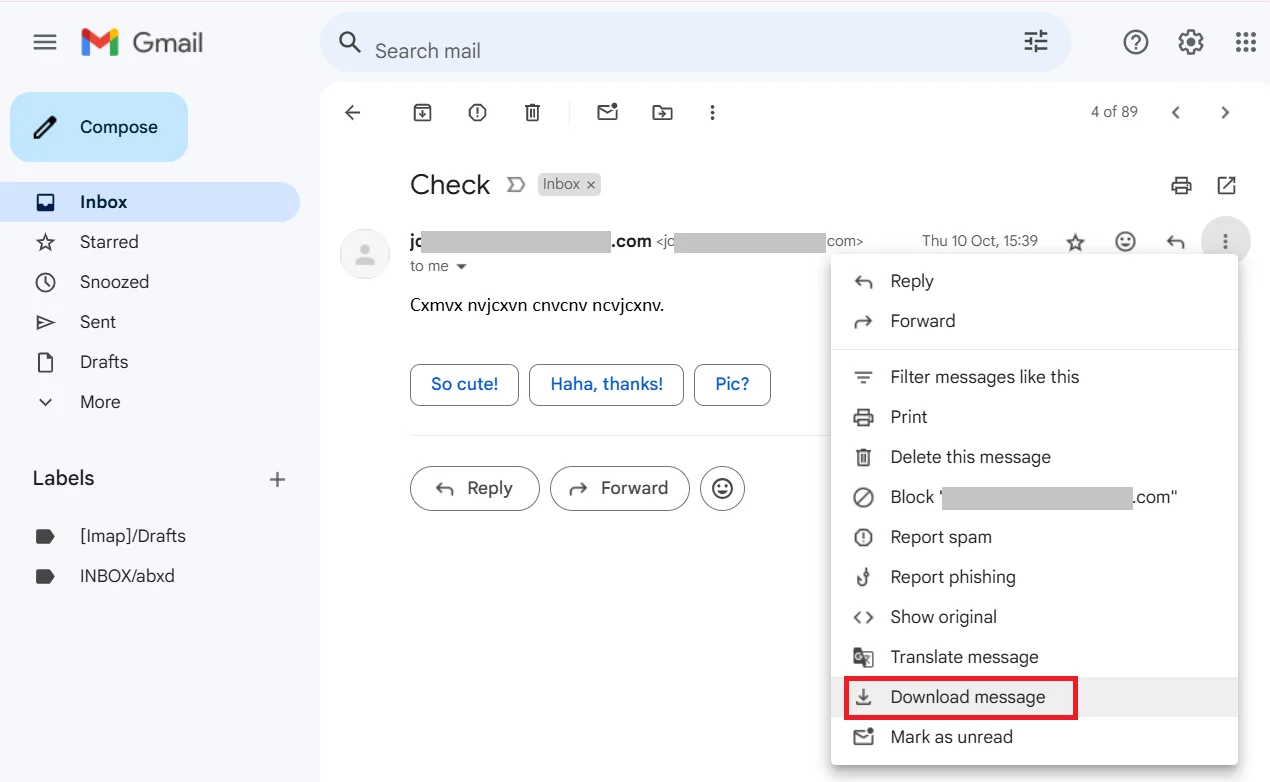
3. Now, this will export the email from Gmail to EML format.
4. Repeat the process for each email you want to download.
Downloading individual messages works well when you need to save only a few important emails. However, manually exporting hundreds or thousands of messages is time-consuming and difficult to manage.
What Do You Get After Exporting Gmail Emails?
After using Google Takeout you usually receive a compressed archive. Once you extract it, the Gmail data is available in MBOX format. An MBOX file stores multiple email messages in a single file. It can contain the message body, sender and recipient information, dates and attachments.
However, an MBOX file is not designed to be opened like a normal document. You need a compatible email application or conversion software to access the message conveniently.
You can use applications such as:
- Mozilla Thunderbird
- Apple Mail
- An MBOX-compatible email client
- A dedicated MBOX converter
What Happens to Gmail Labels?
Gmail labels do not always appear as traditional folders when the exported mailbox is opened in another application. Label information can be retained in message headers or other mailbox information, depending on how the data is imported.
Method 4. How to Export Multiple Emails from Gmail Automatically?
If you want a faster and easier way to export all emails from Gmail, try the Advik Gmail Backup Tool. This software helps you export all Gmail emails quickly and safely. It also allows you to choose specific email folders for exporting. Moreover, it will complete the export process without affecting the folder and sub-folder hierarchy. The software offers various saving options to export Gmail email folders into different file formats, along with attachments.
This tool possesses some outstanding features that make it better than other solutions. Some of them include –
- Export all Gmail emails to your system without any hassle.
- Batch mode to export email from multiple Gmail accounts at once.
- Advanced filter options – time, date, cc, from, attachments, etc.
- Allow selecting email folders to export selective emails only.
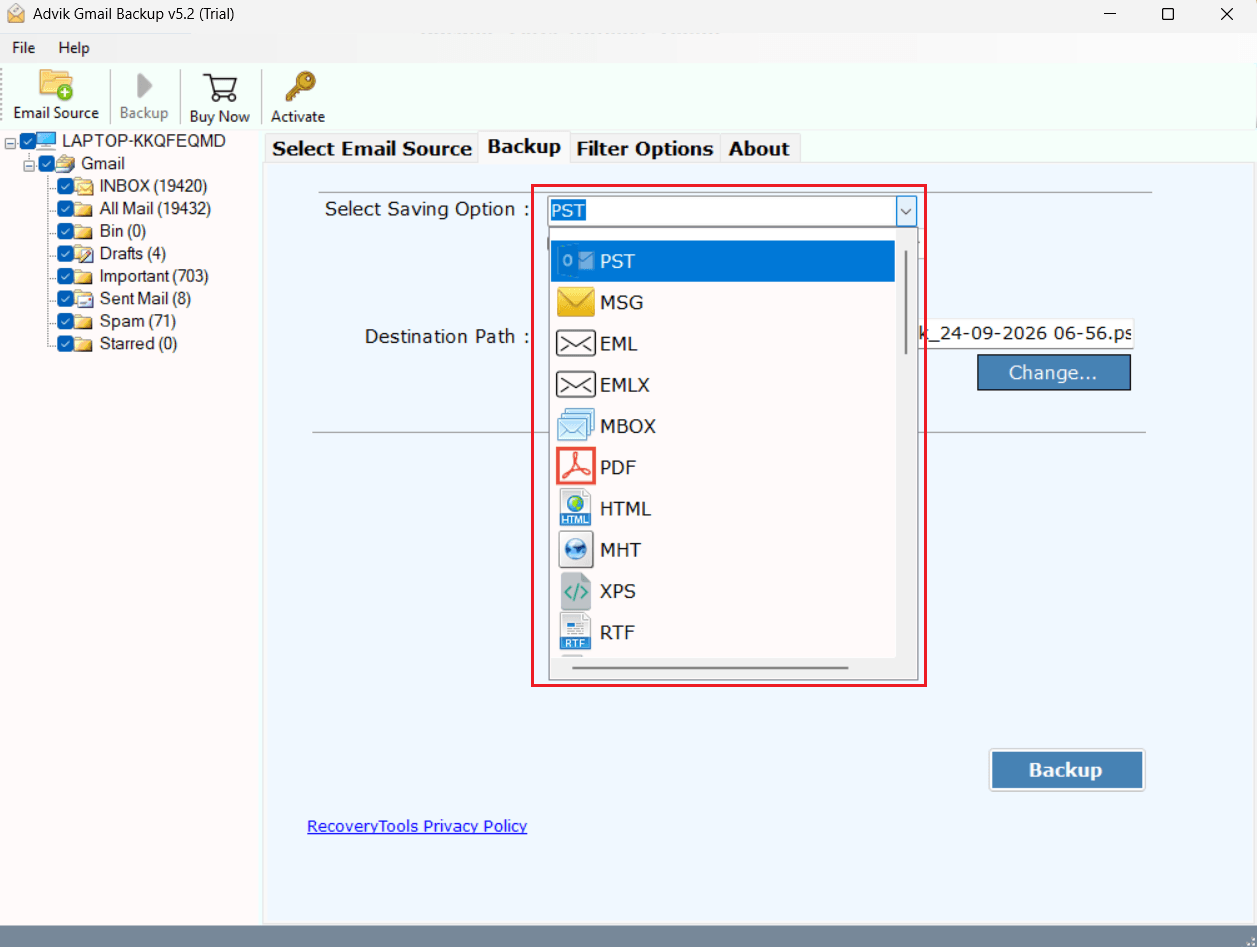
- Convert Gmail emails into various file formats such as PST, PDF, MBOX, EML, HTML, etc.
- Maintains email folder and sub-folder hierarchy and structure.
- Preserve email key elements and attributes.
- Secure login with OAuth to keep your Gmail credentials safe.
- Generates a detailed export report for easy tracking.
- Works on all Windows OS systems without any glitches.
You can download its FREE version to check the working procedure.


Steps to Export All Emails from Gmail Account
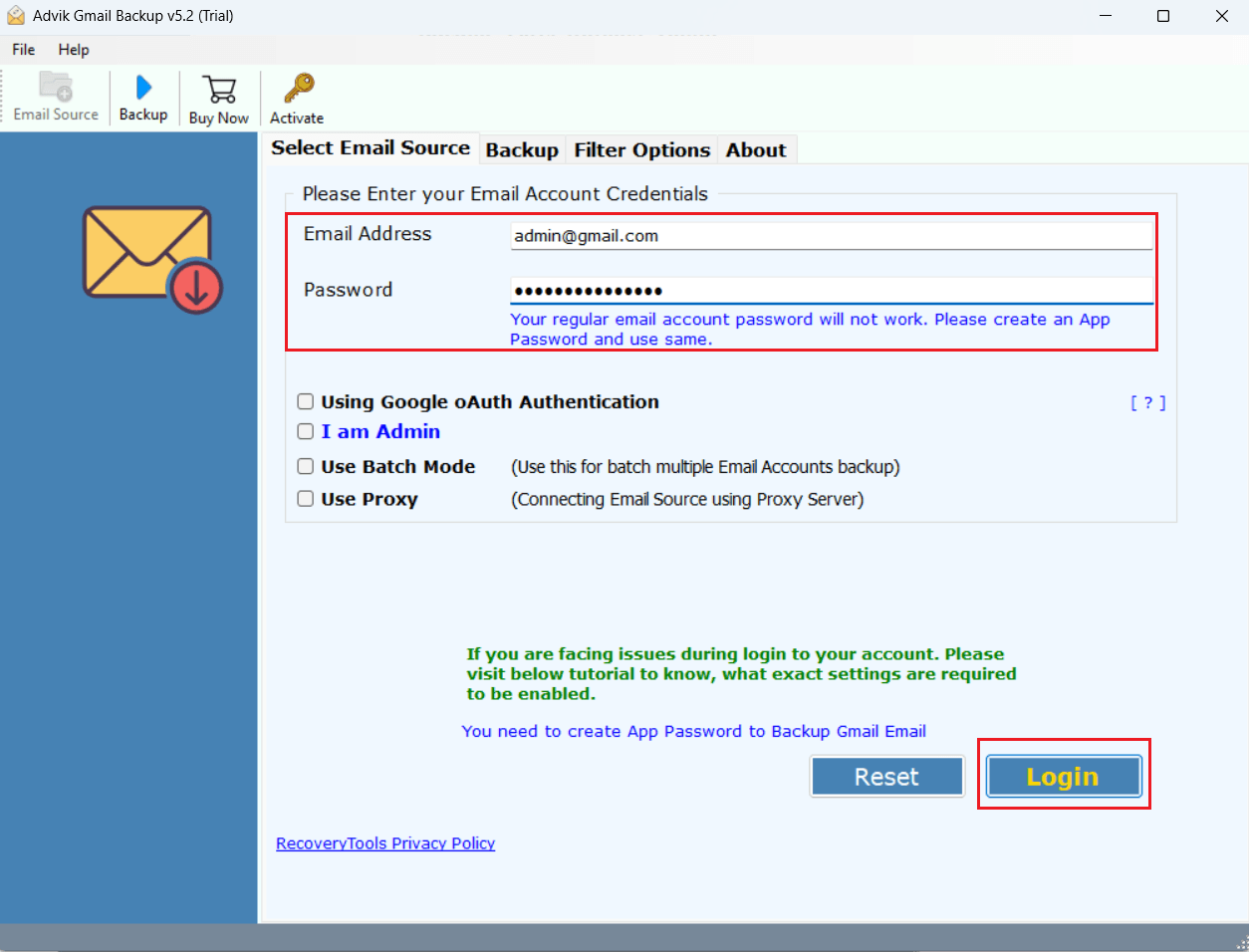
Step 1. Launch the software and enter your Gmail login details to sign in.
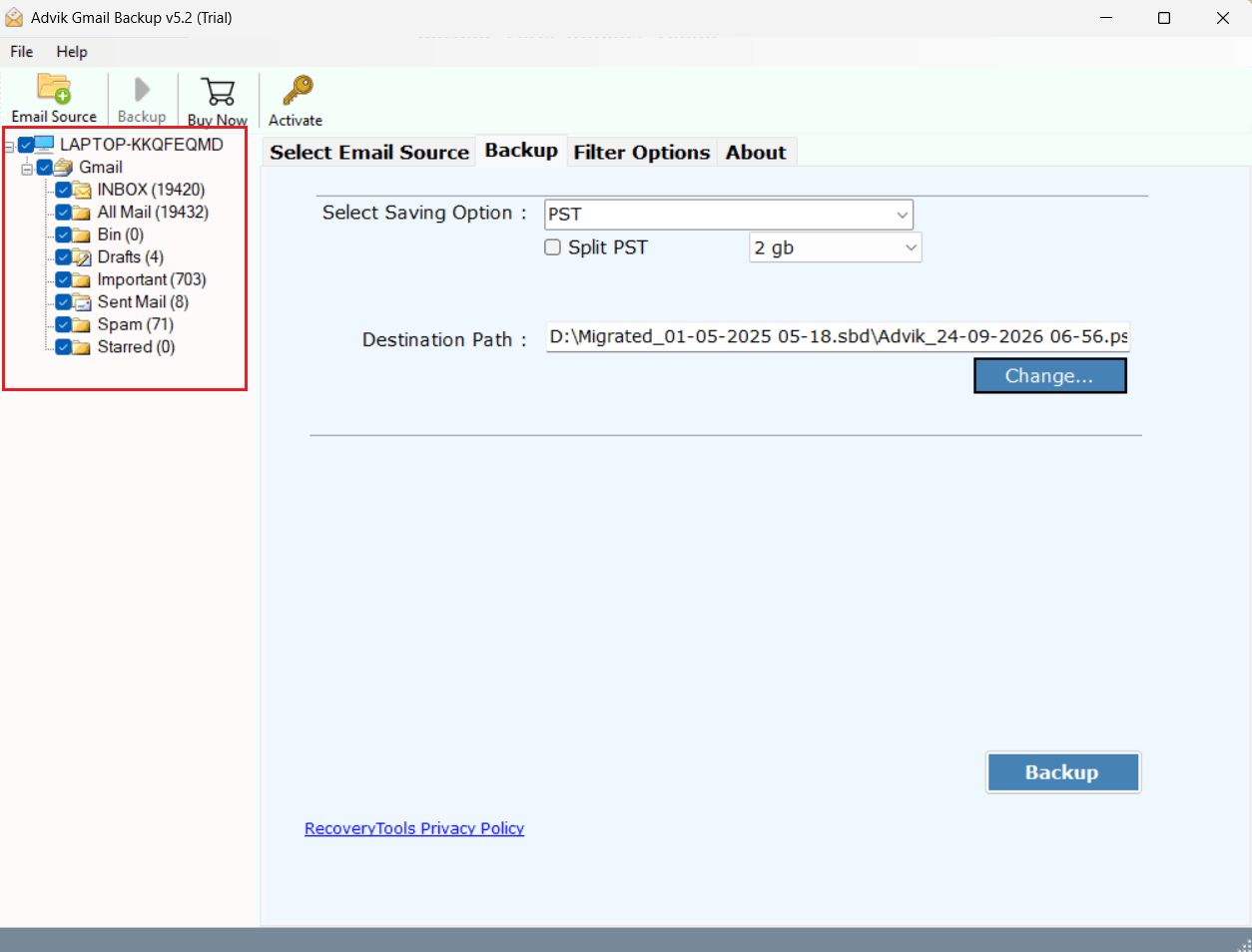
Step 2. Select the Gmail email folders you want to export.
Step 3. Select any file format from the 30+ saving options.
Step 4. Browse the targeted location and hit the Backup button.
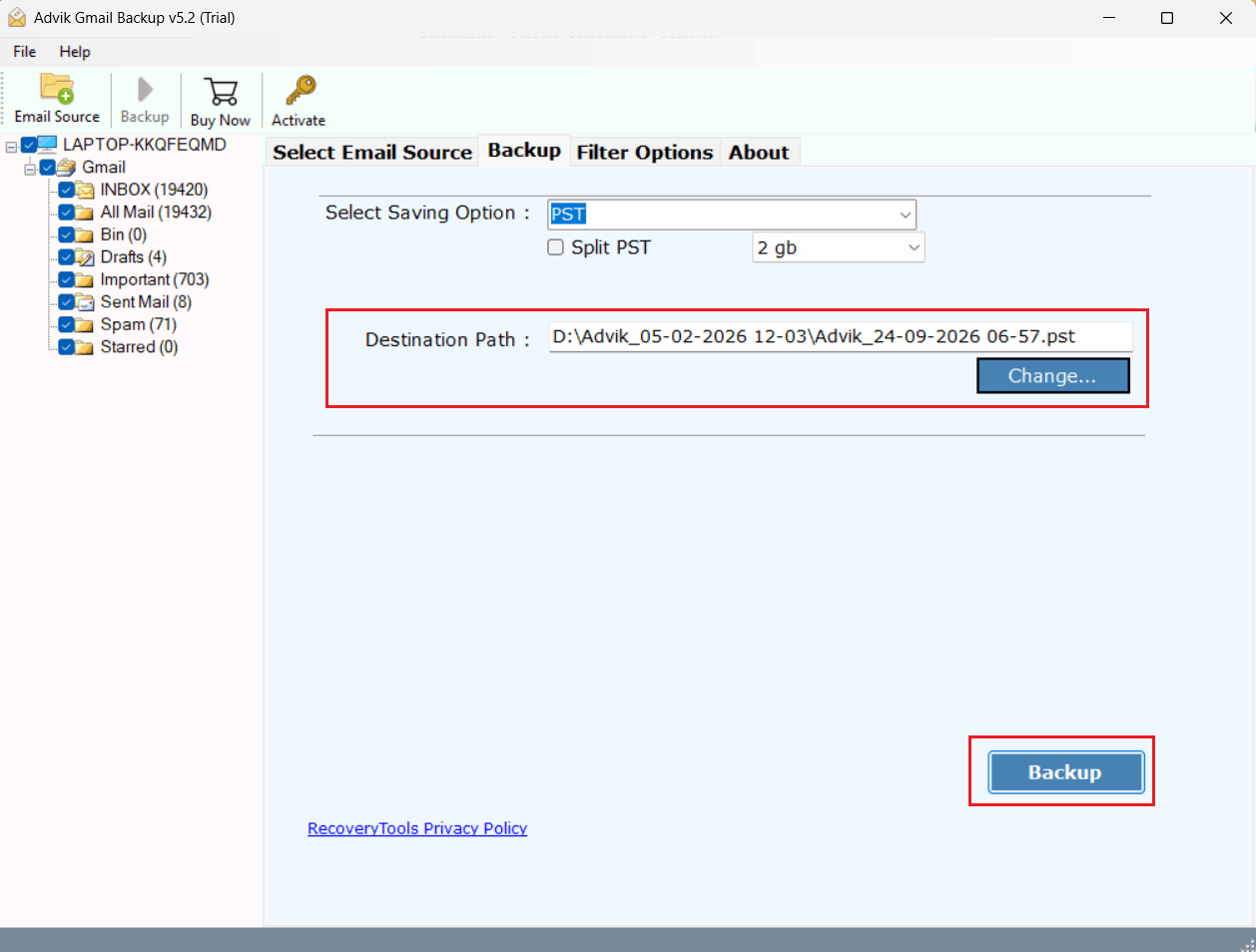
Step 5. The software will start exporting all emails from Gmail mailbox.
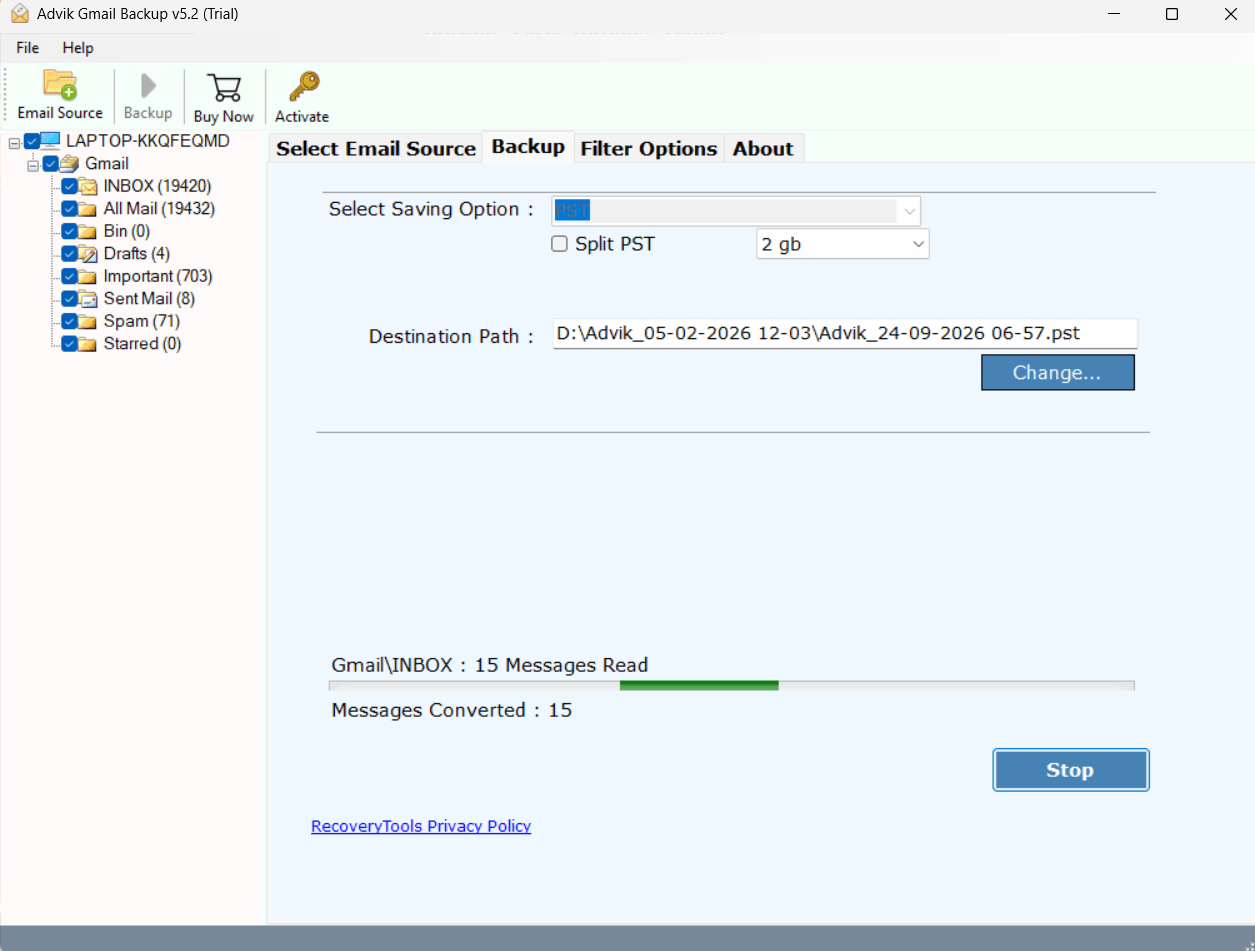
The tool will export all selected Gmail emails along with attachments, keeping everything organized. You will get a detailed report when the process finishes.
Watch How to Export All Gmail Emails Automatically
Common Problems and Fixes
1. Google Takeout is Stuck
Large Gmail exports can take time to prepare. Wait for Google to complete the export and check your account for the notification when the archive is ready.
2. The Download Archive Has Expired
Takeout download links are available for a limited period. If the archive is no longer available, create a new export and download it when ready.
3. Some Gmail Emails are Missing
Check whether you selected all mail or only particular labels. If you use filters, review the date range and other search conditions as well.
4. The Export Contains Multiple Archives
Large exports can be split into multiple archive files based on the maximum size selected. Download and extract all parts.
5. Cannot Open the Exported Data
Complete Gmail exports generally contain MBOX data. Use a compatible email client such as Thunderbird, Apple Mail or a suitable converter if you need another format.
Conclusion
Exporting all emails from Gmail is easy once you know how. You can use Google Takeout provides a simple way to create a complete copy of your mailbox. For selected labels or a few messages, you can use Gmail’s available download and export options. If you regularly need to export Gmail emails, manage selected batches or save messages in a specific format, a dedicated Gmail backup tool can provide more flexibility. Choose the method based on the amount of email you need to export and whether you need a one-time copy or regular backups.
Frequently Asked Questions (FAQs)
Q1. Can I export only specific emails from Gmail instead of the entire mailbox?
Ans. Yes, the Advik Tool allows you to apply filters like date range, sender, and keywords to export only selected emails.
Q2. Is it safe to provide my Gmail login credentials to the backup tool?
Ans. Yes, the tool uses secure OAuth authentication, ensuring your account credentials are not stored or misused.
Q3. Can I export Gmail emails to PST?
Ans. Google Takeout provides Gmail data in MBOX format rather than PST. If you need to export Gmail to PST then use the professional Gmail backup tool.
Q4. How long does the Google Takeout export usually take?
Ans. It depends on the size of your mailbox, but it can take from several hours to a few days.
Q5. Can I export Gmail emails on a Mac or Linux system?
Ans. The Advik Tool works on Windows OS. Mac and Linux users can use Google Takeout or other compatible tools.