How to Export AOL Mail to MBOX File?
Jackson Strong | March 5th, 2026 | AOL Mail
If you’re an AOL Mail user who wants to export AOL Mail to MBOX file. If yes, then don’t stress anymore. In this technical write-up, we’ll discuss how to convert AOL Mail to MBOX file. So stay with us until the end to learn the approaches for exporting AOL emails to MBOX format.
AOL Mail is a widely used email service that allows users to send, receive, and manage emails. However, many users prefer exporting their AOL emails to MBOX for backup or migration purposes. Exporting AOL emails to MBOX enables you to access emails offline. It helps you to transfer emails to MBOX-supported email clients.
Let’s see how to do it.
How to Export AOL Mail to MBOX File Free?
Using the Thunderbird email client, you can execute the email conversion process. Follow the instructions below to convert AOL mailbox to .mbox file format-
Step 1. Launch Thunderbird email client on your system.
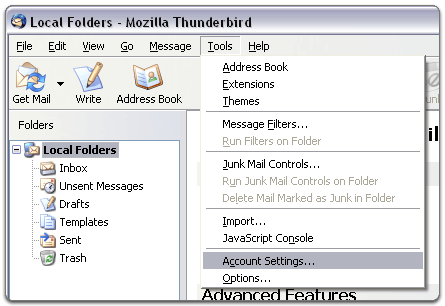
Step 2. Click on Tools and select Account Settings.
Step 3. Click on Account Actions and choose Add Mail Account.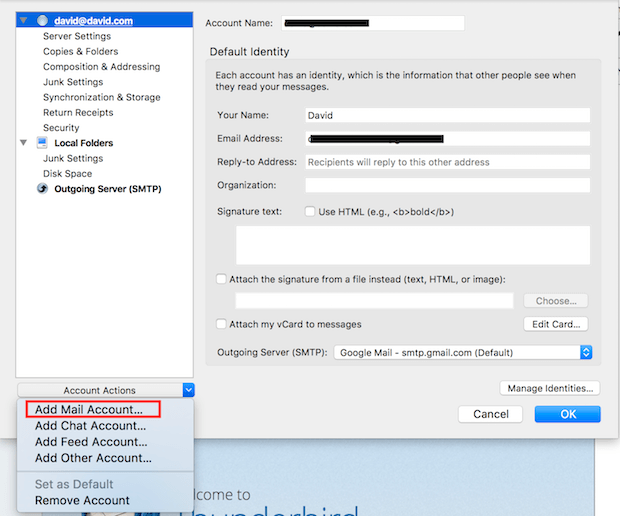
Step 4. Enter AOL Mail account credentials and click Continue.
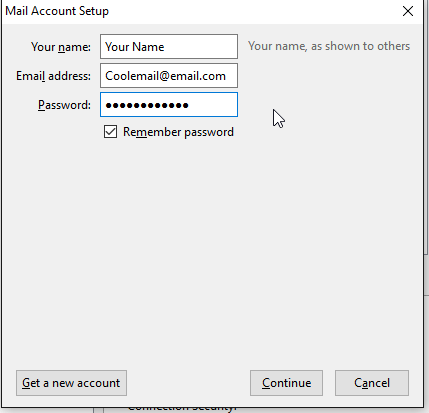
Step 5. Now, Thunderbird will add your AOL Mail account and load its folders.
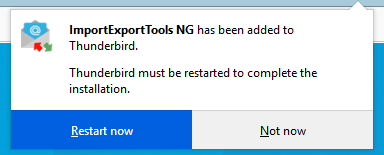
Step 6. After that, install ImportExportTools plugins in Thunderbird.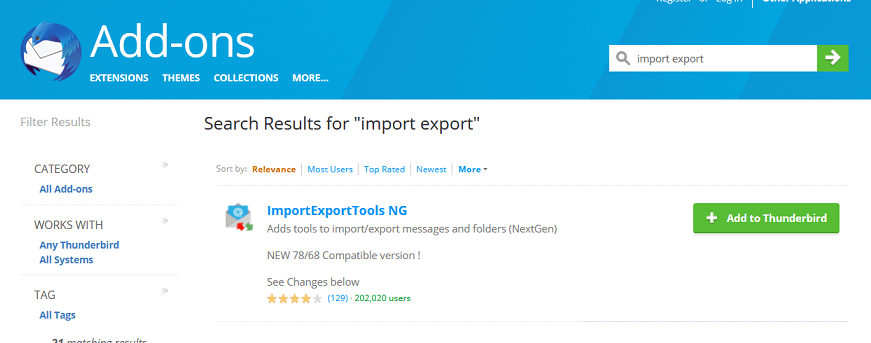
Step 7. Restart your Thunderbird after installing ImportExportTools plug-ins.
Step 8. Right-click on AOL Mailbox folder and select ImportExportTools NG >> Export Folder. 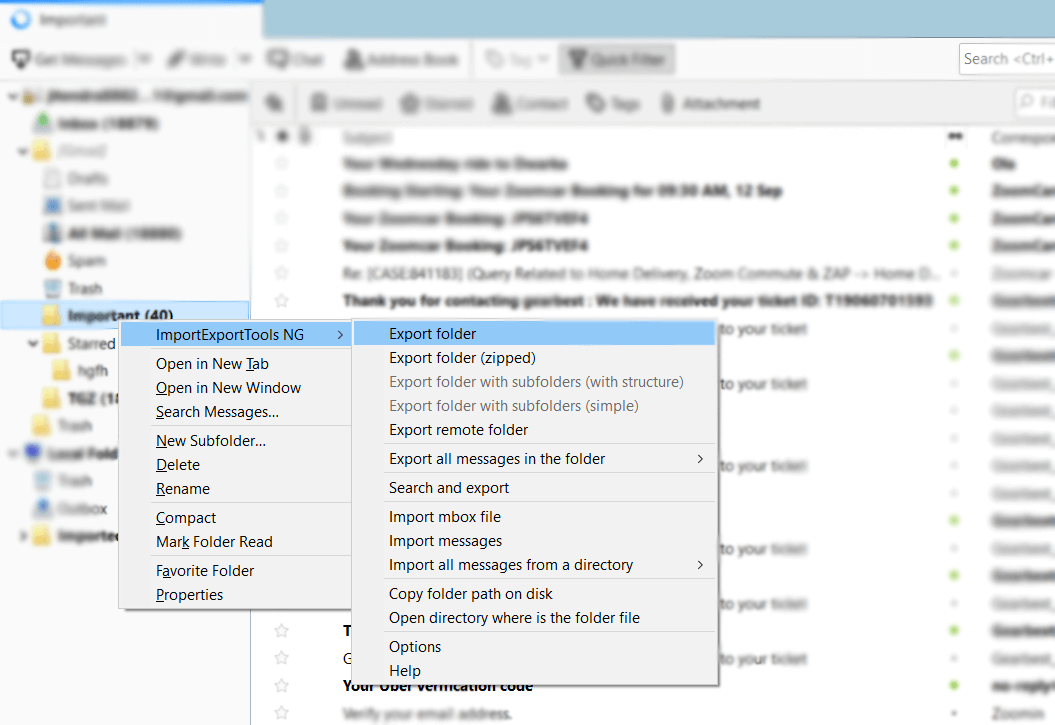
Step 9. Choose the location to save resultant MBOX file and click Save button.
How to Convert AOL Mail to MBOX Automatically?
Try Advik AOL Backup Tool on your system and export AOL mailbox to MBOX file format in just a few seconds. There is no need to configure email accounts. It can directly convert AOL emails to MBOX without any external help. It maintains folder structure and data attributes. With this utility, you can convert all AOL emails at once. Free download this tool and explore its working steps.

Steps to Export AOL Mail to MBOX File
Step 1. Run this software on your system and sign in with AOL Mail account.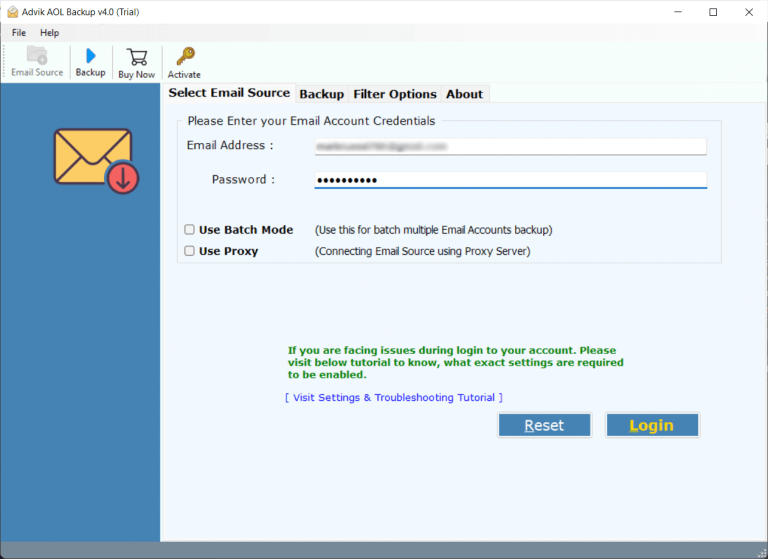
Step 2. Choose the required mailbox folders.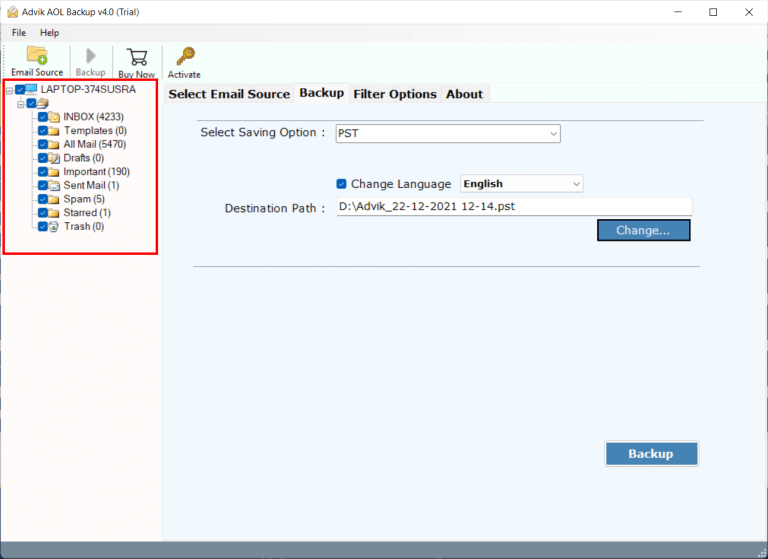
Step 3. Select MBOX as a saving option.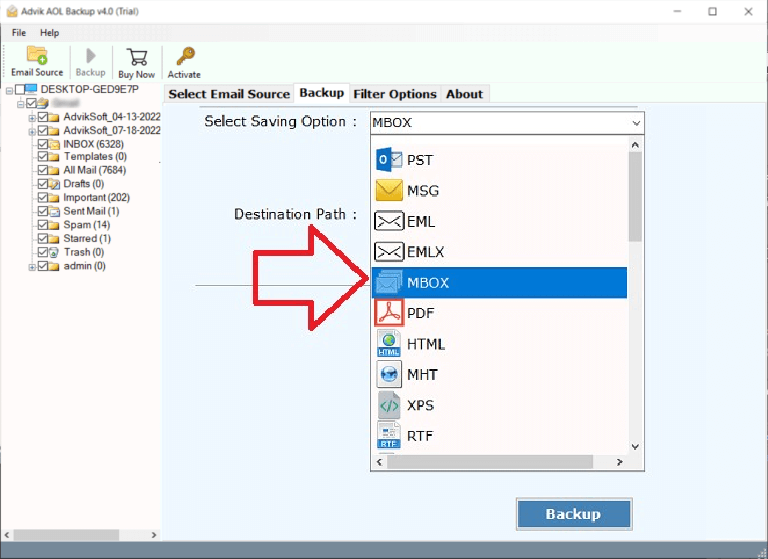
Step 4. Browse target location and press Backup button.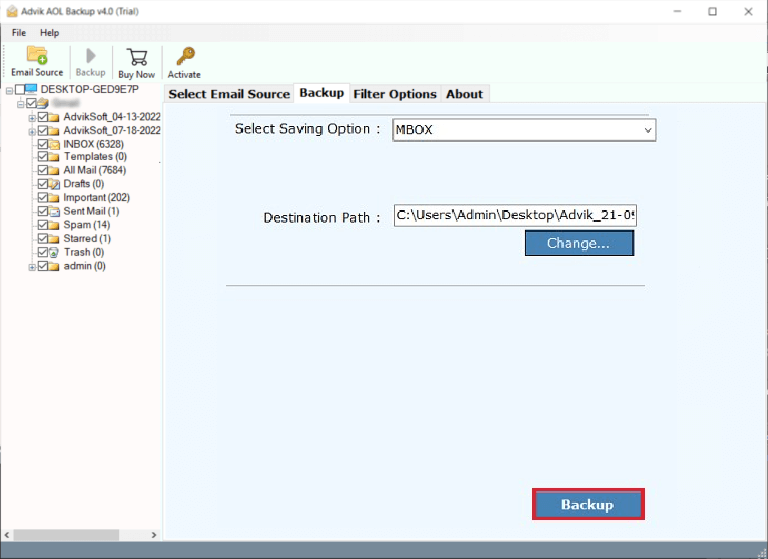
Done! The software will start exporting AOL mailbox to .mbox file format. The tool has various advanced features that help you to easily export AOL emails to MBOX file. Some of them are given below-
- Export AOL Mail to MBOX in bulk.
- Convert AOL email to PDF, PST, EML, and 25+ formats.
- Filter options to convert selected AOL emails.
- Preserves folder hierarchy and data integrity.
- Simple graphical user interface & 24/7 customer support.
- Compatible with all Windows OS versions, including Win 11.
Conclusion
In this post, we have discussed how to export AOL Mail to MBOX file format. Here, we have mentioned the two best solutions for converting AOL mailbox to MBOX file. You can choose any method that is most suitable for you. However, the manual solution is free but it comes with some limitations. To overcome them, choosing the automated tool is the best way.
