How to Export Gmail to EML Files? Top 3 Methods
Christopher Plummer | December 7th, 2025 | Data Backup, Data Conversion, Gmail
Are you looking for a solution to export Gmail to EML files? If yes, then this post is for you. This guide covers 3 easy methods—manual and automated—to save Gmail emails as EML files. Whether you need to download one message or export thousands in bulk, this blog has you covered.
An EML file is a single email message saved in plain text format. It includes:
- The email content (text and HTML)
- Sender and recipient details
- Attachments like PDFs or images
- Metadata like subject, date, and time
It’s a popular format used by email clients such as Microsoft Outlook, Thunderbird, Apple Mail, and others.
Why Export Gmail to EML Files?
There are many reasons to save Gmail emails as EML files:
- Read emails without the internet
- Keep copies in case of deletion or account issues
- EML is compatible with Outlook, Thunderbird, Windows Mail, etc.
- Export and delete old emails to save space
- EML format is used in legal and compliance tools
Let’s start the process without any further delay!
How to Save Gmail as EML File Manually?
Gmail provides a built-in “Download Message” option to save individual emails as EML files.
Follow the steps to export Gmail email to EML file one by one.
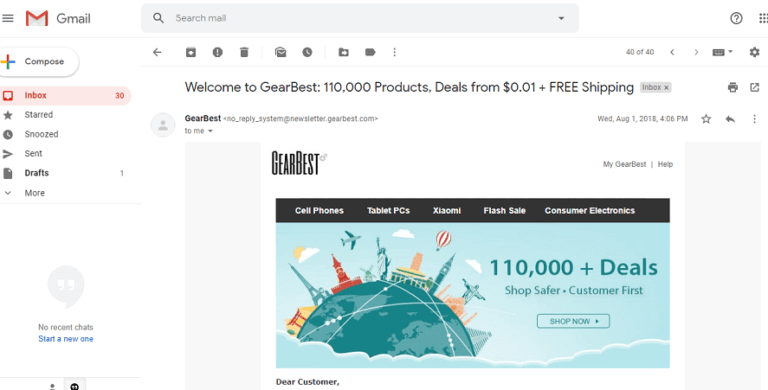
Step 1. Launch a Gmail account in your browser and open an email.
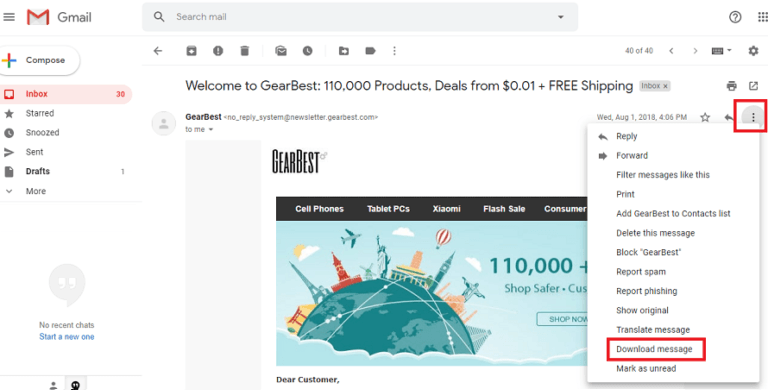
Step 2. Click more icon and click Download Message.
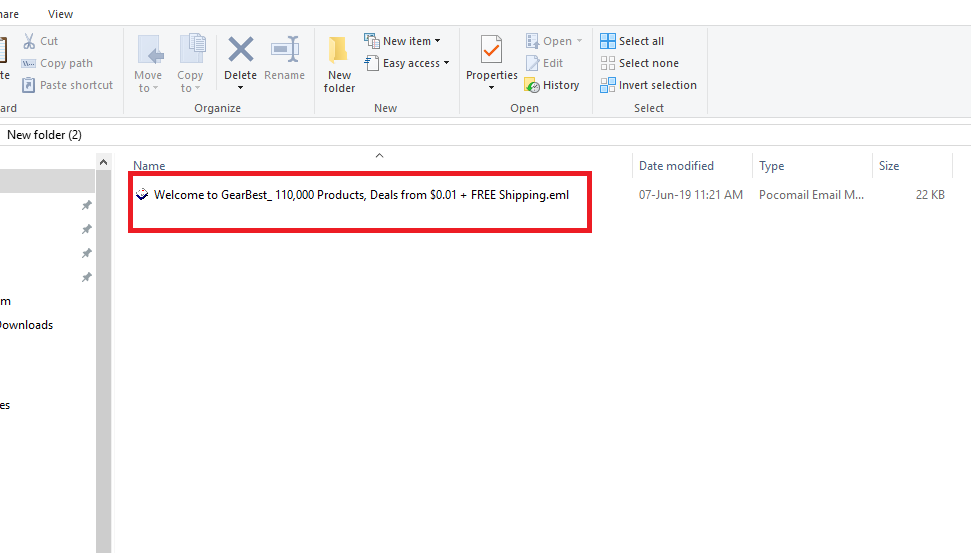
Done! Gmail will download that particular email in .eml file format.
However, with this approach, you can export only one email at a time. There is no option to export emails from Gmail to EML files in batch.
So, in case you want to download multiple emails from Gmail as .eml files, then choose the methods below.
How to Download EML file from Gmail using Thunderbird?
1. Open the Thunderbird email client on your computer.
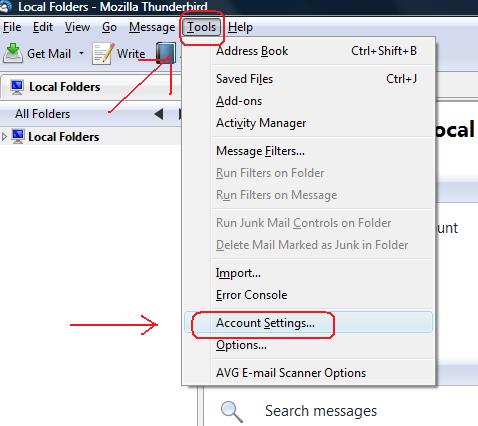
2. Go to Tools >> Account Settings in the menu.
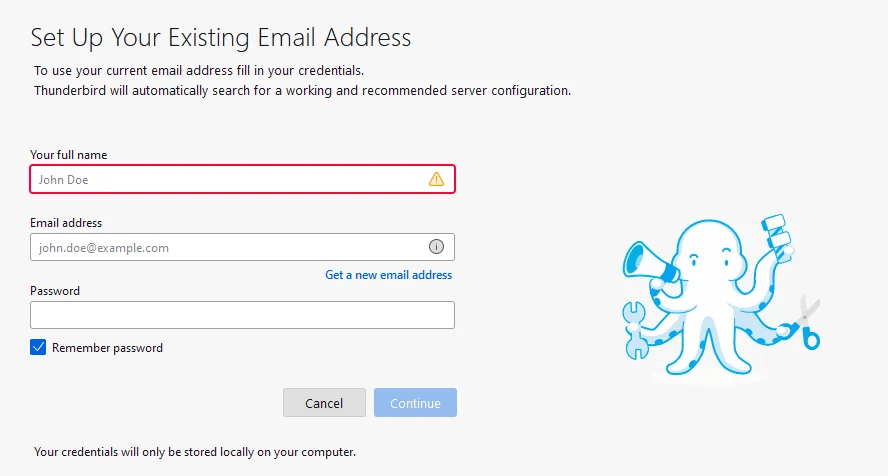
3. Enter your Gmail address and password to log in.
4. Provide the IMAP settings and click Finish to complete the setup.
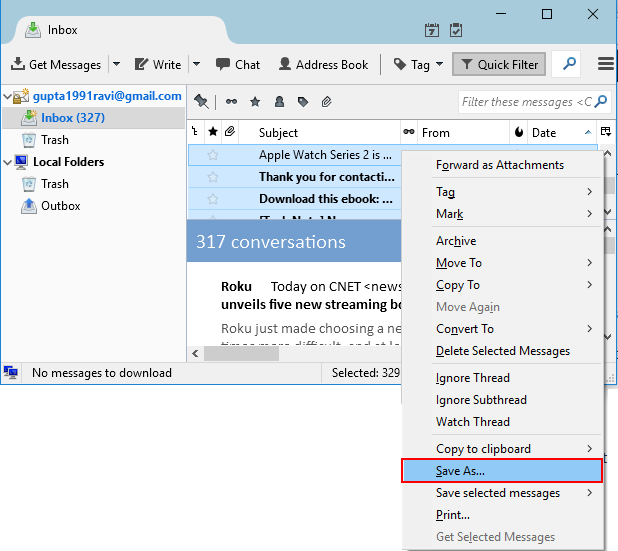
5. Press CTRL+A to select all the emails you want to download.
6. Right-click on the selected emails and choose Save As option.
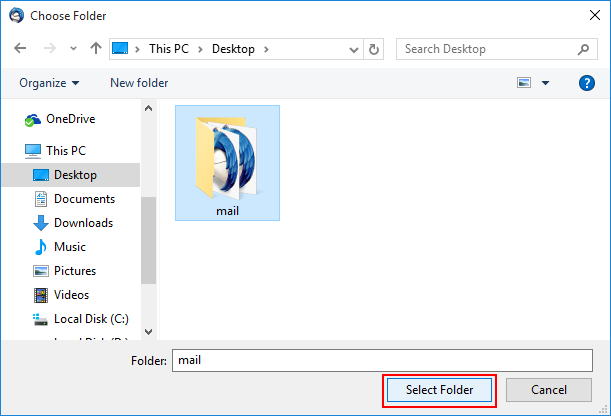
7. Select the folder where you want to save the EML files and click OK.
This is another free way to export Gmail to EML using Thunderbird.
Tip: Make sure your Gmail account has IMAP enabled under Settings > Forwarding and POP/IMAP.
How to Export Gmail Emails to EML Files in Batch?
Now, try the Advik Gmail Converter. This software is specially designed to convert Gmail emails to EML files in bulk. It also offers advanced email filter options for selective email conversion. While exporting Gmail to EML format, the software maintains the email folder structure without changing the hierarchy properties.
Ready to export Gmail to EML files? Download the free trial version now and get started!

Steps to Convert Gmail to EML Files
Step 1. Run the software and enter your login credentials.
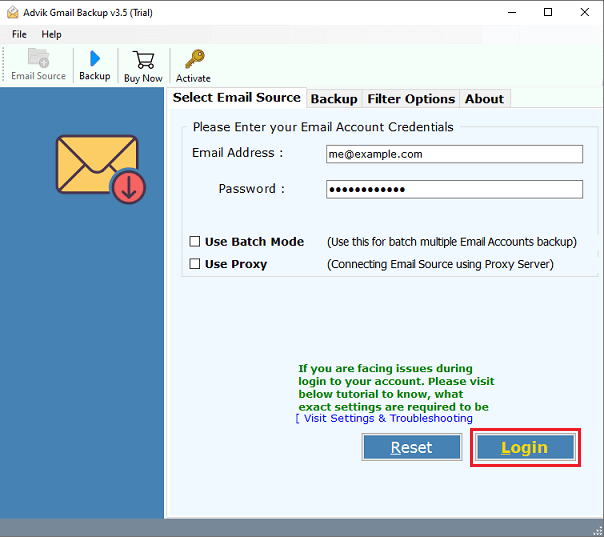
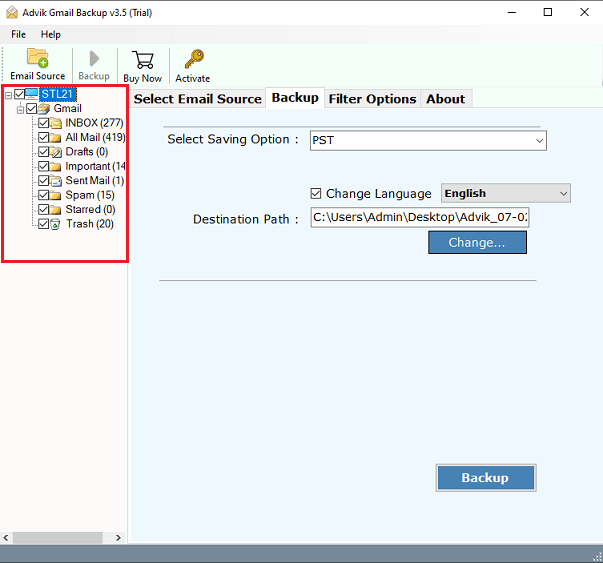
Step 2. Select the mailbox folders that you want to export as .eml file.
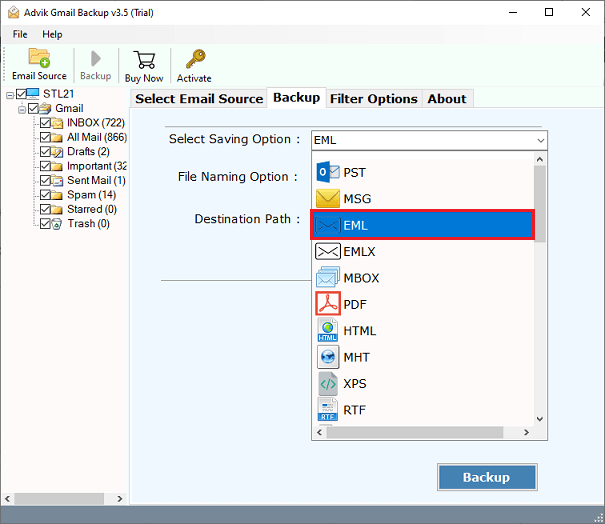
Step 3. Select EML as a saving option from the list.
Step 4. Choose the target location & click the Backup button and analyze the process.
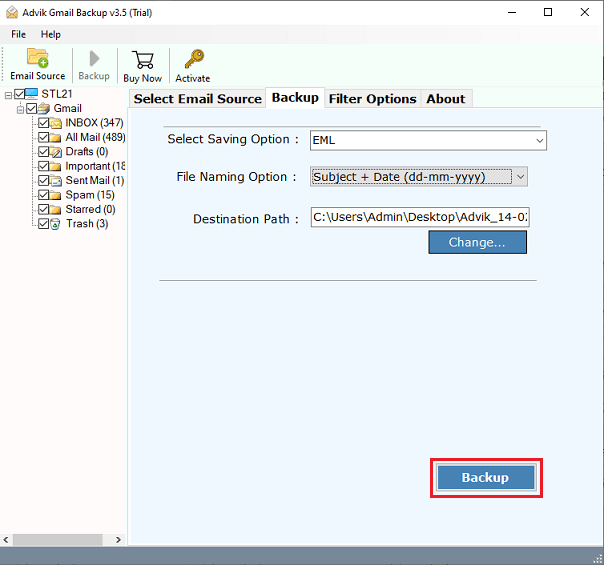
The software will now start converting the selected Gmail folders into EML files. Once the process is finished, you’ll see a report, and the folder where your files are saved will open automatically.
Done! This is how you can simply export emails from Gmail to EML files in bulk.
Watch How to Export Gmail to EML Files in Bulk
Helpful Features of the Automated Tool
Some of the helpful features & benefits;
- Save your Gmail data as EML files with attachments easily.
- Convert multiple Gmail emails to EML format in one go.
- Keep all email properties, formatting, and attachments intact.
- Also, it offers to export Gmail to PST, MBOX, CSV, PDF, and many more.
- Transfer Gmail mailbox folders to any web-based email client.
- Option to choose from various file naming options to save resultant EML files.
- Advanced email filters to convert selected Gmail emails to EML.
- Install on any Windows (32-bit & 64-bit) OS easily.
Conclusion
If you only need to save a few Gmail emails as EML files, the manual methods are good enough. But if you want to export multiple emails in one go, it’s better to use a professional tool or email client. A tool like Advik Gmail Converter lets you export Gmail to EML files in bulk, without losing attachments or formatting. You can choose any method that is most suitable for you.
More Helpful FAQs – Export Gmail to EML Files
Q1. Which email clients support EML files?
Ans. EML files can be opened in apps like Microsoft Outlook, Thunderbird, Windows Mail, Apple Mail, and more.
Q2. I am facing a login error during export. What to do?
Ans. Make sure IMAP is enabled in Gmail settings and allow third-party access or use Gmail app password if 2FA is enabled.
Q3. Do attachments get saved in EML files?
Ans. Yes, EML files include attachments unless the method used fails to preserve them.
Q4. How many emails can I export at once using a professional tool?
Ans. You can export an unlimited number of emails depending on your Gmail account limits and software license.
Q5. Is it possible to export Gmail labels/folders as EML files?
Ans. Yes, with tools like Advik software, you can export emails label-wise or folder-wise into EML format.