How to Transfer Emails from Office 365 to Yahoo Mail?
Jackson Strong | February 6th, 2026 | Email Migration
Are you searching for an ideal solution to transfer Office 365 to Yahoo Mail? If yes, then you came to the right page. In this article, you will learn how to migrate from Office 365 to Yahoo Mail. At the end of this article, you will be able to complete the Office 365 to Yahoo Mail migration without any effort. Before starting, let’s take a quick look at Office 365 and Yahoo Mail.
Office 365 is a subscription-based service offered by Microsoft. Office 365 contains various software such as Word, Excel, PowerPoint, Access, SharePoint, Outlook, etc. All Software in Office 365 is updated automatically during their period of subscription. On the other hand, Yahoo Mail is a free email/business service since 1997. By December 2011, Yahoo! Mail had 281 million users, making it the third-largest web-based email service in the world.
The need to transfer emails from Office 365 to Yahoo Mail account differs from user to user. People have different requirements to perform Office 365 to Yahoo Mail migration process. Such as that, one needs to do this just because the organization is using Yahoo Mail and the user has an Office 365 account previously and wants to transfer it to Yahoo Mail. Therefore, it may vary from person to person.
Now, let’s go ahead to learn the process in more detail.
How to Transfer Office 365 to Yahoo Mail for Free?
You can manually migrate Office 365 emails to Yahoo Mail via Outlook.
- Launch the Outlook application on your system.
- Go to File menu and click on Add Account.
- Enter Office 365 login details to add it into Outlook.
- Now, click File >> Open & Export >> Import/Export.
- Choose Export to a File and click Next.
- Select Outlook Data File (.pst) and press Next.
- Next, choose the Office 365 mailbox folders to export.
- Browse target location and click Finish button.
- Now, add your Yahoo account to Outlook.
- Again, navigate to File >> Open & Export >> Import/Export.
- Import the exported .pst file into Yahoo mailbox.
Done! This is how you can manually move emails from Office 365 to Yahoo Mail.
Challenges You Face in Manual Solution
- An email client like Outlook, Thunderbird must be installed.
- Takes a lot of time to complete the migration process.
- No option to transfer only selected emails.
- In case, import/export greyed out in Outlook, this method does not work.
How to Migrate Office 365 to Yahoo Mail Automatically?
Advik Office 365 Migration Tool is a professional application that helps users transfer Office 365 emails to Yahoo account directly. This software has the simplest user interface so anyone with basic knowledge of computers can easily operate this tool. It can migrate the entire mailbox at once. It preserves data integrity and mailbox folder hierarchy during the Office 365 to Yahoo migration.
You can download this software for free to check its efficiency.


Steps to Transfer Emails from Office 365 to Yahoo Mail
- Run the Advik Office 365 Backup Tool in your system.
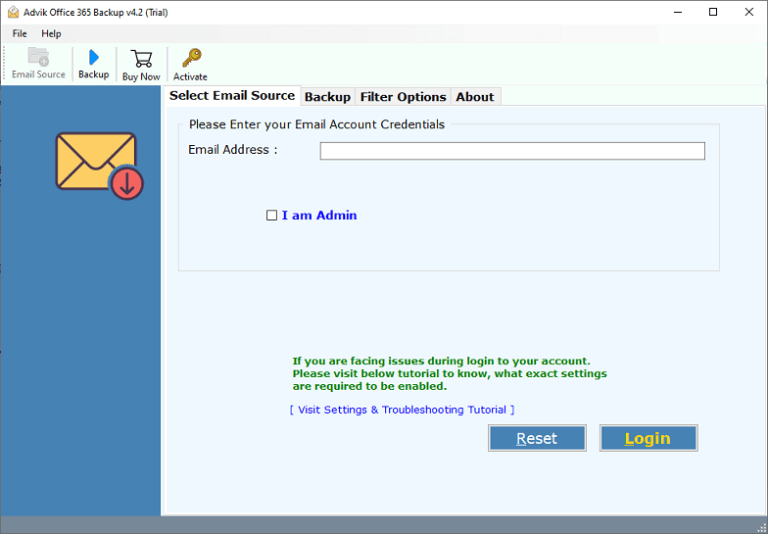
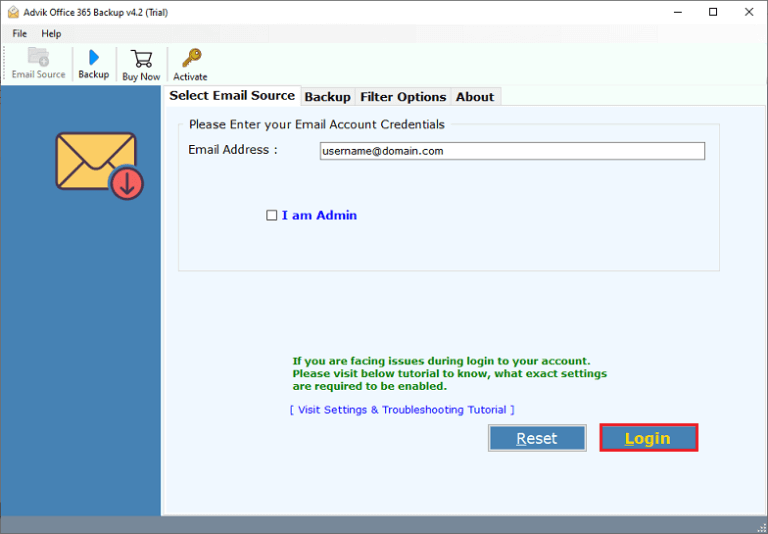
- Enter your Office 365 login credentials and press the Login tab.
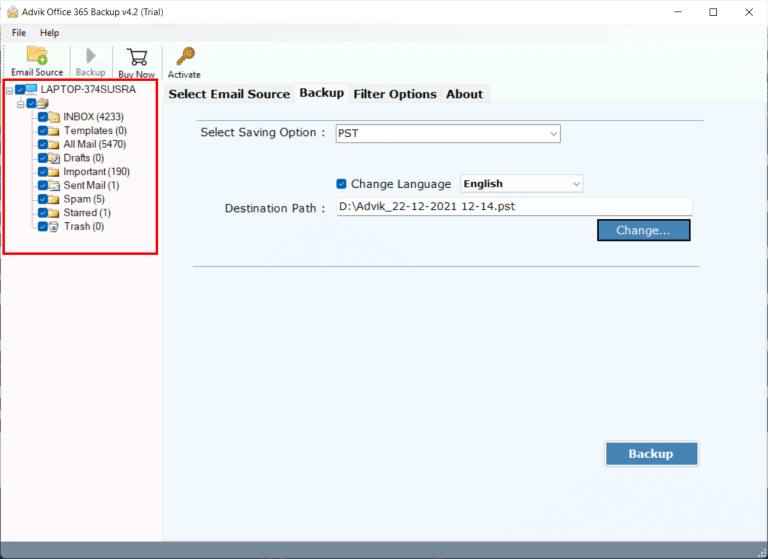
- Choose the required Office 365 mailbox folders from the preview.
- Select Yahoo as a saving option from the list.
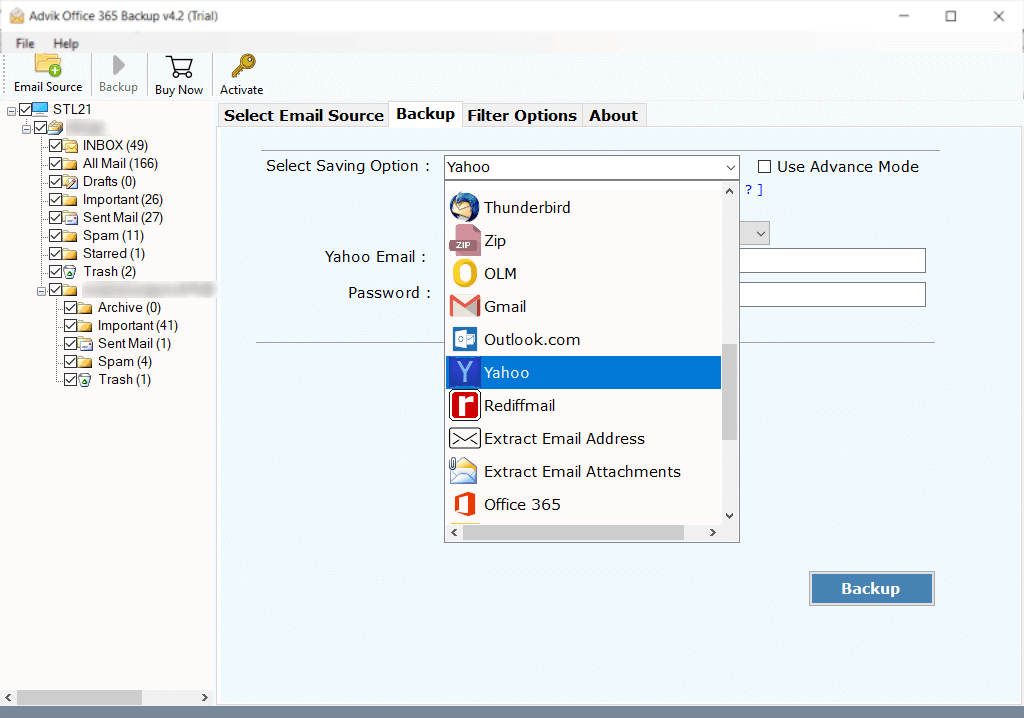
- Enter your Yahoo mail login credentials and click Backup.
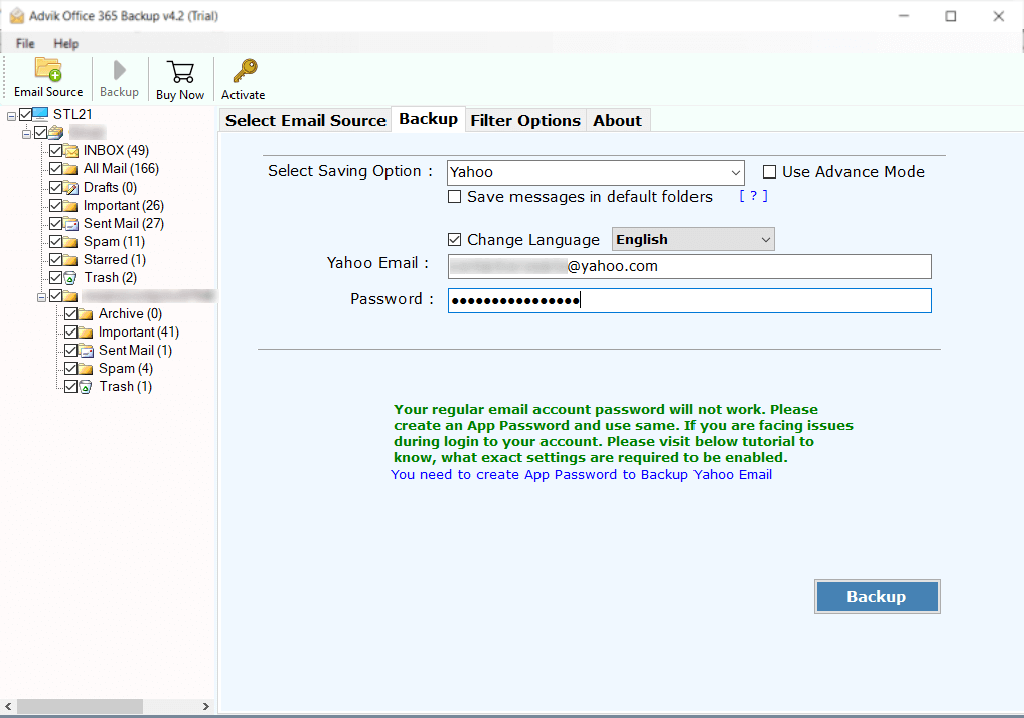
Now sit back and relax! The software will transfer/move email folders from Office 365 to Yahoo mail account.
Watch How to Migrate Office 365 Emails to Yahoo Mail
There are various reasons to choose automated software. Some of the best features of this tool are as follows.
- Complete Mailbox Migration: It allows users to migrate complete mailboxes such as Inbox, Sent Mails, Outbox, Drafts, Trash, and any other folder created by users.
- Maintain Folder Structure: The folder structure of email remains the same during the process of migration. This helps users to navigate emails easily after conversion.
- Preserve Key Elements: All the key elements of emails such as Cc, Bcc, To, From, Hyperlinks, Unicode Texts, etc. remain the same.
- Multiple Output Formats: You can use this software to export emails from Office 365 to PST, PDF, EML, MBOX, EMLX, MSG, DOC, RTF, HTML, TGZ, etc. file formats.
- Cloud Migration: Apart from Office 365 to Yahoo migration, this software is capable of moving emails from Gmail to Office 365, G Suite, Yahoo Mail, Rediffmail, and any other cloud-based email service that uses IMAP protocol.
- Free Demo Download: You can download the software for free to check the efficiency of this tool. Hit the button below to download for free.
Final Words
In this post, we have discussed two different methods to migrate emails from Office 365 to Yahoo Mail account. Despite knowing the fact that manual tricks and techniques are quite complicated, simply use the automated way. Save time and manual efforts to transfer Office 365 to Yahoo Mail. In Case you are stuck somewhere while using this software you can contact our customer support for further help.