How to Export Office 365 Emails to EML Files?
Jackson Strong | February 2nd, 2026 | Data Backup
Email data is valuable, and keeping it accessible across platforms is essential. So, many business and individual users want to export Office 365 to EML format for better flexibility and long-term storage.
If you also want to export emails from Office 365 to EML files, then good news — you don’t need any complex setup to do it. With the right method, you can convert Office 365 email to EML file easily and safely, without losing any important attachments or folder structure. Here, we’ll show you two simple and effective ways to save Office 365 emails as EML format.
EML file stores a single email along with its attachments, headers, and other details. It is perfect for single email backups or switching email apps. It is widely supported by various email programs like Thunderbird, Apple Mail, and Windows Mail.
So don’t waste time searching for confusing hacks or risky tools. Just follow these simple steps to get started!
How to Export Office 365 to EML File?
Follow the steps below to save a single email from Microsoft 365 to EML files;
- Install and open Thunderbird.
- Choose the option for the existing email and enter your details.
- Select manual configuration and enter the Office 365 account details.
- Click Done to start authenticating your account.
- Now, check your Office 365 emails on the left side.
- Next, right-click on the Office 365 email you want to export.
- Select Save As from the list.
- Browse and choose the folder where you want to save the email.
- The selected email will be saved as an EML file. Repeat the process to export other emails.
Done!! This is how you can export Office 365 Email to EML Files.
Limitations of the Manual Method:
- Time-consuming if you need to export multiple emails.
- Requires Thunderbird installation.
- Not suitable for bulk email export.
If you need to export multiple Microsoft 365 emails in one go, the manual method may not be the best choice. Instead, using an automated tool can save time and effort.
How to Convert Office 365 Emails to EML Files in Batch?
Check out the Advik Office 365 Backup Tool for Windows. This software allows you to export Office 365 emails to EML files in batches. Additionally, it also offers advanced filter options to convert selected emails. You can install this program on your Windows 11/10 and older versions. The software will save Office 365 emails as .eml files along with attachments. In addition, the software also maintains the folder structure. Thus, no data loss will take place.
Click on the button below to download this software for free.


Steps to Export Office 365 Emails to EML Files
- Launch the software and sign in to your Office 365 email account.
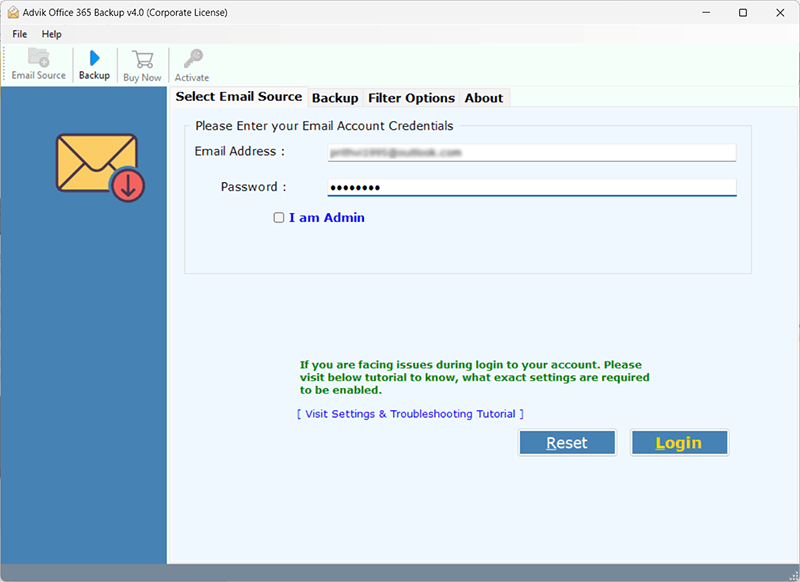
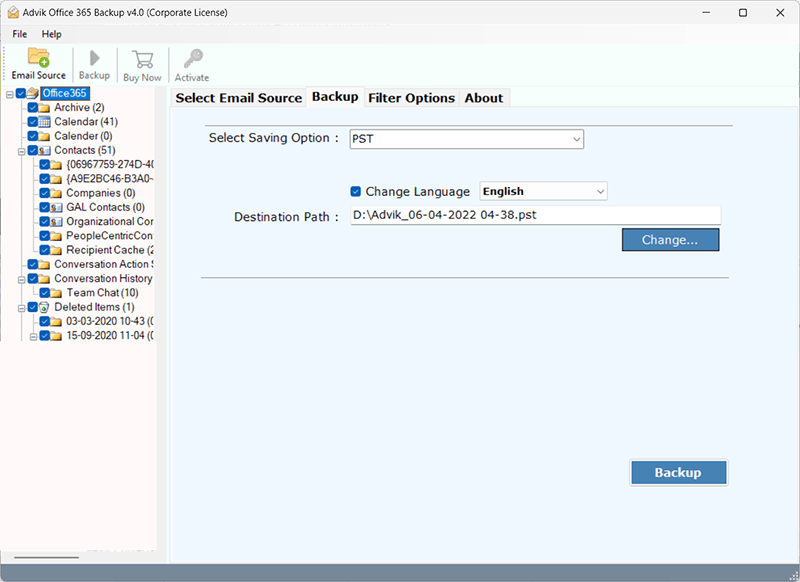
- Select mailbox folders to export emails from.
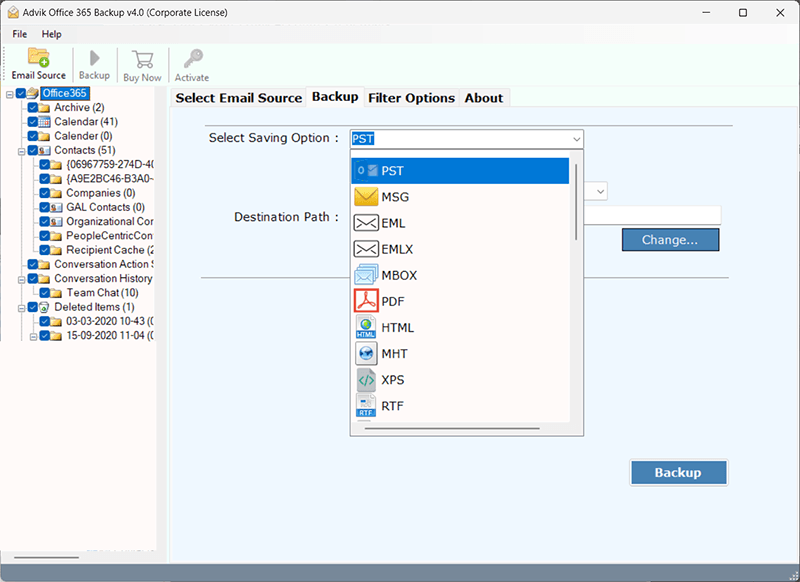
- Next, choose EML as a saving option from the list.
- After, browse a destination path and click Backup.
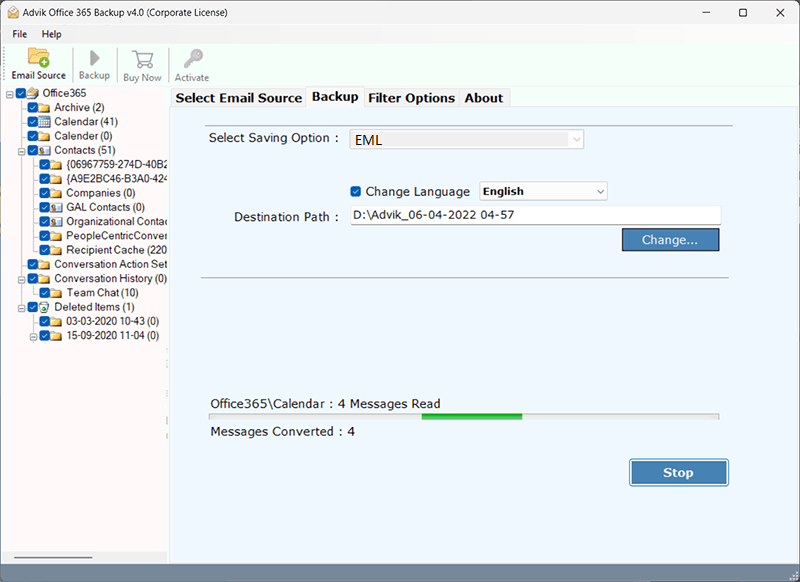
The software will start exporting emails from Office 365 to EML files automatically.
After the process is finished, the software will provide a complete log report too.
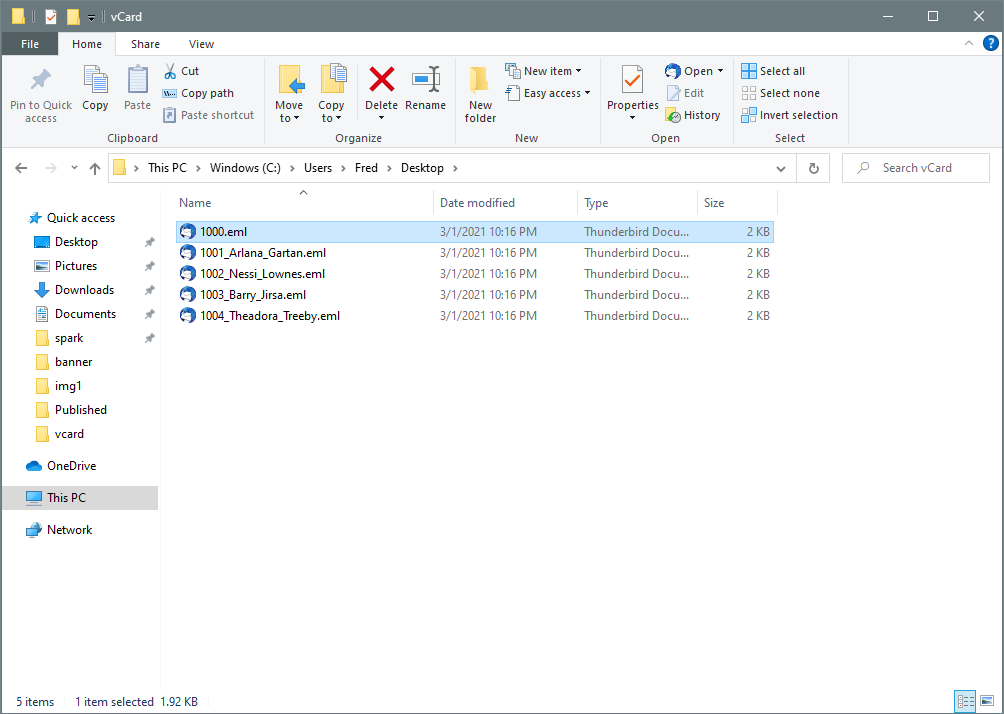
Watch How to Save Office 365 Email as EML File
Why Choose Microsoft 365 to EML Converter
Using a professional tool can save your time and ensure accurate results, especially when dealing with a large number of emails.
Below are some of the top reasons to go with an automated solution:
- Easily export multiple Office 365 emails to EML files in bulk.
- Supports conversion to other popular formats like Office 365 to MBOX, MSG, EMLX, and more.
- Preserves all email properties, including To, From, Subject, Date, Time, and Attachments.
- Maintains the original folder hierarchy even after the Office 365 to EML conversion.
- Allows migration from Office 365 to Gmail, G Suite, Yahoo Mail, Yandex Mail, and more.
- Comes with advanced filters such as Date Range, Subject, and Sender for selective export.
- Offers a Free Demo version to test its features before purchasing.
- Simple and user-friendly interface suitable for both beginners and experts.
- Supports all major versions of Windows, including Windows 11, 10, 8, 7, XP, and Vista.
- Provides 24×7 Dedicated Customer Support for technical help.
- 100% secure and error-free performance with no data loss.

Final Words
In this post, we have discussed how to export Office 365 to EML manually and automatically. With the manual method, it will be easier for users to save Office 365 email as .eml. However, the same isn’t perfect for bulk email conversion. In order to convert Outlook 365 emails to EML in batch, the automated solution is the right choice. With the Advik Office 365 Backup Solution, you can bulk export emails from Office 365 to .eml automatically.
Frequently Asked Questions
Q1. Can I download emails from Outlook 365 as EML files?
Ans. Well, it’s not true. Microsoft 365 doesn’t offer any way to save Office 365 emails as EML files. However, you can do so by configuring Office 365 email account in Thunderbird to export its emails as EML files. Also, if you need a quick solution, then go for a professional solution that lets you convert Office 365 emails to EML files in bulk.
Q2. Is there any way to export all email folders from Office 365 email account to EML files?
Ans. Yes, the Advik Software will let you choose the entire or selective Office 365 mail folders even in the beginning.
Q3. I have Windows 11 OS, Can I use it on my Windows 11 PC?
Ans. Of course, you can! The Advik Software is compatible with almost all the latest and previous versions of Windows OS.
Q4. Will my email attachments be saved in the EML file?
Ans. Yes, when using a reliable Office 365 to EML converter, all email attachments are preserved along with metadata and formatting.
Q5. How long does it take to convert Office 365 emails to EML?
Ans. The time depends on the number of emails being converted. A professional tool can export thousands of emails in minutes, while the manual method is slower.