How to Export Webmail Emails to Word Document?
Jenny Lowrence | February 11th, 2026 | Data Backup
In today’s digital world, ensuring data security and easy access to essential information is more important than ever. Many users are searching for a trustworthy solution to export Webmail emails to Word document. If you also safeguard your Webmail messages in DOC files, then this post will help you. Here, we are going to explain a manual as well as an automated solution to convert Webmail emails to Word document files.
Webmail is an email service that can be accessed through any web browser. This platform is great for managing emails online. It is widely used for sending and receiving emails. However, many users often need to export emails from Webmail to Word document for documentation, legal records, sharing, printing, or offline access. Although Webmail does not provide a direct option to save emails into DOC format. In this write-up, we’ll show you two different ways to export Webmail to Word document.
Let’s get started without any further delay!
How to Convert Webmail Email to Word Document for Free?
- Open your Webmail account in a browser.
- Now, open the email that you want to convert.
- To copy the email content, press Ctrl + C.
- Now, open Microsoft Word.
- Press Ctrl + V to paste the content of email into Word.
- Next, go to File and choose Save As option.
- Select DOC or DOCX as file type and click Save button.
Your Webmail email is now saved as a Word document.
Limitations of Manual Method
This method is free, but it has several drawbacks:
- Cannot convert multiple emails at once.
- Attachments are not saved.
- Email formatting may not be preserved.
- Not suitable for large mailboxes.
How to Export Webmail Emails to Word Document in Bulk?
Download and install the Advik Webmail Backup Tool on your system. The software will help you rapidly convert multiple Webmail emails to DOC files at once. Also, it offers advanced filter options to save only selected emails based on date range, to, from, subject, etc. The tool preserves all email attributes and structure while exporting.
A user-friendly interface makes it easy for everyone to use this automated tool. For more, try this free demo version to understand the software process.


Steps to Export Webmail to DOC
1. Run the tool on your Mac and Windows PC.
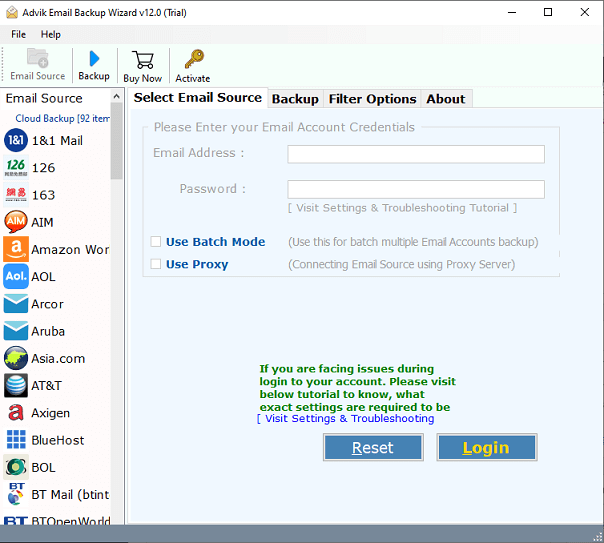
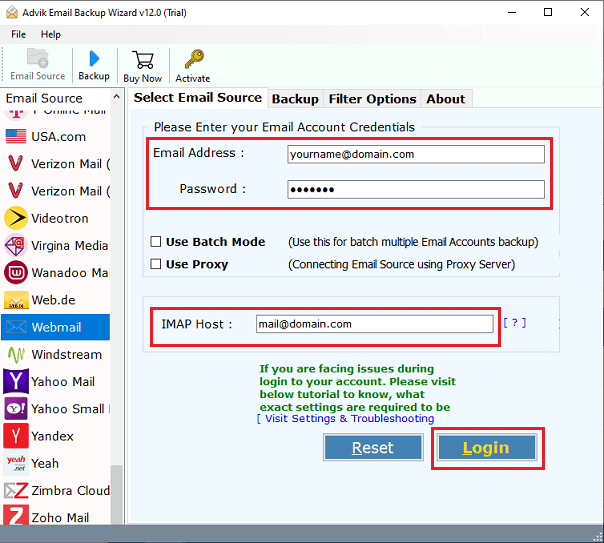
2. Choose Webmail as the email source and enter its login details to sign in.
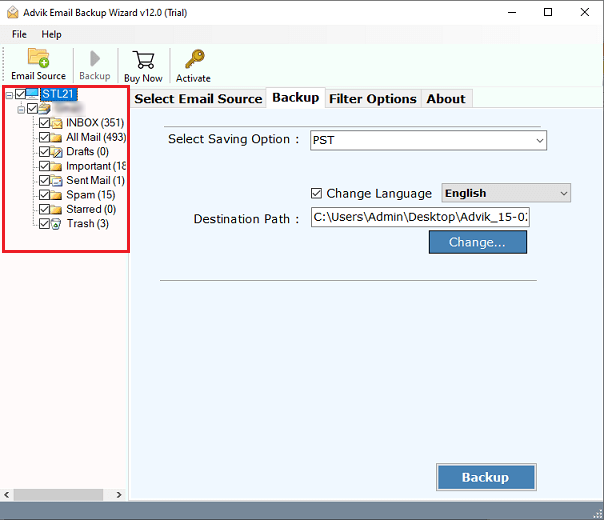
3. Select the required email folders & subfolders.
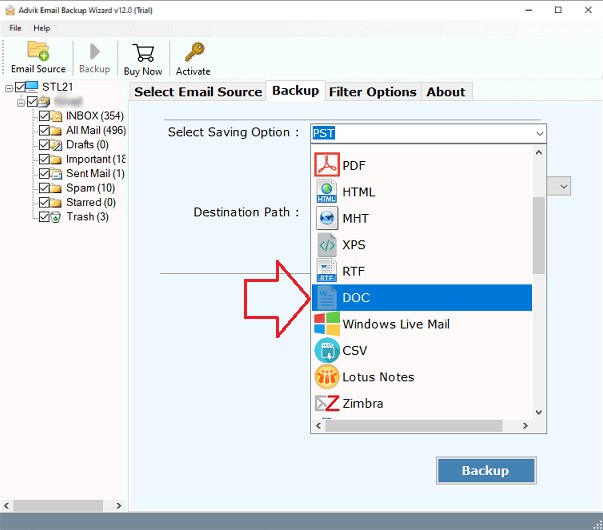
4. Next, select DOC as a saving option.
5. Apply Email Filter Options. (Optional)
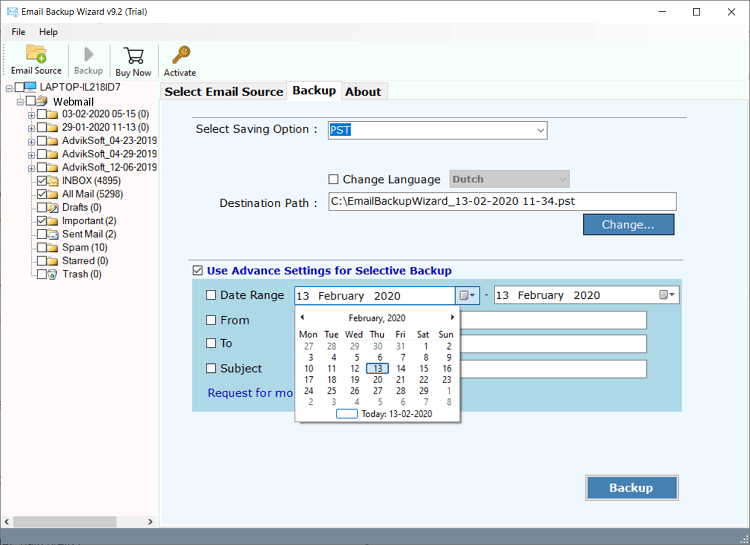
6. Choose the destination location and click the Backup button to begin the process.
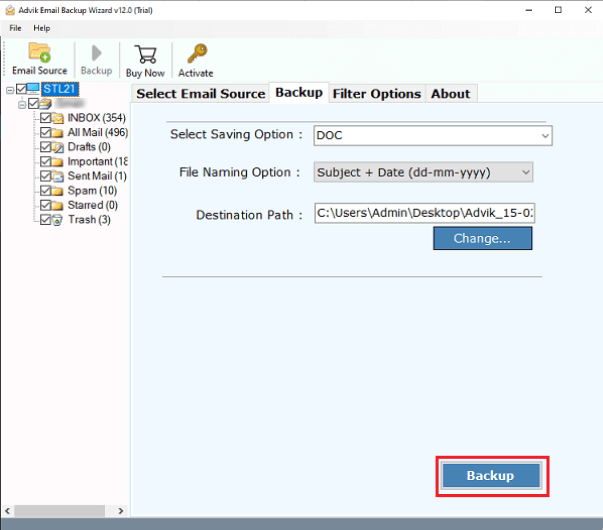
Now, sit back and relax! The software will complete the exporting process in a few seconds.
Webmail to DOC Converter – Benefits and Features
- Batch Mode: The software provides the batch option to save multiple Webmail accounts to Word document files in a single process. Just provide the details of all Webmail accounts enclosed in a CSV file.
- Export Emails in Bulk: The tool can convert all emails in a single attempt. With this utility, you can export emails from all folders, such as the inbox, sent, outbox, draft, etc.
- Selective Conversion: The software provides advanced filter options to export only selected items from Webmail account. You can sort email data on the basis of date, time, subject, email address, etc.
- Maintains Email Properties: During the Webmail to DOC conversion, it keeps intact all meta properties of Webmail emails. It will create an exact copy of your email without any single change.
- Simple GUI: It comes with an easy-to-use and consistent interface. Any novice user can easily use this application without facing any technical glitches.
Conclusion
Exporting Webmail emails to DOC files offers valuable benefits such as offline access, easy backup, and data portability. While the manual method can convert only one email at a time. On the other hand, the professional tool provides a more efficient solution to export Webmail to Word document files. The above-suggested tool allows for bulk conversion of Webmail emails with complete accuracy.
