How to Download Yahoo Emails to Computer? Updated 2026
Christopher Plummer | January 14th, 2026 | Data Backup, Yahoo Mail
Emails often contain valuable information. Having a secure offline backup of Yahoo emails can be incredibly useful. Whether you need to archive emails for record-keeping, free up space in your Yahoo Mail account, or transfer data to a different platform, downloading emails offers a practical solution. In this article, we are going to explain three different methods to download Yahoo emails to Computer
Method 1. Use the Built-in Print to PDF option to save Yahoo emails locally
Method 2. Use the Outlook desktop app to download emails from Yahoo Mail
Method 3. Use an automated Yahoo Mail Backup Tool for a simple, bulk, and secure way
We will discuss each method in detail one by one in the upcoming section, but before proceeding, we understand the reasons for downloading Yahoo emails.
Why Need to Download Yahoo Emails to PC?
- Offline Mode: It’s essential to have our data available offline so we can access it without the internet when needed.
- Privacy and Security: Keeping a backup of our data on a local device is important to protect it from threats or loss.
- Migration to Another Service: Downloading Yahoo emails is necessary when moving to another service. It ensures that the data remains safe during the transfer.
Let’s get started!
How to Save Yahoo Email to Desktop Manually?
Here, we will discuss how you can manually download Yahoo emails to your computer.
1. Open your web browser and sign in to Yahoo Mail.
2. Find the email you want to save and open it.
3. Click on the menu icon and choose More >> Print.
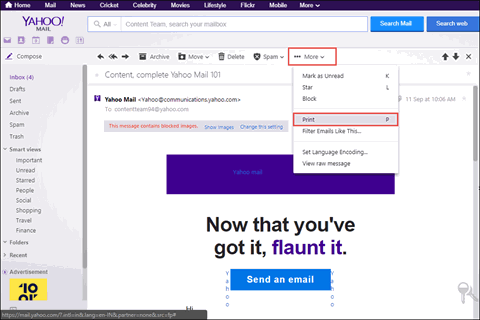
4. Select ‘Save as PDF‘ from the printer options.
5. Choose where you want to save the PDF on your computer.
6. Click ‘Save’ to save the email as a PDF file.

This is how you can save Yahoo email as PDF.
How to Download Emails from Yahoo to PC using Outlook?
Use MS Outlook to download Yahoo emails to your computer.
1. Open MS Outlook on your computer.
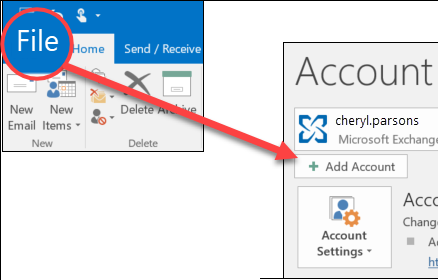
2. Go to the File menu, then click on Add Account, and enter your Yahoo email address.
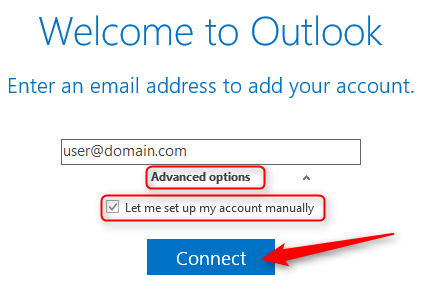
3. Select Advanced options and choose Let me set up my account manually.
4. Choose either POP or IMAP from the options provided.
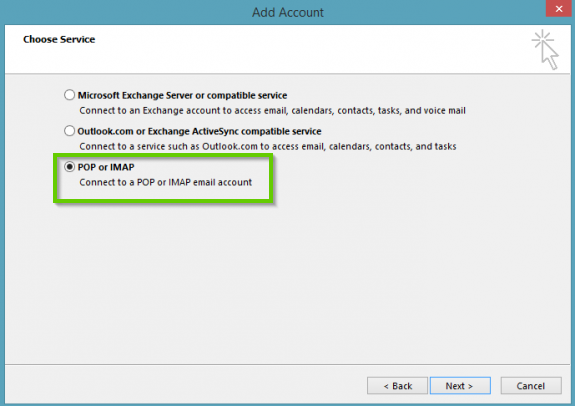
5. Enter your Yahoo account credentials, and Outlook will verify the server settings.
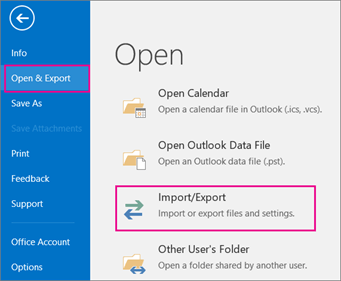
6. Now, go to File >> Open & Export >> Import/Export option.
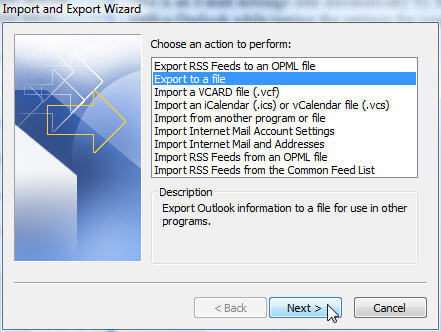
7. Choose Export to a File and click Next.
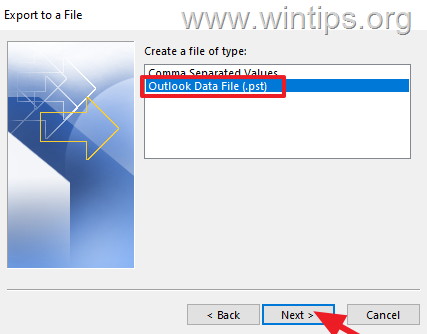
8. Select Outlook Data File (.pst) and press Next.
9. Next, choose Yahoo mailbox folders and press Next.
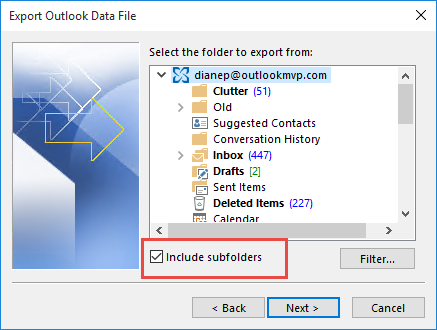
10. Browse target location and click the Finish button.
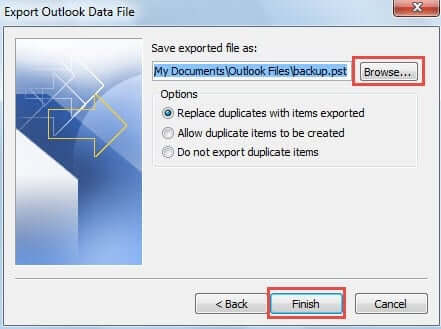
This is the second manual method to save Yahoo emails to PC.
How to Download Yahoo Emails to Computer Securely?
Check out the Advik Yahoo Backup Tool, which allows you to download all emails from Yahoo Mail to your system at once. You can even choose to save selective Yahoo email folders of your choice. It offers 30+ saving options to download Yahoo emails. Also, it will maintain and preserve the complete Yahoo mailbox folder hierarchy during the process.
Now, click on the free Trial edition to test the tool’s functionality.


Steps to Save Yahoo Emails to Computer
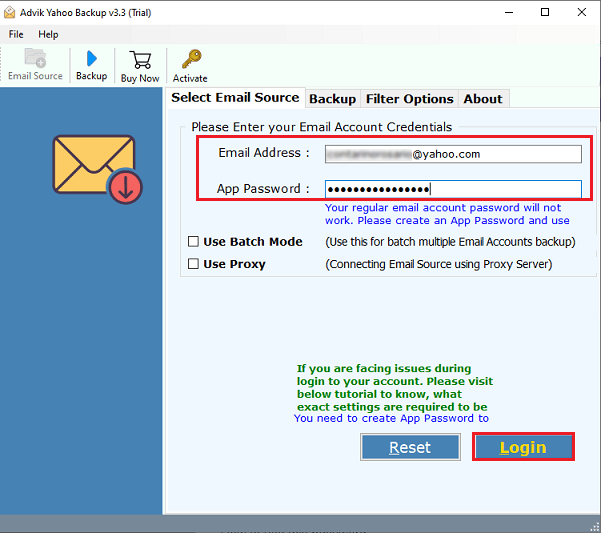
Step 1. Run the software & enter your Yahoo Mail account login credentials.
Step 2. Select specific mailbox folders that need to be download.
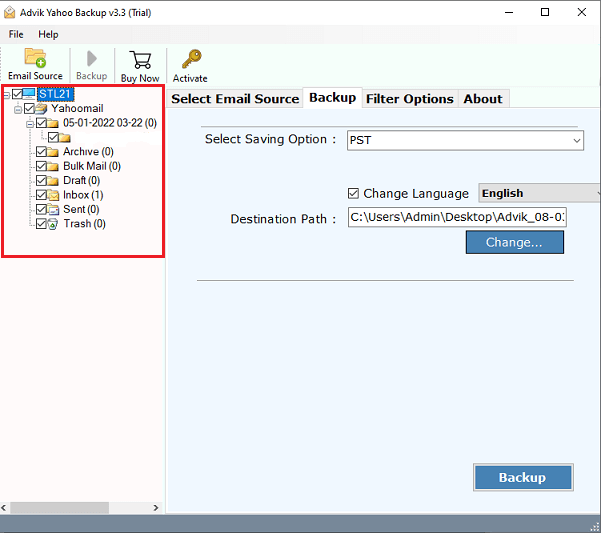
Step 3. Choose your preferred saving option from the list.
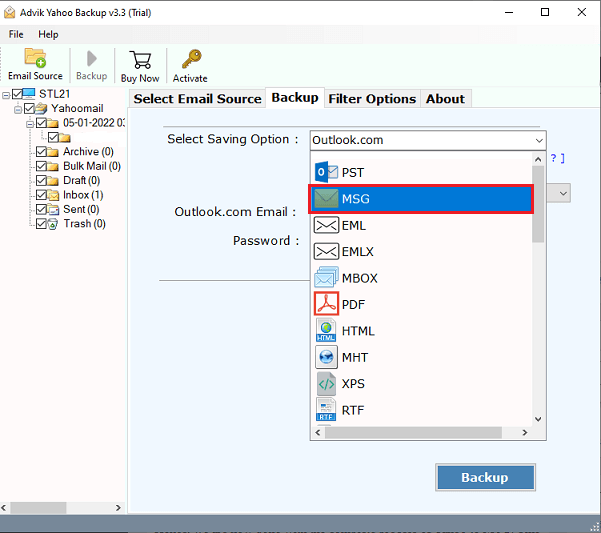
Step 4. Browse the destination path & click the Backup button.
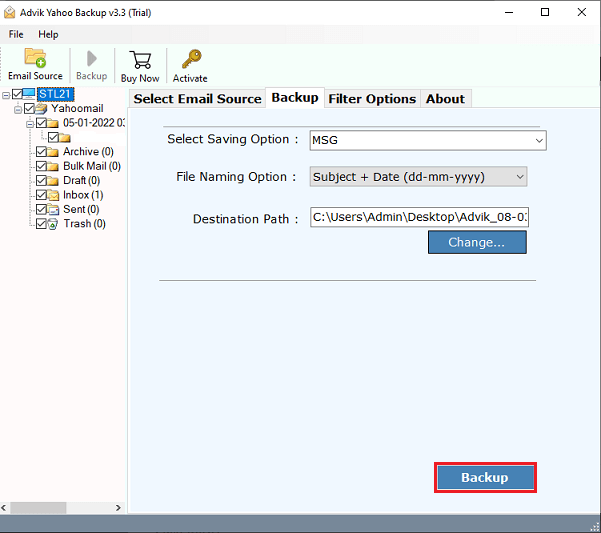
The software will start downloading Yahoo emails. Wait for a while, you will get a message in a few moments that will give you a complete log report.
Watch How to Download Yahoo Email Folders to Computer in Bulk
Now, have a look at some other benefits of this handy utility;
- Backup all of your Yahoo emails, including your inbox, drafts, sent items, trash, and more.
- Batch mode feature to save Yahoo Mail account in bulk with full accuracy.
- Offers various saving options to download emails into multiple formats.
- Advanced email filters to choose selective Yahoo email folders.
- Migrate Yahoo emails to Office 365, Gmail, AOL, Zoho, Thunderbird, etc.
- Compatible with all the latest and previous versions of Windows OS.
- Free demo version to check and evaluate the tool’s working performance.
Conclusion
Here we have discussed 3 ways to download Yahoo emails to computer. You can try all these solutions and choose the best that suits your needs and requirements. Also, to directly download emails from Yahoo mail to computer/pc/hard drive in bulk, we have provided an automated solution that you can use for quick results.
Frequently Asked Questions
Q1. Can I download emails from Yahoo to my pen drive?
Ans. Yes, you can directly download Yahoo emails to your pen drive. Just plug in this drive and choose the destination path as it.
Q2. Can I save the selective Yahoo email to my desktop?
Ans. Of course, you can! The email filter feature in the Advik software allows you to download Yahoo emails based on to, from, cc, bcc, subjects, attachments, etc.
Q3. Is it possible to download entire Yahoo inbox to computer?
Ans. Yes, using the AdvikSoftware, you can easily save the entire Yahoo inbox to your PC.