How to Export Zoho Mail to MBOX File?
Jackson Strong | January 6th, 2026 | Data Backup, Zoho Mail
If you are currently using Zoho Mail service and want to save your Zoho emails in MBOX file format. Then continue reading this blog post. Ad here, we are going to explain reliable methods to convert Zoho emails to MBOX file.
Zoho Mail is a cloud-based email service that can only be accessed with an internet connection. On the other hand, MBOX is the most commonly used file format for individuals and organizations to store complete mailbox folders in one file. It also has wide compatibility with various desktop-based email client applications. Exporting emails from Zoho Mail to MBOX file type allows you to access Zoho Mail data via an MBOX file-supported email client easily.
Since Zoho Mail does not provide any direct option to export emails to MBOX format. However, you can do it using Thunderbird or a professional tool. We’ll discuss both methods in detail, one by one.
Let’s get started!
How to Export Zoho Mail to MBOX for Free?
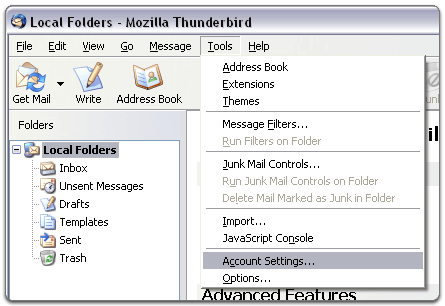
1. Open Thunderbird on your system and click on Tools to select Account Settings.
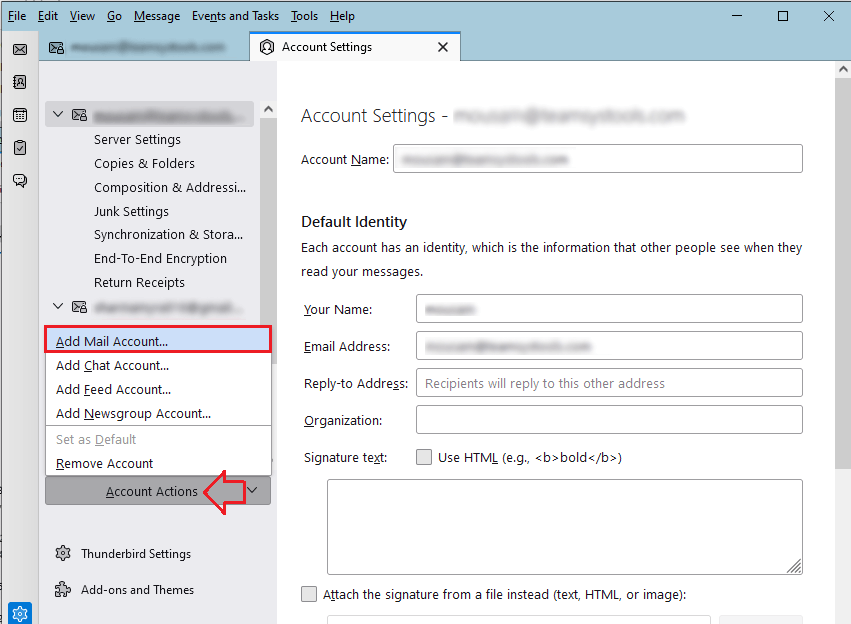
2. Go to Account actions >> Add Mail Account.
3. Enter your Zoho Mail credentials and complete the configuration process.
4. Once the Zoho account is configured, Thunderbird will start syncing all your emails.
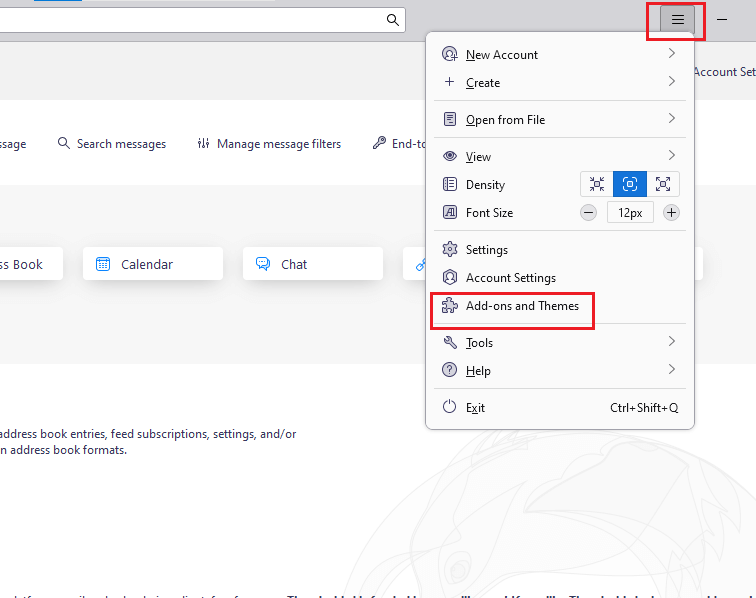
5. Now, click on the three horizontal lines and select the Add-on option from the menu.
6. Install ImportExportTools NG in Thunderbird.
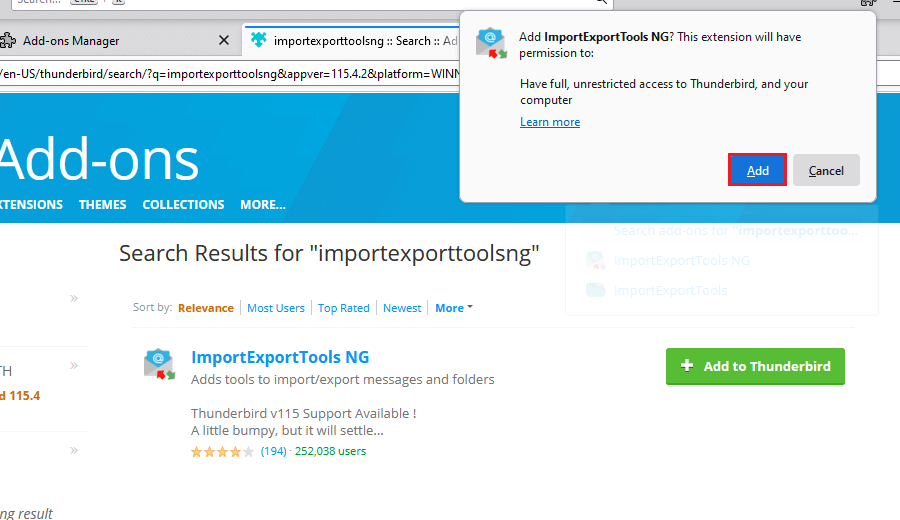
7. After that, restart your Thunderbird.
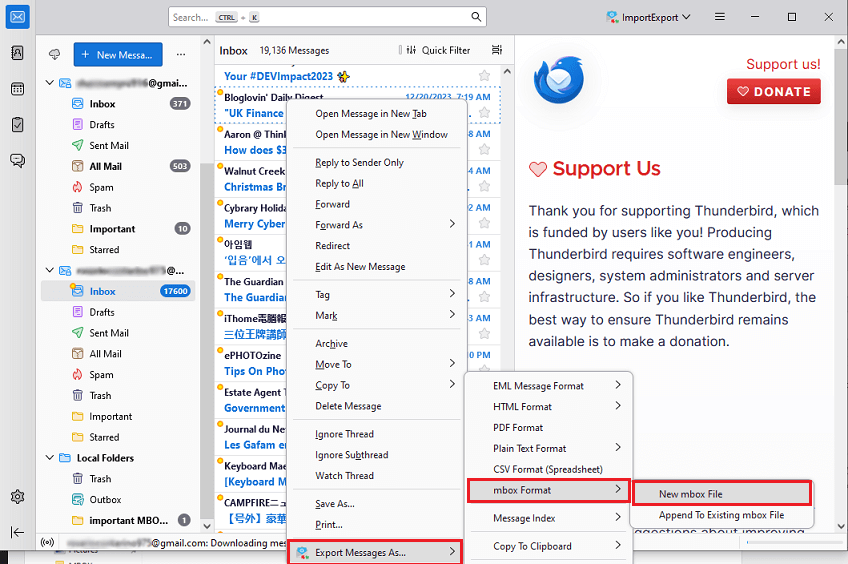
8. Next, go to your Zoho mailbox and right-click on it.
9. Choose Export messages as >> mbox format >> new mbox file.
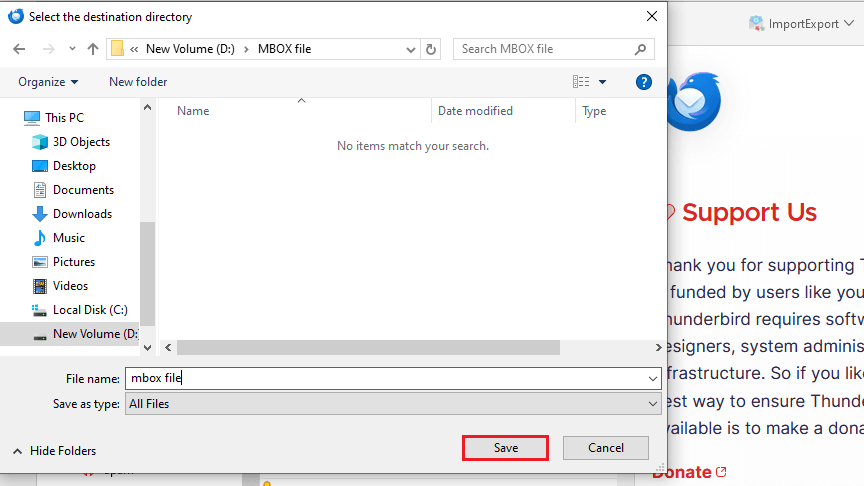
10. Select the location to save the exported file and tap on the save button.
Done! In this way, Zoho Mail export MBOX file manually. However, this is such a lengthy and time-consuming process.
How to Convert Zoho Mail to MBOX File Automatically?
Try the Advik Zoho Mail Backup Tool to export all your Zoho Mail into MBOX file within 5 simple steps. Also, you can choose selective Zoho emails based on various filters such as date ranges, To, from, Bcc, Cc, etc. The tool preserves data integrity and mailbox folder hierarchy during the Zoho to MBOX conversion.
Click on the FREE download button and try it now. (Available for both Windows & Mac OS)


Steps to Export Zoho Mail to MBOX
Step 1. Run the software and choose Zoho Mail.
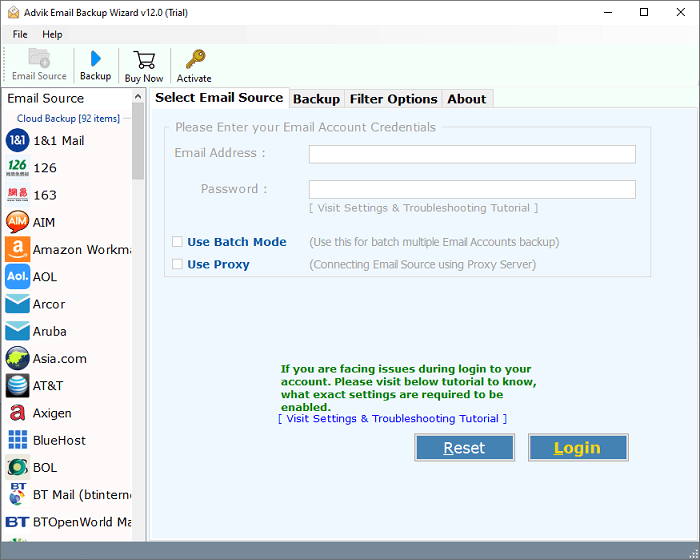
Step 2. Enter Zoho Mail login details.
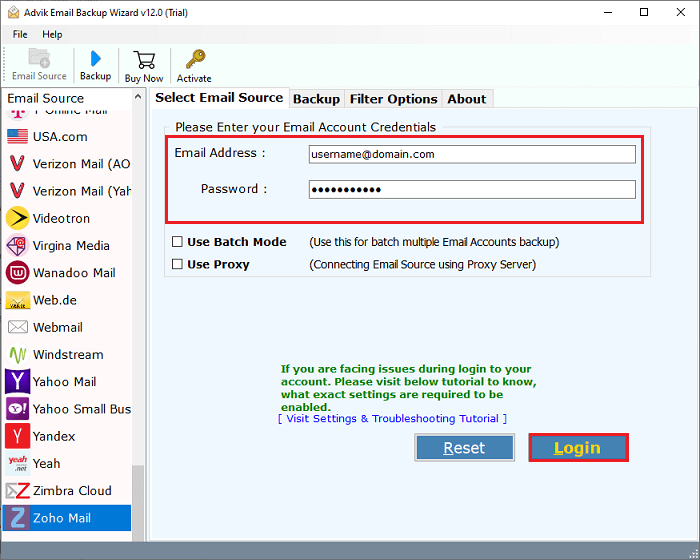
Step 3. Choose Zoho mailbox folders.
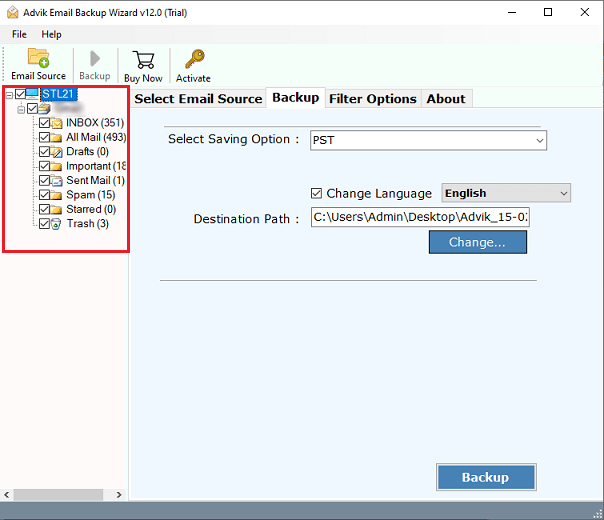
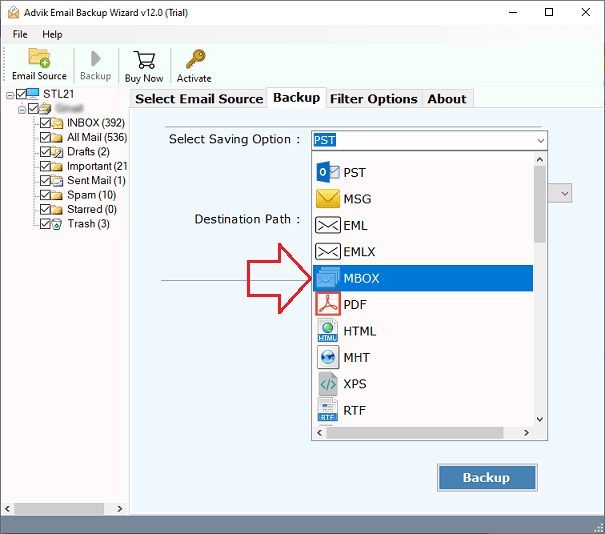
Step 4. Select MBOX as a saving option.
Step 5. Choose the target location and hit the Backup button.
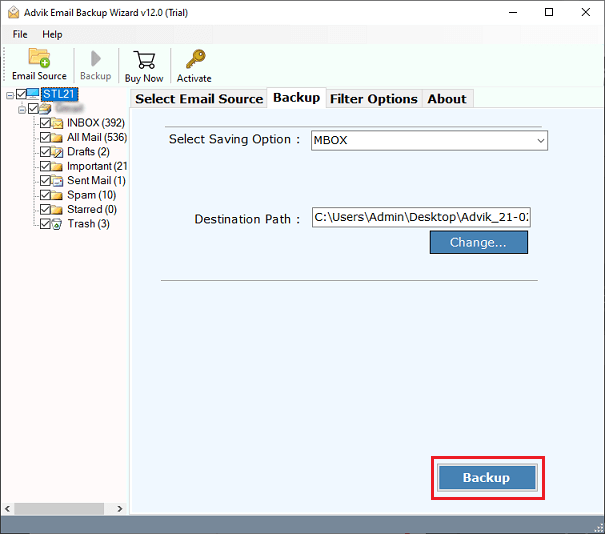
The software will start exporting emails from Zoho to MBOX file. Once the process is completed, you will be redirected to the destination path.
Apart from the above function, the software offers many other helpful features. Some of them are;
- Convert Zoho emails into MBOX file with attachments.
- Advanced email filters to export selective emails from Zoho to MBOX.
- Preserve Zoho mailbox folder hierarchy while converting.
- Export Zoho Mail to PST, EML, PDF, MSG, DOC, HTML, and many other file formats.
- Able to export multiple Zoho emails to MBOX in a single attempt.
- Maintains complete data integrity of Zoho emails such as To, From, hyperlinks, images, attachments, etc.
- Easily workable on both Windows & Mac operating systems.
Conclusion
Exporting Zoho emails into MBOX format is a simple task if you choose the right approach. In this post, we have mentioned the two best ways to export Zoho Mail to MBOX. However, the manual method is very effective, but it comes with some limitations. So, we recommend that you to use an automated solution that will help you download all Zoho emails as MBOX file without any hassle. You can also try its FREE demo version to check its working procedure at no cost.
Frequently Asked Questions
Q1. How do I export emails from Zoho to MBOX in bulk?
Ans. With the help of a professional solution, you can convert all emails in one go.
Q2. Is there any size limitation imposed on the tool?
Ans. No, there is no size restriction imposed on this Zoho to MBOX Converter. You can easily export large mailbox.