How to Fix Outlook Yellow Triangle With Exclamation Mark?
If you are seeing a consistent error or warning icon in Microsoft Outlook that keeps coming back no matter what you do then you must look out into this issue. This behaviour has been reported by many people using Outlook mail client. In this article, we will explain to you what this issue is, what causes it and how you can fix it effectively.
Table of Contents
Real User Scenario: Yellow Triangle Warning Error
While researching this issue and going through user discussions online i found a person on Microsoft forum facing the same warning problem. I analyzed that the user had already tried many manual steps such as use of Fix Now button, Microsoft Authenticator verification and even tried to sign in again. And still the yellow triangle warning continues to appear after a few days.
This issue was not directly affecting Outlook access, but the repeated warning symbol became frustrating for multiple users in the organization.
The screenshot below shows the exact scenario shared by the user:
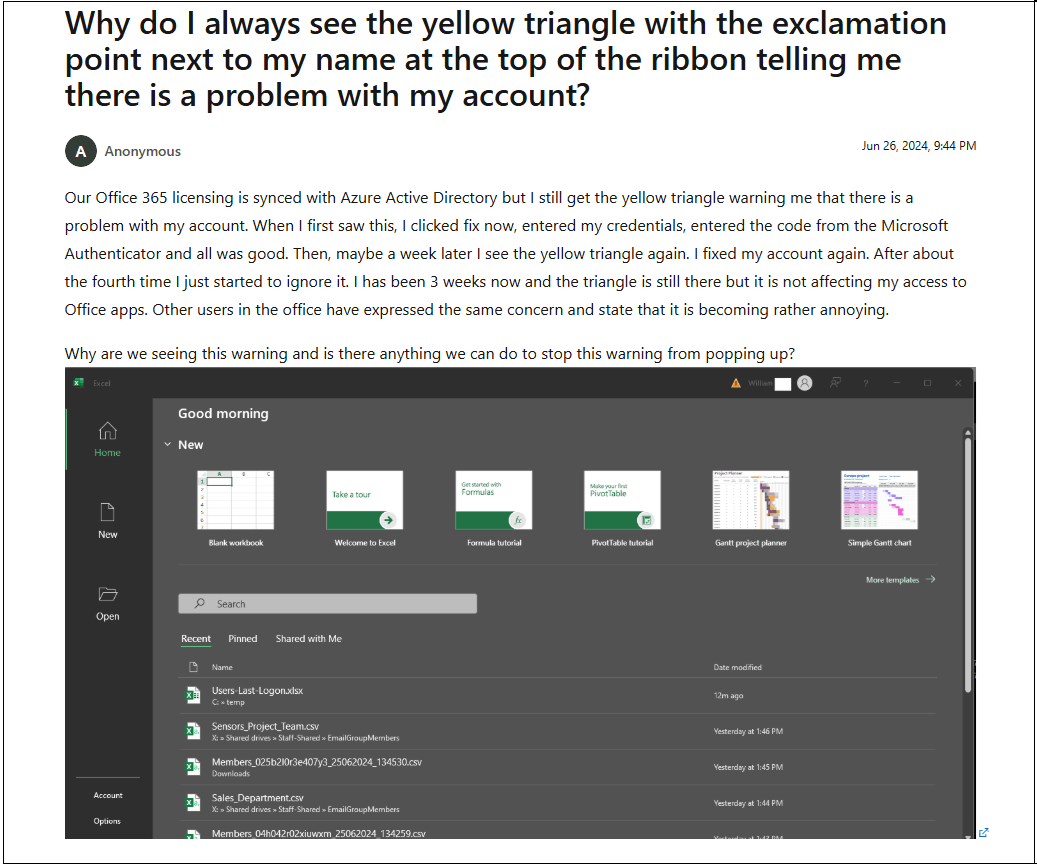
This indicates that the Outlook yellow triangle error is not always caused by internet connectivity issues. In many cases, the problem is related to Microsoft account authentication or Office licensing synchronization.
After understanding this real-world scenario i have decided to provide solutions for this consistently causing problems in Outlook issue. First, we will understand what this error actually means in detail, how to fix it and what steps can help prevent it in the future.
What is Outlook Yellow Triangle Error?
Microsoft Outlook is widely used email client and known for its user-friendly interface and various updated features. However, similar to any other application, Outlook too has different issues from time to time which may prevent you from using Outlook properly. A common problem users run into is the “Outlook Yellow Triangle Error”. But what does this error actually mean? It is a warning sign that appears on Outlook when something goes inside your application. In simple words, it means that your Outlook application is having trouble in syncing your account with Microsoft services. This error doesn’t stop you from accessing Outlook but also need a proper solution to fix it.
Why Does Outlook Show Yellow Triangle Error?
Outlook automatically fetch any issues in your Outlook app and notify you through a warning icon. It usually happens when it detects that something is not right with your account connection and settings in Outlook.
Let’s understand some possible reasons due to which this error is consistently coming. It’s important to know it before you are going to implement any solution to fix it. As, proper reason will give you a correct idea to apply an appropriate method.
- Internet Connectivity Issues: A poor or unstable internet connection can interrupt the communication between Outlook and your email server.
- Firewall or Antivirus: Sometimes some irrelevant Firewall or Antivirus settings can block the communication between Outlook and email server.
- Wrong Email Settings: This error could also be caused due to incorrect configuration of email account settings such as server addresses and port numbers.
- Old Version Of Outlook: Compatibility issues and errors can also be created by an old version of Outlook.
- Faulty Add-Ins: Various add-ons can sometimes interfere with Outlook functionality and result in a yellow exclamation mark.
- Email Account Problems: Problems with your email account, such as a full mailbox or server problems with your email account can also cause Outlook sync issues.
- Outlook Profile Corruption: If the profile is corrupt then it can also sometimes cause some sync problems and you get this warning symbol.
These were the primary reasons behind the Outlook yellow triangle error. Now we will show some useful solutions to solve this issue as per these causes.
How to Fix Yellow Triangle With Exclamation Mark on Outlook?
After analysing common causes due to which exclamation mark on outlook icon appears continuously. So, after trying all these fixes by myself i have explained some workable troubleshooting steps to fix Outlook yellow triangle error. Go through all the possible ways and solve your error now.
1. Check Internet Connectivity: First of all make sure that your internet connection is stable. Try to open a web browser and load a few websites to confirm whether your internet is working or not.
2. Restart Outlook: Sometimes a simple restart of Outlook or any other application can resolve temporary issues. Close Outlook and reopen it to see if the error is resolved or not.
3. Review Email Account Settings: Check and verify your email account settings, such as IMAP, SMTP and POP3 server details, along with their port numbers. You can check these details from your email provider’s official websites.
Follow the steps below to check it by yourself;
1. Open Outlook on your computer.
2. Click File >> Account Settings >> Account Settings.
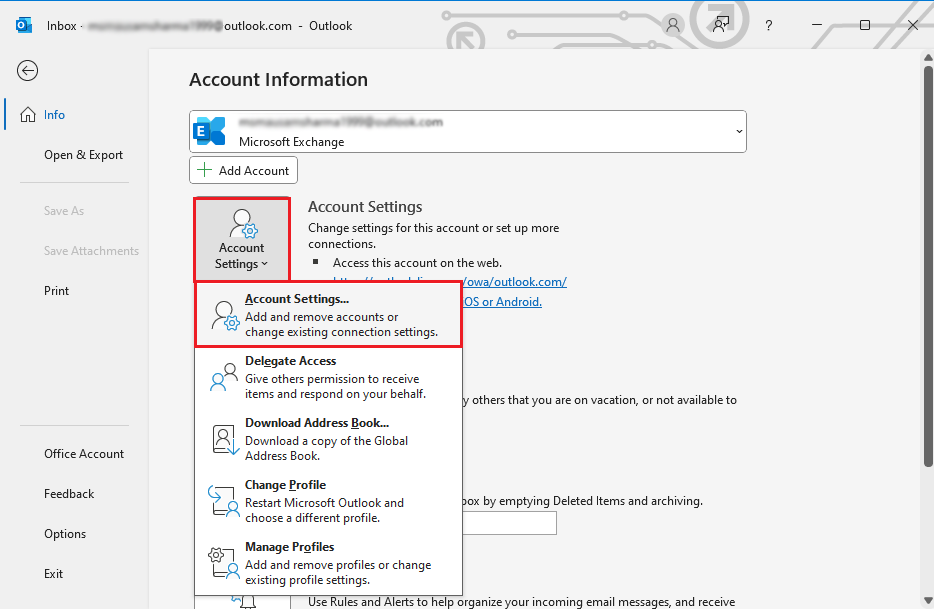
3. Choose your account and click on Change button.
4. Check all the details such as email address, username, password, incoming & outgoing server details, port number etc. Verify all the details before moving further.
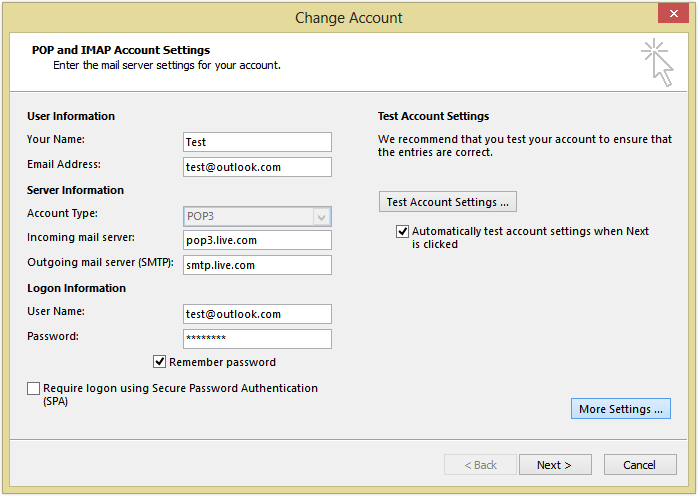
5. If any detail is incorrect then update it. Make sure to verify it from your email service provider’s official website only.
After that, restart Outlook and check Outlook yellow triangle error is removed or not.
4. Try to Update Outlook App
Make sure you are using the latest version of Microsoft Outlook. Outdated version can have compatibility issues and errors as it does not get any updates from Microsoft once it becomes obsolete.
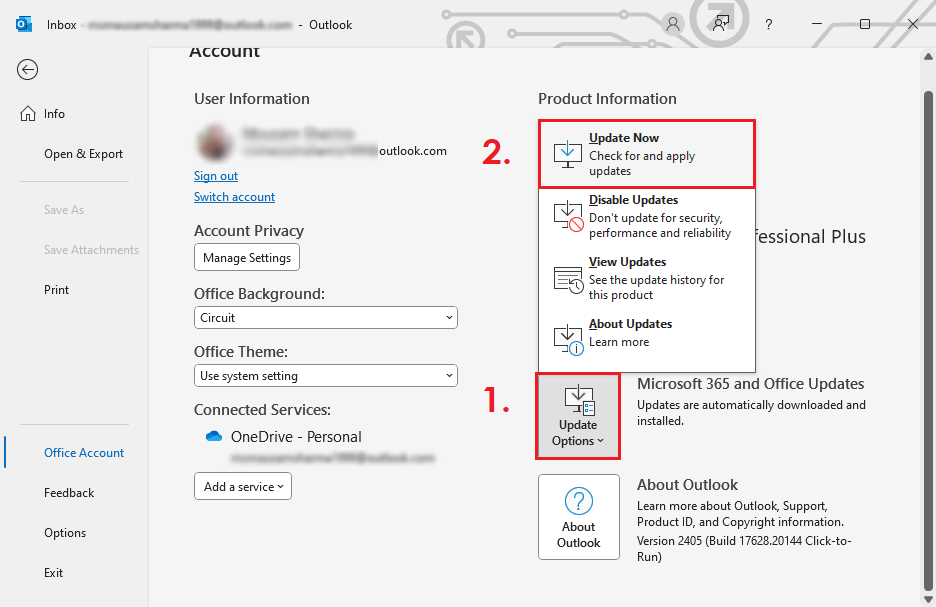
1. Open Outlook and go to the File tab.
2. Click on Office Account.
3. Now, click on Update Options >> Update Now.
5. Remove Faulty Add-ins
Some unusual add-ons may also conflict with Outlook and may create hindrance in it’s functions and cause various issues.
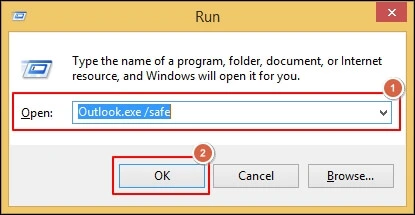
1. Run Outlook in safe mode.
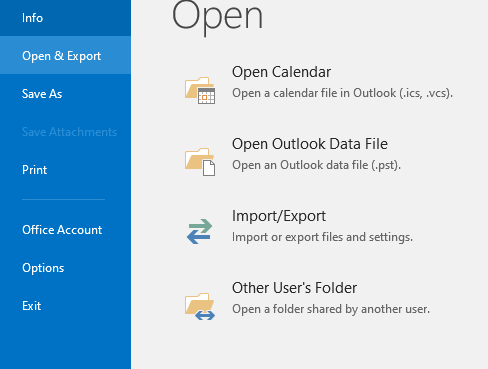
2. Click on File >> Options.
3. Click on Add-ins and choose COM Add-ins and press GO.
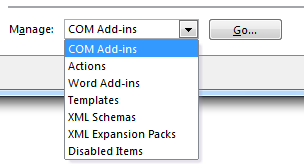
4. Disable all Add-ins and press OK.
6. Disable Firewall or Antivirus
Temporarily disable your firewall or antivirus software to see if they are causing this issue.
- Press Win + R and search for antivirus.
- Right-click on it and Disable for some time.
7. Clear Outlook Cache
Outlook stores data in a cache that can sometimes become corrupted so it is necessary to clear Outlook cache from time to time.
1. Close Outlook.
2. Go to this path %localappdata%\Microsoft\Outlook folder.
3. Delete the .ost file of your email account.
Note: It will create .ost file again when it’s get synced with your email account.
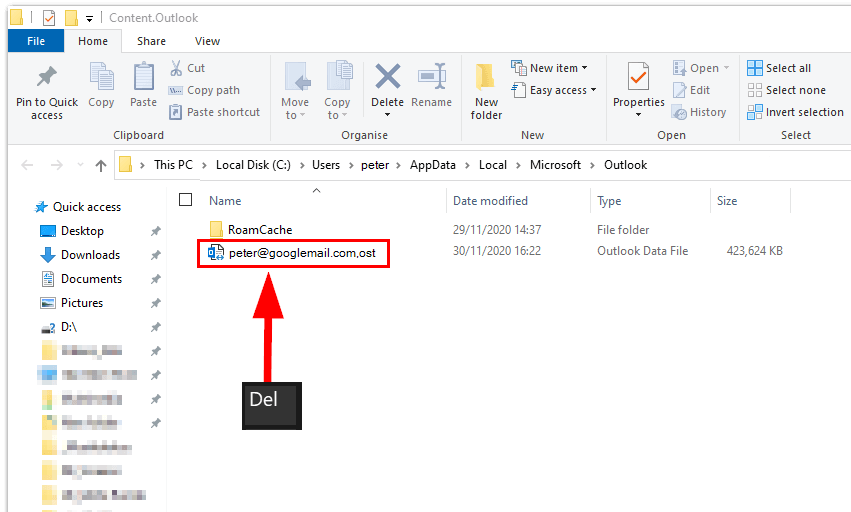
4. Restart Outlook and it will automatically recreate it.
7. Create a New Outlook Profile
If all else fails, try to create a new Outlook profile and reconfigure your email account.
1. Close Outlook App.
2. Open the Control Panel and go to Mail option.
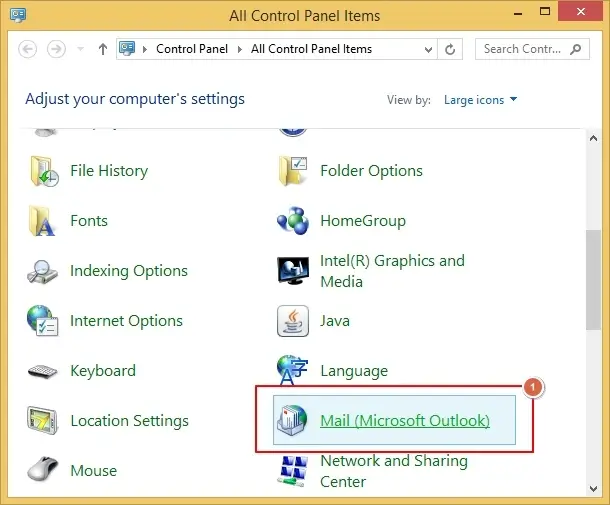
3. Click on Show Profiles.
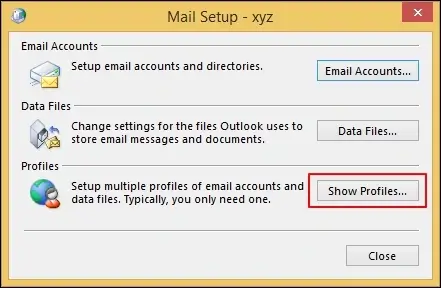
4. Now, click on Add to create a new profile. Provide a name and click OK.
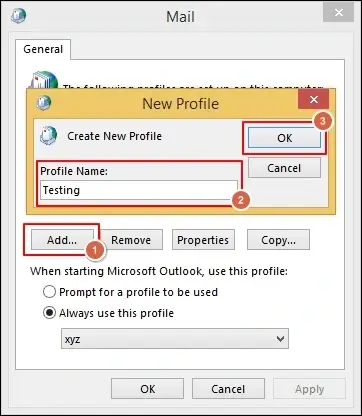
Now, restart Outlook and set it as a default profile and check issue is solved
You can try the above manual fixes to solve the yellow triangle with exclamation mark on Outlook error. However, these can only provide a temporary solution to your problem. If it’s continuous, then you need to take backup of your Outlook email data first to avoid any data loss.
Also, try to contact Microsoft support and explain your solution in detail to get an appropriate solution as per your respective query.
Preventive Measures to Avoid Outlook Yellow Triangle Error
1. Update your Outlook Regularly: Always use the most recent version of Outlook email app. Try to fix bugs regularly as it will improve account settings with Microsoft servers which will help you to prevent from these warning icons.
2. Have Good Internet Connection: A bad or unstable internet connection may cause issue in syncing functionality of Outlook. Try to use a reliable network when you are using Outlook.
3. Log in frequently: Don’t stay signed in for long time without authentication. Logging in frequently helps refresh your account settings and helps prevent sync issues.
4. Don’t Use Too Many Add ons: Too many add ons can also slow down Outlook or cause conflicts. Only enable the add ons that you trust and require.
5. Review Account Settings Regularly: Make sure your email settings are correct and not changed due to any reason. Incorrect settings can cause multiple sync warnings issues.
6. Configure Security Software Correctly: Make sure Firewall or antivirus is not blocking your Outlook app. Avoid connection problems – Always allow Outlook through trusted applications.
7. Backup Option, for Data Safety
If you are frequently facing Outlook issues, it is always a good idea to keep a backup of your email data before applying any major troubleshooting steps like creating a new profile or repairing data files.
For this, you can use Advik Outlook OST Converter or export Outlook data into PST file by yourself. It helps you to save a copy of your Outlook emails on your computer.
This kind of solution is generally used when:
- Outlook profile needs to be reset
- OST file becomes inaccessible or corrupted
- Users want a local copy of emails for safety
By keeping a backup in your hand you can avoid accidental data loss while fixing sync or profile related issues in Outlook.
Conclusive words
We hope that the solutions mentioned in this blog will help you fix the yellow triangle error in Outlook. You can choose the methods that best suit your needs and requirements. Before that, make a backup copy of your important Outlook emails to avoid any problems even after trying the manual solutions.
Frequently Asked Questions
Q1. What does the yellow triangle with an exclamation mark in Outlook mean?
Ans. It means there is an issue in your email connection or syncing. It usually shows that Outlook cannot connect to the server. Also, it may be due to a network issue, misconfigured settings or server related problems.
Q2. Why do I have a yellow triangle on my Outlook icon?
Ans. A yellow triangle on your Outlook icon usually indicates a warning that something is not right in your Outlook settings or functionality.
Q3. How do I get rid of the exclamation mark in Outlook?
Ans. You can try these quick fixes:
- Check your internet connection.
- Restart Outlook.
- Verify your email account settings.
- Update Outlook with the latest version.
If the issue still continue then follow the detailed methods explained in this blog.
Q4. Will the issue fix itself automatically?
Ans. Sometimes yes. If the problem is caused by temporary reasons. Outlook will automatically resolve it after some time once the connection is restored.
Q5. Will I lose my emails if I don’t solve this error?
Ans. No, you will not lose your emails if you don’t fix this issue. This error is mainly related to syncing or your account connection issues. You can still access your email data but try to fix this issue as soon as possible to use Outlook email app without any issues.
Q6. How much time will it take to solve this error?
Ans. Most of the time, this issue can be fixed within 5 to 30 minutes. It totally depend upon the method you have chosen and the factor which causing this error. However, if the problem is related to account sync, profile corruption or authentication issues, it may take a few hours or require technical support.

Related Articles