How to Export Gmail to PST File? – Updated 2026
Jim Backus | April 8th, 2026 | Gmail
Summary: This post is the complete guide for users who want to export Gmail to PST file. Here, we’ll discuss both manual and automated ways for converting Gmail mailbox into Outlook PST format. Read the complete guide carefully to understand each
process in detail.
Gmail is the most widely used email service all over the world. It provides robust features like two-step verification, customizable settings, and seamless integration with Google services to simplify email management. On the other hand, PST is the most commonly used file format for importing and exporting data in MS Outlook. However, when users want offline access, email backup, or plan to move data to Microsoft Outlook, exporting Gmail emails into PST format becomes necessary. Here, we will explain two effective methods to complete the exporting process. You will also understand the advantages and limitations of each method so you can choose the best solution as per your needs.
Table of Contents
Why Export Gmail to PST File?
There are several benefits of converting Gmail mailbox data into PST file, such as-
- Exporting emails to PST file makes it easy to access your data in Outlook.
- Users can access PST file data offline without any internet connection.
- In PST file, you can organize large volumes of your mailbox data securely.
- Having a PST backup ensures that you can recover your emails if something goes wrong with your Gmail account.
- Exporting to PST can free up space in your Gmail account that will help you manage storage limits.
- PST file comes with password protection that provides an additional layer of security.
Recommended Solution
Get Advik Gmail Backup Tool to backup Gmail to PST in an effortless manner. The software is able to export emails from multiple Gmail accounts in a single go without any restrictions. Let us know if you have any issues related to the tool and this conversion. Our team is here for you 24*7.

How to Convert Gmail Emails to PST?
Users can go with the two solutions, manual and professional, to download Gmail mailbox data to PST file. The following section will give you a detailed procedure on both methods.
First, we will explore the manual method and then an alternative solution to accomplish this task rapidly.
How to Backup Gmail to PST With Outlook?
With the Outlook application you can export Gmail to PST format. In this method, first yyou need to configure Gmail with Outlook and then export emails. Hence, this solution works in two phases.
Phase 1. Add Gmail Account in Outlook
1. Launch the Outlook application on your Windows PC.

2. Click on File tab in Outlook.
3. Select Add Account to configure your Gmail account in Outlook.
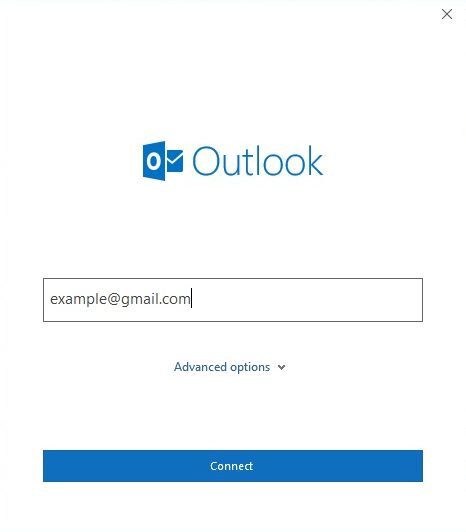
4. Enter your Gmail email address and click Connect.
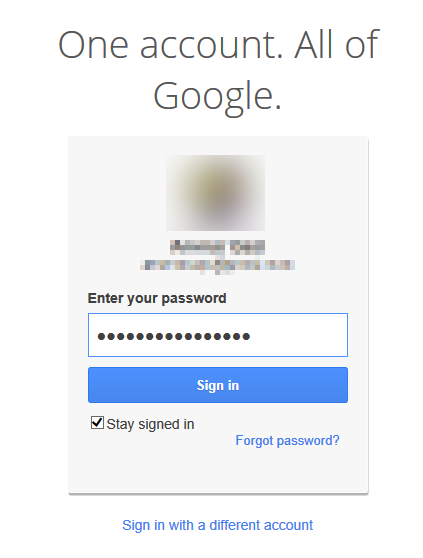
5. A new window will pop up where enter your Gmail password.
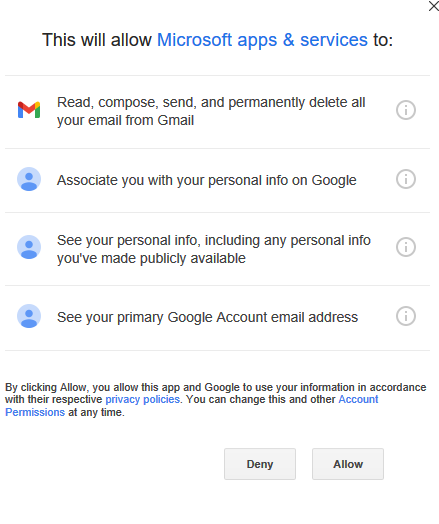
6. Review the message that shows up and click Done.
7. Restart Outlook and look for your Gmail mailbox folders in the folder list.
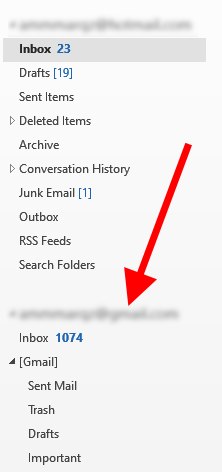
Phase 2. Download Gmail Emails into Outlook PST
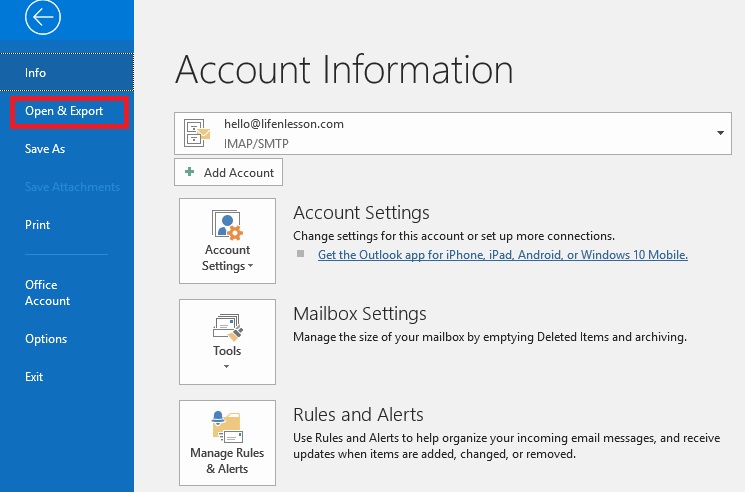
1. After successful configuration, click File Menu > Open & Export.
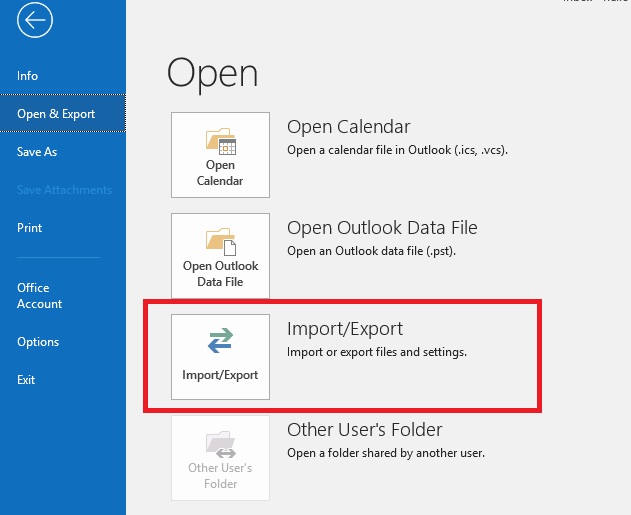
2. Select Import/Export Option.
3. Select “Export to a file” and then click the Next button.
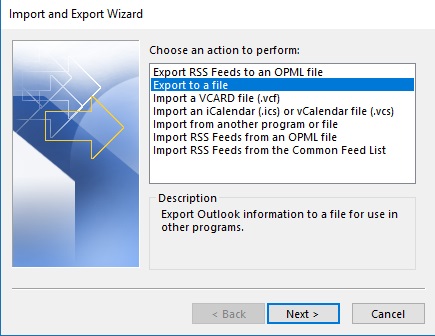
4. Select “Outlook Data File (.pst)” again and hit the Next button.
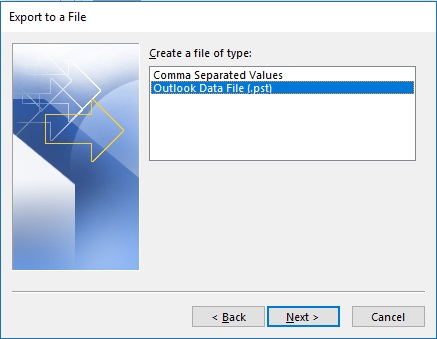
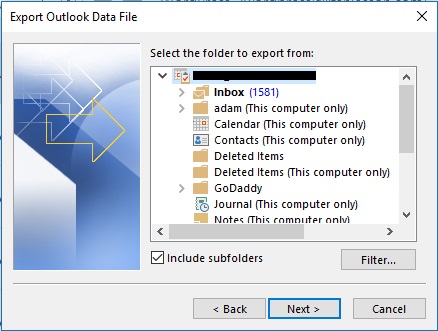
5. Select the Gmail mailbox folders and click Next button.
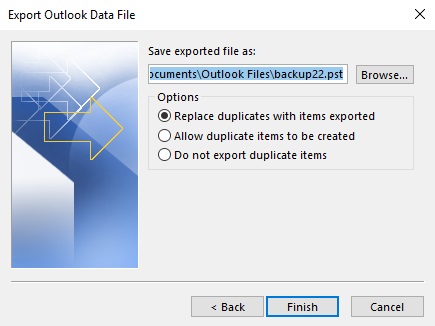
6. Select the Output path and click on Finish.
Finished! In this way, Gmail export to PST manually. However, this is a lengthy process, and Outlok must be installed on your system.
How to Export Gmail Mailbox to PST Without Outlook?
Advik Gmail Backup Software can easily convert Gmail to PST in just a few simple clicks. It will export emails and its folders to PST file with the same folder hierarchy. The software preserves email headers, signatures, hyperlinks, attachments, and other information as well during Gmail to PST conversion. The tool also offers an “Advanced Email Filter” option to export only specific emails.
Download the software and install it in your Windows machine. After that, follow the instructions for the rest solution.


Steps to Save Gmail Emails to PST
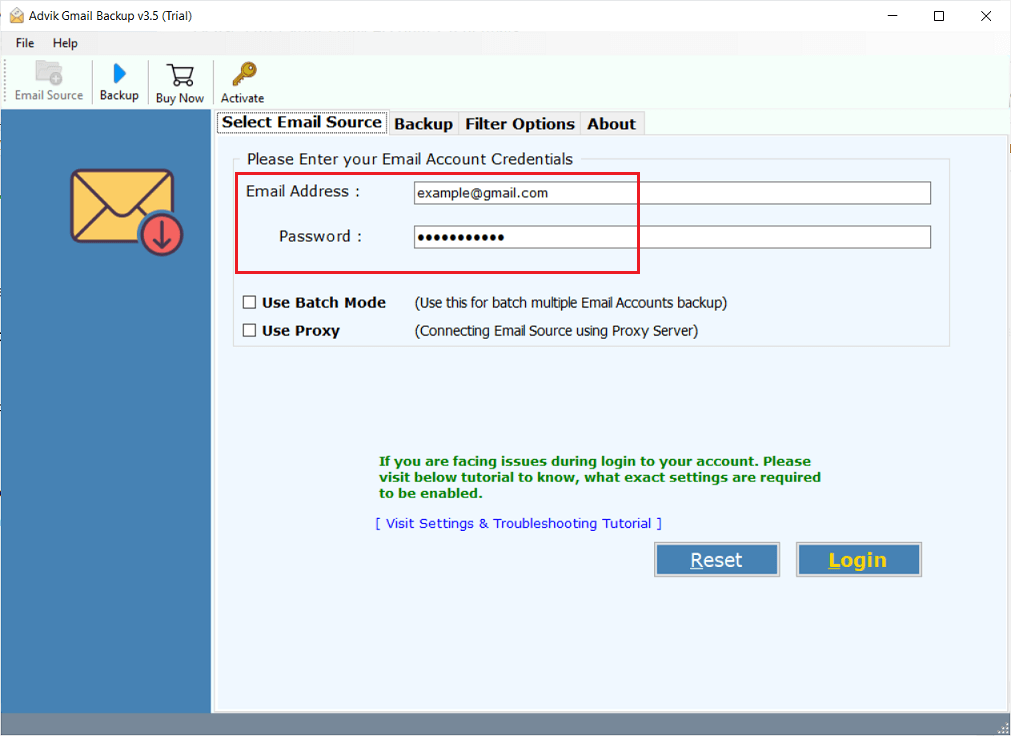
Step 1. Launch the software and sign in with Gmail credentials.
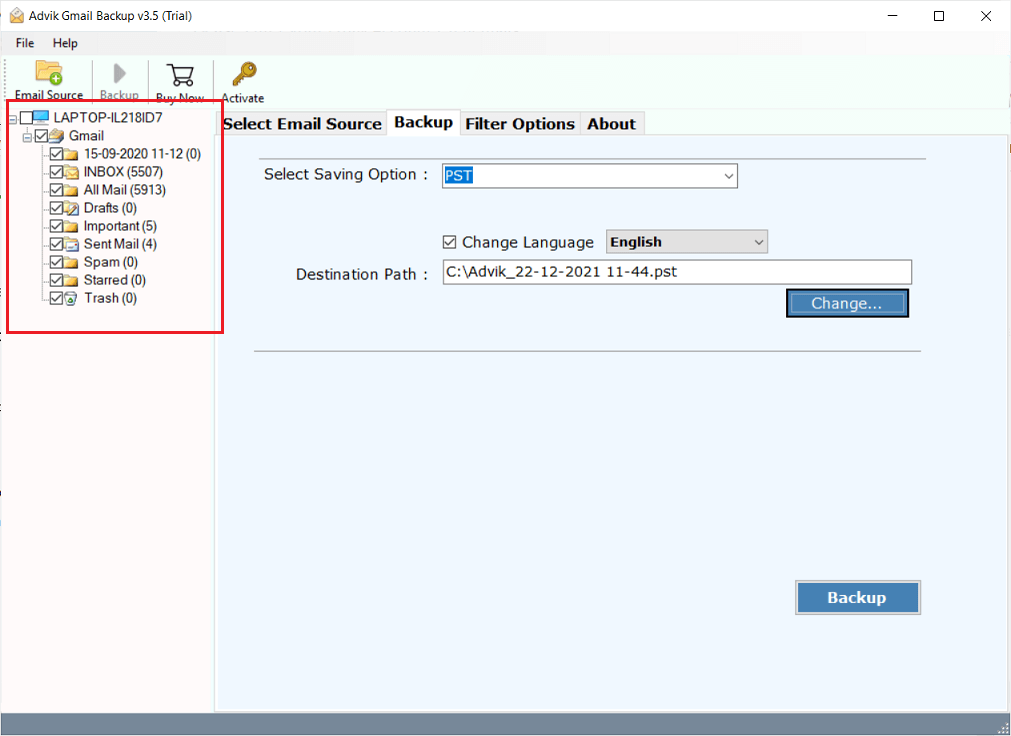
Step 2. Select mailbox folders to convert into .pst file format.
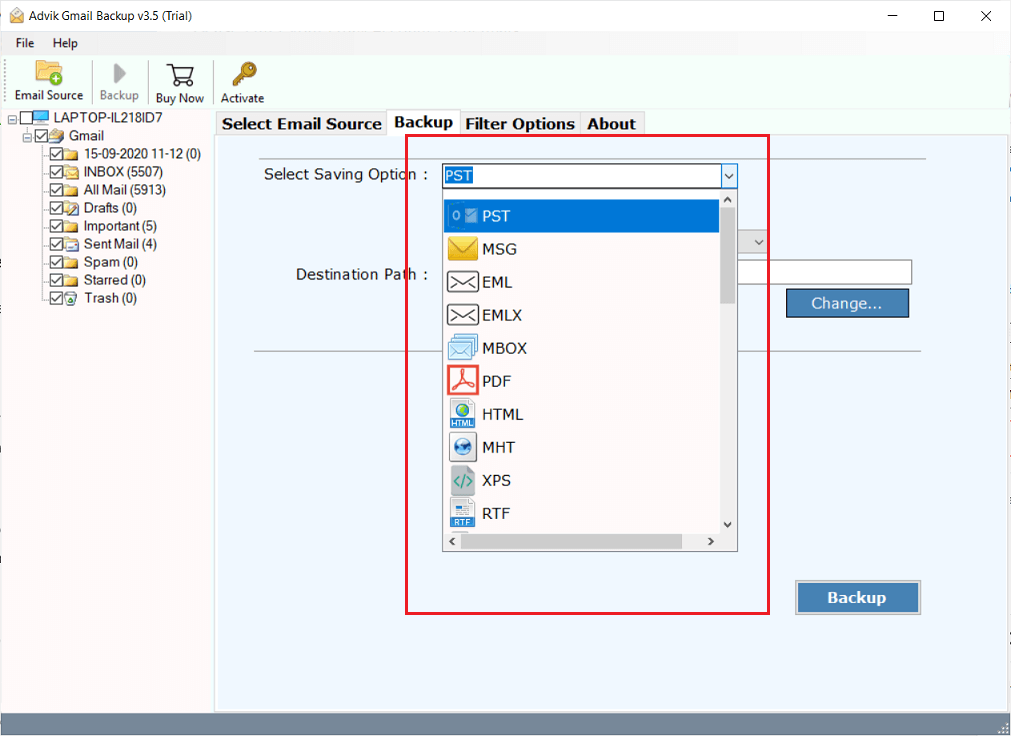
Step 3. Choose PST from the saving option list.
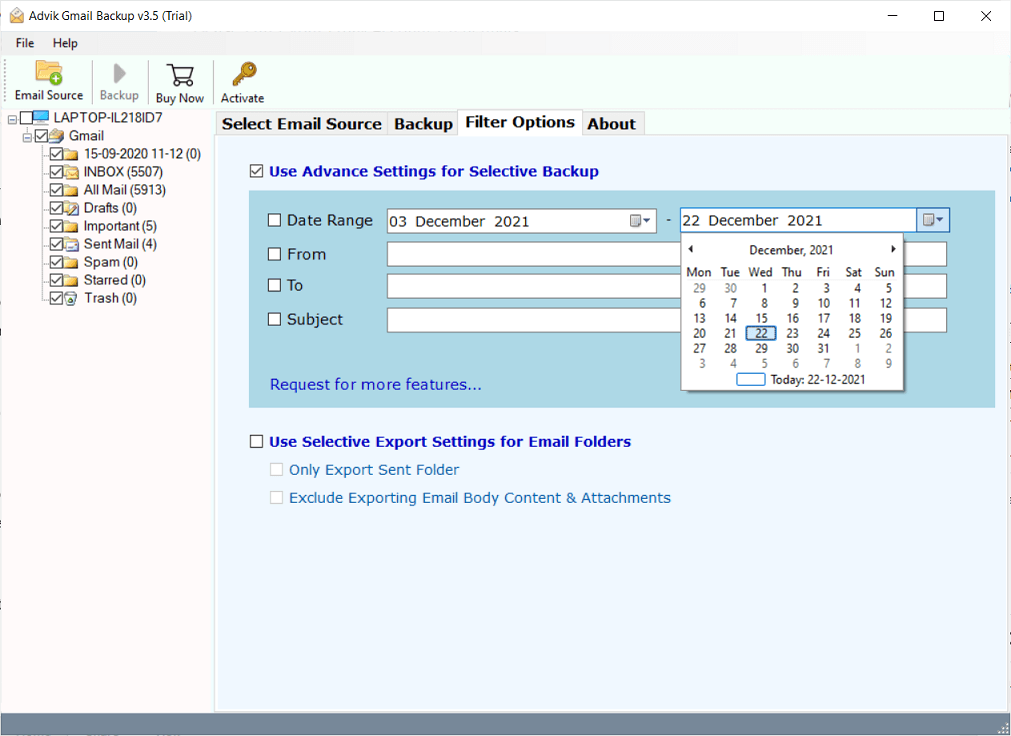
Step 4. Click Filter Options to apply email filters (Optional).
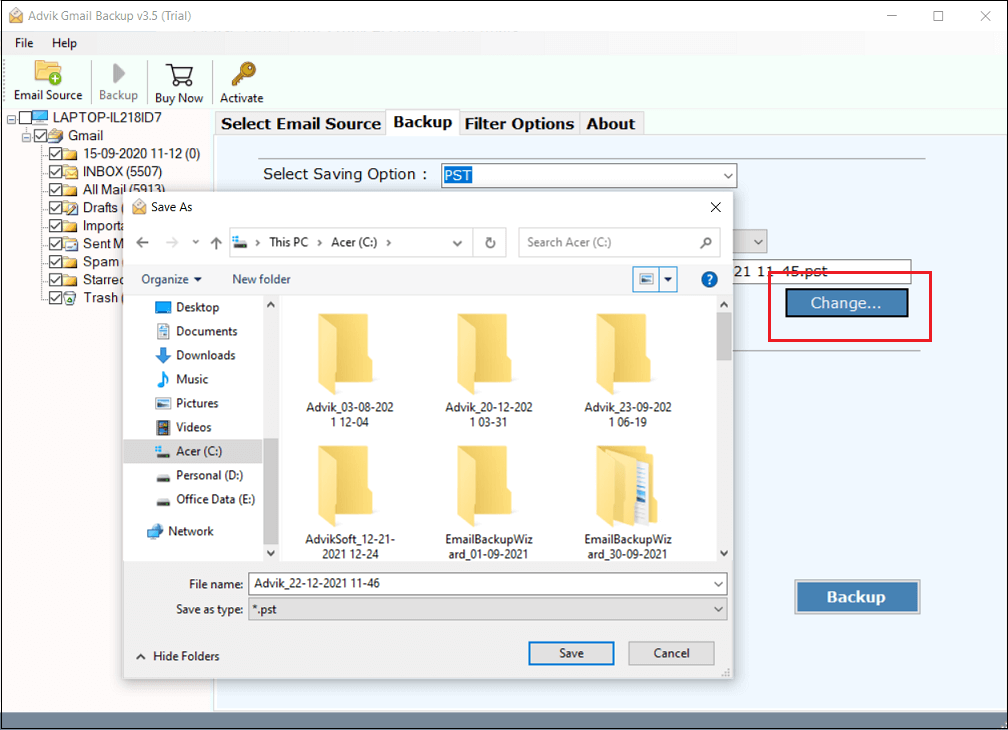
Step 5. Click Change to set a target location to save the PST file.
Step 6. Now click the Backup button to start the email export process.
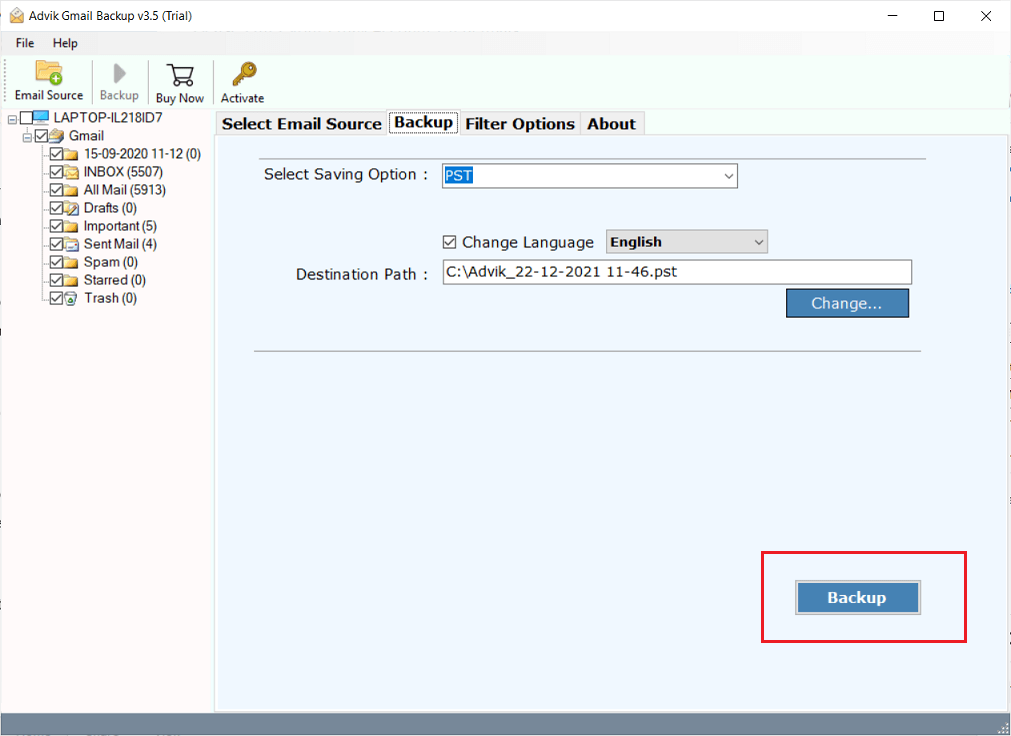
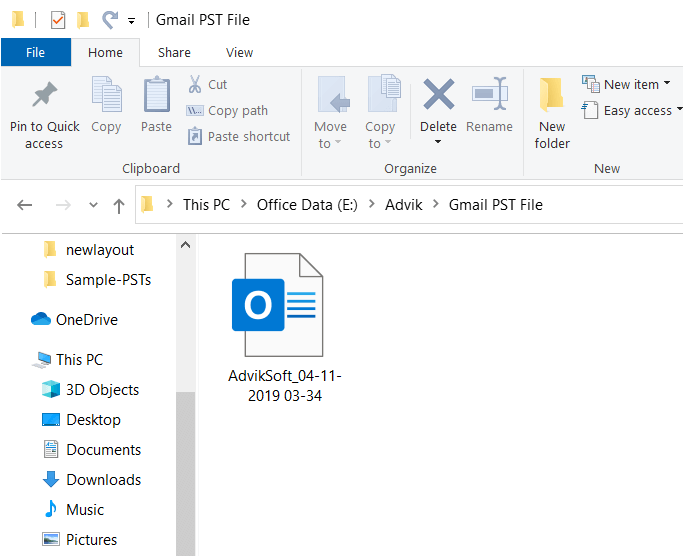
The software will start exporting emails from Gmail to PST automatically. Once the process is finished, the software will display a successful pop-up notification with a log report.
Watch How to Export Gmail to PST Without Outlook
Both the above methods are workable and are recommended for exporting Gmail to PST file. However, if people want to save data more precisely by opting out of some unwanted emails, an automated solution is suggested. MS Outlook doesn’t provide an email filter option. Below are a few additional benefits you will get from the software.
Why Choose Advik Gmail Backup Solution?
The automated method makes exporting Gmail messages to PST much easier and more efficient.
Here’s why it’s the best choice:
- Supports 30+ Export Formats: Unlike Outlook, which only saves emails in PST and CSV, this tool lets you export Gmail emails to PDF, EML, MSG, HTML, and more.
- Select Folders Before Exporting: It offers to choose specific folders to save time, while Outlook does not allow this flexibility.
- Batch Export Gmail Emails: It easily create PST file from multiple Gmail accounts in one attempt, whereas Outlook requires manual setup for each account, making it time-consuming.
- Apply Email Filters: You can select specific emails for export and skip unwanted ones. Outlook 2019, 2016, 2013, and 2007 do not offer this option.
- Preserve Folder Structure: The software keeps the original structure of mailbox folders while Gmail export emails to PST file.
- Extract Email Addresses: Also, you can save email addresses from Gmail and export them to an Excel file.
- Download All Attachments: Offers to extract and save all attachments from Gmail emails in a single step.
- Lifetime Free Technical Support: You will also get continuous support and future updates at no extra cost.
- Backup Gmail Emails to Mobile: Supports downloading Gmail emails in mobile-supported file format. So that anyone can easily access them on iPhone or Android devices.
- Transfer Gmail Emails to Other: Allows to migrate Gmail emails to Thunderbird, Zimbra, Office 365, Yahoo Mail, Windows Live Mail, Lotus Notes, Zoho Mail and more.
- Compatible with Windows OS: It works smoothly on Windows 11, 10, 8, and earlier versions.
- Simple and User-Friendly Interface: It is designed for both technical and non-technical users to perform the process easily.
Would you like to test the automated solution before purchasing?
Download the Free Trial Now!
Concluding Words
In this article, we have discussed how to export Gmail to PST with or without Outlook. You can choose any of these methods depending on your needs and convenience. Also, one must go through the merits and demerits of both methods. However, if you want a simple, direct, and faster solution, then we recommend that you use the automated tool to export PST from Gmail smoothly.
Frequently Asked Questions
Q 1. How to export Gmail emails to PST in bulk?
Ans. The professional tool i.e. Advik Gmail to PST Converter, allows you to export all emails from Gmail to PST in one attempt.
Q 2. Which option allows me to convert selected emails?
Ans. There is no such option in the manual. But you can apply email filters in the software.
Q 3. What will be the difference between the Trial and the Licensed version of the software?
Ans. You can export only 25 emails from each folder with the demo edition. On the other hand, you can export unlimited emails and folders from Gmail to PST. There are no limitations.
Q 4. Can I export Gmail to PST without Outlook?
Ans. Yes, the software is completely standalone and doesn’t require any supporting application.
Q 5. Which is the best way to export all emails from Gmail?
Ans. The automatic solution i.e. Advik Gmail to PST export tool is the best approach. You will get multiple advanced features that will assist you in exporting Gmail messages to PST with accurate results.