How to Download All Attachments from Webmail?
Jackson Strong | January 28th, 2026 | Data Backup
With Webmail, it seems very easy to send attachments with an email message. An email attachment can be in any format, such as documents, images, videos, etc. When an email is received with an attachment, the recipient can download and open it easily. But saving each one separately is very time-consuming. Exporting email attachments in bulk can save time and effort by allowing you to download multiple attachments from Webmail at once, instead of downloading them individually. Many users are looking for the easiest solution to download all attachments from Webmail in bulk. In this article, we are going to explian various methods to save multiple attachments from Webmail.
Let’s get started!
How to Extract Attachments from Webmail?
- Log in to your webmail account using your email address and password.
- Locate the email message containing the attachment(s) you want to download.
- Look for a paperclip icon or a link indicating that the email contains an attachment.
- Click on the attachment or the download link to begin the download process.
- If the attachment is a file type that is compatible with your device, it will automatically download and save to your default download location.
- If the attachment is a compressed or archived file (such as a .zip or .rar file), you may need to use a file extraction program to extract the contents of the file before you can access the attachments inside.
- If you want to download multiple attachments from a single email message, you may be able to select them all and download them at once, or you may need to download them one by one.
If you’re having trouble downloading attachments from your webmail service, you may want to consult your email provider’s documentation or support resources for more specific instructions.
Drawbacks: You have to download attachments individually from each email. This is quite time consuming process if you want to extract all attachments from Webmail account. In order to avoid this error, follow the next method.
How to Download All Attachments from Webmail?
Check out Advik Webmail Backup Tool for Windows. This software will help you to extract attachments from Webmail in bulk. You can save all attachments from Webmail account in one attempt. Not only that, the attachments will be saved in the same folder hierarchy from each mailbox. Isn’t it amazing? Click below to download and try the software for FREE.

 a
a
Steps to Extract All Attachments from Webmail
1. Run Webmail Attachment Extractor in your PC.
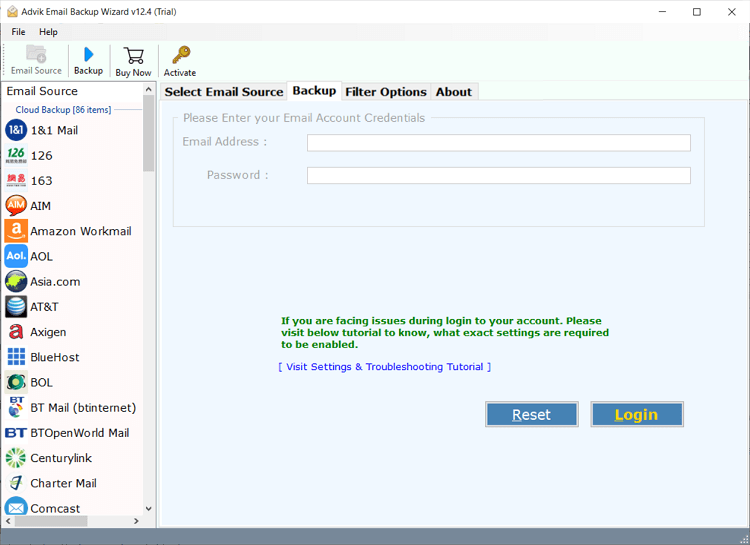
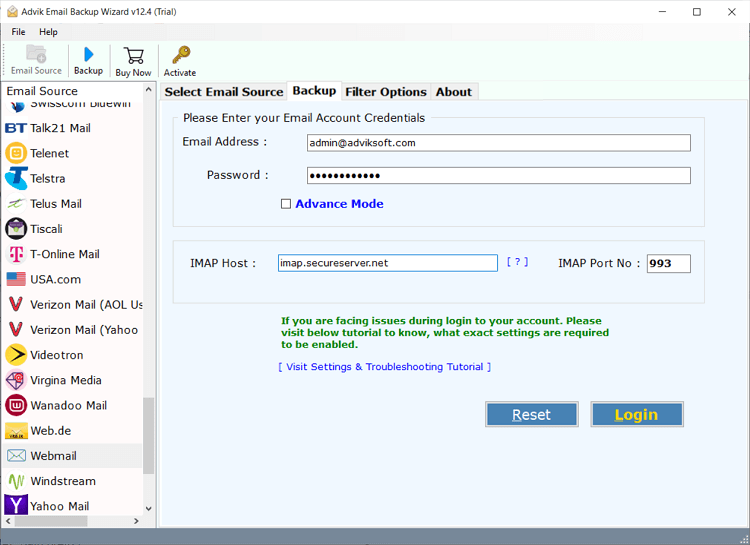
2. Select Webmail from the software and Sign in to your account.
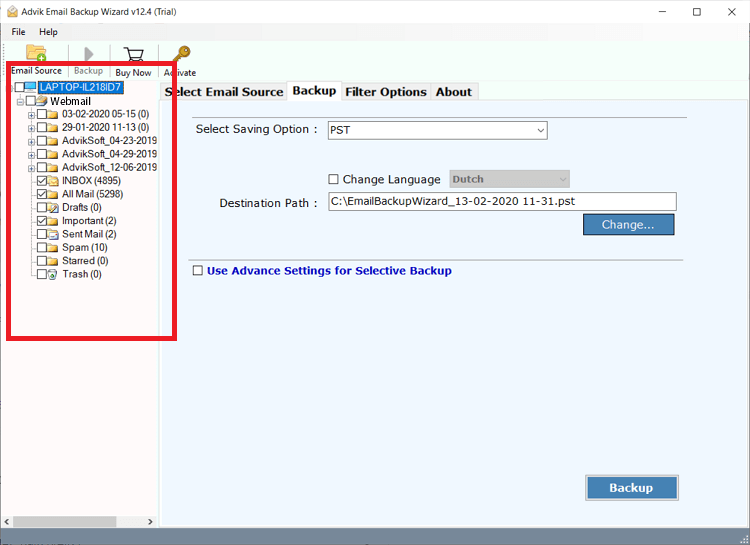
3. Select mailbox folders from where you want to download attachments from.
4. Select the “Extract Email Attachment” option from menu.
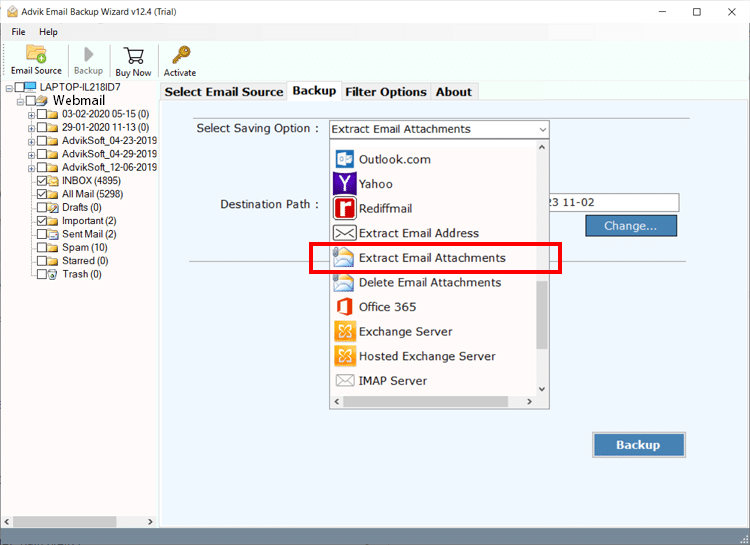
5. Select the destination path and click Backup.
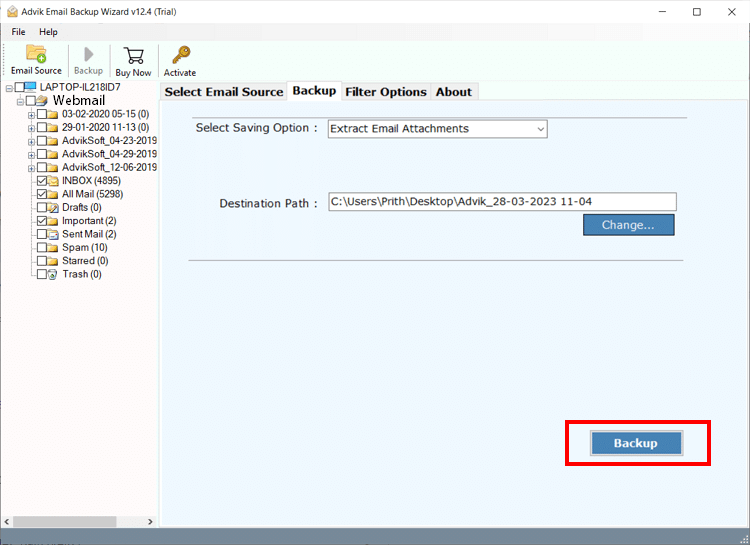
The software will start downloading all attachments from Webmail account. The attached files will be saved to PC in a separate folder.
Watch How to Download Multiple Attachments from Webmail
Salient Features of Webamil Attachment Downloader
- Both technical or non-technical users can easily use it without any technical guidance.
- Export all attachments from Webmail emails in a single attempt.
- Maintains the integrity of attachments without any data loss.
- Preserves the email folder structure throughout the processing.
- Allows to save your downloaded attachments at your desired location.
Conclusion
In the above segments, we learned two simple ways to download all attachments from Webmail accounts in bulk. While, the manual process is quite time-consuming. On the other hand, the automation way is a fast way to execute the process. Users are free to use both techniques as per their requirements.
