How to Import Gmail to GMX Mail?
Christopher Plummer | January 29th, 2026 | Gmail
Summary: This post will guide you on how to import Gmail to GMX Mail. Here, we’ll walk you through the best and simple methods to transfer Gmail emails to GMX account. Continue reading this article and know the efficeint and secure way for Gmail to GMX migration in a few simple clicks.
Gmail, as well as GMX, are both excellent email service providers. However, Gmail is much more popular than GMX. As GMX or Mail.com is widely used in Germany, over 70% of users of GMX are from Germany. Whereas others are working on Gmail itself. So, to help out those users, we came up with a great email migration solution.
Firstly, we will discuss the reasons why you should migrate from Gmail to GMX or Mail.com.
Reasons to Import Gmail to GMX Mail
Moving from one email account to the next is a difficult task, and no one will be able to do it without a detailed explanation or a well-defined reason. The following are the main reasons why users wish to switch from Gmail to GMX account.
- You get unlimited inbox storage.
- Great desktop interface for sending and receiving email.
- Free mobile apps for access on the go.
- Supports large file attachments (up to 50 MB).
- Flexible filters can do things like sort incoming emails into custom folders or forward messages automatically.
- The web interface for Mail.com and GMX Mail features drag-and-drop and rich-text formatting.
- Vacation auto-reply is supported so that you can send out emails when you’re away.
- The web interface for Mail.com and GMX Mail features drag and drop and rich-text formatting.
- All email is scanned for viruses, and a learning spam filter keeps both Mail.com and GMX Mail inbox clean from malware.
- In addition to an address book, these email providers also include a calendar and online storage (to which you can save attached files).
Let’s get started!
How to Transfer Gmail to GMX Account with Mail Collector?
In this section, we will discuss the manual method that you can use to open Gmail emails in GMX account. Using the Mail Collector, you can import your Gmail mailbox to GMX mailbox. First, you need to add your Gmail account to GMX account via “Mail Collector”.
Requirements to Add Gmail account to GMX account:
To set up a Mail Collector for a Google mailbox, go to your Google Account settings and enable Two-Step Verification, then create an App Password for the Mail Collector.
1. Login GMX mail and go to the “Settings” tab.
2. Select the “Mail Collector” option.
3. Enter the Gmail email address and password.
4. Choose from the following options:
- If the e-mails from the other mailbox should be deleted after they are retrieved.
- If the email that was retrieved should be saved in a separate folder.
5. Click on the “Save” button to save the settings you have just entered.
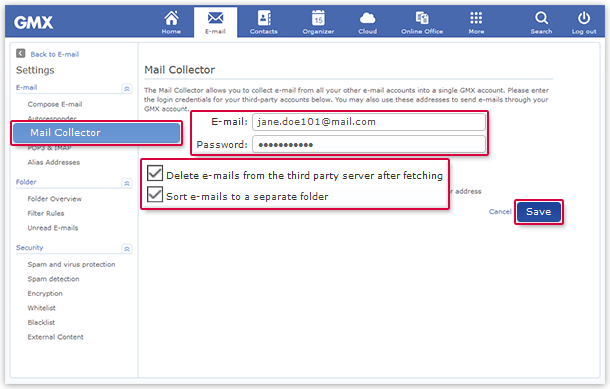
6. You’ll see the message “Your settings have been successfully saved”. In this way, the Mail Collector was successfully created.
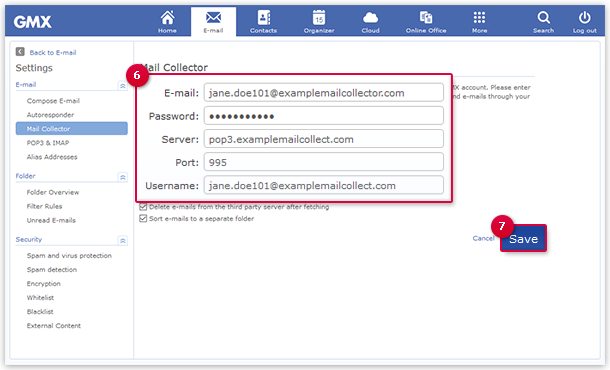
7. Alternatively, new input fields appear. If you have your email domain, then further information is required to create the Mail Collector in this scenario.
8. Enter the Server, Port, and Username details as shown below in the screenshot and press “Save” to finish the process.
Limitations of Manual Method:
- A manual approach is too difficult and complicated.
- Importing Gmail to GMX takes some time when you have a large number of messages. As a result, it is possible that you have lost your data.
- Requires technical knowledge to add a Gmail account to GMX, as it involves multiple technical steps which is difficult for common users to do.
How to Migrate Gmail to GMX Mail Automatically?
If you want a simple solution to import Gmail to GMX account, Advik Gmail Migration Tool is one of the most recommended tools. No matter if you are a specialized or non-specialized user, this tool will definitely come in handy for you. Just enter the login details of both email accounts and easily import a full Gmail mailbox to your GMX account without complicated steps.
This software is loaded with plenty of useful features that help you to easily complete the Gmail to GMX migration process.
Download this amazing free tool now to start importing Gmail to GMX account.


Steps to Import Emails from Gmail to GMX
1. Launch the tool and enter your Gmail login Credentials.
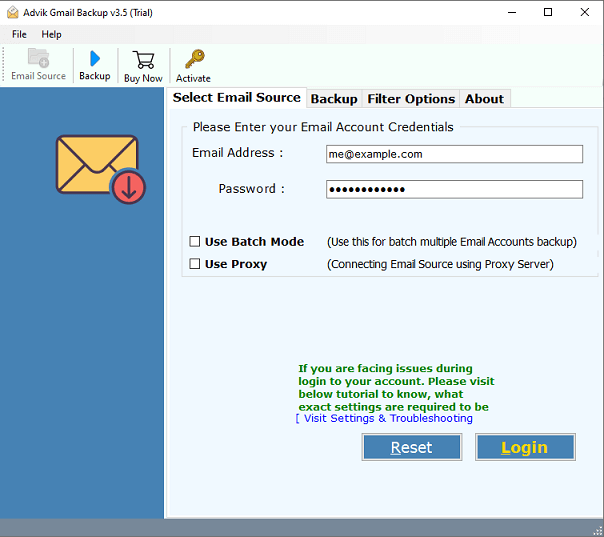
2. Select the folders that you want to migrate to the GMX account.
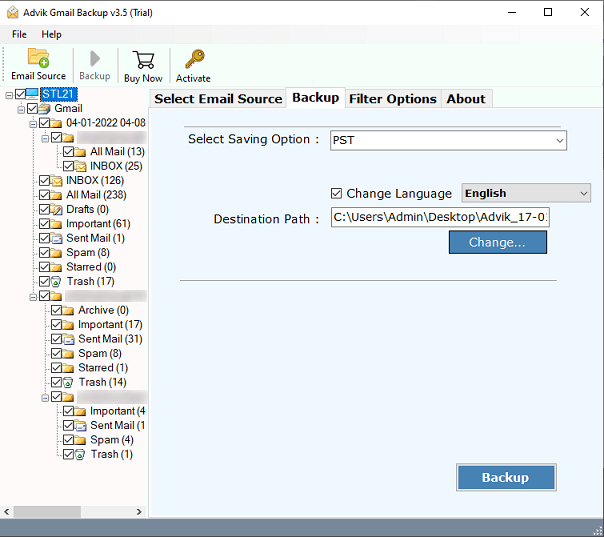
3. Select “IMAP Server” from the saving options.
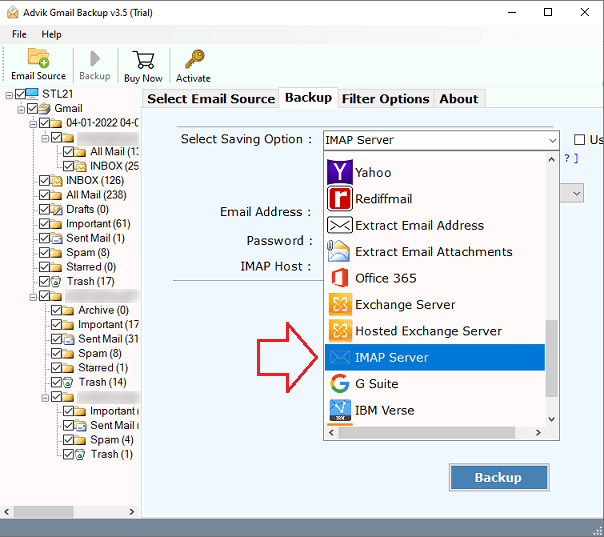
4. Fill in your GMX login credentials and other details IMAP HOST: imap.gmx.com, PORT: 993
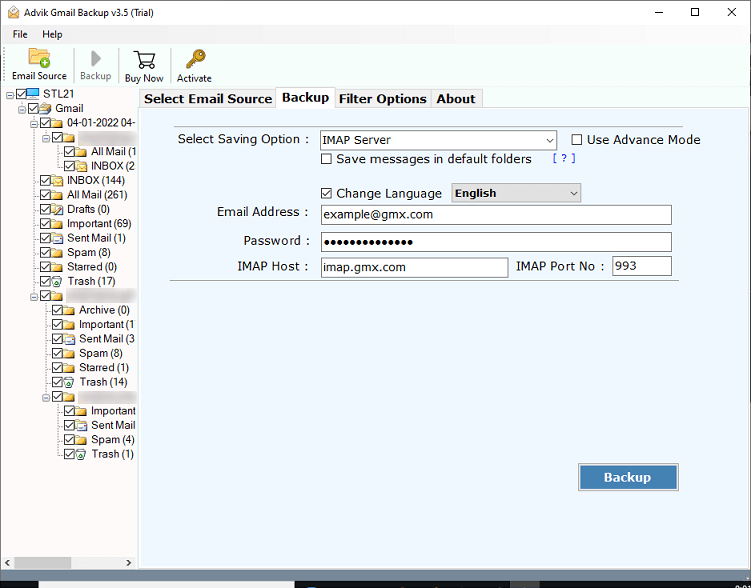
5. Now click the “Backup” button to initiate the process.
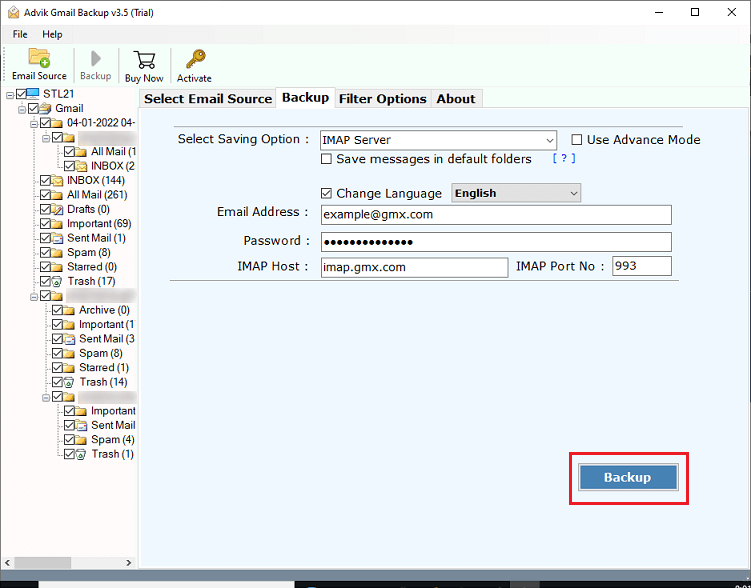
That’s it! This utility will soon import your Gmail messages to GMX account in no time.
Optional: Apply Email Filters if required for selective email migration.
Watch How to Import Emails from Gmail to GMX
Why Choose the Gmail to GMX Migration Tool?
This tool is a one-stop solution for all of your Gmail data backup requirements. You can have a better understanding of this utility’s specific features by reading the following:
- Maintain Folder Hierarchy: The amazing thing you’ll notice when you download your backup is that your data will be preserved in the structured way it was before. You don’t have to put them in any sort of order.
- 30+ Email Saving Options: This program is capable of exporting your email file into 30+ different formats, depending on your preferences.
- Advanced Email Filter Option: Advanced filter options might help you improve your backup procedure. You can specify certain dates between which you want to take backup. For example, if you wish to take a backup of emails from a group of people, you can enter their information.
- Various Migration Process: Using this tool you can also migrate Gmail to Exchange, Yahoo Mail, Office 365, AOL Mail and many other webmail accounts.
- Simple user interface: This utility has a simple graphical user interface that is simple to grasp and use. Users don’t need to be technological specialists to use this product.
- Folder Selection Option: Users have the option of selecting specific folders from which to backup. They have the option of selecting entire folders or a subset of them.
Final words
Nothing is difficult if one follows the correct method. The same is true in this scenario as well. Users who want to try the software on their own before purchasing it can do so by downloading the free version. Non-technical users can also utilize this tool without following a complex configuration process. We have provided both manual and professional approaches to import Gmail to GMX account.