How to Transfer cPanel Emails to Gmail Account?
Jackson Strong | January 19th, 2026 | Email Migration
If you’re planning to migrate cPanel to Gmail, it’s essential to ensure a smooth transition. In this article, we will explore the best methods that will guide you through the process to seamlessly transfer cPanel emails to Gmail account.
As a business grows, managing multiple email accounts through cPanel can become difficult. To overcome this inefficiency, many users want to migrate cPanel email to Gmail. However, moving an email account to a new provider can be a challenging task. This blog simplifies the cPanel to Gmail migration process using two of the best methods.
Method 1. Manual Method using Thunderbird (free but suitable for limited email migration)
Method 2. Automated Tool (faster and bulk migration)
Before moving ahead with the solutions, we understand the reasons to transfer cPanel emails to Gmail account.
Why Migrate from cPanel to Gmail Free?
Here are some reasons why users prefer Gmail to transfer emails:
- By transferring cPanel email to Gmail, you can easily access your emails on any device.
- Gmail offers advanced spam filters, 2-factor authentication, and safe browsing protection.
- Gmail offers 15GB of storage space to store emails, attachments, and files.
- If you move email from cPanel to Gmail, you can use other Google services.
- In Gmail, you get more powerful features and functionalities.
How to Add cPanel Email to Gmail Manually?
Follow the below given steps to migrate cPanel email to Gmail:
- Log in to your cPanel account using your hosting provider’s credentials.
- Then, locate the email Accounts or email section.
- Open your preferred email client program such as Mozilla Thunderbird.
- Set up a new account using the IMAP protocol.
- To do this, enter your cPanel email account details.
- Provide all the configuration details to connect cPanel to Gmail.
- Now, it will start synchronizing your emails.
- After that, create a new folder in your email client.
- Select the emails you want to transfer to Gmail.
- Drag and drop the selected emails to the newly created folder or label.
Done!! This is how you can forward email from cPanel to Gmail mailbox. However, this method is not suitable if you need to migrate email from cPanel to Gmail in bulk or have less time to invest. To do this easily, refer to the below method.
How to Transfer Emails from cPanel to Gmail Automatically?
Check out the Advik Email Migration Tool to move email from cPanel to Gmail account with attachments. Also, it will help you migrate cPanel email to Gmail in bulk. The batch mode feature will enable you to transfer multiple cPanel email accounts to Gmail at the same time.
Also, this tool keeps the mailbox folders hierarchy intact during the cPanel to Gmail migration process. You can even choose selective cPanel emails based on various email filters, such as Date Ranges, To, From, Cc, Bcc, etc.
Click on the FREE download button and evaluate the working process.


Steps to Migrate cPanel Email to Gmail
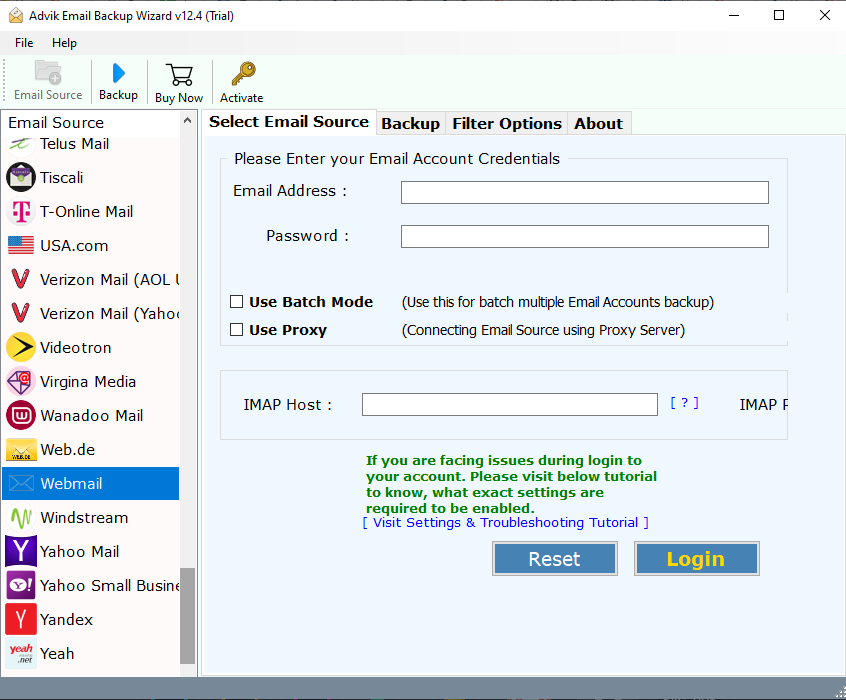
- Run software and choose Webmail as an email source.
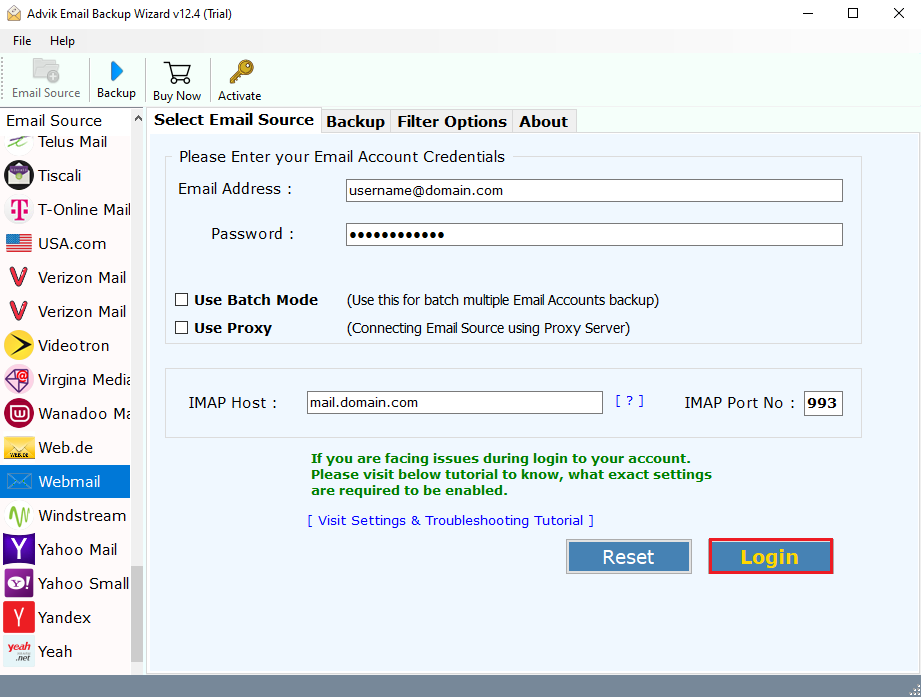
- Now, provide your cPanel email account credentials and tap Login.
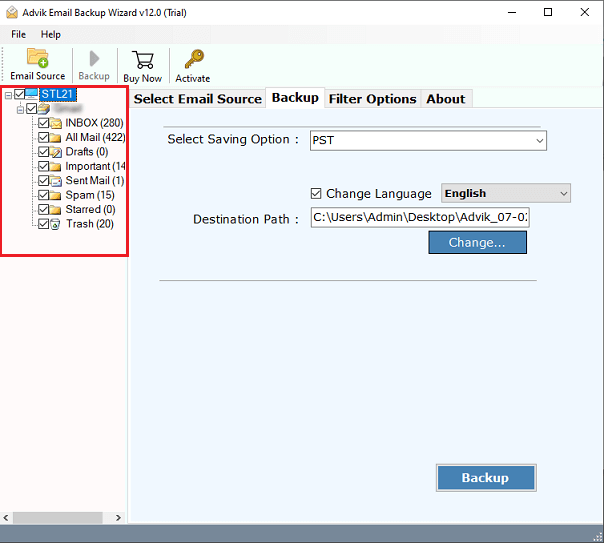
- After that, select the required mailbox folders from the preview.
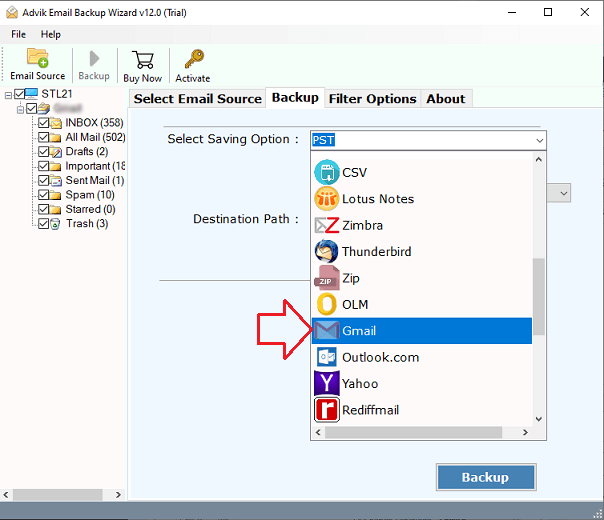
- Next, choose Gmail as a saving option from the list.
- Lastly, enter your Gmail login details and click Backup.
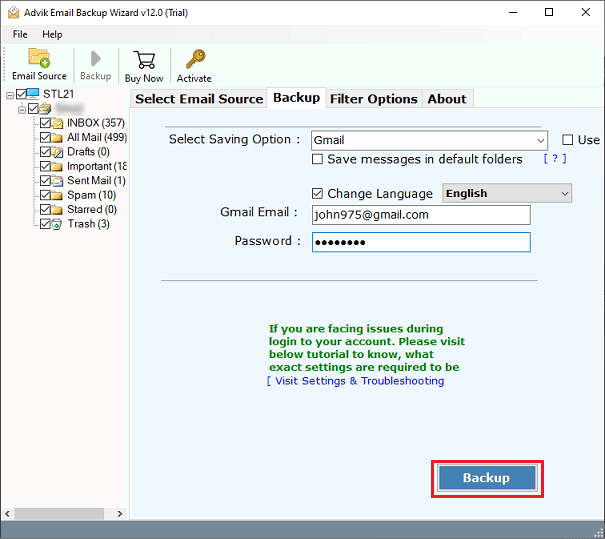
Note: Select the Advanced Setting option to apply filters for selective migration.
Now, sit back and relax! The software will transfer emails from cPanel to Gmail account without losing any information.
During the data transfer process, the software will maintain the folder hierarchy and key elements of emails. Hence, no data loss or omission of any kind of information will take place.
Watch How to Complete the cPanel to Gmail Migration
Amazing Features of the Software
- You can transfer thousands of emails from cPanel to Gmail in just a few minutes.
- Use the Batch Mode option to migrate multiple cPanel user accounts at once.
- Simply enter your login details to move your email data in seconds.
- Selective migration allows you to choose specific emails to transfer.
- Apply various filters like date, size, folder, subject, and more to your folders.
- Migrate not just emails but also attachments, subjects, dates, and other attributes.
- No technical skills are needed; just follow 5 simple steps to complete the process.
- Compatible with both Mac and Windows operating systems.
Final Words
In the above segment, we discussed how to migrate cPanel emails to Gmail account. While manually moving emails from cPanel to Gmail is possible, it can be unreliable. That’s why we recommend using the automated tool for a smooth cPanel to Gmail migration. You can download its free demo version to check its working procedure.
Frequently Asked Questions
Q 1. How do I add cPanel to Gmail manually?
Answer: Here are the steps to connect cPanel email to Gmail to fetch emails from your cPanel account.
- Log in to your Gmail account.
- Go to Settings > See all settings.
- Click on the Accounts and Import tab.
- In the Check Mail from Other Accounts section, click Add a Mail account.
- Enter your cPanel email address and click Next.
- Select Import emails from my other account (POP3) and click Next.
- Enter your cPanel email settings (username, password, POP server, and port).
- Click Add Account.
Q2. How do I forward cPanel email to Gmail between April 2024 to August 2025?
Answer: AdvikSoftware offers advanced date range filter options to migrate cPanel email to Gmail between specific dates.
Q 3. How do I sync my cPanel email with Gmail?
Answer: You can sync your cPanel email with Gmail by adding your cPanel email account to Gmail with IMAP protocol.
