How to Remove Password from Bank Statement PDF File?
Bank statements are important financial documents that show account holder transactions and balances. However, they contain important records, so the bank provides an extra layer of security with password protection, such that only authorized users can read and access. Sometimes, users need to remove password from bank statement PDF file to access, share, print, upload or manage their financial documents more conveniently without entering the password again and again. This article will describe different ways to remove bank statement password.
Table of Contents
- Why Needs to Unlock Bank Statement PDF Files
- How to Remove Password from Bank Statement PDF Manually?
- Unlock Bank Statement PDF Password Using Adobe Acrobat Pro
- Open Bank Statement PDF Password Using Google Chrome or Microsoft Edge
- How to Unlock Password Protected Bank Statement PDF Professionally?
- Video Tutorial
- Benefits of Using Professional Solution
- Real World User Case
- Final Words
- Frequently Asked Questions
Before moving to the methods, let’s know why users want to remove password protection from bank statement.
Why Need to Unlock Bank Statement PDF Files?
There are various situations where users need to open password-protected PDF bank statement. Some of them are:
- Lost Password: If you have lost or forget password, then you will be unable to open bank statements.
- Easy Access: If you want easy accessibility to their bank records.
- Share with Others: Sometimes users need to remove password from bank statement PDF file as they want to share it with others.
- Legal or Financial Needs: If you need the PDF statement for legal or financial purposes. Thus, you need to remove password from PDF bank statement for easy access.
How to Remove Password from Bank Statement PDF Manually?
Here are some manual ways to open password protected bank statement PDF file. However, these methods have limitations, which we will discuss later.
Method 1. Unlock Bank Statement PDF Password Using Adobe Acrobat Pro
With Adobe Acrobat Pro you may quickly open a PDF file protected by password.
- Open the password-protected PDF with Adobe Acrobat Pro.
- It will ask you for a password, enter it.
- Click on File and choose Properties.
- Go to the Security tab and change the Security Method to None.
- Press OK and save the PDF file.
Note: Adobe Acrobat Pro is a paid tool that might not be affordable to all users.
Method 2. Open Bank Statement PDF Password Using Google Chrome or Microsoft Edge
Web browsers like Chrome and Edge can remove password from bank statement PDF file by saving the file as a new.
- Open the password-protected PDF with Google Chrome or Microsoft Edge.
- Enter password to unlock it.
- Click the Print button (or press Ctrl + P).
- In the Destination, choose Save as PDF.
- Click Save button to save the new password-free PDF.
Note: This method works only if the PDF is printable. Some protected PDFs are set to not allow printing, thus this solution won’t work.
If you are not satisfied with manual methods and looking for a fast and easy way to remove passwords from bank statement PDF file then using a tool like Advik Bank Statement Password Remover is a smarter choice. For instant and bulk removing the following method is recommended.
How to Unlock Password Protected Bank Statement PDF Files in Bulk?
If you are dealing with many password-protected bank statement PDFs, manually inputting passwords can be a hassle. If you often deal with multiple password-protected bank statement PDFs, manually entering passwords each time can be frustrating. Advik Aadhar Card Password Remover is made to make this process easy and fast for you by unlocking PDF files in bulk safely. This software is powerful enough to remove password from any PDF file including bank statements.
The software can unlock many PDFs at once with no data security compromise. Online tools demand that you to upload confidential files. This software runs offline assuring total privacy. It is able to retain the original file structure and content during the process, so your documents remain unchanged after removing the password protection.
With this tool you will delete the password and save the PDF file as a normal document without any protection. Open, view or share bank statement without a password.
Click the free download button to check how it works;


Steps to Remove Password from PDF Bank Statement
Follow the step by step procedure to open password protected bank statement PDF file:
Step 1. Run the software and add your bank statement PDF files.
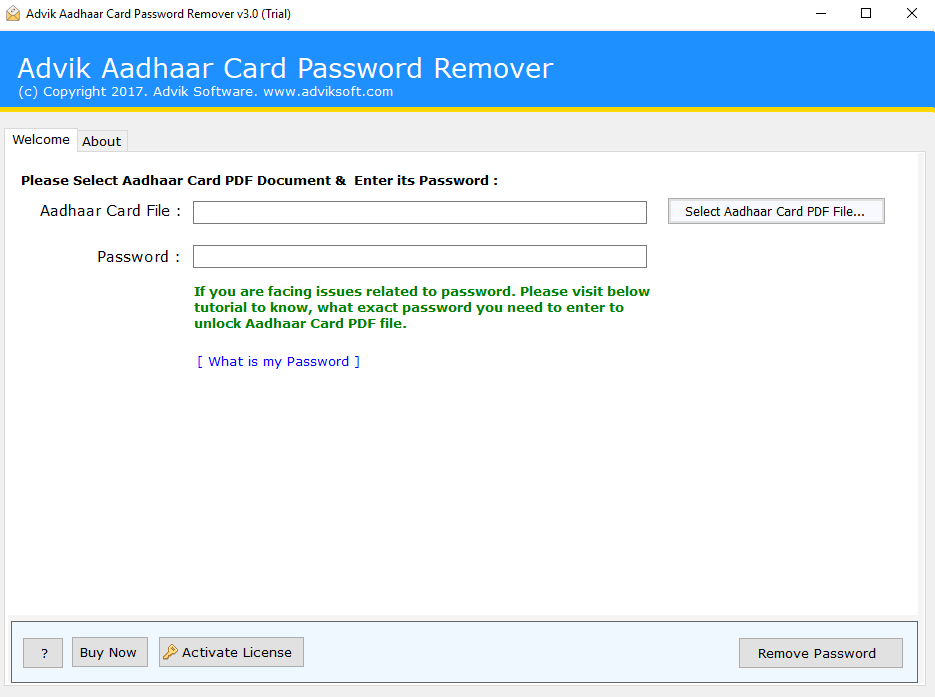
Step 2. Now enter your current password for the bank statement PDF.
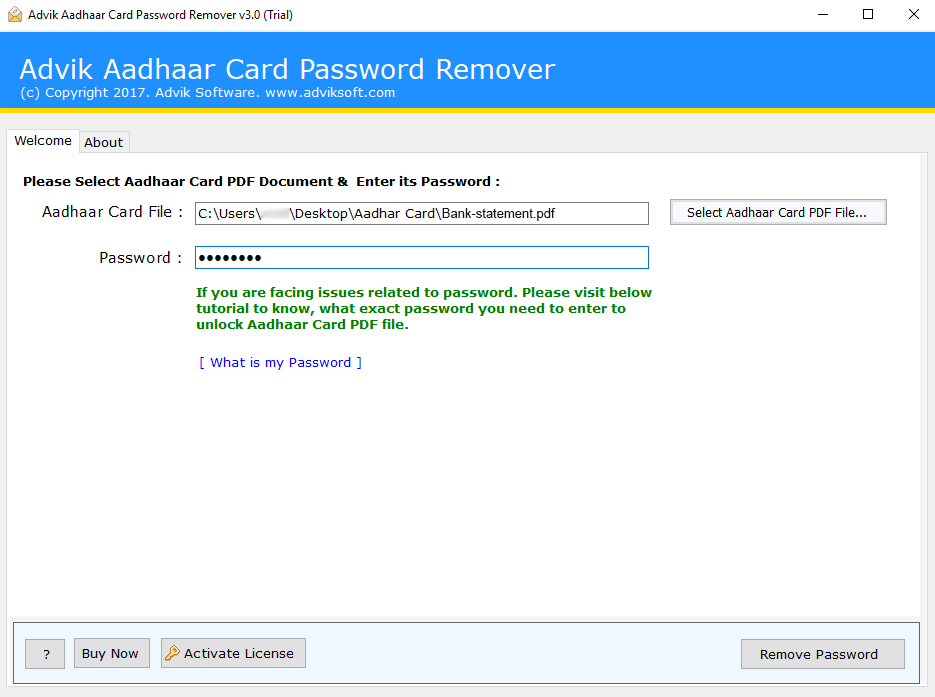
Step 3. After that click on the Remove Password button.
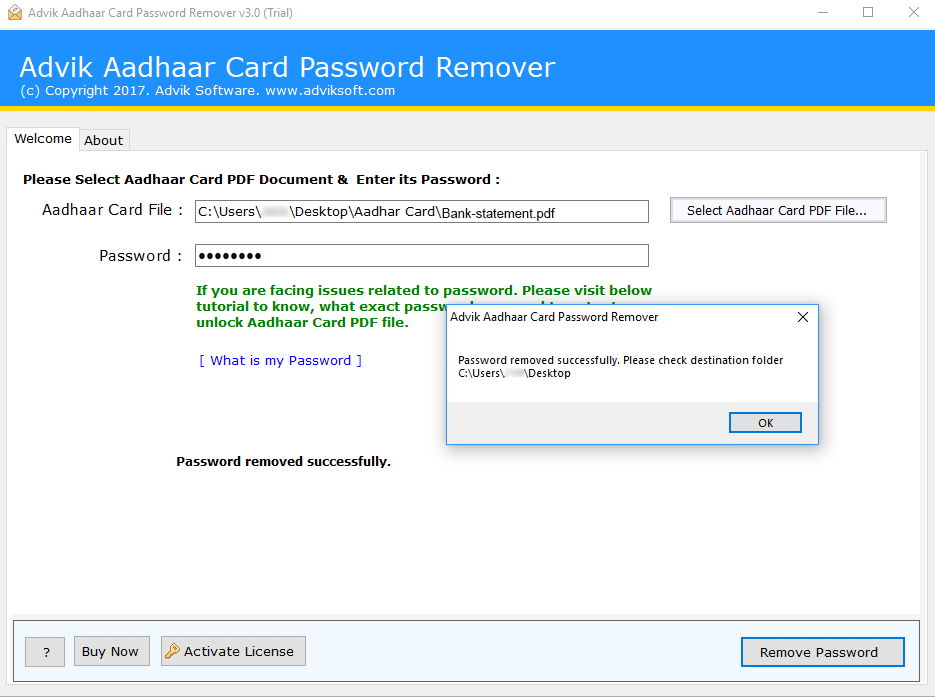
Now you will be directed to the folder where your unlocked bank statement PDF files are located.
You can view all your bank statements without a password.
And that’s all! In just three easy steps, you can remove password protection from PDF.
Watch Video Tutorial to Remove Bank Statement Password
Reasons to Choose Bank Statement Password Remover Tool Instead of Manual Methods
Here are some key reasons that define why this tool is the best choice for removing passwords from bank statement PDFs:
- Bulk Password Removal: The software is able to remove password from multiple Bank statement PDF files at once.You can work on all your bank statements at the same time instead of opening each file individually.
- 100% Offline and Secure: This utility helps you to secure your sensitive financial data without any online tools and file uploading. There’s no chance of data leaks or access by unauthorized persons.
- Converts Protected PDFs to Normal PDFs: Once unlocked, the utility turns a password protected PDF to a standard PDF which may be opened anytime without any password.
- Simple and Easy to Use Interface: The program has a clean and intuitive interface which is designed for all users. No technical knowledge required to perform the process. Just upload your files, unlock them and save the resulting PDFs.
- No File Size Limitations: The software enables unlocking of PDF files of any size whether it is a little statement or a major financial document. There is no limit on the number of pages in your PDF.
- Preserve Original File Quality: Your PDF file does not change in its format, structure and quality after removing the password. Unlocking method will not change or remove any data.
- Supports All Versions of PDF: It is compatible with all versions of PDF files so you don’t have to worry about any compatibility concerns. The old and the new PDF formats operate easily.
- Works Without Adobe Acrobat: No need for Adobe Acrobat Pro or any other software. It works independently and quickly solves the issue to erase password from Bank statement PDF.
- Fast Processing: This software is designed with advanced algorithms. It can open remove passwords without slowing down your system. Even massive batches of PDF can be handle in one go.
- Support Windows Operating System: This Bank Statement Password Remover is compatible with all versions of Windows OS, including Windows 11, 10, 8 and 7.
Real World User Example
I am an accountant in a bank. Recently, I received 48 monthly bank statement PDF from multiple clients. Each PDF file is protected with a password. I first tried manually opening but saving each statement through a browser took over two hours. Then, I use a bank statement password removal solution. All 48 files were processed in less than 10 minutes while preserving the original formatting and document quality. – James Anderson, UK
Concluding Words
We all know that removing password protection from bank statements is not recommended at all. It should be done with caution and only if you have a valid reason to do so. We had discussed three different ways to remove Password from Bank Statement PDF files. Choose the solution that is suitable for your needs.
Frequently Asked Questions
Q 1. Can I remove password from bank statement without password?
Ans. No, you must know the original password to unlock the password protected bank statement PDF file.
Q 2. How to unlock bank statement PDF in batch?
Ans. You can remove password from multiple files with Advik bank statement password remover tool.
Q 3. Can I remove bank statement password using online tools?
Ans. You can unlock password protected bank statement PDF using online software but they may pose a security risk.

Related Articles