How to Fix iCloud Storage Full Not Receiving Emails Issue?
iCloud is Apple’s cloud storage service that helps users store emails, photos, backups and other important data. With each iCloud account you get 5GB of free storage, which is enough for most users. However, as emails, photos, and backups keep filling up, many users face the iCloud storage full problem. If your iCloud storage is full, you might not be able to receive new emails. This can lead to you miss important emails. If you are also facing this kind of issue, here, i will explain the real causing factors and help with some workable methods to fix iCloud storage full not receiving emails issue quickly.
Table of Contents
- A Real User Concern Regarding Full iCloud Storage
- Why Am I Not Receiving Emails on iCloud?
- Common Causes of iCloud Not Receiving Emails
- What’s Taking Up Space in Your iCloud Storage?
- How to Fix iCloud Storage Full Not Receiving Emails Issue?
- Still Not Receiving Emails? Try These Quick Fixes
- Conclusion
- Frequently Asked Questions
A Real User Concern Regarding Full iCloud Storage
In my recent research into iCloud Mail issues, i came across a user who had noticed that their iCloud storage had been full for days. At the time, they were waiting for important emails about college admissions and scholarship applications. They had upgraded their iCloud storage plan and were wondering if there was any way to recover the emails that were sent during the time when their storage was full.
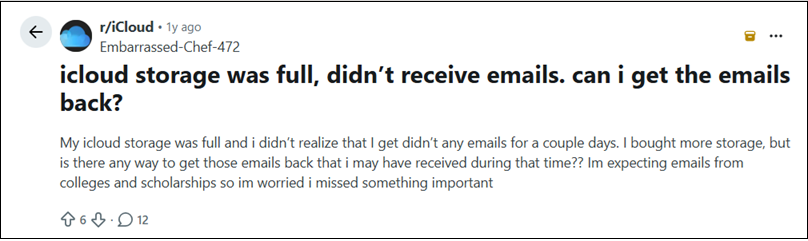
This is a common situation with iCloud users. Many people don’t realize their storage is full until they stop getting emails. The good news is that in most cases freeing up storage gets email delivery back to normal. But the sender may have to resend emails that could not be delivered when the storage was full.
If you have a similar problem, the solutions below might be helpful.
Why am I not receiving emails on iCloud? Know Here!
When your iCloud storage is full, Apple might reject incoming emails because there is no space to save new messages.
As a result:
- New emails may not appear in your inbox.
- Senders may get a delivery failure message.
- iCloud Mail will stop syncing correctly.
But this is not the only reason for full storage. Other factors may also cause this issue.
Common Causes of iCloud Not Receiving Emails
1. Complete iCloud Storage: This is the most common reason. If your storage is full, iCloud Mail may not be able to receive new messages.
2. Emails in Spam or Junk: Some of the emails you get are automatically sent to the Junk folder due to which it’s fills the storage space of your iCloud account.
3. Bad Internet Connection: If you have a poor or unstable internet connection, then it’s also possible that your emails may not sync properly.
4. Mail Setup is Not Correct: Email sending and receiving can be affected by misconfigured or incorrect account settings.
5. Temporary iCloud Service Problems: Apple services can go down temporarily sometimes and email syncing can be affected.
What’s Taking Up Space in Your iCloud Storage?
Before deleting anything , see what is actually using up your storage. Then, analyze what you need and what not and then delete unusual things from your iCloud account to free up space.
Generally, your iCloud storage is shared between:
Photos, backup of your devices, iCloud drive files, messages, mail, Application data etc.
Many users believe it’s emails that is taking all your storage space but it’s really photos and backups that are the biggest reasons for filling up your storage.
How to Fix iCloud Storage Full Not Receiving Emails Issue?
Try the following methods one by one to see which works best for you as per your situation;
Method 1. Delete Irrelevant Emails
Clearing out old emails and attachments that are too big can help you to free up space.
Steps to follow;
- Browse and open iCloud Mail using your account details.
- Check your Inbox, Sent Items, and Archive folders.
- Delete any emails you no longer need.
- Then empty the Trash folder.
Remember: if you delete an email, you can’t usually get it back unless you have a backup.
Tip: Arrange emails by size and delete messages with large attachments first. Sometimes this works better than deleting small emails.
Method 2. Remove Large Attachments
Attachments like PDFs, videos, ZIP files and images can also take a lot of space due to their large size.
So, first try to find it them first and then delete it if it not require to you;
- Old invoices and PDF files
- Shared Files
- Video files
- High dimension pictures
Deleting these emails will give you more space to store your emails.
Method 3. Delete photos and Unusual backups
Photos and backups often take up more space than email.
Check that your device backups (not used), duplicate Photos, big videos, Old Screenshots etc. these types of things are not taking much space than required.
Deleting these types of unwanted content can save a lot of storage space.
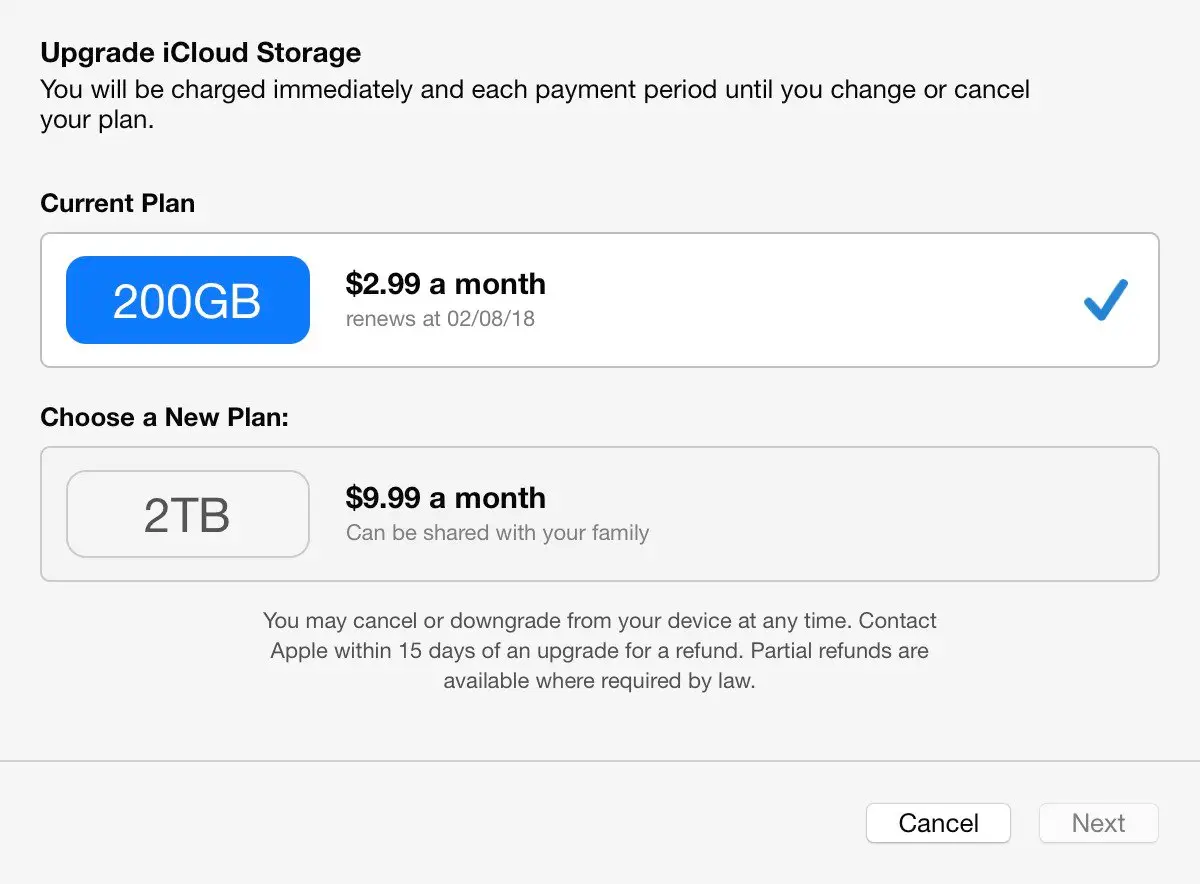
Method 4. Increase Your iCloud Storage Plan
If you use iCloud regularly for backups, photos and email, then you must upgrade your storage plan to fix this issue without exploring much options.
Follow the steps;
- Open the Settings in your account.
- Click on your Name and choose iCloud.
- Tap Manage Storage and click Change storage plan.
- Choose a storage plan that fits your needs.
After you apply the increase in storage, new emails will start coming in normal way.
Advantages
- Extra storage space
- Important data need not be deleted
- Improved support for photos and backups
Limitations: This is a paid subscription and you need to renew it monthly.
Method 5. Save Important Emails before Deleting Them
If you have important emails in your mailbox, you may want to make a backup of them before deleting them. So, first backup your emails so you can keep copies of important messages, free up mailbox space, later access to emails if needed and also it keep your old conversations safe.
If you work with large mailboxes regularly, you tend to store old mail locally and then delete them from the server. For example, email backup solutions such as Advik iCloud Email Backup Tool can download iCloud emails on a computer for long-term storage. Once you’re sure the backup is complete, you can delete older messages from your inbox to free up space in the cloud.
This method is very helpful for those users who are interested in saving storage but do not want to lose their important email data forever.
Still Not Receiving Emails? Try These Quick Fixes
If you still didn’t get all your emails in iCloud Mail, try these easy checks:
- Check your Junk or Spam folder to see if your emails are sent there by mistake.
- Make sure your Internet connection is working correctly.
- Log out of your iCloud account and then log back in to refresh your connection.
- Restart your iPhone, iPad, or Mac Restart to fix temporary issues.
- Visit Apple’s System Status page to check if there are any temporary service issues.
- Make sure that you have enables Mail sync in your iCloud settings to receive and update emails.
Sometimes, these simple steps will fix email receiving issues without doing any major changes to your account.
Conclusion
I have analysed now that if your iCloud storage is full and you are unable to get new messages in your mailbox the problem can be due to many reasons. So, it’s important to explore each factor and understand what is the real concern of this issue.
So first, see what is taking up space. Then delete old emails, remove unnecessary files, delete large attachments or upgrade your storage plan if needed.
Also, if you create backup of your emails and other data then it’s easy to free up space while still keeping those important messages & data accessible if you want to keep them before deleting them.
FAQs
Q1. What if my iCloud storage is full?
Ans. Your emails, Photos, and backups may not work properly when your iCloud storage is full. New incoming emails may also get rejected or returned to the sender until there is sufficient storage space.
Q2. Is it possible to recover emails that were not delivered because of full iCloud storage?
Ans. Most emails that can’t be delivered are returned to the sender. After you free up storage space, you need to ask the sender to send the message again.
Q3. I have some space left in iCloud, why I am not receiving emails?
Ans. Other possible causes are:
- Emails marked as Spam or Junk
- Bad internet connection
- Wrong Mail settings
- Temporary iCloud Service Disruption
Q4. How much free storage space does Apple offer with iCloud?
Ans. With every iCloud account, Apple now gives you 5 GB of free iCloud storage.
Q5. Is deleting emails the only way to free up iCloud storage?
Ans. No. Not always, you can also free up your iCloud storage space by removing unwanted photos, videos, backups, documents and other large files in your iCloud account.