How to Import cPanel Emails to Thunderbird?
Jenny Lowrence | February 10th, 2026 | Email Migration
Many cPanel users want to transfer their emails to Thunderbird for better control, offline access, and advanced features. If you are also looking for a solution to import cPanel emails to Thunderbird then this post is for you. In this write-up, we are going to explain both manual and automated solutions.
Before proceeding with solutions, let’s understand why users want to export emails from cPanel to Thunderbird.
Why Migrate cPanel to Thunderbird?
Here are several advantages of importing cPanel emails to Thunderbird:
- Access emails offline anytime.
- Manage multiple email accounts at one place.
- Advanced filtering and organization tools.
- Simple and easy-to-use interface.
How to Import cPanel Emails to Thunderbird Manually?
Follow the below given steps to manually Setup cPanel Account in Thunderbird:
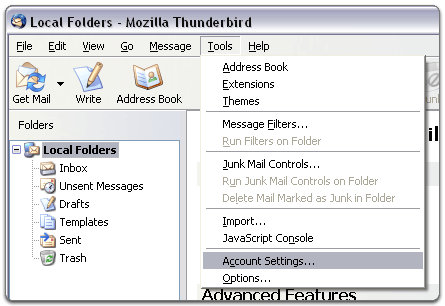
1. Open Thunderbird and go to Tools >> Account Settings.
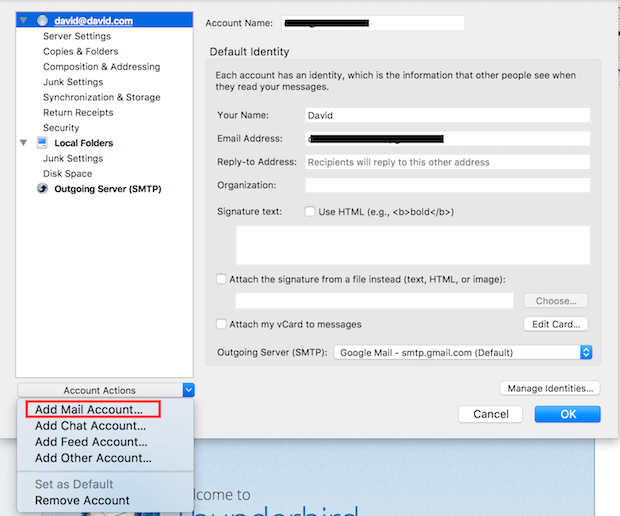
2. Choose Account Actions and choose Add a Mail account.
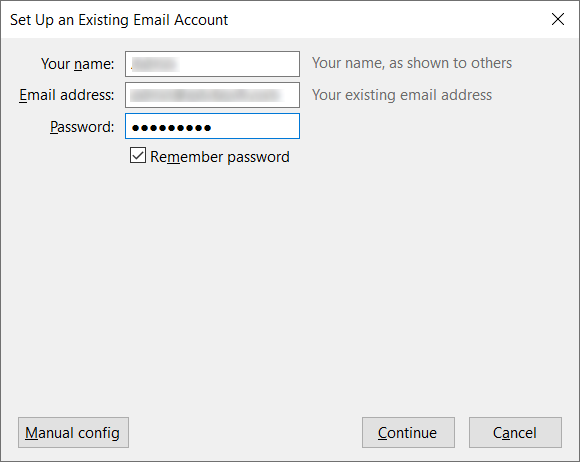
3. Enter your name, cPanel email address, password and press Continue.
4. Now, enter cPanel server details.
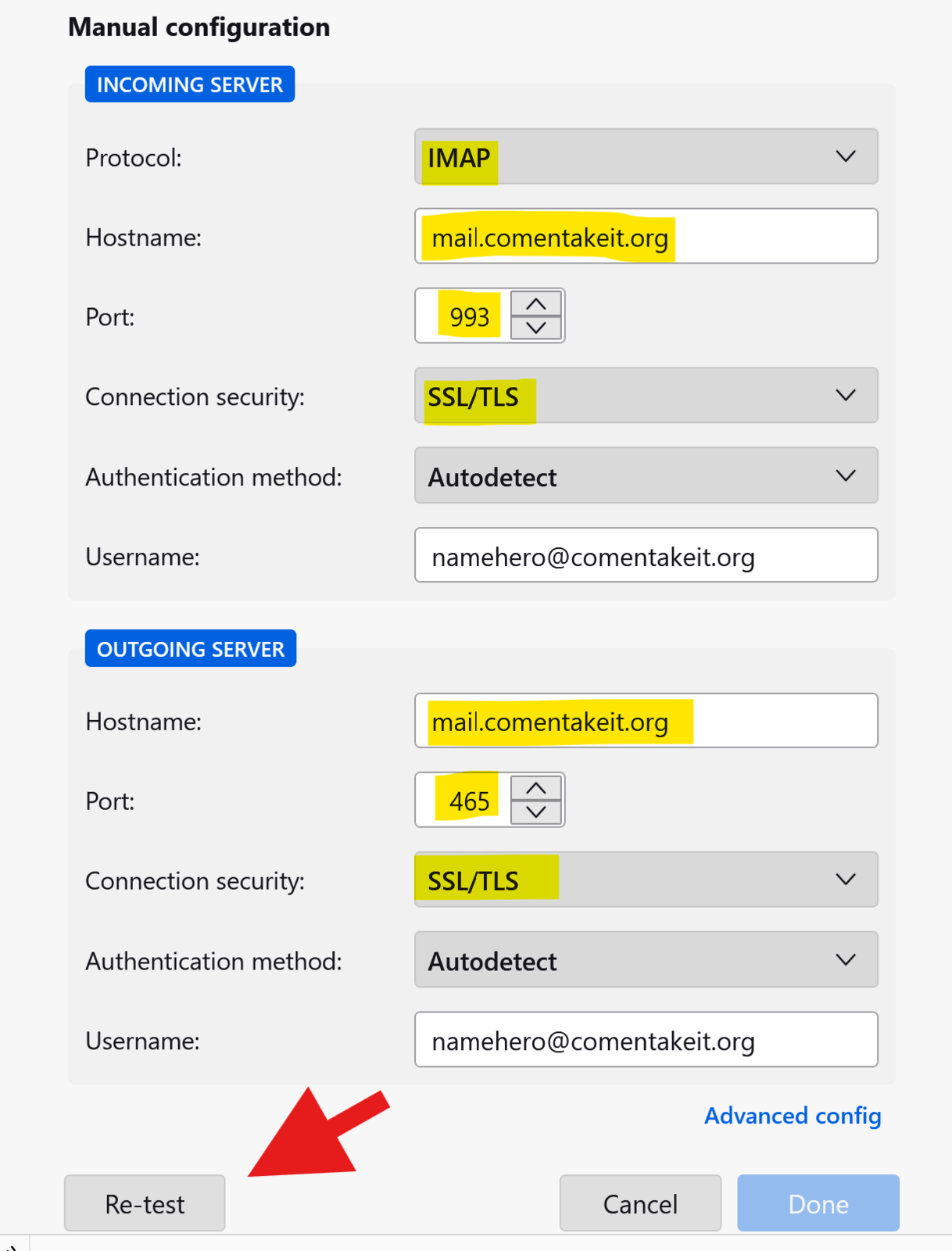
5. It may take some time to configure your cPanel email account. After that, click the Done button.
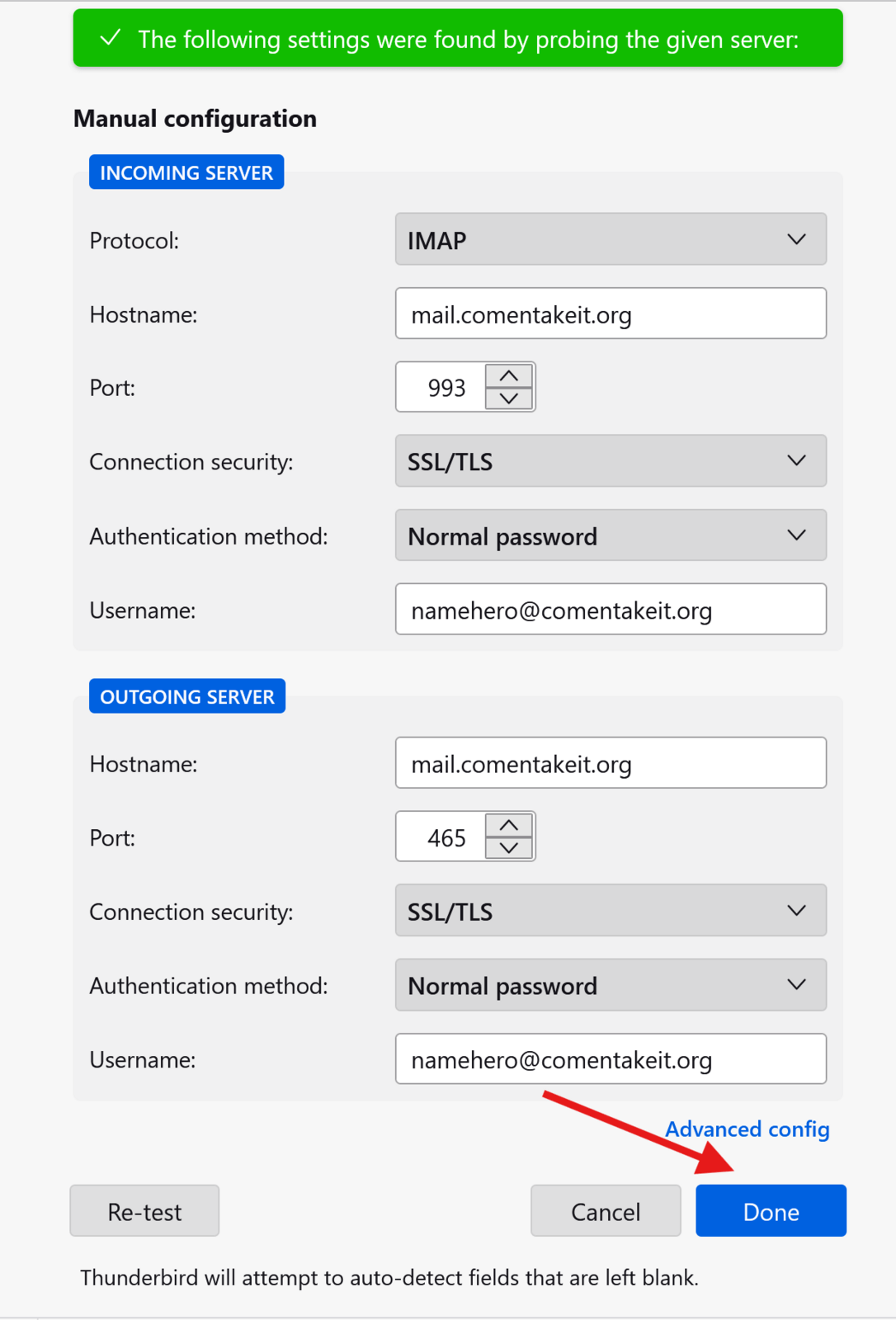
After setup, your cPanel emails will start syncing to Thunderbird.
Drawbacks of Manual Solution
- Take a lot of time if you have large mailboxes.
- Folder structure may not be preserved.
- No option to choose selective folders.
How to Transfer cPanel Emails to Thunderbird Automatically?
Check out the Advik Email Migration Tool on your system. The software can directly import cPanel emails to Thunderbird. Just run the tool, enter your cPanel account details, choose mailbox folders, select Thunderbird as a saving option, and click the backup to begin the process. With this utility, you can export the entire mailbox in a single attempt. Also, it allows you to choose specific emails for importing. This is 100% safe and authentic program that does not lose a single bit of data during the process.
Click on the below link to download the FREE version to analyze its working procedure.


Steps to Import cPanel to Thunderbird
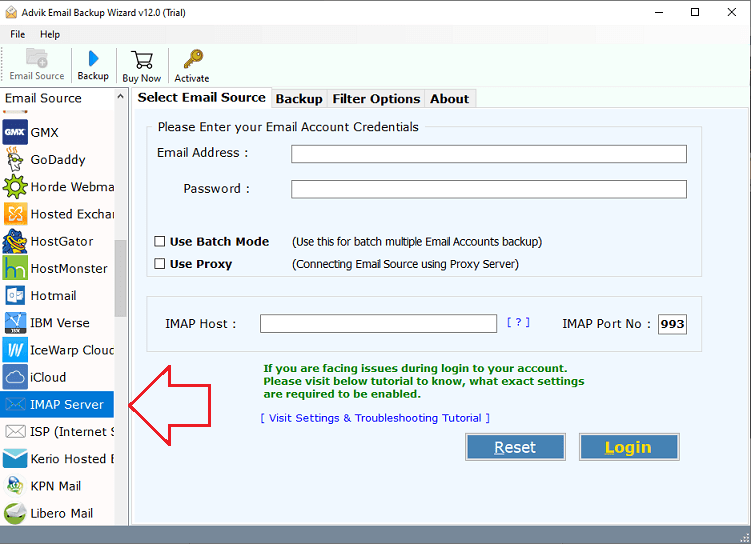
1. Run the tool and choose IMAP Server as email source.
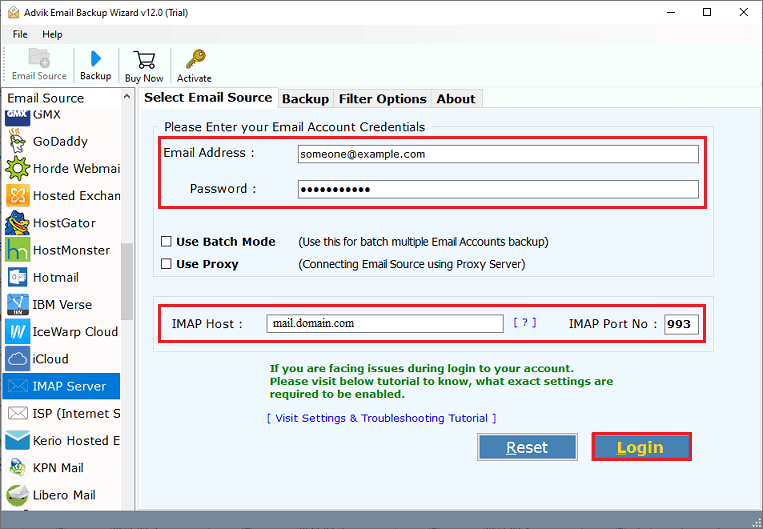
2. Enter your cPanel account credentials and press Login.
3. Choose the mailbox folders to export.
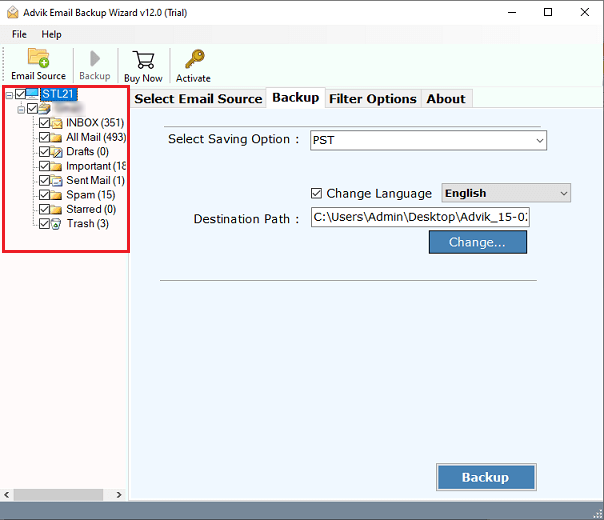
4. Next, select Thunderbird as a saving option.
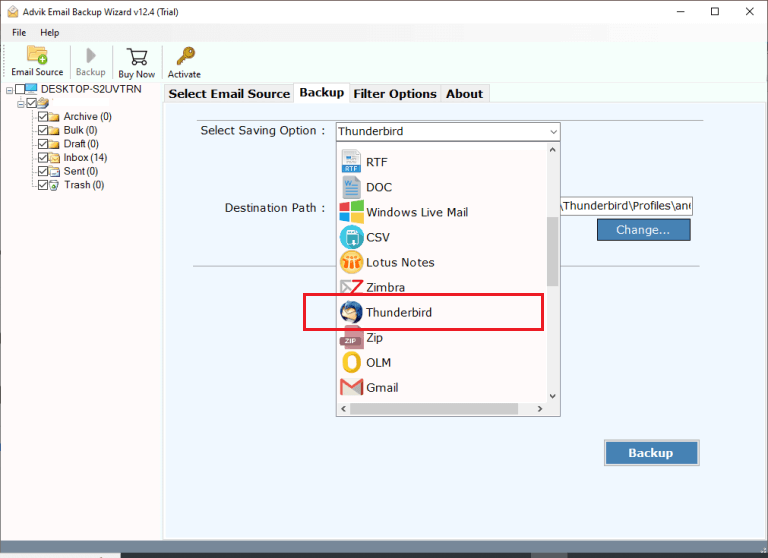
5. Click the Backup button to begin the importing process.
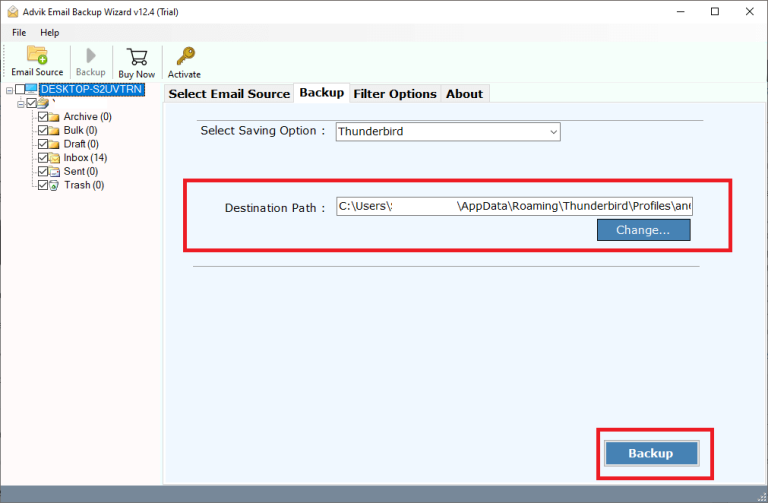
Now, sit back and relax! The software will complete the importing process in a few seconds.
Apart from the above function, the software has several advanced features which make the process very simple: Some of them are;
- Directly import cPanel emails to Thunderbird without manual configuration.
- Export the entire mailbox, including emails, attachments, contacts, etc. at once.
- Advanced filter options to migrate emails based on date range, to, from, subject, etc.
- Preserves all email attributes and mailbox folder hierarchy throughout the process.
- Also, using this utility, you can migrate cPanel to Gmail, Office 365, Yahoo, and more.
- Compatible with all the latest and older versions of both Mac and Windows operating systems.
- A free demo version to check the workflow and 24/7 customer support to resolve users’ issues.
Conclusion
In this post, we have discussed how to import cPanel emails to Thunderbird. Here, we have explained two different ways to migrate cPanel to Thunderbird.
- Manual IMAP setup is a good choice if you want a free option and have a smaller mailbox.
- Automated tools are better for larger mailboxes and selective import.
Both methods are workable. You can choose any method as per your needs.