How to Import PST to Zoho Mail Account?
Jackson Strong | March 19th, 2026 | Email Migration, Outlook, Zoho Mail
Overview: This write-up will guide you on how to import PST to Zoho Mail. If you are also looking for a solution for the same query, then keep reading this post and get step-by-step instructions to migrate emails, calendar, and other data from Outlook PST file into Zoho Mail account. Here, we’ll show you two different ways to open PST file in Zoho email account.
PST files store emails, contacts, and other data from Outlook. However, PST files are easily corrupted, so it’s not always safe to keep important data in them. Users can only open it in Outlook. Zoho Mail is a web-based service that allows users to access their emails from anywhere. Importing PST to Zoho Mail enables users to leverage of Zoho Mail advanced security and collaboration features.
Before we begin, let’s take a quick look at the benefits of importing PST emails to Zoho Mail.
Why Import PST to Zoho Mail?
Here are a few common reasons users want to upload PST to Zoho Mail;
- If you are moving from Outlook to Zoho Mail then you need to move your emails, contacts, and calendars to access them.
- Once you import PST file into Zoho Mail, you can access your data from any device with an internet connection.
- Uploading emails in Zoho Mail keeps them safe from accidental deletion or local system crashes.
Tips Before Importing PST File into Zoho Mail
- Always take a backup of your PST file, so that you can restore them in case anything goes wrong.
- Enable IMAP option in Zoho Settings.
- Generate an app password in Zoho Mail.
- Ensure that your Zoho Mail has enough space.
- Check large, duplicate, archived PST file before import.
- Configure Zoho account properly with IMAP.
- Ensure you are using a stable internet connection for interruption free migration.
How to Open PST File in Zoho Mail With Outlook?
Follow the below given steps to import PST file to Zoho using Outlook:
- Open Zoho Mail in your browser and enter credentials to login.
- Click on Settings and choose Mail Accounts under the Mail section.
- Click on POP/IMAP and enable IMAP Access.
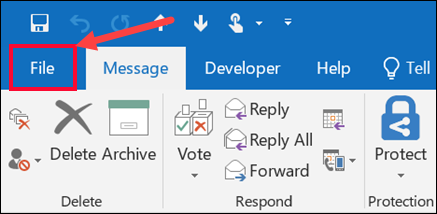
- Launch the Outlook application and click on File tab.
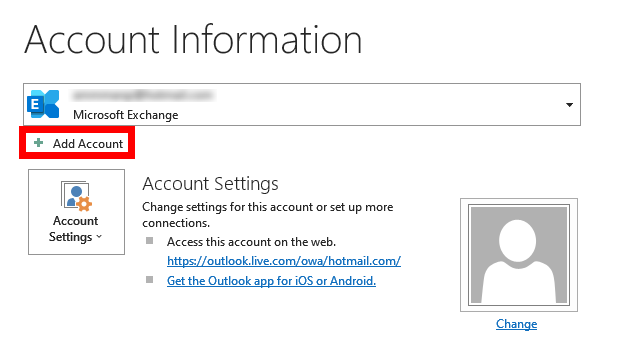
- Click on Add Account.
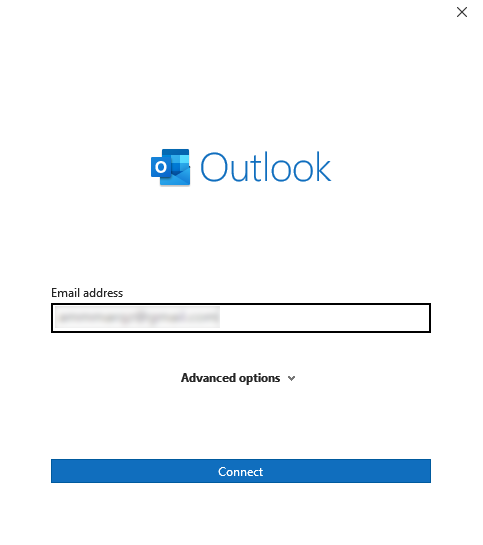
- Enter your Zoho Mail account login credentials and click Connect.
- Now, enter the IMAP settings details of Zoho Mail account to configure it.
- Once added, go to File >> Open & Export >> Import/Export.
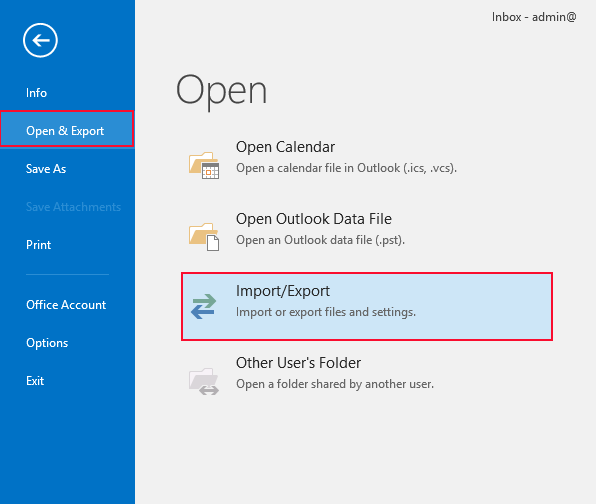
- Choose Import from another program or file from Import/Export wizard.
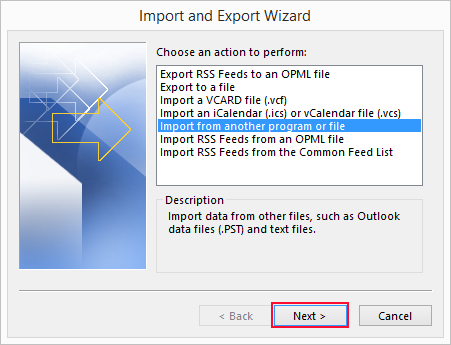
- Select Outlook Data File (.pst) from Import a file.
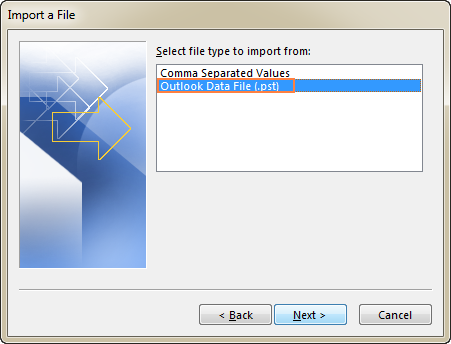
- Browse and select your PST file and then hit on Next.
- Select a folder to import PST items and click Finish button.
- Drag and drop imported PST data under configured Zoho Mail account.
- Now, PST file will start syncing with Zoho Mail.
The importing process is complete!
How to Import PST File in Zoho Mail Without Outlook?
Check out the Advik PST File Converter toolkit. This software is specially designed to directly import PST to Zoho email account. It will maintain the folder structure during the PST migration to Zoho Mail process. Thus, no data loss will take place. With this tool, you can upload PST files to Zoho Mail in bulk. The user interface is very simple and self-explanatory. Whether you are a student or a professional, you can use this utility without any difficulty.
For trial purposes, click below and download the software to try it for free.

Note: We advise users to use the demo edition and get fully satisfied before making any purchase.
Steps to Import PST to Zoho Mail
Step 1. Run the software and click Select Files.
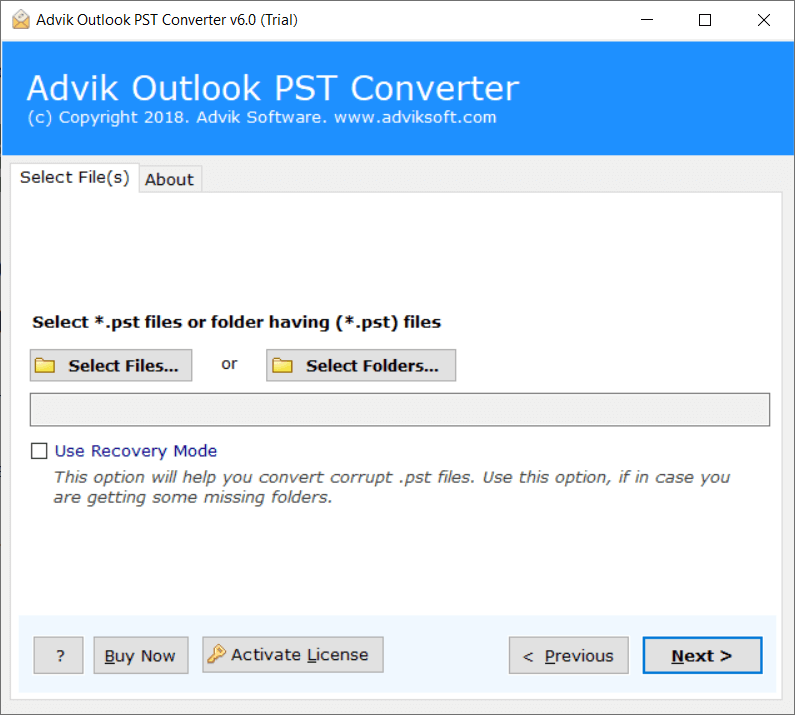
Step 2. Browse and add Outlook .pst file into software.
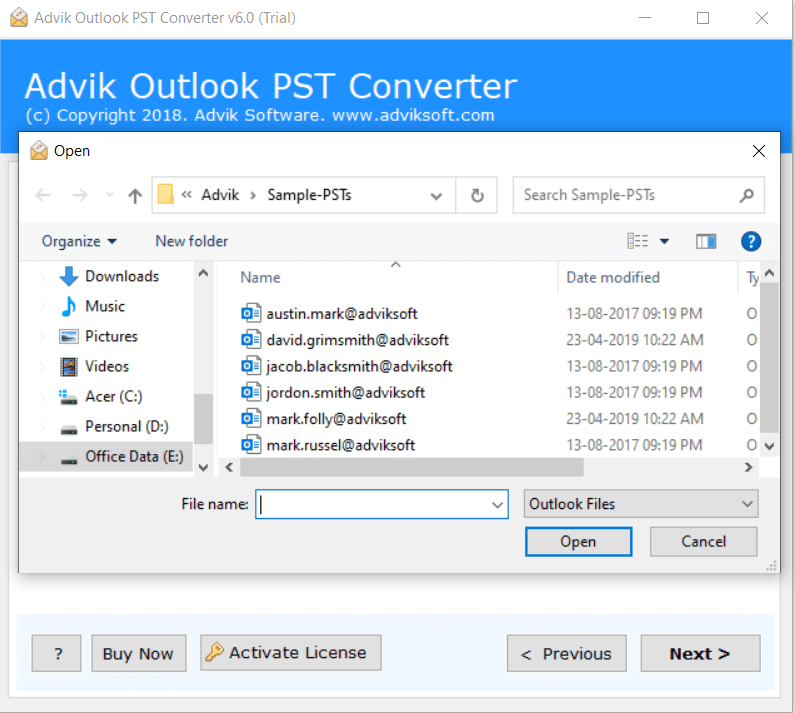
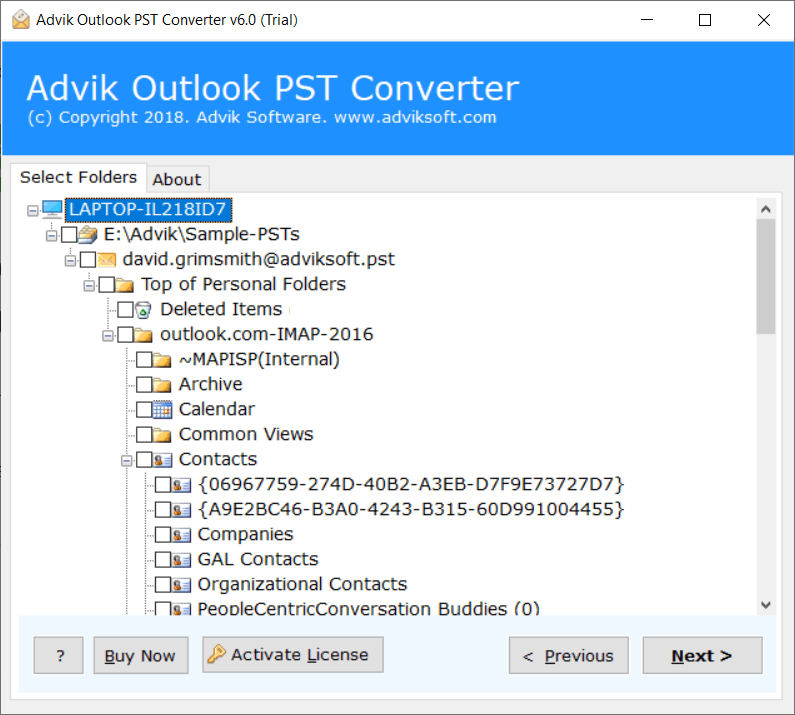
Step 3. Select mailbox folders that you want to migrate.
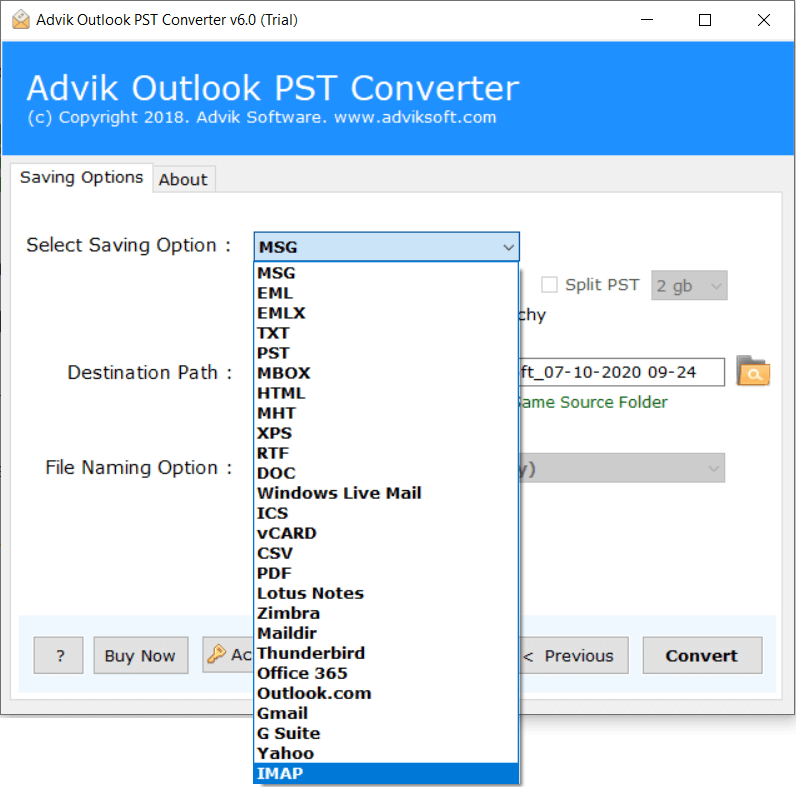
Step 4. Choose IMAP option from the list.
Step 5. Enter your Zoho Mail login credentials and click Convert.
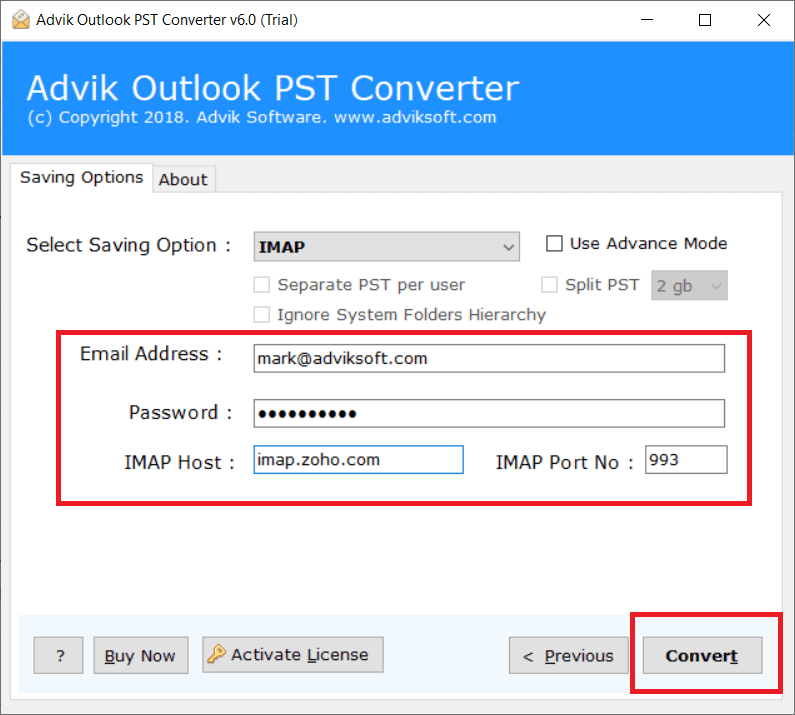
Now the software will start transferring emails from PST file into Zoho Email account.
Once, the entire process is finished, the software will display a successful notification.
This is one of the best ways to import PST to Zoho Mail automatically without facing any trouble.
Watch How to Migrate Outlook PST File to Zoho Mail
Along with that, the software also shares some extremely impressive features. Here are some.
- Transfer emails from large PST into Zoho Mail effortlessly
- Split large PST file into Smaller Parts
- Upload multiple Outlook .pst files into Zoho Mail Account
- Preserves data integrity and folder structure
- User-Friendly Interface for Non-Technical Users
- Lifetime Validity with Free Updates in the Future
- Compatible with Windows 100/8/8.1/7/Xp and Vista
- Convert PST file to PDF, EML, MSG, MBOX, TGZ, XPS, etc.
What Our Clients Say
A few days ago, I needed to migrate 18GB Outlook PST file into my Zoho Mail account that contains years of client communication. Initially, I tried the manual IMAP method but Outlook synchronization continuously failed after several hours.
I did not want to take a risk with file as it is very crucial for me. So, I decided to use a professional solution. After searching several software I found Advik PST Converter. This tool helps me to import this large PST file to Zoho Mail directly in a short frame of time. It successfully uploaded all mailbox folders while preserving their original structure.
John Liezly, United State
Conclusion
In this article, we have explained how to import PST to Zoho Mail account. Here, we will provide both manual and automated solutions to open PST file in Zoho Mail. If you are facing any issues with the manual approach, then you can use the above-mentioned solutions to complete the process without any glitches. The software comes with a demo edition that you can use to check the process before investing your money.
Frequently Asked Questions
Q 1: How to import PST file in Zoho Mail in bulk?
Ans. Use the Advik software mentioned above to open PST files in Zoho Mail with complete mailbox items. As there is no manual method available to solve this query, we are left with using automated software only.
Q 2: Can I import emails from Outlook to Zoho Mail using software?
Ans. Yes, using software is highly recommended for importing emails from Outlook to Zoho Mail account. You can either load a PST file or use a configured Outlook profile with this software.
Q 3: Is an Outlook installation required?
Ans. For the manual method, Outlook installation is required. However, the software isn’t required to carry out this task.
