How to Migrate DreamHost to Google Workspace?
Jenny Lowrence | January 22nd, 2026 | Email Migration
If you are looking for a solution to migrate DreamHost to Google Workspace, then this article has you covered. Here, you will get the two best ways to transfer emails from DreamHost to Google Workspace. Read this post till the end to get step-by-step instructions to successfully complete the migration process.
DreamHost is a popular web hosting provider that also offers email hosting services for domains hosted on its platform. It is suitable for small websites and basic email needs, but it lacks advanced collaboration tools, flexible storage options, and modern productivity features.
On the other hand, Google Workspace is a cloud-based productivity suite that includes Gmail, Google Drive, Calendar, Meet, Docs, and more. It offers a robust email system with powerful security, real-time collaboration, and reliable performance.
How to Migrate DreamHost to Google Workspace for Free?
You can manually transfer DreamHost emails to Google Workspace via Outlook or any other email client. Follow the below given steps:
1. Launch MS Outlook and go to File >> Add Account.
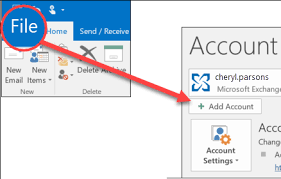
2. Set up your DreamHost email account in Outlook.
3. Wait for Outlook to synchronize your emails.
4. Now, go to File >> Open & Export >> Import/Export.
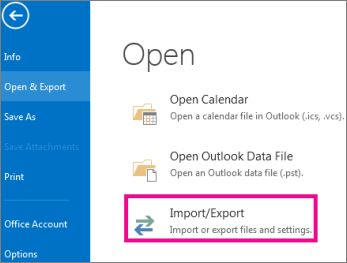
5. Select Export to a File and click Next.
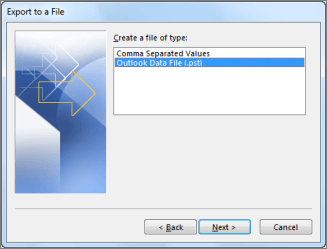
6. Choose Outlook Data File (.pst) and press Next.
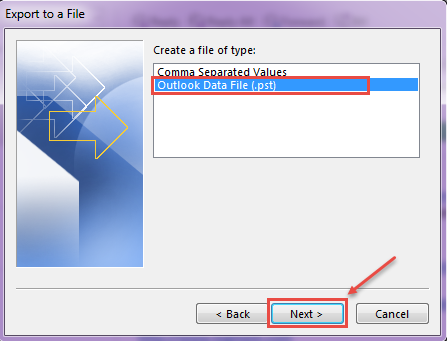
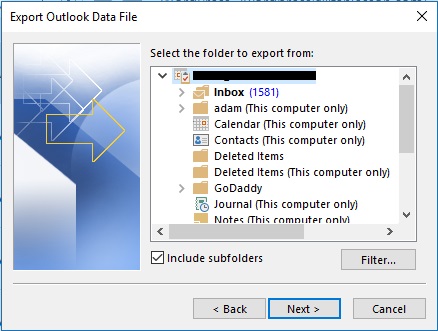
7. Select DreamHost mailbox folders and click Next.
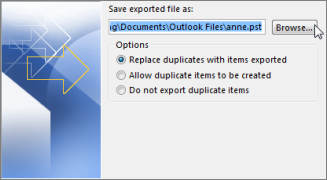
8. Browse the target location and click Finish.
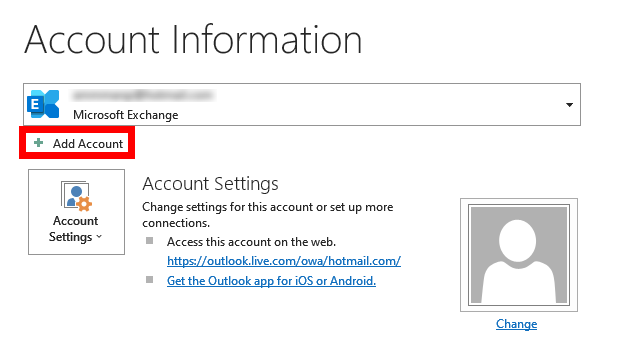
9. Now, again go to File >> Add Account and add Google Workspace account in Outlook.
10. Next, navigate to Open & Export >> Import/Export.
11. Choose Import from another program or file and click Next.
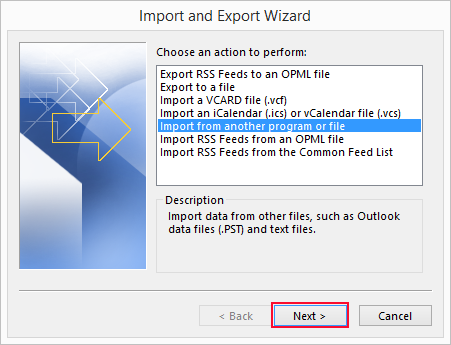
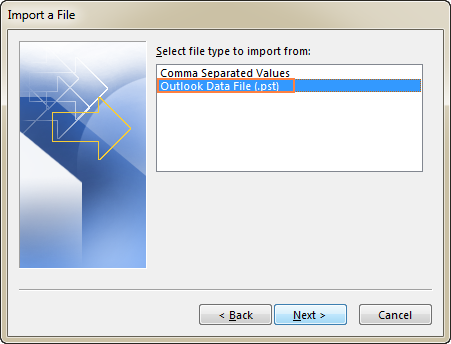
12. Select the Outlook Data File (.pst) from Import a File Window.
13. Import the above-exported .pst file into the Google Workspace mailbox folder.
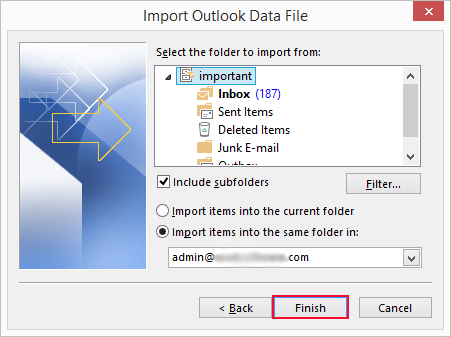
Done! This is how you can manually migrate emails from DreamHost to Google Workspace account.
Drawbacks of Manual Solution
- This method contains multiple steps, so it takes a lot of time to complete the process.
- Users must have technical knowledge for configuration.
- Outlook email client must be installed on your system.
- In case the Outlook import export option greyed out then this approach doesn’t work.
How to Transfer DreamHost Emails to Google Workspace Securely?
Download and install the Advik Email Migration Tool on your system. The software can migrate DreamHost to Google Workspace in just a few simple clicks. Just enter the login details of both email accounts to begin the migration process. It allows you to move all or selected email folders as per your needs. The tool maintains the integrity of your data during the DreamHost to Google Workspace migration.
Why are you waiting? Just click on the FREE Download button to evaluate its working procedure without any cost.


Steps to Migrate Emails from DreamHost to Google Workspace
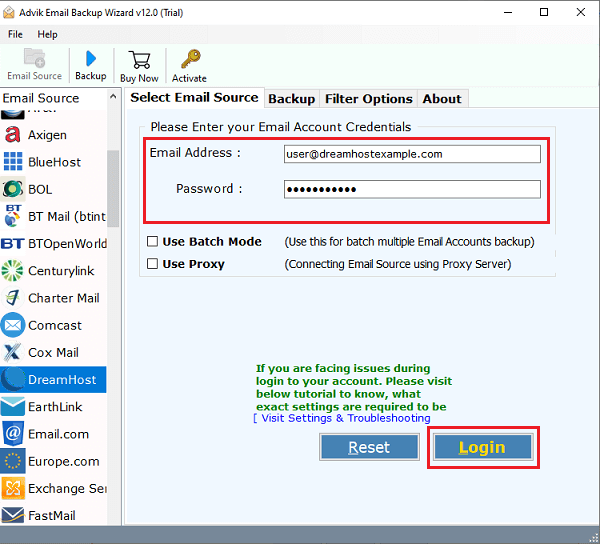
1. Run the tool and choose DreamHost as the email source.
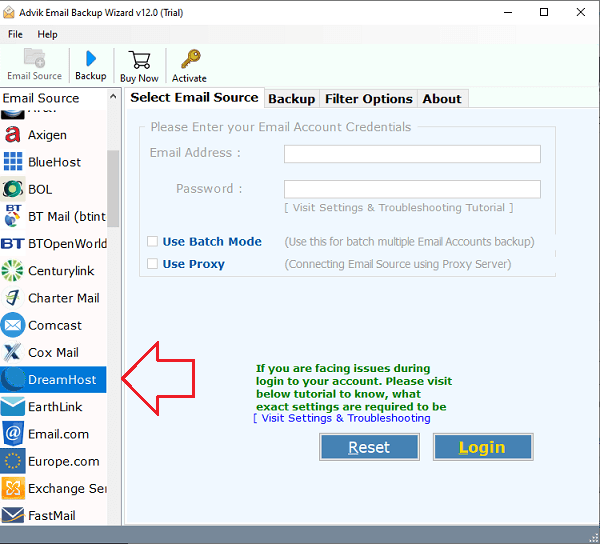
2. Enter DreamHost account login details to sign in.
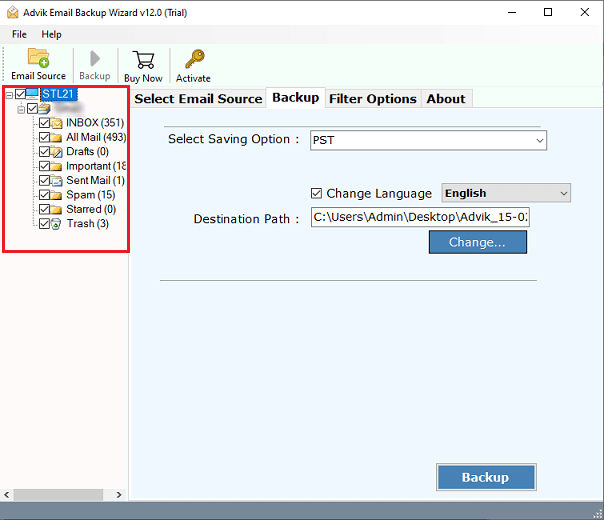
3. Choose the required mailbox folders & subfolders.
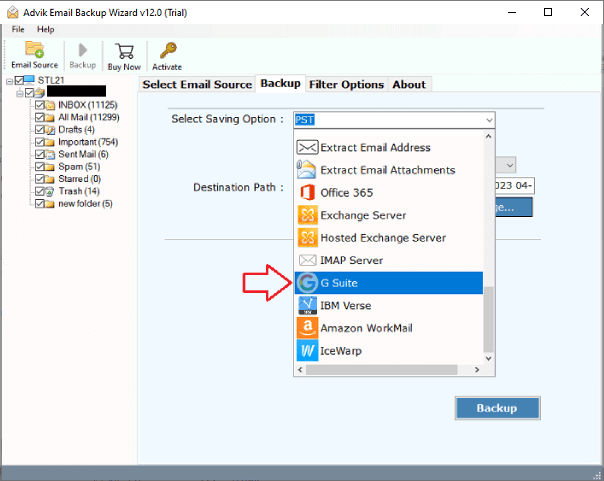
4. Select G Suite as a saving option.
5. Enter Google Workspace account login details and click the Backup button.
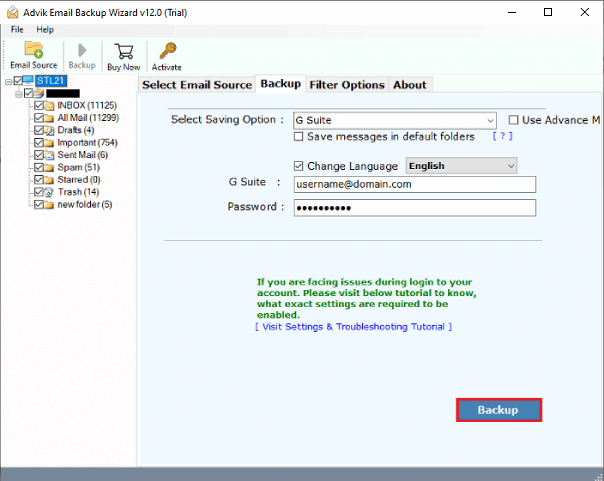
The software will start migrating emails from DreamHost to Google Workspace mailbox. It will complete the process in a few seconds.
Salient Features of DreamHost to Google Workspace Migration Tool
- Batch Mode: The tool offers a batch mode option which enables you to migrate emails from multiple DreamHost accounts to Google Workspace at once. You just need to enter a CSV file that contains the login details of multiple accounts.
- Bulk & Selective Migration: With this software, you can transfer the entire mailbox in a single attempt. Additionally, the tool offers advanced email filter options to transfer selected emails based on date range, to, from, subject, etc.
- Preserves Email Properties: While migrating DreamHost to Google Workspace, this utility maintains all email elements such as attachments, images, email headers, hyperlinks, etc.
- Maintains Folder Structure: The application maintains the folder and subfolder strcture during the DreamHost to Google Workspace migration.
Final Words
In this post, we have discussed how to migrate DreamHost to Google Workspace. Here, we have mentioned both manual and automated solutions for successfully transferring DraemHost emails to Google Workspace. Both solutions are 100% worksable. You can choose whichever solution suits your migration needs.