How to Migrate Email from cPanel to Office 365?
Summary: In this article, we will discuss how to migrate email from cPanel to Office 365 account with complete mailbox items. It can be stressful to choose the right solution to accomplish this task as both are highly popular email services. So, keep reading this blog to discover the most suitable approach to complete the cPanel to Microsoft 365 migration process.
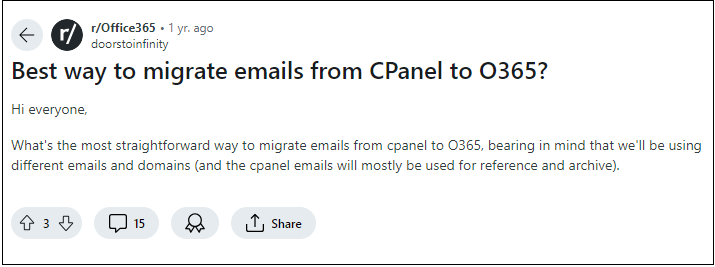
As more businesses look to transition their email services, common queries arise about the best methods to accomplish this. For example, while researching efficient solutions, we found a user query on Reddit where someone was seeking an easy way to migrate cPanel emails to Office 365. This highlights the need for clear guidance on this process.
If you’re migrating from a cPanel account to Office 365, it’s important to consider the key differences between cPanel email and Office 365. Understanding these differences will help you know the advanced features that Office 365 offers.
cPanel Email vs Microsoft 365
| Feature | cPanel Email | Microsoft 365 |
|---|---|---|
| Email Storage | Limited storage based on hosting plan | Large storage with scalable options |
| Collaboration Tools | Basic email functions | Advanced tools like Teams, SharePoint |
| Security | Basic security features | Advanced security and compliance tools |
| User Interface | Simple, web-based interface | Modern, user-friendly interface |
| Integration | Limited integration with other services | Seamless integration with Office apps |
Now, without any further delay, let’s start the migration process.
How to Migrate Email from cPanel to Office 365 Manually?
Using MS Outlook, you can transfer cPanel emails to Office 365.
- Open Outlook and go to File >> Add Account.
- Enter cPanel account details to set up with Outlook.
- After configuration, navigate to File >> Open & Export >> Import/Export.
- Choose Export to a File and click Next.
- Select Outlook Data File (.pst) and press Next.
- Next, choose cPanel mailbox folders to export.
- Click on Browse to choose the destination location and tap on Finish.
- Now, add your Office 365 account to Outlook.
- After that, again go to File >> Open & Export >> Import/Export.
- Choose Import from another program or file.
- Select the above exported .pst file and import into Office 365 mailbox folder.
The process is complete!
Limitations of Manual Approach
- The process is lengthy and time-consuming.
- Outlook must be installed.
- No filter option to migrate selected data.
How to Transfer cPanel Emails to Office 365 Automatically?
Check out the Advik Email Migration Tool for Windows. This software is specially designed to migrate email from cPanel to Office 365 accounts. The tool is smart enough to transfer emails without losing a single bit of information. You can apply an email filter to migrate only specific emails. The software is loaded with dozens of features. With this utility, you will face a seamless migration process. The software maintains folder and sub-folder hierarchy along with email attributes.
Download the program and try it for free.


Note:Click here to allow Third-Party Apps From Office 365
Steps to Migrate cPanel to Office 365 Account
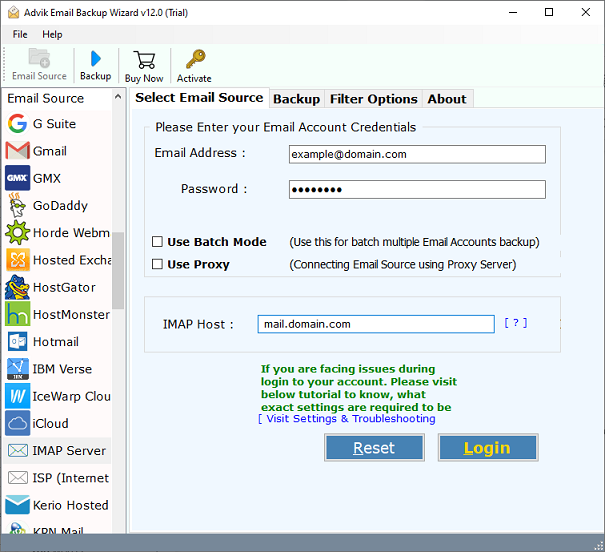
1. Run the software and sign in to your cPanel email account.
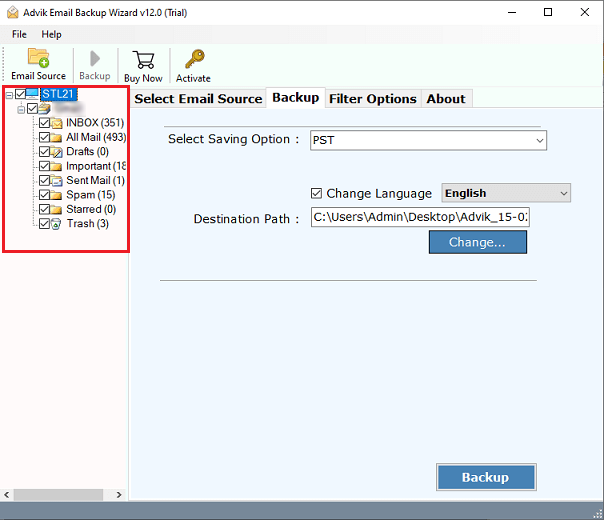
2. After login, select mailbox folders to migrate.
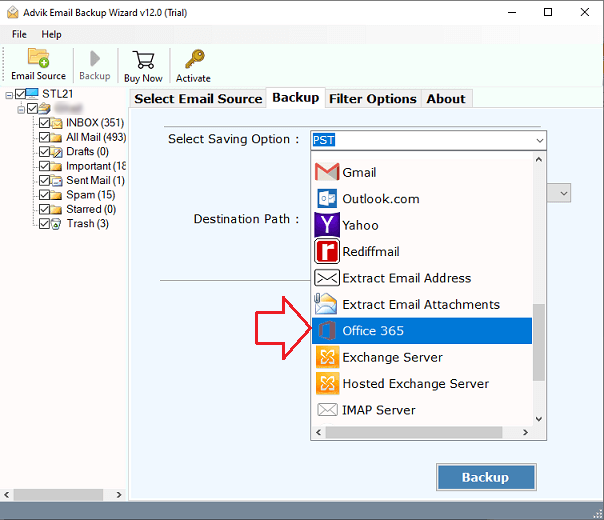
3. Choose Office 365 as a saving option from the list.
4. Enter Office 365 login credentials and click Backup.
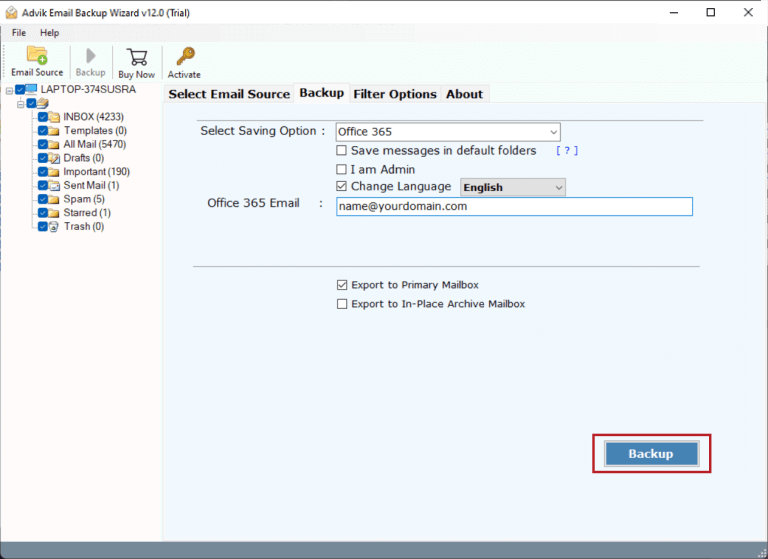
5. Then, enter the Office 365 password in the new Microsoft tab and click Sign in.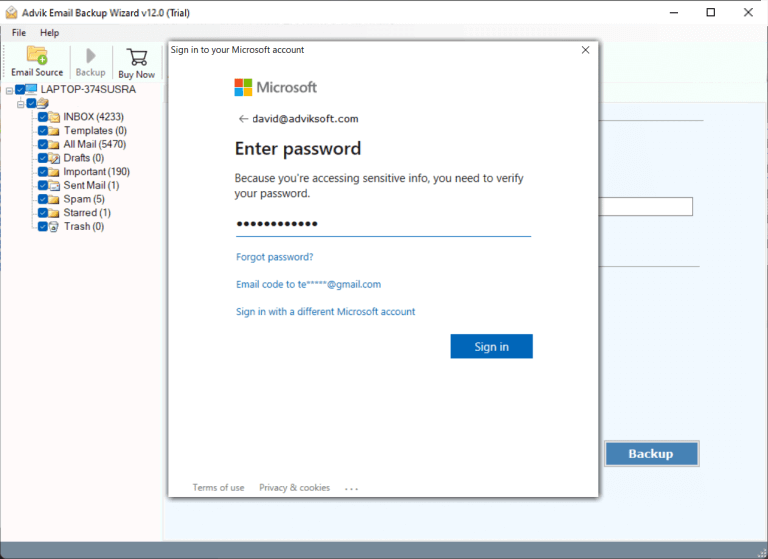
Finished! This is how you can migrate email from cPanel to Office 365 account.
Watch How to Migrate cPanel Email to Office 365
Why Choose Automated Software?
Batch Mode: This feature lets you migrate emails from multiple cPanel accounts all at once. You can easily upload a CSV file that contains the login details for all the accounts.
Selected & Bulk Migration: The tool allows you to choose specific folders to migrate in bulk, saving you time and effort without any restrictions.
Change Language: While migrating cPanel emails to Office 365, users can map folders in various languages, including English, Dutch, Finnish, German, French, and more.
Advanced Filter Option: This feature lets you move specific emails based on criteria like Date Range, To, From, Subject, etc. You can also exclude unwanted folders like Spam, Deleted, and Junk Mail.
Preserve Hierarchy and Components: The migration tool keeps the original folder structure and email details intact, including Bcc, Cc, To, From, Subject, Date, formatting, images, inline content, and signatures.
Conclusion
In the above article, we have discussed the manual and advanced methods to migrate cPanel to Office 365. Once you have read the post it no longer needs to be a daunting task. To ease this task, execute cPanel to Office 365 migration with automated solutions, which will not only minimize your manual efforts but also reduce time consumption. The software is loaded with dozens of amazing features. Hope this article will be helpful for you and allow you to migrate cPanel emails to Office 365 without any hassle.
Frequently Asked User Queries
Q 1. How do I migrate mailbox from cPanel to Office 365?
Ans. Follow the suggested steps for cPanel to M365 migration;
- Firstly, run the cPanel to Office 365 tool on your PC.
- Then, choose Webmail and enter its account login details.
- After that, select the desired mailboxes and pick Office 365.
- Then, enter the account credentials of the Office 365 account.
- Finally, hit on the Backup tab to begin transferring emails from cPanel to Office 365.
Q 2. How do I set up my cPanel email in Outlook 365?
Ans. Follow the steps below to add cPanel email account to Office 365.
- Install and Run Outlook application.
- Click the File tab and choose Add Account.
- Enter account details of the cPanel email account.
- Provide all the configuration details & click Connect.
- Once verified, Outlook will add your account.
- Follow the same steps to set up O365 account.
Q 3. Can I bulk migrate emails from cPanel to Microsoft 365?
Ans. Yes, you can easily transfer multiple cPanel emails to Office 365 account in a single process.
Q 4. Is there any demo version available to check the software functionality?
Ans. Yes, just click on the FREE download button and explore the working process along with all the features. This trial version will let you transfer 25 emails from cPanel to Office 365 for FREE.