How to Migrate Tutanota to Gmail Account?
Jenny Lowrence | February 2nd, 2026 | Email Migration
In this digital era, migrating emails from one platform to another is a common task. Several users want to learn how to migrate Tutanota to Gmail account. If you are also one of them then this post will help you. This write-up explains the simple steps to transfer emails from Tutanota to Gmail.
Tutanota is known for its strong privacy and end-to-end encryption. But when it comes to flexibility, integrations, storage, and ease of access across devices, many users prefer Gmail. It is the most popular email service provided by Google. It is integrated with other Google services like Drive, Meet, Photos, etc.
How to Migrate Tutanota to Gmail Manually?
However, there is no direct way to transfer Tutanota emails to Gmail. Tutanota is an encrypted email system. It does not allow direct mailbox export to other services via IMAP configuration. However, you can export Tutanota emails and then import them into Gmail. This method works in two phases:
Step 1. Export Tutanota Emails
- Login to your Tutanota account.
- Open the email that you want to migrate and click on More (…).
- Choose Export and save the email as .eml file.
- Repeat the steps to export other emails.
Step 2. Import EML Files into Gmail
Gmail does not directly import EML files. You need to use email client to do it.
- Launch Thunderbird and go to Tools> Account Settings.
- Click on Account Actions and choose Add a Mail Account.
- Enter your Gmail account details to add in Thunderbird.
- Create a new folder in Thunderbird.
- Drag & drop the above exported EML files to the newly created folder.
- Move these files to Gmail folder in Thunderbird.
Wait for sync emails to Gmail. This is how you can manually migrate Tutanota emails to Gmail mailbox.
Limitations of manual Approach
- This is a lengthy and complicated process.
- It is not suitable for large mailboxes.
- Email client installation is required.
How to Transfer Tutanota Emails to Gmail Automatically?
If you want a simple and direct solution, then try the Advik Email Migration Tool on your system. The software can directly migrate Tutanota to Gmail without any configuration. You just need to enter the login details of both email accounts to begin the process. With this utility, you can move all or selected email folders as per your needs. The tool preserves data integrity and folder structure during the Tutanota to Gmail migration.
Now, why are you waiting? Just click on the below link and try it for FREE.


Steps to Migrate Tutanota Emails to Gmail
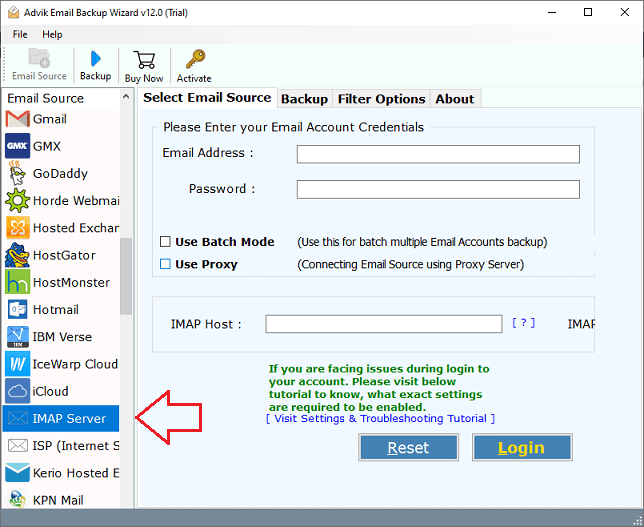
Step 1. Run the tool and choose IMAP Server as email source.
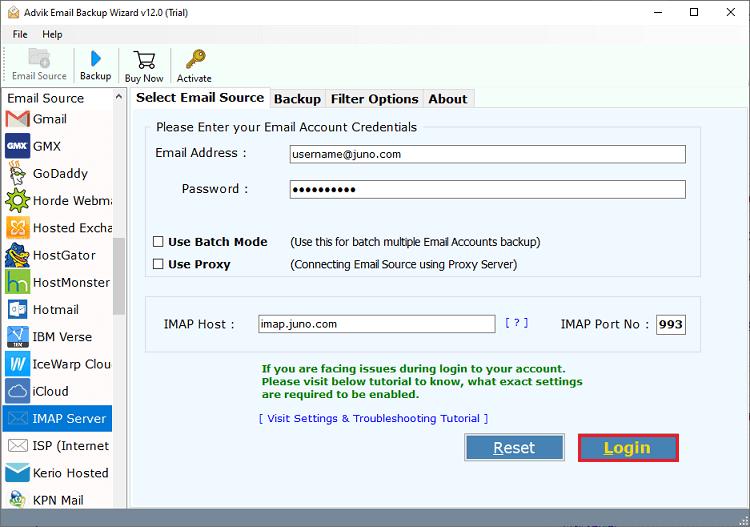
Step 2. Enter your Tutanota Mail account login credentials to sign in.
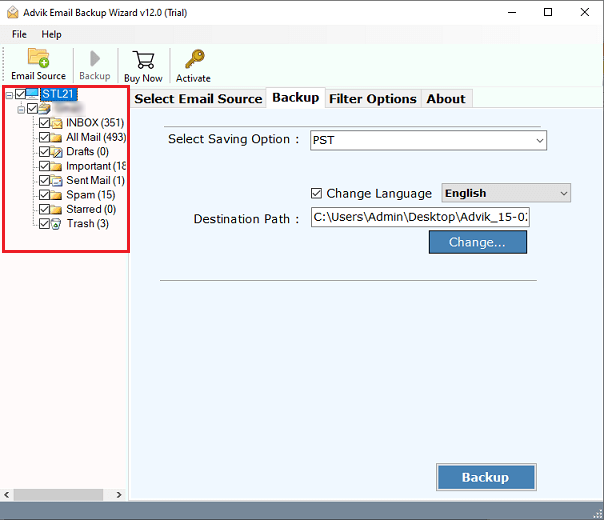
Step 3. Choose the required mailbox folders to transfer.
Step 4. Next, choose Gmail as a saving option.
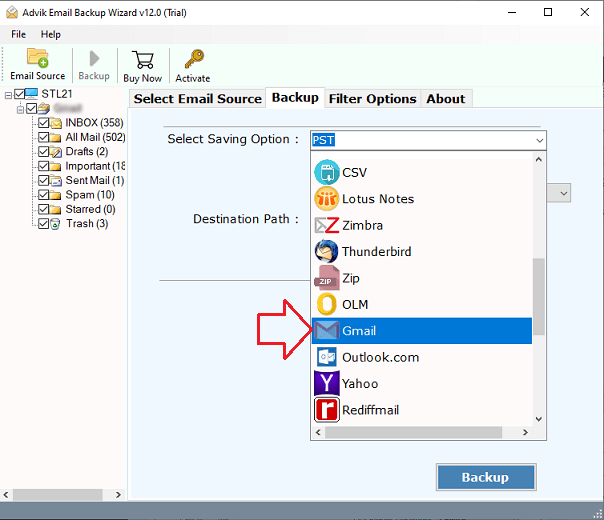
Step 5. Enter your Gmail account login details and click Backup button.
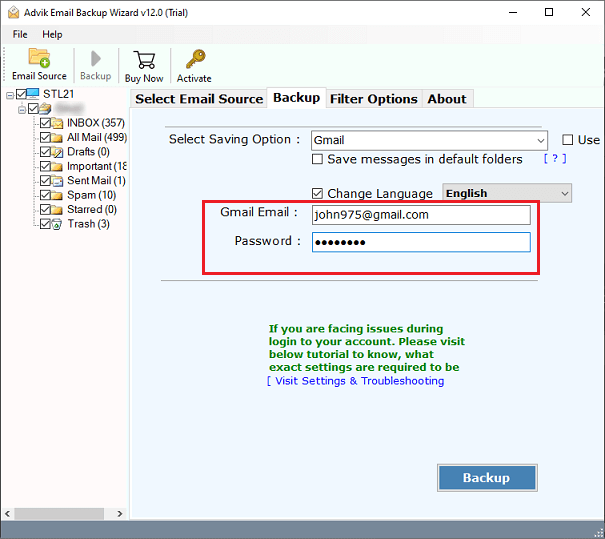
The software will start migrating emails from Tutanota to Gmail mailbox. Once the process is complete, login your Gmail account and check the transferred emails here.
Why Choose Automated Tool Instead of Manual Solution?
- Directly migrate from Tutanota to Gmail.
- Move the entire mailbox in a single attempt.
- Advanced email filter options for selective migration.
- Preserves all email attributes while transferring.
- Keeps the original mailbox folder hierarchy even after the process.
- Simplified user graphical interface for all types of users.
- Compatible with both Mac and Windows operating systems.
Final Words
In this post, we have discussed how to migrate Tutanota to Gmail account. Here, we have explained two different ways to perform the Tutanota to Gmail migration. If you have a technical expert and a limited number of emails to migrate, then you can manually do it. Otherwise, choosing the automated tool is the smart choice.