How to Export Outlook Web App to PDF Files?
Jackson Strong | October 27th, 2025 | Data Backup
In today’s digital workplace, emails often contain contracts, receipts, business deals, or legal communications that we need to preserve or share outside our mailboxes. If you are using the Outlook Web App email service and want to save your emails in PDF format, then this post is for you. In this guide, we’ll cover two simple ways to export Outlook Web App to PDF files.
- Manual Method using Print option (easy but useful if you need to convert only a few emails)
- Automated Solution for bulk exporting
We’ll discuss both methods in detail. but before we understand the benefits of exporting Outlook.com emails into PDF files.
Why Export Outlook Web App to PDF?
Here are some advantages of saving emails as PDF files:
- PDF files can be easily opened on any device without an internet connection.
- Keeps original formatting and attachments intact.
- PDF files are easy to share and print.
- Ideal for storing legal evidence.
First, we take a look at the manual method of saving Outlook.com emails to PDF format. So let’s get started…
How to Save Email as PDF in Outlook Web App?
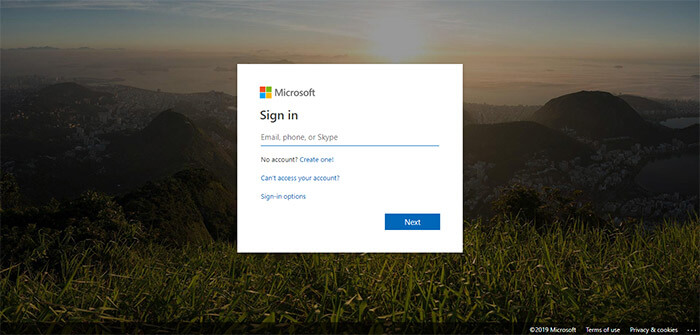
- Log in to your Outlook.com account.
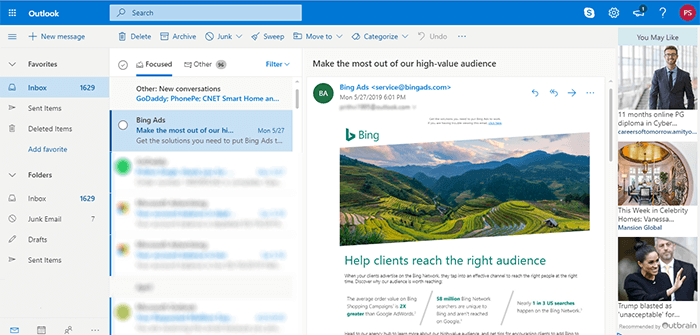
- Open the desired email to save it as a PDF file.
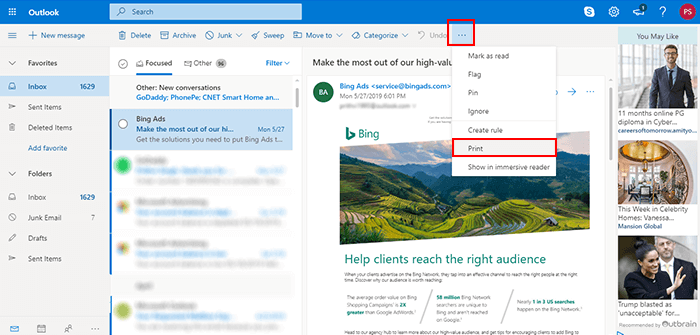
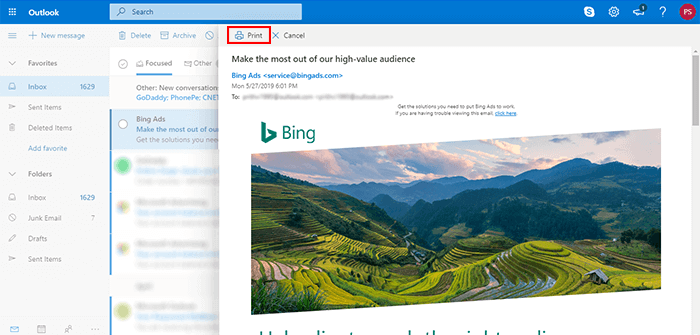
- Click the more icon on the top bar and select the Print option.
- Click on the Print button again as shown in the screenshot.
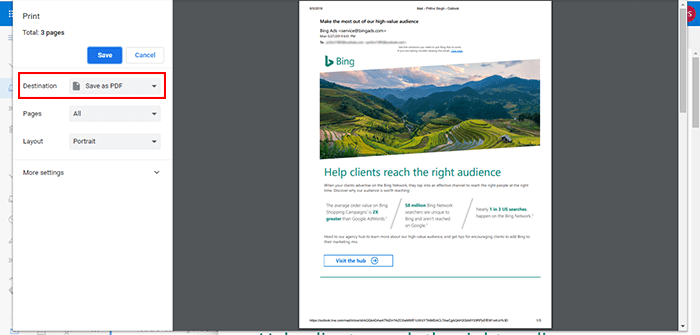
- Select Save as PDF and then click on the Save button.
You can repeat the same step, again and again, to save multiple emails from Outlook Live to PDF format one by one.
Note: If you want to export Outlook Web emails to PDF in bulk at once, then you need to opt for the second method. So read on further.
How to Batch Convert Outlook.com Emails to PDF Files?
Check out the Advik Outlook.com Backup Tool that enables users to save Outlook Web emails to PDF in bulk. The software has the simplest graphical user interface so anyone with a basic knowledge of computers can operate this tool.
Moreover, it maintains a complete folder hierarchy of Outlook.com mailbox throughout the process. Also, it preserves all the key elements of emails in their original state.
You can download this automated tool for free by clicking on the button below to check its efficiency for FREE.


Steps to Export Emails from Outlook Web App to PDF
1. Run the suggested application on your system.
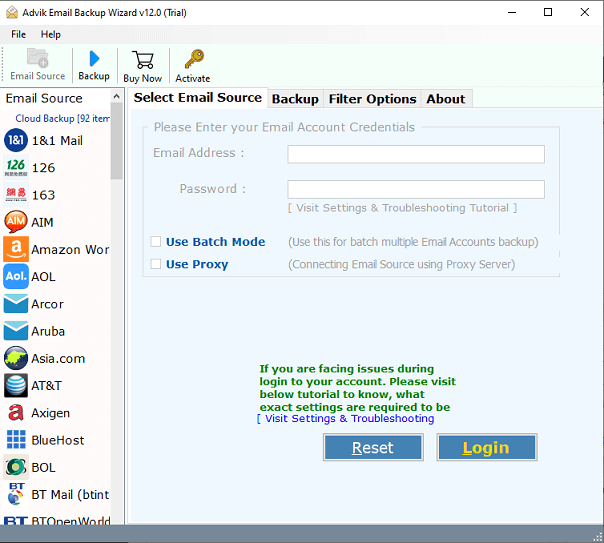
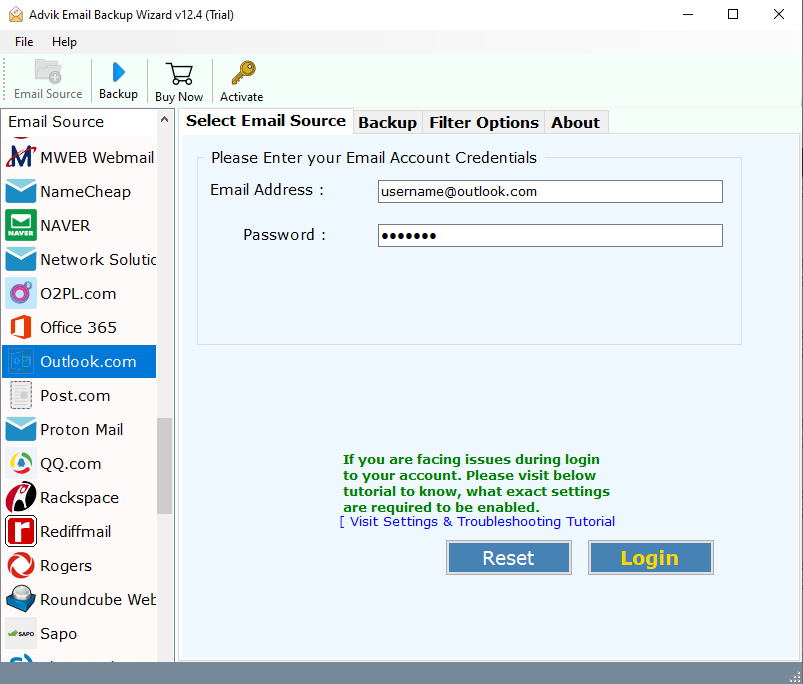
2. Enter Outook.com login credentials in the software panel.
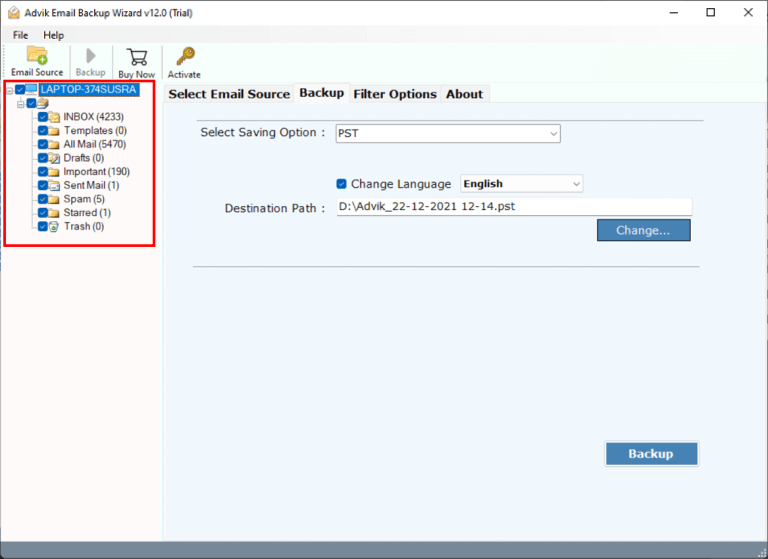
3. Select the desired mailbox folder that you want to convert.
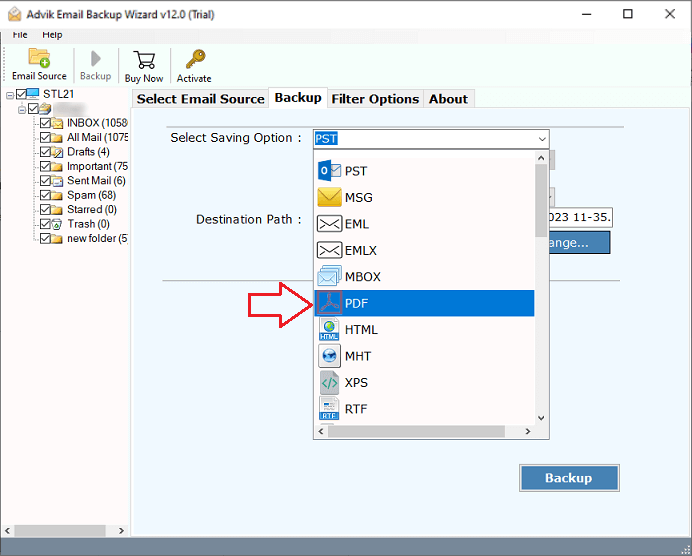
4. Select PDF as a saving format from the list.
5. Click the convert button and analyze the process of conversion.
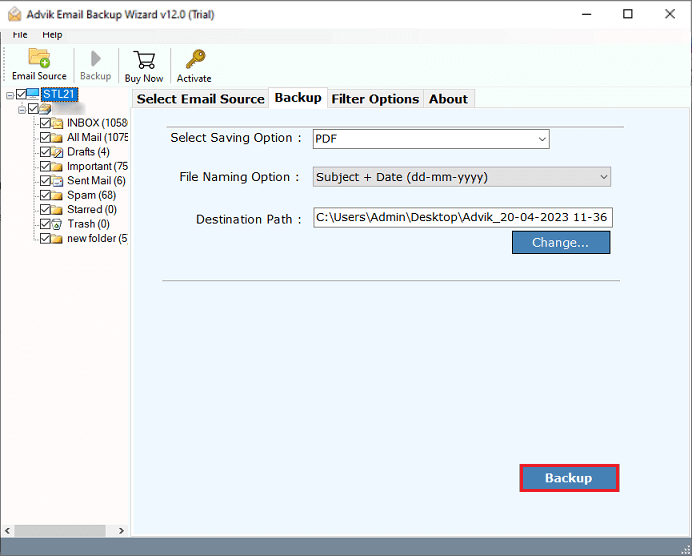
Finished! This is how you can directly batch export Outlook.com to PDF format.
This advanced tool comes with a self-explanatory user interface with several cool and amazing features. Some of them are as follows;
- Batch export Outlook Web App to PDF format instantly.
- Multiple saving options such as Outlook.com to PST, MSG, EML, etc.
- Convert Outlook.com emails to PDF files along with the attachments included.
- Cloud-to-Cloud migration, such as Outlook.com to Gmail, Yahoo Mail, etc.
- Advanced email filter for selective conversion, based on To, From, and subject
- Convert Outlook.com emails to PDF files along with the attachments included.
- Support all versions of Windows OS, such as Windows 11, 10, 7, XP, Vista, etc.
Conclusion
This article has explained solutions on how to convert Outlook.com mail to PDF in a simpler manner. By using the suggested method, you can avoid complicated ways to export Outlook Web App emails to PDF. Moreover, if you need an all-rounder automated tool, the software mentioned in this blog is the best recommendation that you can ask for.