How to Open EML File on iPhone? [Updated 2026]
In this digital era, people rely on smartphones for daily tasks, and accessing email files on mobile devices has become essential. Many times, iPhone users feel stuck with some email files that have been stored in EML format and try hard to access those on their iPhone. In this blog, we will be talking about the need to open EML file on iPhone, manual tricks to do so with their pros & cons, and finally, the mention of a professional tool, which will make the entire thing simpler, even for beginners.
An EML file is a standard file format that stores single email messages in its original format, along with their sender, receiver, subject, attachments, email body, and headers. Often, there are circumstances when users need to access, open, and read EML files on iPhone.
Table of Contents
Why Do Users Need to Open EML File on iPhone?
This need usually arises in the following situations:
- When your colleague shares email records in EML format, it is necessary to open them quickly for work purposes.
- EML files are commonly used for email backups, so users may need to check old emails anytime via their iPhone.
- EML files preserve original formatting. At the time of evidence analysis, which is needed in most digital forensics cases.
Let’s look at real-time user query to understand the need in a better way.
User Query:
“Hello, I’m a project manager and currently away from my office for some urgent work. I’ve just received an important email in EML format that I need to review immediately, but I’m unable to read it on my Apple iPhone. Is there any quick solution that can help me to open EML file on my iPhone? Please suggest to me.”
Manual Methods to Read EML File on iPhone
In this regard, we have two tried and tested methods. Use both methods and then decide which one works best for you.
#1. Access EML File by Renaming
- Locate the .eml file on your iPhone.
- Change the extension to .txt.
- Open it in a text or web browser (limited functionality).
Pros:
- Quick procedure to open EML file on iPhone
Cons:
- Difficult to read due to raw code
- Attachments & formatting might not display.
#2. Open EML File Using Gmail
In this approach, you need to send EML file to your Gmail account. Then, open Gmail on your Apple iPhone and access it.
Pros:
- Quick and free solution
Cons:
- Only display the email content
- Formatting & attachments might not appear.
- Not suitable for multiple files.
#3. Read Using Apple Mail AppWhen you save your EML file in iCloud Drive, then the Mail App could preview it.
Pros:
- No extra tool will be required for this.
Cons:
- Tedious procedure if you have multiple files.
Why Manual Solutions Are Not Recommended?
- Time-consuming process if you have a large number of files.
- These methods do not preserve the formatting of EML files.
- Email attachments might get corrupted during the process.
Professional Way to Open EML Files on iPhone
Advik EML Converter is the secure and safest approach for accessing your EML files on iPhone without any hassle. This software allows you to add multiple EML files or folders for conversion so that you can read them on your iPhone. Also, various filter options will help in the selective conversion of EML files without any hassle. Just convert EML files into PDF format. After that, you can connect your iPhone to your system and transfer the converted file. This way, you can easily read .eml file data on your iPhone without any hassle.
Click the FREE download button and check how it works.

Step-by-Step Guide to View EML Files on iPhone
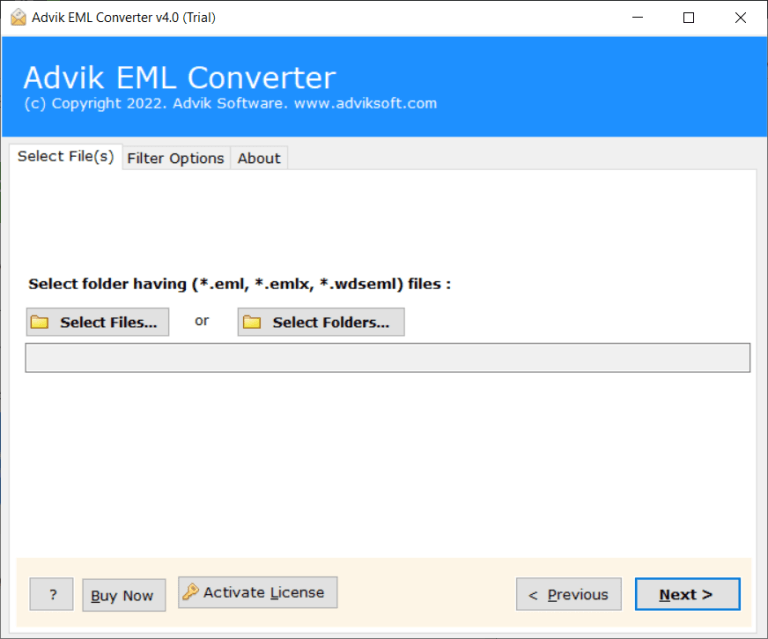
Step 1. Run the software and add .eml files to the software.
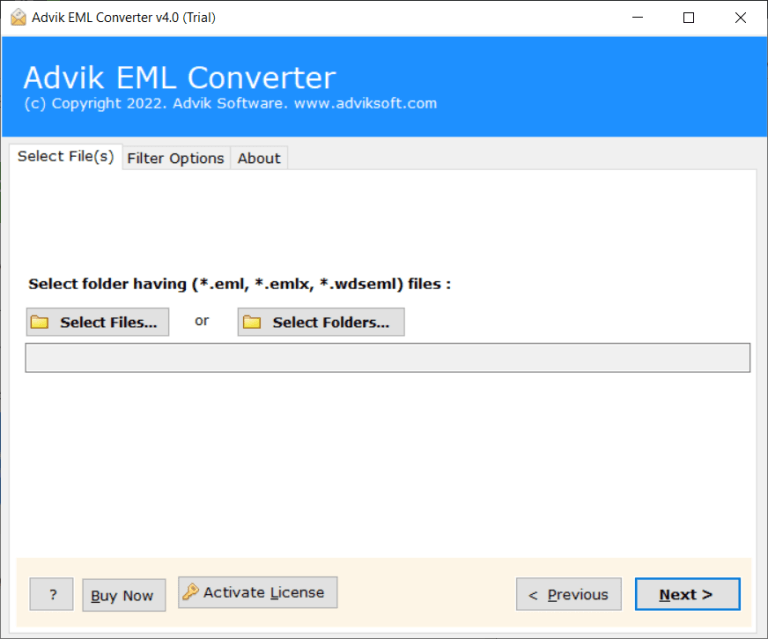
Step 2. Select the folders you want to convert.
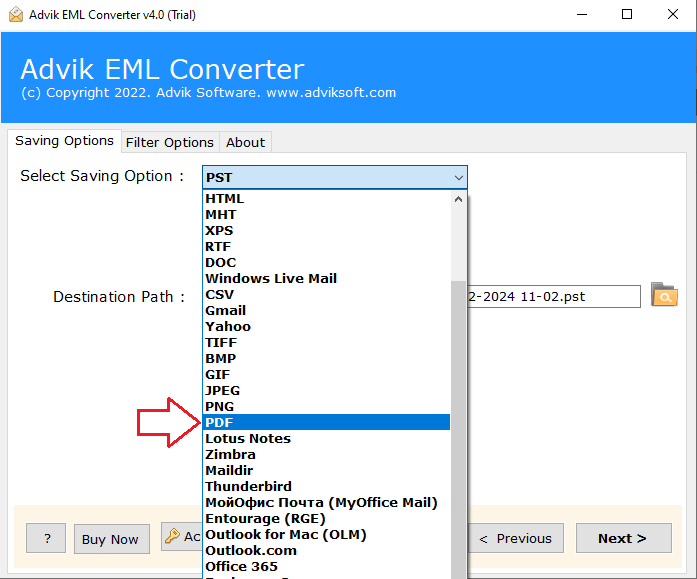
Step 3. Choose any saving option from the list.
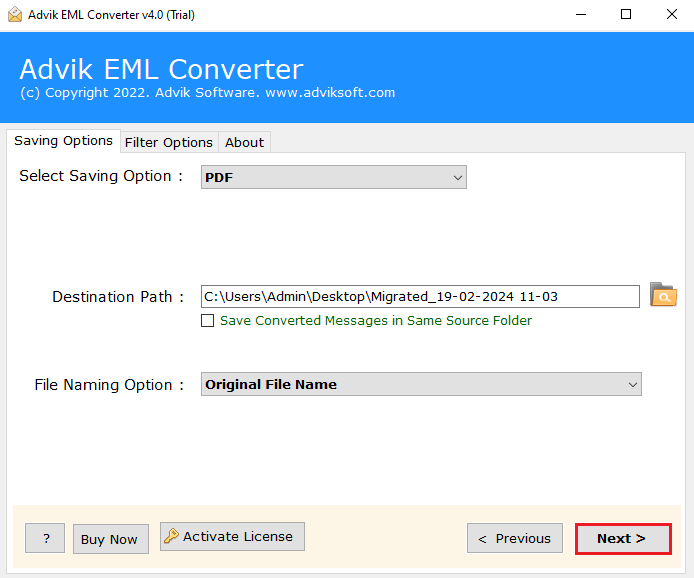
Step 4. Browse the destination location and hit the Backup button.
6. Now connect your iPhone with your system and transfer the exported data file.
Done! Here complete the process.
With this tool, various prominent features help in completing this task effortlessly.
- Preserve email key elements and attributes.
- Various email filters to perform selective emails.
- Also convert EML to HTML, TXT, PDF, MSG, and many other file formats.
- Allow for transferring EML files to various webmail accounts.
- Simple and user-friendly interface for both technical and non-technical users.
- Maintain email folder hierarchy and structure.
Conclusion
In this post, we discussed several ways to open EML file on iPhone without any hassle. You can manually read EML files on iPhone using any manual tricks but it will take a lot of time and is highly unreliable. For a more efficient and hassle-free solution, using a tool like Adviksoftware is highly recommended. This software allows you to convert EML files to a format easily readable on your iPhone, with a simple process that maintains email content, attachments, and structure. Whether you choose the manual method or the software approach, you now have the methods to access your EML files on your iPhone without any issues.
Frequently Asked Questions
Q1. Does the software keep attachments while converting EML files?
Ans. Yes, the tool preserves all attachments and properties during conversion.
Q2. Is it possible to open multiple EML files on iPhone using this utility?
Ans. Yes, the software allows you to convert multiple .eml files in one go to access them at once.