How to Transfer Rogers to Google Workspace?
Jenny Lowrence | February 17th, 2026 | Email Migration
Many users want to migrate Rogers emails to Google Workspace for better email management, collaboration tools, and storage. Rogers Communications email works well for basic and personal communication needs, but Google Workspace offers advanced features designed especially for professional and business communication. If you are also planning to transfer Rogers to Google Workspace then this post will help you. Here, we’ll provide a manual as well as a professional solution to perform the Rogers to Google Workspace migration.
Why Migrate from Rogers to Google Workspace?
Here are some reasons for switching from Rogers to Google Workspace;
- Google Workspace allows you to use custom domain emails.
- It offers strong spam filtering, 2FA, and enterprise-level data protection.
- G Suite has a good collaboration environment and allows you to work easily with Google Docs, Sheets, Meet, etc.
- It is more suitable for organizations that plan for long-term growth.
How to Transfer Rogers to Google Workspace Manually?
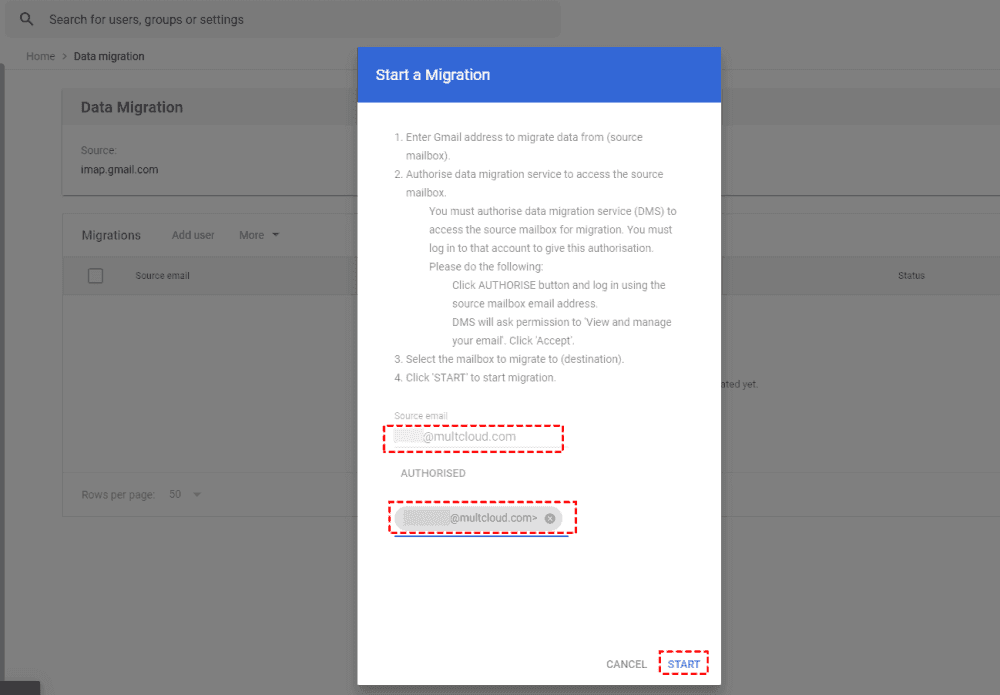
1. Sign in to Google Workspace Admin Console.
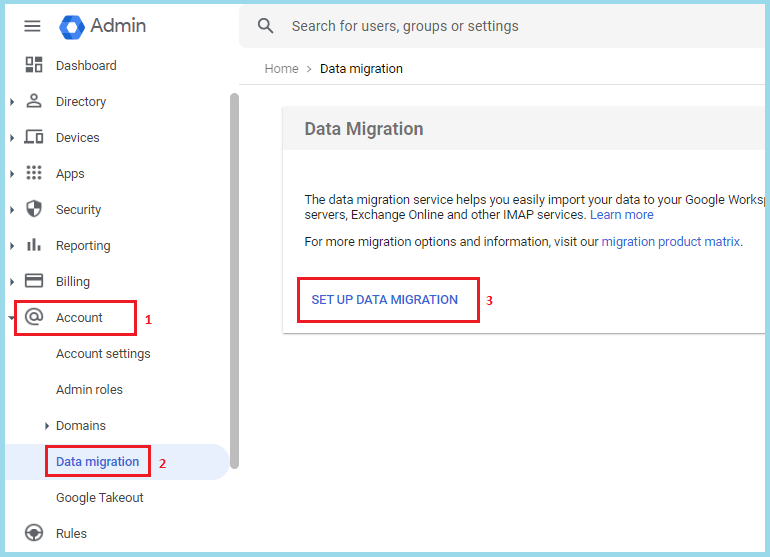
2. Go to Account >> Data Migration >> Set up Data Migration.
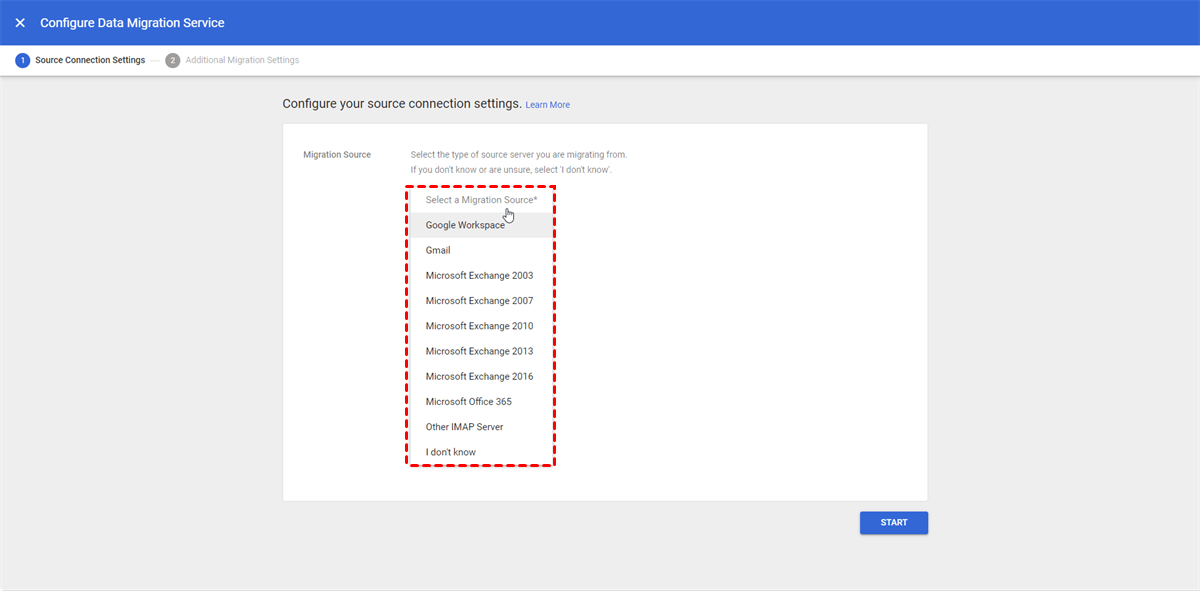
3. Choose Other IMAP server as Migration Source.
4. Enter Rogers IMAP server details: IMAP Server:imap.broadband.rogers.com, Port:993, Security: SSL
5. Now, enter your Rogers email address and password account credentials.
6. Choose the start date for migration and select Email as data type.
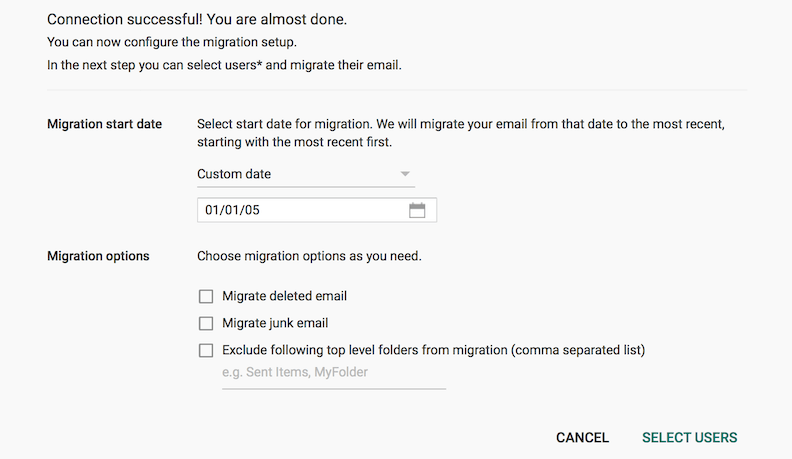
7. Add the Google Workspace email address as the destination.
8. Click the Start button to begin the migration process
How to Migrate Rogers to Google Workspace Securely?
If you want a simple and quick solution, then try the Advik Email Migration Tool on your system. The software can transfer Rogers to Google Workspace in just a few simple clicks. Just enter the login details of both email accounts to begin the migration process. It can move the entire mailbox at once. Also, it offers advanced filter options to migrate selected emails. The tool retains the original structure of mailbox folders during the Rogers to Google Workspace migration.
Tap on the below link to download it for FREE.


Steps to Transfer Rogers Emails to Google Workspace
1. Run the tool on your system.
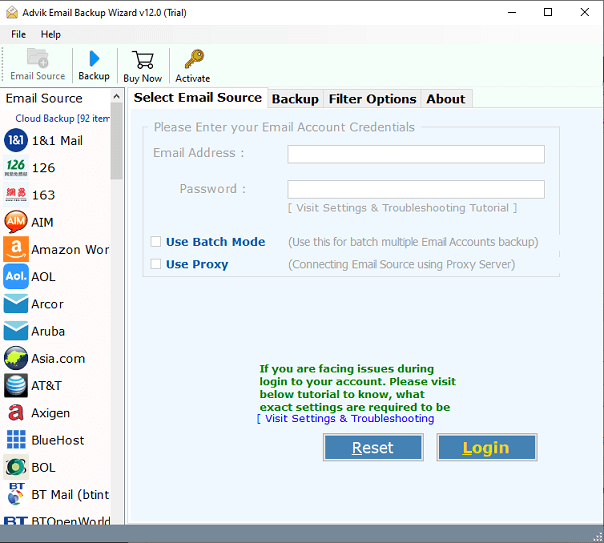
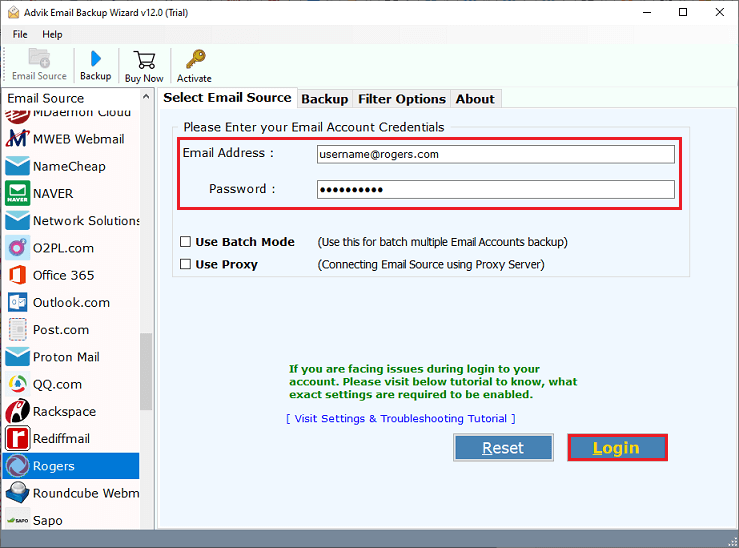
2. Choose Rogers as the email source and enter its credentials to sign in.
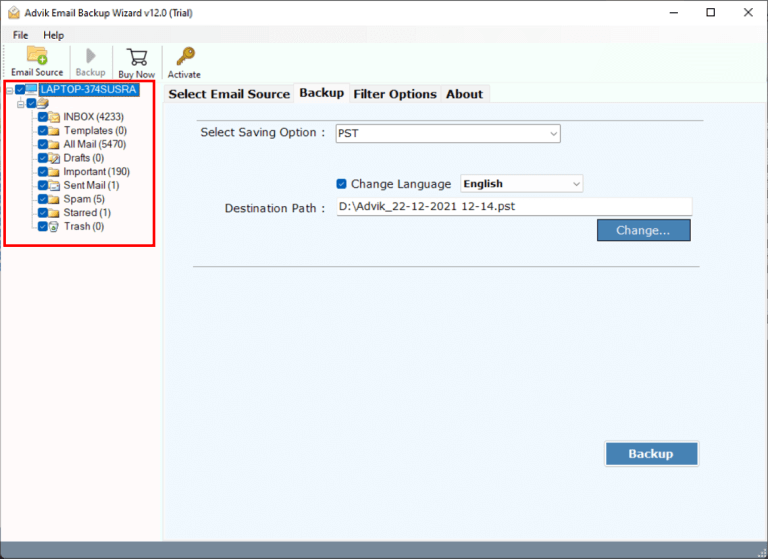
3. Choose the mailbox folders that you want to migrate.
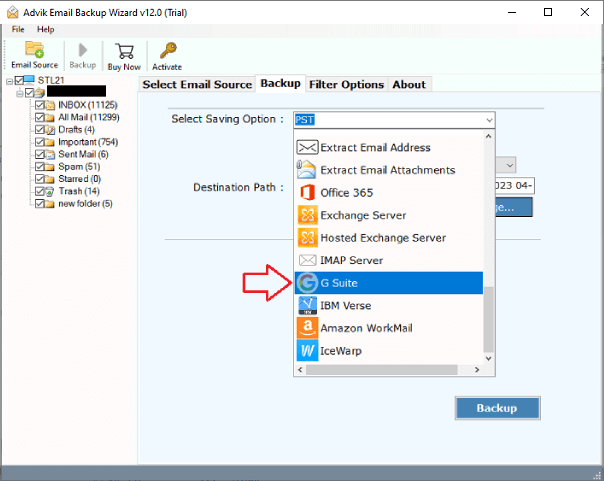
4. Select G Suite as a saving option.
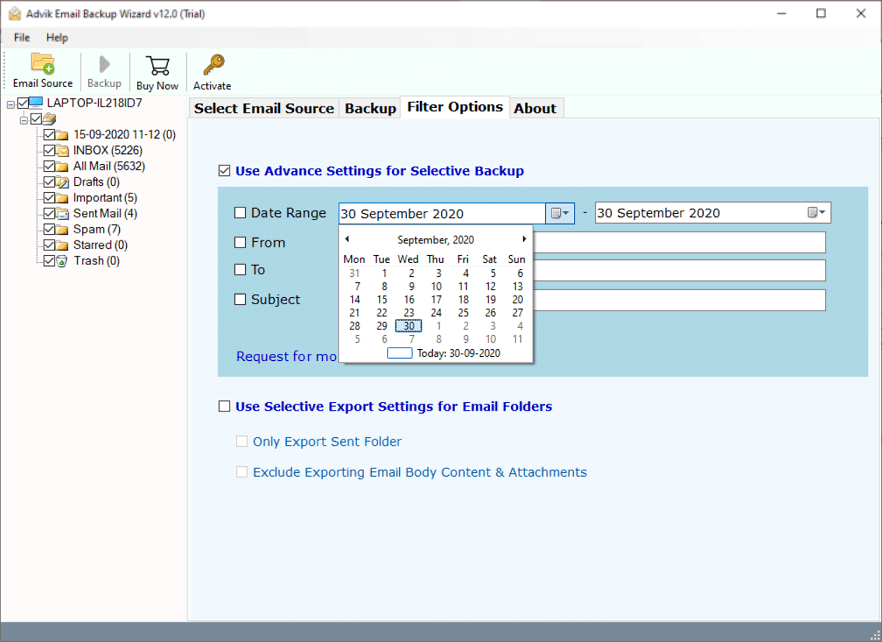
5. Apply filter options. (Optional)
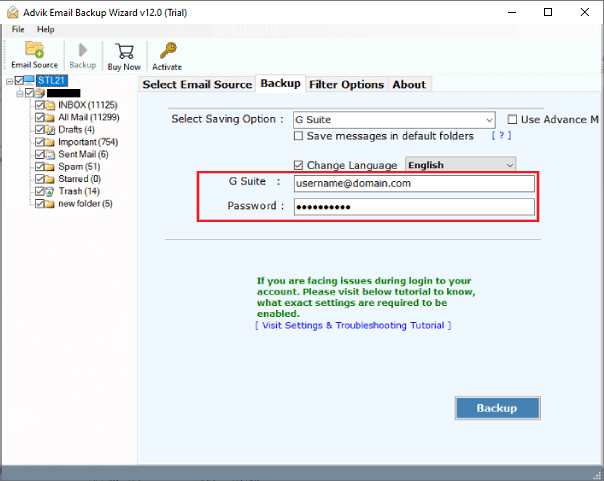
6. Enter your Google Workspace account login details and click Backup.
Now, the software will start migrating emails from Rogers to Google Workspace mailbox. Once the process is completed, log in to your Google Workspace account to check all the transferred emails here.
Advantages of Using Automated Tool
- Directly migrate Rogers to Google Workspace without external help
- Move the entire Rogers mailbox folders in a single attempt
- Allows the transfer of selected emails based on date range, to, from, etc.
- 30+ saving options to transfer Rogers to Gmail, Office 365, Yahoo etc.
- Preserves all email properties and folder hierarchy during the migration.
- Simplified user graphical interface for both trechnical or non-technical users.
- Supports all the latest and old versions of both Mac and Windows OS.
Final Words
In this post, we have discussed how to transfer Rogers to Google Workspace. Here, we have explianed both manual and automated solutions to migrate Rogers emails to Google Workspace. The manual method is free and works best for small mailboxes. If you have large data, it may become time-consuming and complex. In such cases, the professional migration tool is recommended for faster and more secure results.