How to Transfer SiteGround Emails to Office 365?
Jackson Strong | February 12th, 2026 | Email Migration
Do you want to migrate SiteGround to Office 365 but don’t know where to start? Do not panic! In this write-up, we will share two different methods to transfer SiteGround emails to Office 365. Read this article till the end and complete the SiteGround to Office 365 migration process effortlessly.
Transferring emails from one server to another server is a complex process. To complete the migration without any data loss need a secure and efficient workable solution. Here in this post, we will discuss one such solution that can transfer SiteGround emails to Office 365 in a few simple clicks. Continue reading and learn the step-by-step process of migrating emails from SiteGround to Office 365 mailbox.
How to Migrate SiteGround Email to Office 365 for Free?
You can manually transfer SiteGround to Office 365 using an email client like Outlook, Thunderbird. Follow the below given steps to move emails from SiteGround to Office 365 via Outlook;
- Launch Outlook and go to File >> Add Account.
- Enter the SiteGround email address and click Connect.
- Choose IMAP as the Account type.
- Type IMAP Settings of SiteGround account.
- Next, enter the password of SiteGround and click Done to complete the configuration process.
- Wait for Outlook to sync emails.
- Now, repeat the steps to add Office 365 account.
- Once both accounts are added, drag & drop emails from SiteGround to Office 365.
Done! This is how you can migrate SiteGround emails to Office 365 but this is a lengthy and complicated process.
However, if you want a simple, quick, and direct solution, then you can use the automated tool.
How to Transfer SiteGround Emails to Office 365 Automatically?
With the help of the Advik Email Migration Tool you can easily migrate SiteGround to Office 365 mailbox. The software is efficient enough to move complete SiteGround mailbox data to Office 365 mailbox without data loss. It allows you to select email folders to transfer only important folders. Additionally, with its advanced filters, one can migrate SiteGround emails based on date range, to, from, subject, etc.
To start the SiteGround to Office 365 migration, run the tool and login to your SiteGround mail account. After that, from multiple saving options, choose the Office 365 option and provide the necessary details. The software will start migrating emails from your SiteGround into Gmail along with attachments.
Download the free version of the software and know it’s working.


Steps to Migrate SiteGround to Office 365
1 . Open the tool on your system and start the migration process.
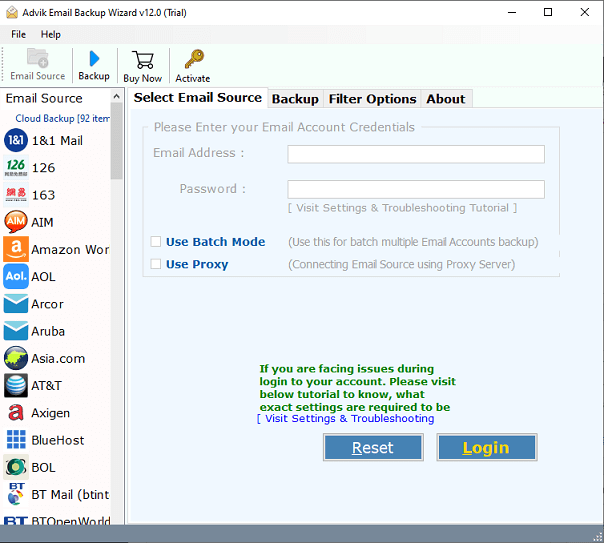
2. From the email source search for SiteGround and login with your credentials.
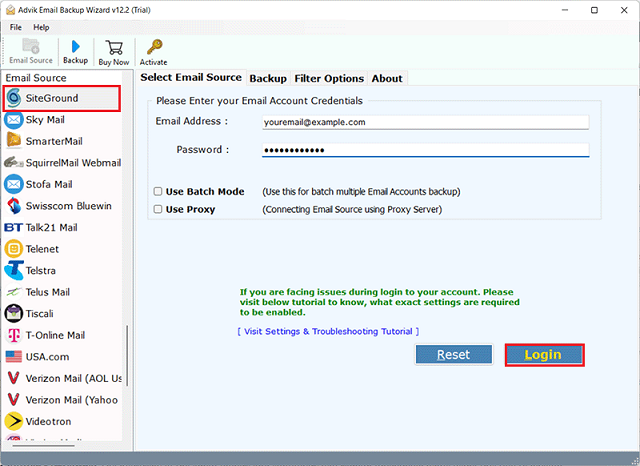
3. Select the email folders you want to transfer.
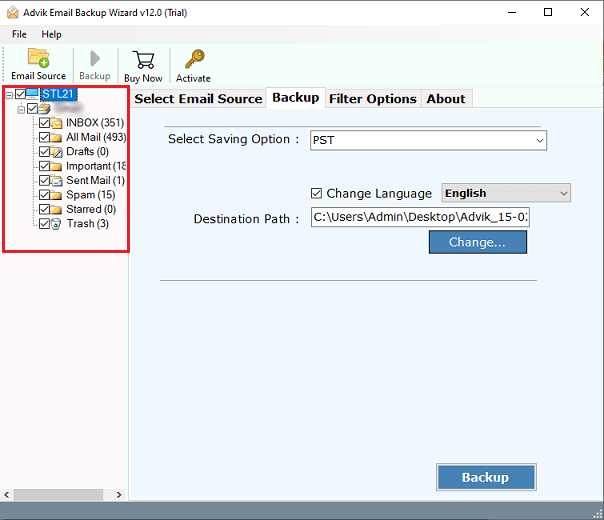
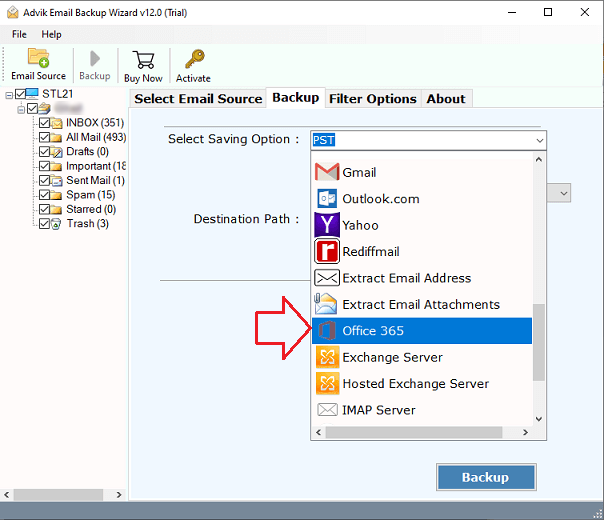
4. From different saving options choose Office 365.
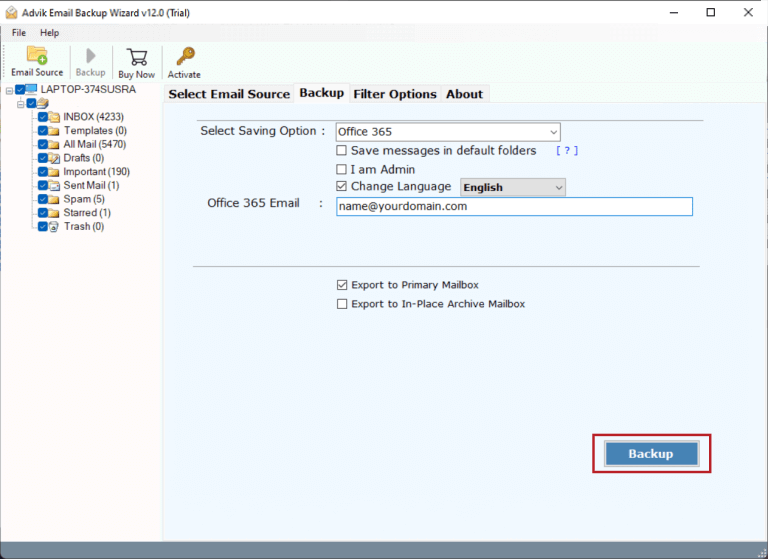
5. Enter your Office 365 email id and click on the Backup button.
6. Now in pop-up windows, enter your Office 365 password and login.
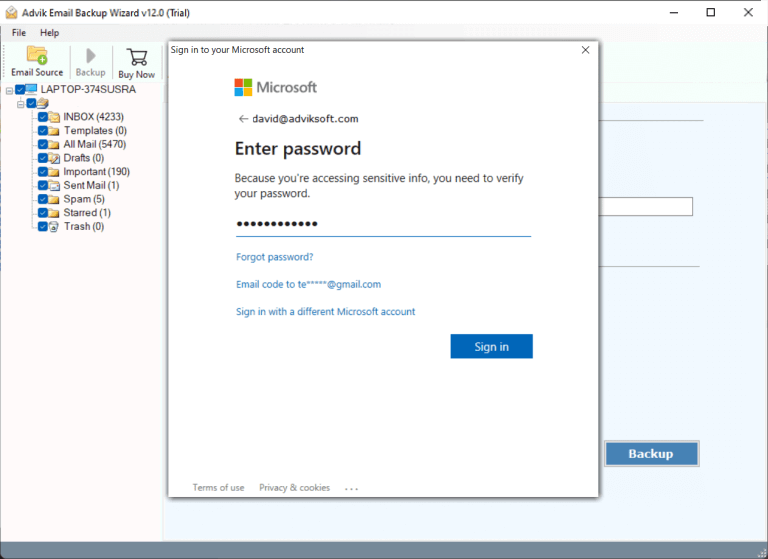
Here start the process. Depending on your mailbox data, the tool will migrate SiteGround emails to Office 365 mailbox. Using this tool you can also transfer SiteGround emails to Gmail account.
Watch How to Transfer Emails from SiteGround to Office 365
Benefits of Using Advik SiteGround to Office 365 Migration tool
With this tool, there are various advanced and robust features that include –
- Folder Hierarchy: The tool will maintain the email folder and sub-folder structure while migrating SiteGround emails to Outlook 365 mailbox. After the migration, all the emails in Office 365 will be present in their respective folders.
- Advance Filters: There are various filter options offered by this tool for selective email transfer. You can apply filters – to, from, cc, bcc, subject, etc. Most importantly, you can backup SiteGround emails from any particular date as well.
- Multiple Saving Options: With this tool, you can get multiple saving options for migrating emails. The software allows you to export SiteGround emails to MBOX and many other fiel formats as well.
- Compatibility With Systems: This software is designed for the system. You can install and run this tool on all versions of Windows and Mac machines.
- Email Migration: Using this tool you can also migrate SiteGround data to different email accounts as well. Using this tool you can transfer emails from Edison Mail to Outlook and many other email clients as well.
- A free Demo Version: The software offers a demo version of the software that allows to know the proper working of this tool. The free version will only transfer 25 emails from each email folder.
Conclusion
Now it’s time to conclude, SiteGround to Office 365 migration is a straightforward process. Here in this post, we described the two best ways to migrate SiteGround to Office 365. Both methods are 100% workable. You can choose any method to transfer SiteGround emails to Office 365 mailbox.