Unable to Open PST File in Outlook? Here’s How to Fix It
If you cannot open a PST file in Outlook, the issue could be related to file corruption, incorrect file location, damaged Outlook profile, faulty add-in, or a file that is being used by another application. Sometimes Outlook also shows an error message that says Outlook data file cannot be opened or cannot find PST file.
This article tells you why a PST file can’t open and offers you several ways to fix the issue. Try the manual methods below, including closing background processes, checking the location of your PST, running Outlook in Safe Mode and repairing the file with Microsoft’s Inbox Repair Tool.
Note: Opening a PST file and importing a PST file are two different functions. Opening links the existing PST to Outlook so you can access its contents. Importing copies items from the PST into a mailbox or selected folder. If this is happening to you during the Import/Export process, then you may need to troubleshoot the process of importing a PST separately.
Why can’t I open my PST file in Outlook?
A PST file may fail to open when the file is corrupted, locked by another process, stored in an unsupported location, affected by an Outlook add-in, or connected to a damaged Outlook profile. The correct solution depends on the cause of the error.
Here are the most common reasons.
1. If the PST file is damaged: PST files are used to store Outlook email, contacts, calendars and other mailbox data. If the file is corrupted, then Outlook may not read or open the file correctly. Corruption may be caused by due to various factors such as Outlook did not close properly, abrupt power failure, system failures, storage device issues etc.
2. PST file is being used by another application: Sometimes Outlook or some other program has opened the PST file already. It can even happen if you close Outlook, but there is still an Outlook process running in the background. You may encounter various errors so close the application via the file and try again.
3. PST file is stored in OneDrive or another synced location: Sometimes the active Outlook data files can be affected by the cloud synchronization. If the PST file is in use by another process (locked, moved, etc) then Outlook may have difficulty accessing it.
4. PST file is stored on network, USB or external hard drive: A PST file opened directly from a network location or a removable storage device may not work reliably. Copy the file to a local drive to avoid connection and accessibility issues.
5. Due to faulty Outlook Add-in: Third-party and incompatible add-ins for Outlook may affect Outlook startup and prevent data files from loading properly.
6. Your Outlook Profile is Corrupted: The problem may not always be the source of PST file. A corrupt Outlook profile can prevent Outlook from connecting to a healthy data file.
7. PST file not found by Outlook: If the PST has been moved, renamed, deleted or disconnected from its original location, Outlook might not be able to find it anymore.
Methods to Fix a PST File That Won’t Open in Outlook
Attempt these methods one at a time. Restart Outlook and verify that the PST file opens after you perform each method.
Method 1. Close Outlook and End Background Processes
If Outlook has not shut down completely, Outlook might still be holding the PST file locked in a background process.
- Close Outlook.
- To open Task Manager, press Ctrl+Shift+Esc.
- Search for Microsoft Outlook or OUTLOOK.EXE.
- Pick the process.
- Click End task 2.
- Then, open Outlook again and try opening the PST file again.
This can be helpful when Outlook states that the file is in use by another application.
Method 2. Move PST File to Local Drive
If the PST file is located in OneDrive, an external drive, a USB device, or a network location, first copy it to a local folder.
For example, you might create or use a folder like:
C:\Users\YourName\Documents\Outlook Files
Then:
- Close Outlook.
- Copy the PST file to local directory.
- Start Outlook.
- Click File > Open & Export > Open Outlook Data File.
- Navigate to the copied PST file.
- Select the file, and then press OK.
If you can open the PST file from the local drive, then the issue might be with the original location where it was stored.
Method 3. Open Outlook in Safe Mode and Check Add-ins
When you open Outlook in Safe Mode, Outlook starts with limited features and without most third-party add-ins. If the PST opens successfully in Safe Mode, an add-in may be causing the problem.
- Close Outlook.
- Press Windows + R.
- Type: outlook.exe /safe
- Press Enter.
- Try opening the PST file.
If the file opens, disable your add-ins:
- Open Outlook normally.
- Go to File > Options > Add-ins.
- Select COM Add-ins from the Manage menu.
- Click Go.
- Uncheck the add-ins.
- Restart Outlook.
Enable the add-ins one at a time to identify the one causing the problem.
If the PST opens correctly in Safe Mode, it may be that an add-in is the cause of the problem.
- Close Outlook.
- Press Windows + R
- Model: outlook.exe /safe
- Hit Enter.
- Try to open the PST file.
If the file opens then turn off your add-ins:
- Launch Outlook as normal.
- File > Options > Add ins
- From the Manage menu, select COM Add-ins.
- Click Go
- Uncheck the add ins .
- Restart Outlook .
Enable the add-ins one at a time to identify the one causing the issue.
Method 4. Fixing PST File with ScanPST.exe
Microsoft Outlook has a built-in tool known as Inbox Repair Tool, commonly known as ScanPST.exe. It checks for certain types of errors in the PST file and attempts to fix them.
Close Outlook before launching the tool.
- Use ScanPST.exe
- Locate and run SCANPST.EXE on your PC.
- Click Browse .
- Choose the PST file that Outlook can’t open.
- Click Start to scan the file.
- If any errors are found, select the option to create a backup before repair.
- Click Repair.
- Allow the process to complete.
- Restart Outlook and then try to open the PST again.
Depending on how you installed Microsoft Office, ScanPST might be located in an Office installation folder. For example, it is often found under an Office16 folder on many installations of Microsoft 365, Outlook 2021, Outlook 2019, and Outlook 2016:
C:\Program Files (x86)\Microsoft Office\root\Office16 or:
C:\Program Files (x86)\Microsoft Office\root\Office16
The exact location may differ depending on the version of Outlook, the type of installation and whether Office is installed as a 32-bit or 64-bit application. If you can’t find the tool, search Windows for:
SCANPST.EXE – stands for “ Inbox Repair Tool .
Note: If ScanPST finds errors when it completes a repair, you may need to run the tool again. Continue until the scan no longer reports errors that can be repaired, or until more attempts do not improve the result.
Method 5. Create a New Outlook Profile
A damaged Outlook profile can cause problems with the PST file even if the PST file is not badly corrupted.
To make a new profile:
- Close Outlook.
- Go to Control Panel.
- Locate and launch Mail.
- Click Show Profiles.
- Click on Add.
- Please enter a name for the new profile.
- Set up your email account.
- Start Outlook using the new profile.
- Try to open the PST file again.
If the PST opens with the new profile then the previous Outlook profile could be the issue.
Method 6. Turn Off Read-Only Attribute
If Outlook does not have the necessary access to the PST file, then verify that the file is Read-only.
- Close Outlook .
- In File Explorer, find the PST file.
- Right click on the file and click on Properties.
- On the General tab, check file attributes.
- Select Read-only then uncheck the checkbox.
- Click Apply, then click OK.
- Close Outlook again, and try to open the file.
If you get an access denied error, verify if your Windows account has permission to access the folder containing the PST file.
Alternative Solution When You Can’t Open PST File in Outlook
If you are still unable to open PST file, then you need an expert solution to solve the error. One such tool is the Advik PST Repair Tool which can fix your corrupted PST file in a few clicks. No matter whether your PST is corrupted, damaged, or large, this tool can easily export all its data and create a new and healthy PST file. After that, you can easily open it in your Outlook application. All you need to add the affected PST file and choose PST from the saving option. After that, the software will create new PST file that can be easily accessed.
Click on the link below and download the demo version of the software.


Steps to Resolve Outlook Cannot Open PST File Issue
1. Run the software on your system.
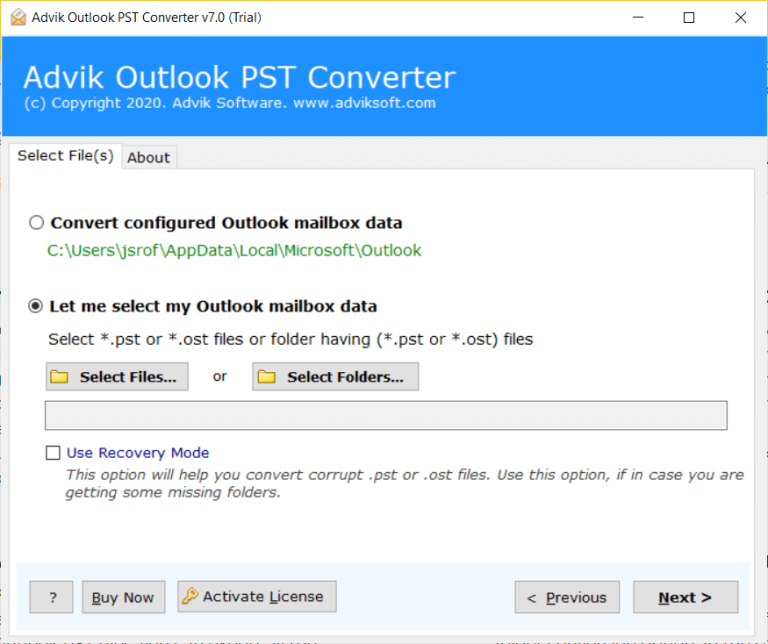
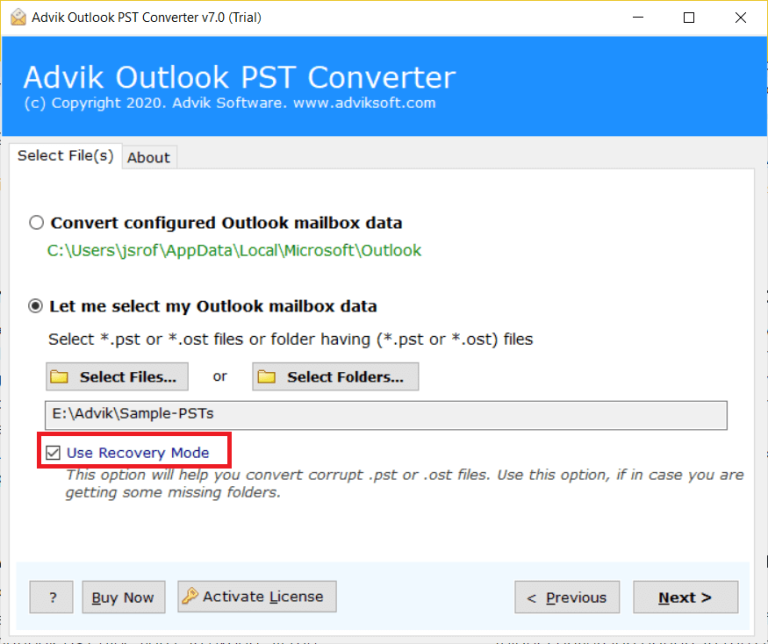
2. Click on Select file and add the PST file. Select the Recovery mode also.
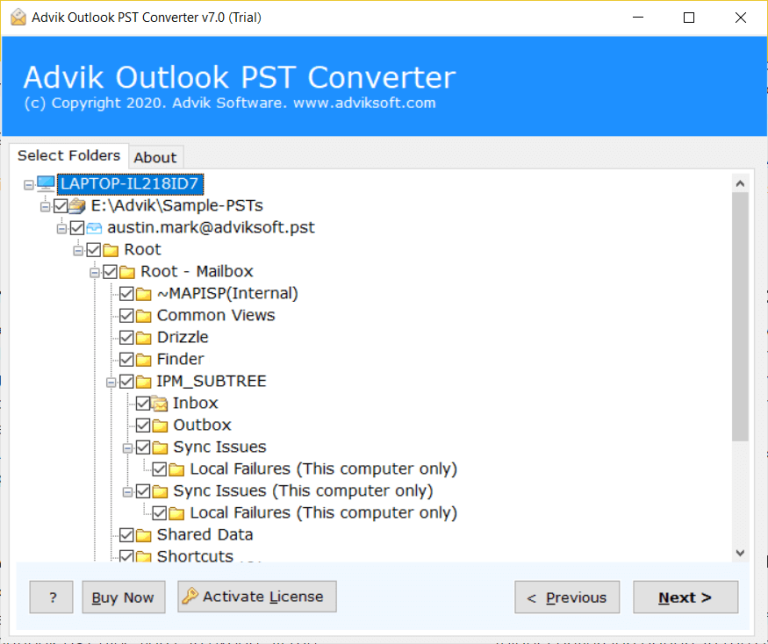
3. Select the email folder you need in a new file.
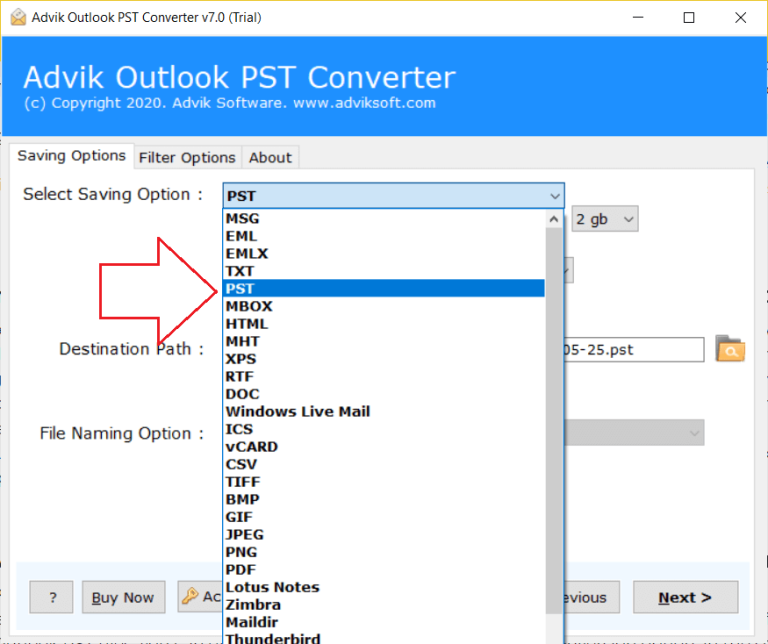
4. From various saving options, choose PST file.
5. Browse the targeted location and hit the Convert button.
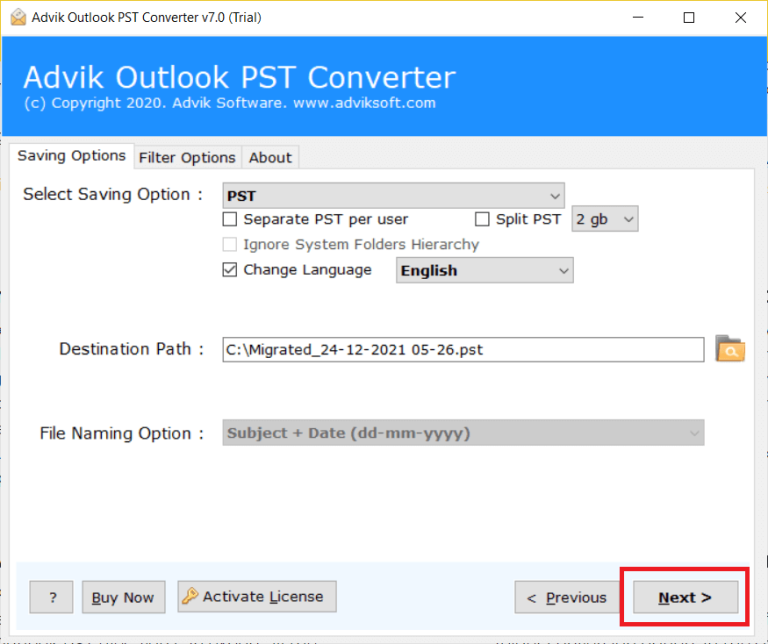
Done! Here, the tool will repair PST file without scanpst tool. Now you can easily access your data in Outlook.
Watch How to Fix Unable to Open PST File in Outlook
Conclusion
Fixing the “unable to open PST file in Outlook” query requires going through the causes first to resolve them accordingly. There could be many reasons why you can’t open PST file in Outlook. In this post, we discuss all the possible solutions to fix this error. First, try all the methods and choose the one that can solve the error.
Additionally, if your issue is related to the corrupted PST file, then you can opt for the automated tool for that.
Frequently Asked Questions
Q1. Why is my PST file not opening in Outlook?
Ans. Your PST file may be corrupted, too large, in use by another program, or Outlook may have faulty add-ins.
Q2. How do I fix a corrupted PST file?
Ans. Use Outlook’s ScanPST.exe tool to repair minor corruption. For severe damage, try a professional PST repair tool.
Q3. Where can I find ScanPST.exe?
Ans. It is located in your Outlook installation folder:
Outlook 2019/2016/2013: C:\Program Files (x86)\Microsoft Office\root\OfficeXX
Outlook 2010: C:\Program Files (x86)\Microsoft Office\Office14
Q4. Can antivirus software block my PST file?
Ans. Yes, some antivirus programs may lock or block PST files, preventing Outlook from accessing them. Try disabling the antivirus temporarily and check if Outlook opens the PST file.
Q5. Will repairing the PST file delete my emails?
Ans. No, repairing a PST file using ScanPST.exe will not delete emails. However, some severely damaged emails might be moved to a Lost and Found folder.
Q6. What if my PST file is permanently damaged?
Ans. If neither Outlook nor ScanPST can open your file, using a professional PST Repair Tool is the best option.