Why Gmail Storage Showing Full Even After Deleting Emails?
Recently, I came across a user asking:

This is a common problem faced by Gmail nowadays. I have tested this issue with 2-3 Gmail accounts with almost full storage space. I deleted emails from Inbox and Sent folders, but still got Google storage warnings. So, i have understood that the actual problem is not with Gmail but with the complete Google’s services. One single Google account is shared with all Google’s services such as Google Drive, Google Photos, Trash, Spam or hidden account that takes up your storage space.
To understand why this is happening in detail and in different storage usage patterns and how the Google shared storage system works, let’s continue reading this article.
Table of Contents:
- What Counts Towards Gmail’s 15 GB Storage Limit?
- Testing Environment and Findings
- Common Reasons Gmail Storage Remains Full
- How to Fix Gmail Storage Full After Deleting Everything
- Bonus Tip: Free Up Gmail Storage Safely
- Final Thoughts
- Frequently Asked Questions
What Counts Towards Gmail’s 15 GB Storage Limit?
One of the biggest misconceptions we all made that the 15 GB free storage is only for emails. I have recently analysed while exploring multiple Gmail accounts with both empty and full storage space that even the empty Gmail inboxes were getting alerts that you “Storage is Full.” This was because the storage was being taken up by other Google services attached to the same account.
For knowing the real cause behind this issue is that, we need to understand that Google offers 15 GB of free cloud storage that is shared across Gmail, Google Drive, Google Photos and all the other Google services. If a particular service uses up a lot of space, your Google account might show as low storage, even if Gmail looks almost empty.
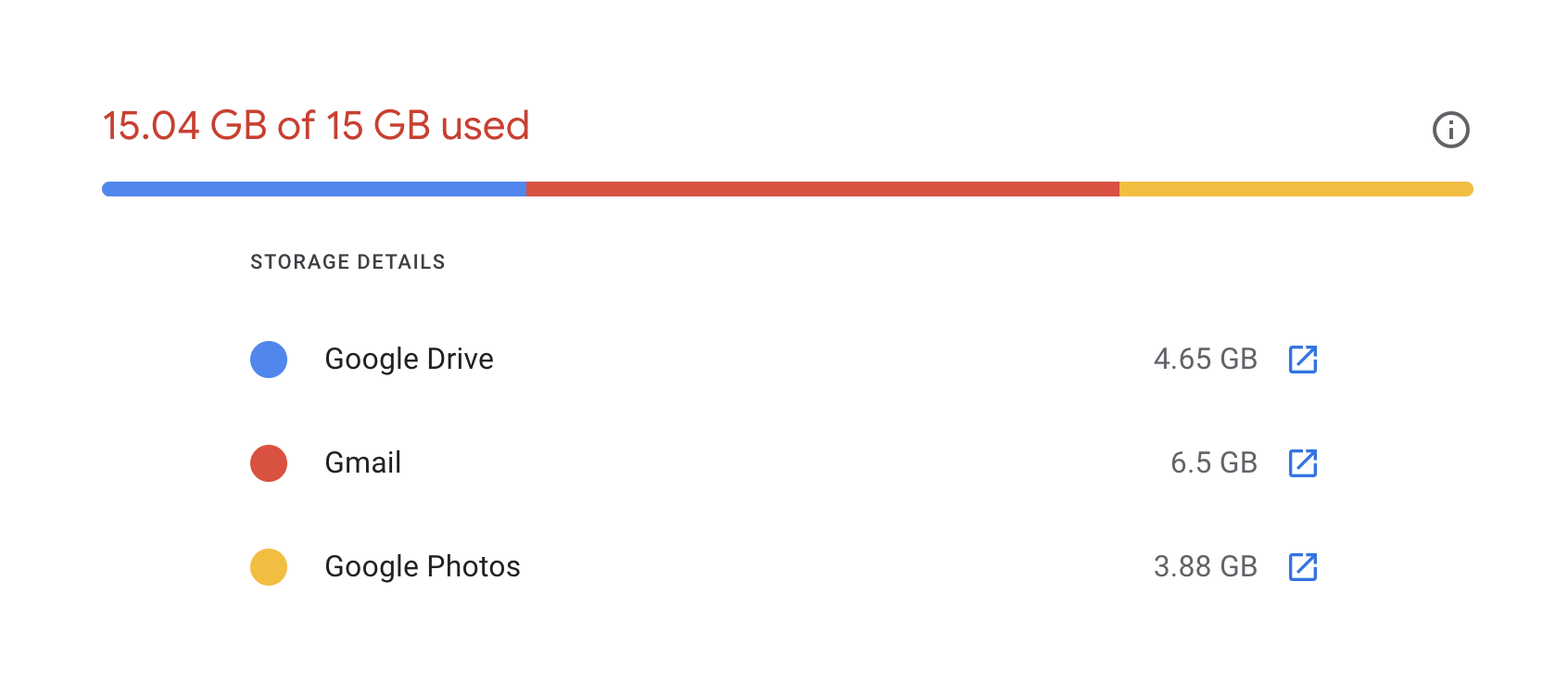
Gmail: What uses storage in Gmail?
- E-mails received and sent
- Email attachments like PDFs, images, videos, and ZIP files
- Messages receive in Spam
- Gmail messages in Trash until they get permanently deleted
Google Drive
Files stored in Google Drive also count in your storage limit:
- Documents & spreadsheets
- Presentations and PDF files
- ZIP archives and backups
- Videos and other large uploaded files
In many cases, large Drive files will consume more storage than emails.
Google photos
Photos and videos backed up to Google Photos will also take up large storage space.
This may involve:
- Mobile photos
- Screenshots
- Video recordings
- Saved shared media in your account
Test Observation: In my testing of one of those accounts, Gmail used less than 2 GB of storage and Google Photos and Drive combined used more than 10 GB storage space. I deleted hundreds of emails but the warning was still popping up there until I deleted large files in Drive and Photos.
Pro Tip: Once you have deleted emails and your Gmail storage still shows as full then you should check the Google Drive and Google Photos storage usage before you move on. Sometimes these services are the real cause of these storage problems.
Real World Testing & Findings
To get a better understanding of this issue, I have used three different Gmail accounts that have different storage usage patterns.
| Account | Gmail | Drive | Photos | Total Used |
|---|---|---|---|---|
| Account 1 | 1.8 GB | 6.4 GB | 4.1 GB | 12.3 GB |
| Account 2 | 7.5 GB | 1.3 GB | 1.0 GB | 9.8 GB |
| Account 3 | 2.2 GB | 4.8 GB | 6.1 GB | 13.1 GB |
Findings:
- Drive and Photos used more storage than Gmail for 2 out of 3 accounts.
- Simply deleting Inbox emails didn’t do much for overall storage.
- Deleted items were not always instantly updated in storage.
- Some accounts had large amount of data in the Trash and Spam folders.
These observations let me to understand that why many users continue to see storage warnings even after deleting emails.
Why is My Gmail Storage Full After Deleting Everything?
While researching the solutions for this issue, i tested several Gmail accounts where users had already deleted thousands of emails but still they were receiving “Storage Full” warnings. In general, the issue was not with the Inbox itself but with how Google evaluate storage space across its services.
One common reason is that deleted emails are still in the Trash and Spam folders. These messages will continue to take up storage until a user permanently deletes them or until they auto-delete after 30 days.
Another big factor is that Google has a shared 15 GB storage pool between Gmail, Google Drive and Google Photos. That means your Gmail inbox could look almost empty but you still have big files in Drive or photos and videos in Google Photos eating up most of your available storage space.
Testing found that storage usage does not always refresh instantly after data deletion. Sometimes after large scale deletions it takes a while for the storage system to recalculate and show the new space available.
Common Reasons Why Gmail Storage Show Full Even After Deleting Emails
- Check your Trash and Spam folders for your emails.
- Big files are located on Google Drive.
- Google Photos is using storage for photos and videos.
- Google’s servers haven’t yet updated the storage usage.
Knowing these causes before implementing any method will help you find the real cause of the problem so that you can use an appropriate solution.
How to Solve “Gmail Storage Showing Full Even After Deleting Emails” Issue
As i have explained above that Gmail storage warnings often remain because of emails still stays in Trash, Spam, Google Drive or Google Photos. In many cases, users had deleted thousands of emails, but their storage usage barely budged as other Google services were taking up most of the available space.
Try all the methods one by one to check which works to clear your storage space. Check your storage usage after each fix before proceeding to the next solution.
Method 1. Clear out the Gmail Trash Folder
When you delete an email it doesn’t permanently remove it from your account even it sends to the Trash folder, where they stay for up to 30 days. During this time these emails still count in your Google storage quota.
To delete Trash emails permanently;
- Open Gmail and click on the Trash folder.
- If you must, check the emails if they required or not.
- Then click on the Empty Trash Now and confirm your deletion.
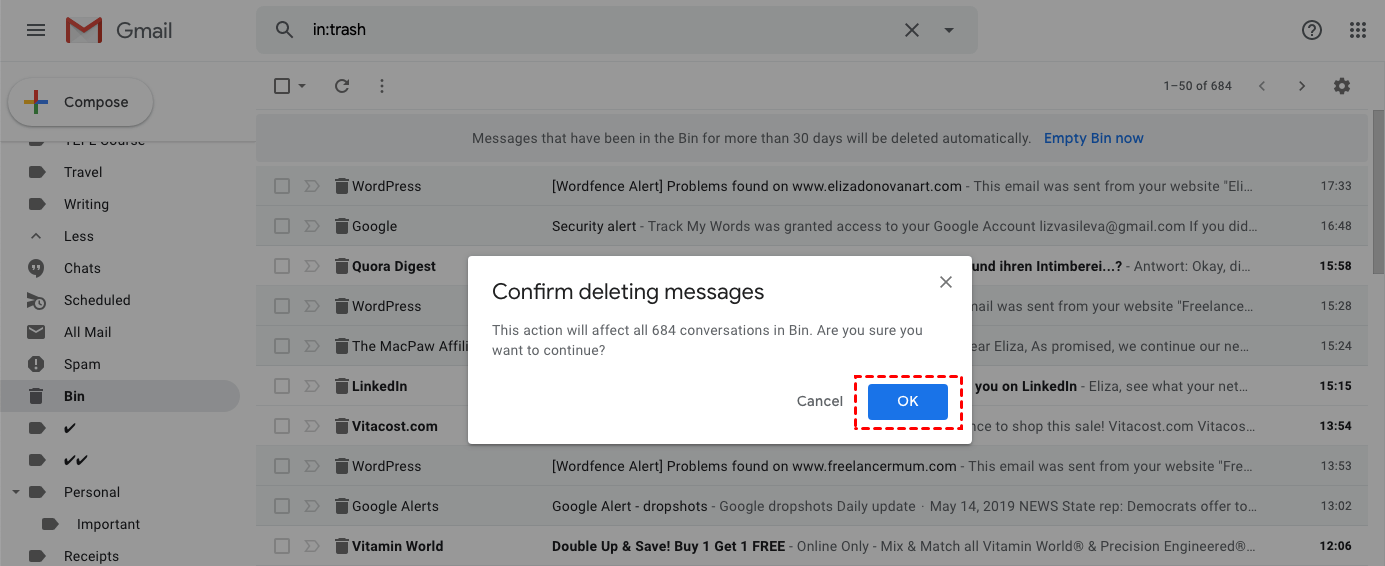
Testing Observation: In various test accounts, the instant clearing of the Trash folder led to an immediate reduction in storage usage as the accounts had very large emails and attachments.
Method 2. Delete Emails From Spam Folder
The Spam folder silently occupy a lot of your storage space, especially if it is filled with thousands of unwanted messages that gathered easily.
How to delete the Spam folder:
- Open your Gmail account.
- Click More in the left side of your mailboxes.
- Select Spam and see all junk emails.
- Click Delete All Spam Messages Now.
- Confirm. Proceed.
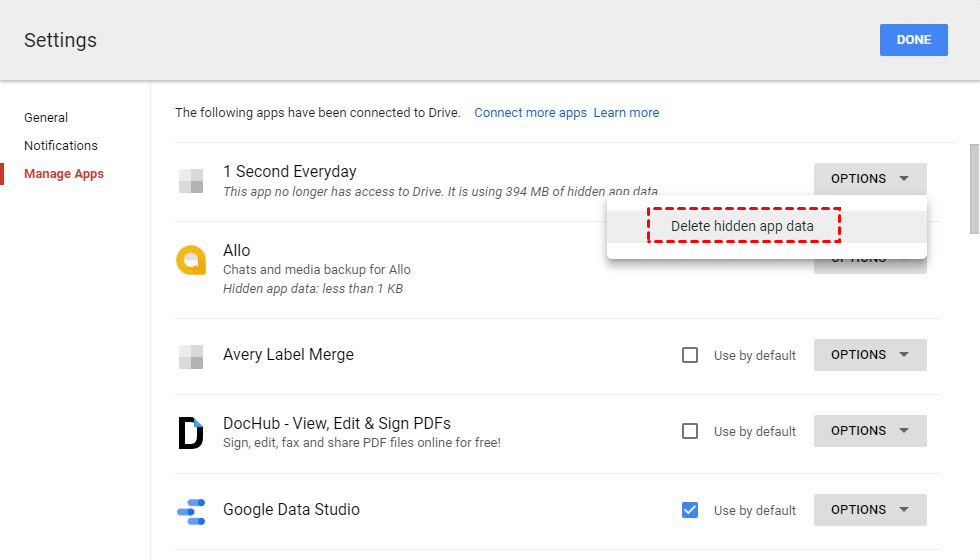
This folder is often ignored by users but it can easily collect various messages that still take up space.
Method 3. Check the Storage of Google Drive
Note that Gmail itself does not have its own 15 GB quota. Google shares this storage with Gmail, Google Drive and Google Photos.
If your Gmail inbox is all but empty, but you are still out of storage space, Google Drive may be the real cause.
Review & Delete:
- Large video files
- ZIP archives
- old backups
- Unused documents and sheets
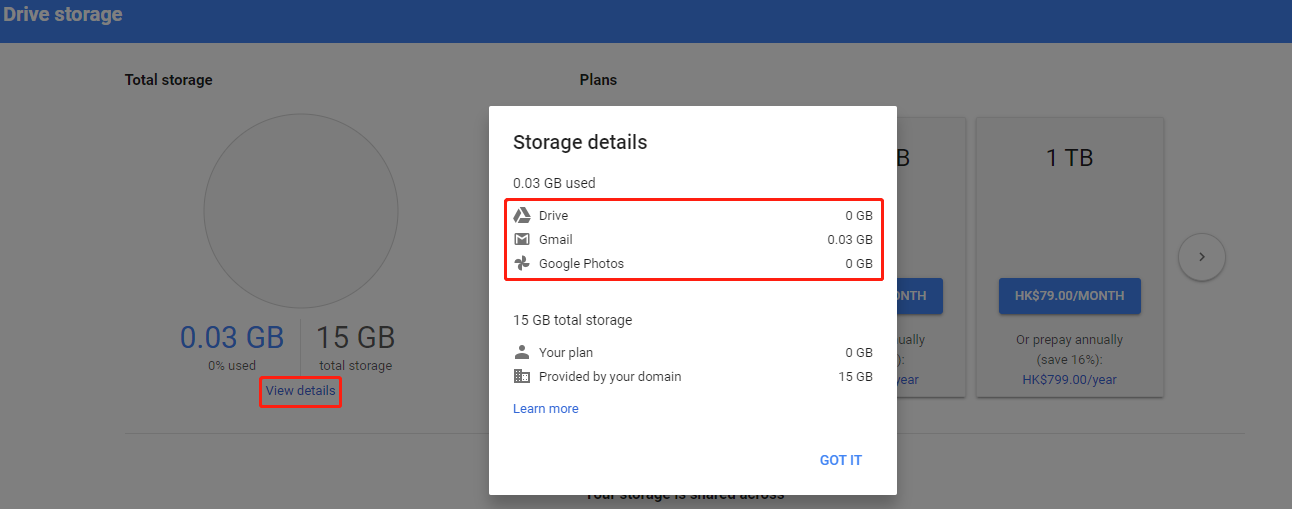
We found some accounts where Google Drive was taking more storage space than Gmail itself.
Method 4. Check your Google Photos Storage
Google Photos is another important source of storage related problems.
Search for:
- Big video backups
- Repeated or duplicate pictures
- Screenshots and media you have downloaded
- Any photo archives that is not required
Even if you have very few emails in Gmail, thousands of photos and videos can quickly fill up that entire 15 GB of storage space.
Method 5. Use Google One Storage Manager
If you want to know what is taking up your storage, Google Storage Manager provides a detailed explanation of storage usage across all Google services.
The tool helps to search for:
- Big emails with attachments
- Files in your Google Drive
- Photos and videos taking up storage
- Trash and Spam folder information
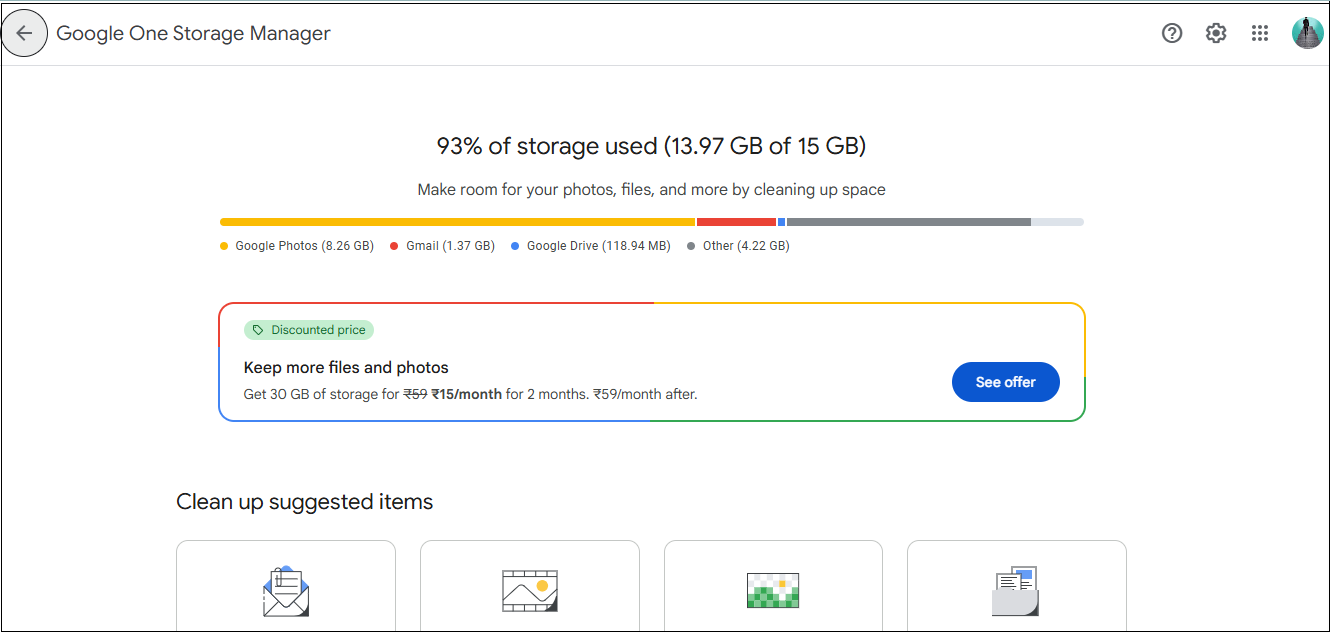
Just check the recommendations and delete files you don’t need anymore.
How It Works: Storage Manager gives you an overall picture of how much storage your account is using and where. Check it’s suggestions and work accordingly to delete unwanted things from your account.
Method 6. Wait for storage Evaluation
If you have deleted a large amount of data and still it showing up storage is fill then wait for sometimes. It’s because storage usage is not refresh immediately.
Google’s servers may take time to recalculate storage usage when you delete emails and other things in bulk.
If you recently deleted a lot of emails, files or photos:
- Sign out and then sign back in.
- Refresh your storage page.
- Wait for sometime and then check again.
During testing, some accounts updated storage levels instantly while others took extra time to sync.
BONUS TIP: Archive Old Emails Before Deleting Them
If you have years of old emails and large attachments that is actually taking your Gmail storage space, you may also consider for a backup of your data before permanently deleting them.
Many users like to save the older emails on their computer or external drive. This way they have a copy of the important messages and also clear space in their Gmail account.
For example, you can use Google’s takeout method or any third-party tool like Advik Gmail Backup Software to save emails on your desktop. Such as, convert Gmail emails into PST, PDF, EML, MBOX, etc in any file format as per your choice. As these file formats are for long-term storage of Gmail emails. After you verify that you backup is complete, you can delete unwanted emails in your Gmail account to free up space.
Why do some people like it this way?
- Keeps offline copies of important emails.
- Reduces mailbox size while maintaining access to old messages.
- Makes it easier to organize & archive previous data.
- Helps to free up Google storage space when large emails are no longer needed online.
Note: Always check your backup before deleting emails permanently from your Gmail account.
Watch How to Get Gmail Storage After Deleting Emails
Conclusion
Now, we can assume that you have understood the reasons behind Gmail showing full storage and the best possible methods to solve this issue. We have discussed three manual solutions that can be used to fix this issue, but they can consume a lot of time and effort as well.
But, Advik Gmail backup Solution is the most recommended method to download all of your Gmail data, including emails, to a safe and secure file format and delete those emails from your Gmail account, and it can easily help you to free up space.
Frequently Asked Questions
Q1. How do I find out what is taking up space in my Gmail account?
Ans. You can check detailed storage usage for Gmail, Google Drive, Google Photos on your Google’s Storage Manager page.
Q2. Why doesn’t my storage decrease even when I deleted the Trash folder?
Ans. It’s so because Google takes sometime to update storage calculations. Also other services like Drive, Photos or backups might still be using storage.
Q3. Will backups of various apps on my google account consume storage?
Ans. Yes. Backups of Android devices, WhatsApp (under current Google policies) and apps can consume storage and result in storing large data and make your account full.
Q4. Can I delete 10,000 emails and free up storage?
Ans. Not always. If the deleted emails are small text messages, deleting emails will not work. Emails with large attachments typically clear more space.

Related Articles