How to Export All Emails from Thunderbird?
Quick Answer: Thunderbird stores email locally in its profile, but saving all emails safely requires more than simply copying the profile folder. To export all emails from Thunderbird, first decide whether you need a single folder or the complete account. For individual folders, use ImportExportTools NG to save messages as EML or MBOX.
For exporting a complete Thunderbird account with emails, attachments, folder structure and other mailbox data, use a Thunderbird Converter. It lets you select the Thunderbird mailbox and download emails into a required format, without manually exporting every folder one by one.
Table of Contents
- Which Method Should You Use?
- Method 1: Export a Folder with ImportExportTools NG
- Method 2: Export the Whole Account With Attachments
- Watch Video Tutorial
- EML, MBOX or PST: Which to Pick?
- Check the Result
- Common Problems and Fixes
- Conclusion
- Frequently Asked Questions
Which Method Should You Use to Export All Emails from Thunderbird?
When exporting emails from Thunderbird, you have two main options. The right choice depends on whether you want to save only a particular folder or the complete Thunderbird account.
| What Do You want to Export? | Method | Output Format | Best Suited for |
|---|---|---|---|
| Export one Thunderbird folder | ImportExportTools NG | MBOX/EML | Export specific Thunderbird folder |
| Export the entire Thunderbird account | Advik Thunderbird Converter | 25+ formats including PST | Complete Thunderbird exporting, migrating emails to Outlook, Gmail, any many more email accounts |
If you only need a few folders, a manual MBOX or EML export may be enough. However, for a complete mailbox migration or backup, an account-level export is more convenient because you do not have to repeat the process for every Thunderbird folder.
Method 1. Export a Folder with ImportExportTools NG
Thunderbird doesn’t support exporting all emails until you install an add-on plugin. ImportExportTools NG is useful when you want to manually export a particular Thunderbird folder. It adds additional import and export options to Thunderbird.
First, you need to add a plugin and then proceed with the steps to export all emails from Thunderbird.
Step 1. Install ImportExportTools NG
1. Open the Thunderbird application on your system.
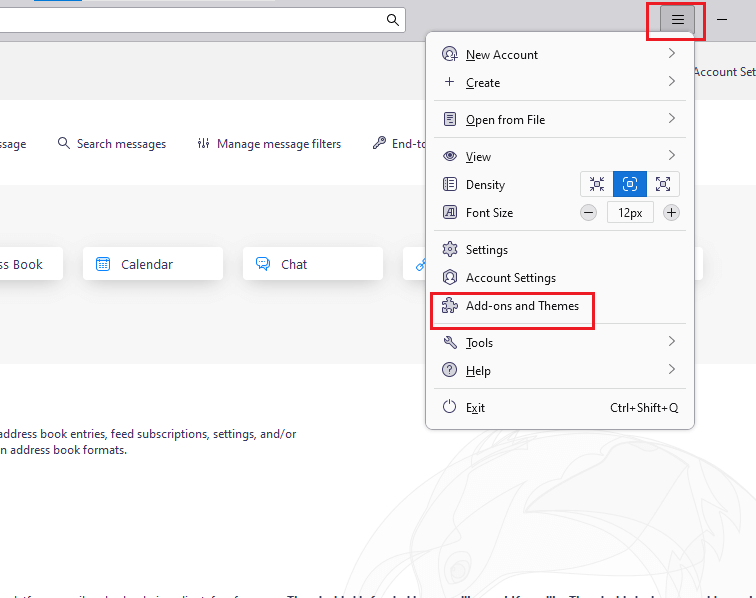
2. Click on Menu icon and select Add-ons and Themes.
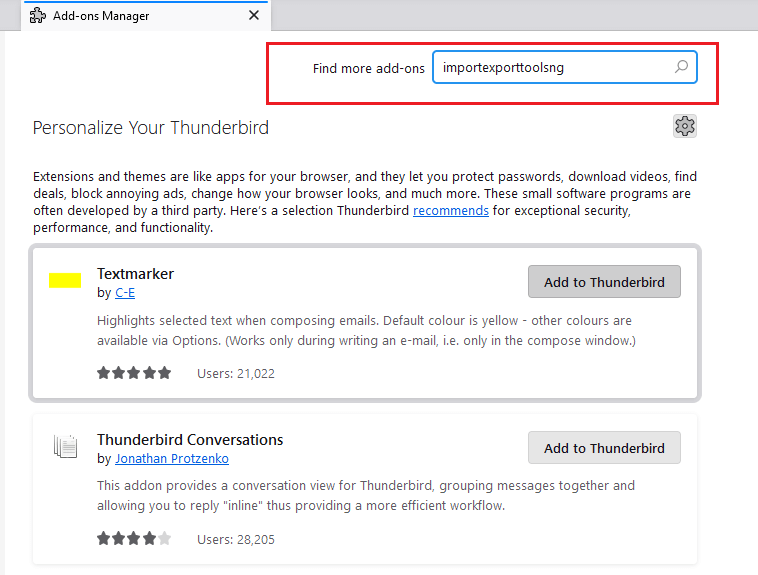
3. In the Add-ons tab, search for ImportExportTools NG.
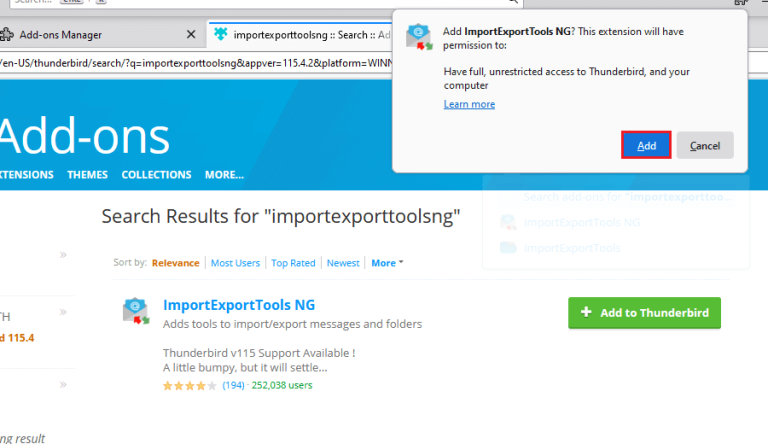
4. Click + Add to Thunderbird to install the add-on.
5. Restart Thunderbird to complete the installation.
Step 2. Select the Folder
Now, choose the folder from which you want to export emails and right-click on it.
Step 3. Choose the Export Option
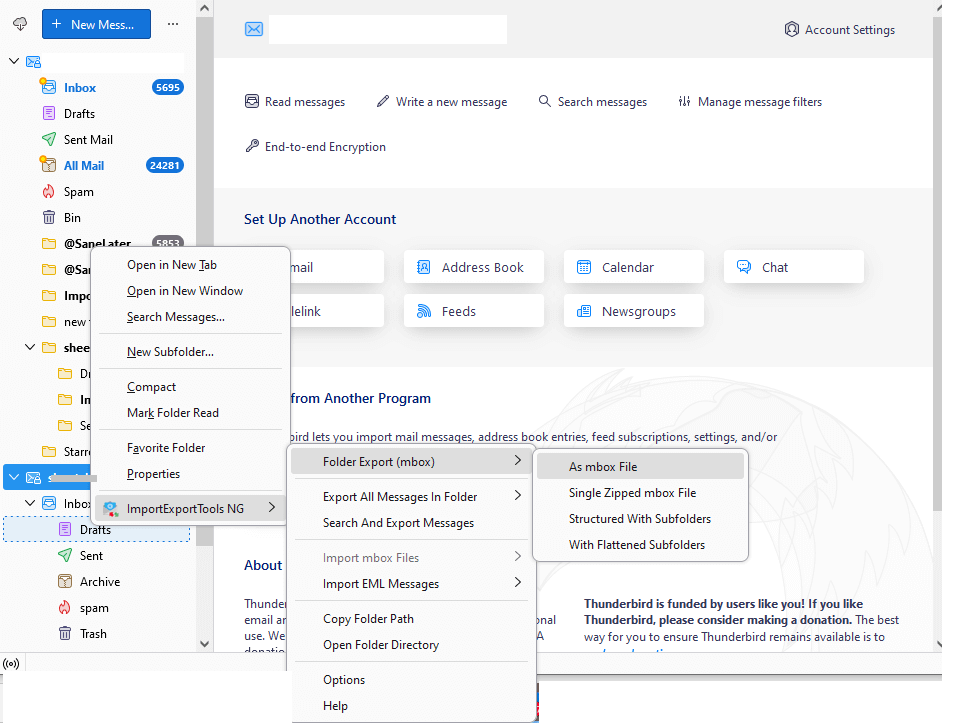
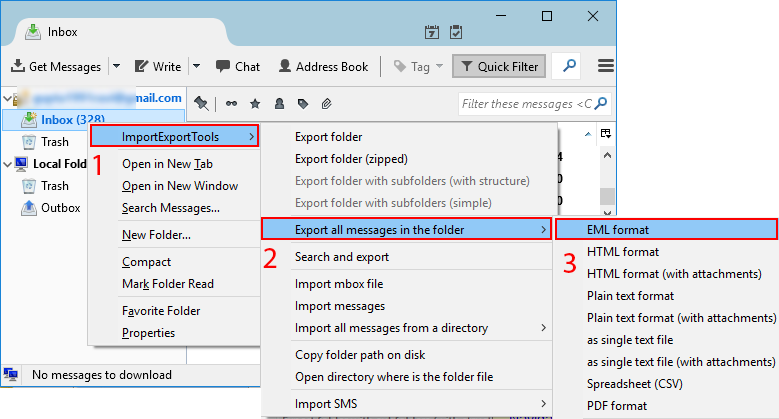
Click ImportExportToolsNG and export Thunderbird emails to EML, MBOX, HTML, PDF, Text. >> Export all messages in the folder >> file format.
For e.g.. If you want to keep the folder as one mailbox file, choose the MBOX export option.
Click ImportExportTools NG -> Folder Export (mbox).
Or if you want every message as an individual file, choose the option for exporting messages as EML.
Click ImportExportTools NG -> Export all messages in the folder -> EML format.
Step 4. Select the Destination Location
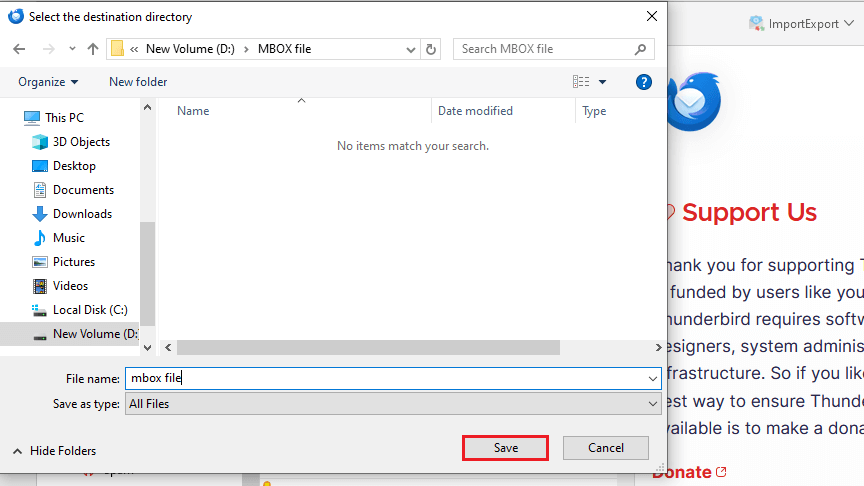
Choose a location where you want to save the exported emails. You can also use an external hard drive or another storage location.
Step 5. Check the Exported Files
Once the export is complete, open the destination folder.
For an EML export, you should see individual .eml files. An MBOX export normally contains mailbox data in a consolidated file.
This is how Thunderbird save multiple emails with attachments from each folder.
Method 2. Export the Whole Account With Attachments into 25+ Formats
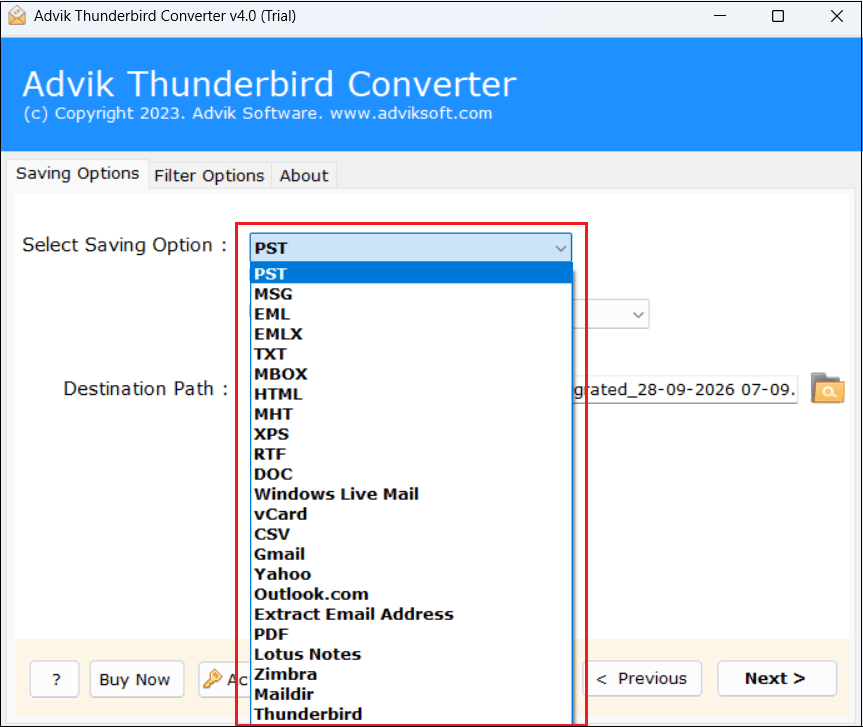
If you need to export all emails from Thunderbird mailbox, manually downloading every folder can become repetitive. Advik Thunderbird Converter provides an account-level approach for saving Thunderbird mailbox data. With this utility, you can save all emails from Thunderbird at once. It offers 25+ saving options, including PST to backup Thunderbird emails into multiple formats. It preserves folder hierarchy during the process. Additionally, it also offers advanced filter options to save particular emails based on date range, to, from, subject, etc.
This approach can be more practical than manually exporting dozens of Thunderbird folders when the objective is to create a complete mailbox copy. It is particularly useful when you need to export all emails from Thunderbird to Gmail, Office 365, Yahoo Mail, and many more.
Give this software a FREE try with a demo version.

Steps to Save All Emails from Thunderbird
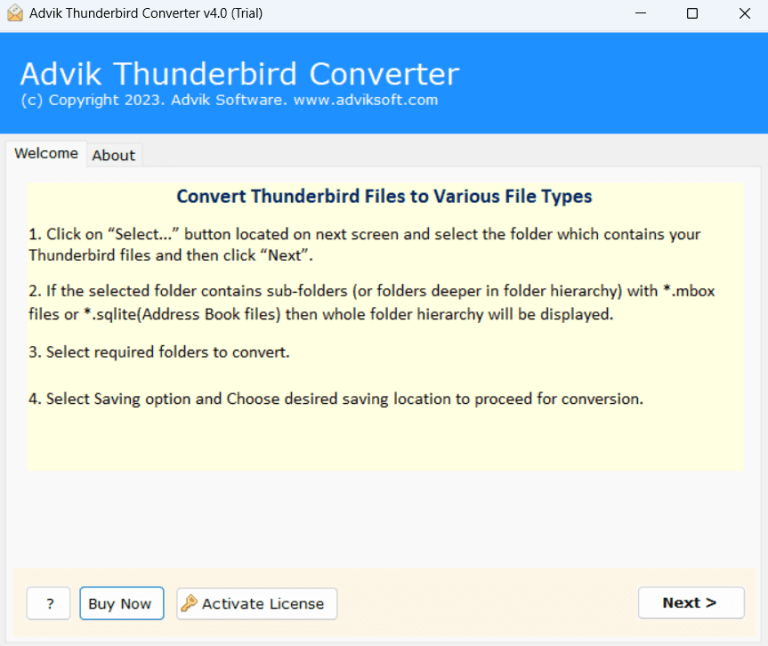
Step 1. Run the software on your Windows PC.
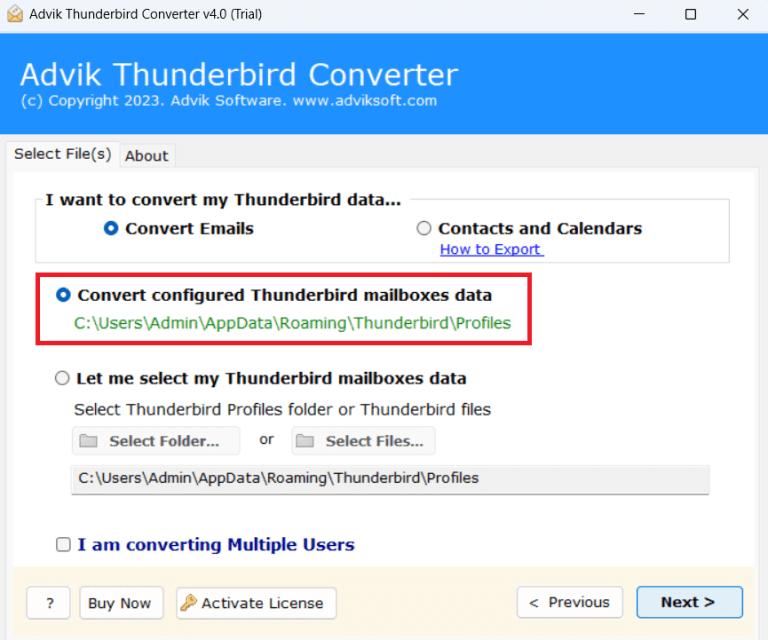
Step 2. Choose Thunderbird profile and click Next.
Step 3. Select the required mailbox folders/emails.
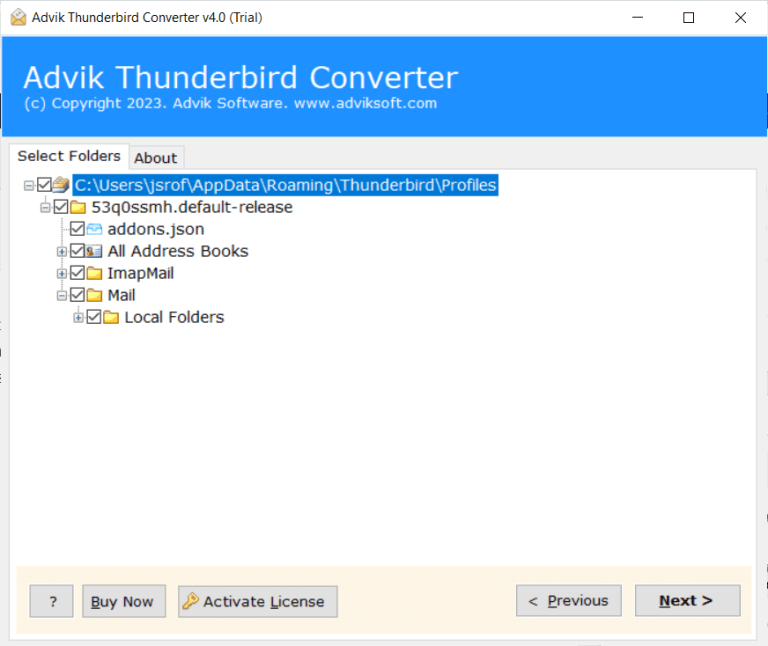
Step 4. Choose any file format from the list.
Step 5. Browse the destination path and click the Convert button.
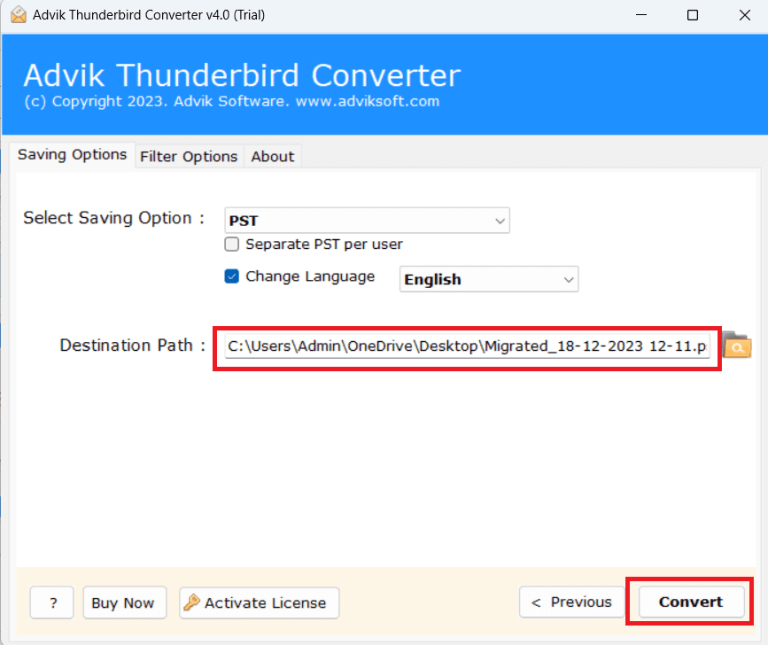
The software will start exporting all Thunderbird emails in the chosen file format.
Once completed, you will automatically be redirected to the targeted location.
Watch How to Export All Emails from Thunderbird
EML, MBOX or PST: Which to Pick?
The format you choose should depend on what you plan to do with the exported emails.
| Format | Best Suited for | Main Benefit |
|---|---|---|
| EML | Individual email backup | Each message is stored separately |
| MBOX | Thunderbird mailbox backup | Keep multiple messages together |
| PST | Outlook migration | Designed for Outlook mailbox data |
- Choose EML when you want individual email files that can be opened or moved separately.
- Choose MBOX when you want to retain a Thunderbird folder in a consolidated format.
- Select PST if you need to import Thunderbird to Outlook.
Check the Result Before Deleting Thunderbird data
A successful export message does not necessarily mean that every email was exported correctly. Always verify the result before deleting the original Thunderbird mailbox.
Open the exported data and check messages from different periods, such as an old email, a recent email and a message containing an attachment.
Also verify:
- Inbox and Sent folders
- Custom folders and subfolders
- Message dates
- Sender and recipient details
- Attachments
- Number or approximate volume of exported messages
- Output file size
For PST export, open the PST file in Outlook, and expand the folders. Open several messages and attachments to confirm that the exported mailbox can actually be accessed.
For EML and MBOX exports, use a compatible email application to test a sample of the exported data.
Note: Do not delete the original Thunderbird profile until the exported copy has been tested. For important business or personal mail keep another copy on separate storage as an additional safety.
Common Problems and Fixes
#1. No Message Found
Cause: The selected Thunderbird folder may be empty, unavailable or not synchronized with the mail server.
Fix: Open the folder in Thunderbird and confirm that the message are visible. For IMAP account, allow thunderbird to synchronise the required message before exporting.
#2. Unable to Write to the Destination Directory
Cause: Thunderbird or the export tool does not have permission to write to the selected location.
Fix: Choose another folder such as documents or a dedicated backup directory, and try the export again. Also check whether the destination drive has sufficient free space.
#3. File Already Exists
Cause: An export with the same filename is already present in the selected destination.
Fix: Select another destination or rename the existing output file before starting a new export.
#4. Attachments Are Missing After Export
Cause: The selected export method or format may not have preserved attachments correctly.
Fix: Test messages containing attachments before removing the original data. If you are creating a complete mailbox migration, use an export method that explicitly supports attachment preservation.
#5. Some Thunderbird Emails are Missing
Cause: The local Thunderbird mailbox may not contain every message available on the remote IMAP server.
Fix: Allow Thunderbird to synchronize the mailbox completely and check the account folders again before exporting.
Conclusion
Exporting all emails from Thunderbird with attachments is needed to store emails locally. In this article, we have discussed two different methods to export all emails from Thunderbird. Both methods are 100% workable. Read all the solutions and choose the one that best suits your needs and requirements.
If you only need a specific folder, ImportExportTools NG is suitable for exporting but for a complete Thunderbird mailbox, it is a time-consuming process. In this situation, using a professional tool is the better option to save all emails from Thunderbird in a single attempt.
Frequently Asked Questions
Q1. Does Thunderbird export all emails with attachments?
Ans. Yes, Thunderbird can download all emails with attachments but you cannot do it directly. You need to install an add-on plugin to do this. Also, you can use an alternative solution to save all Thunderbird mailboxes into multiple file formats.
Q2. How do I export all Thunderbird emails at once?
Ans. For individual folders, you can use ImportExportTools NG. If you need to save all emails from Thunderbird at once then use the Advik Thunderbird converter.