Export Gmail to MBOX Using 2 Hassle Free Methods
Gmail does not provide a direct “Export to MBOX” button. However, you can export Gmail emails to an MBOX file using Google Takeout, save selected Gmail messages through Thunderbird with ImportExportTools NG, or use a dedicated Gmail backup tool for bulk and filtered exports.
For most users, Google Takeout is the simplest free option, Thunderbird is useful when you need more control over individual folders or messages, and a dedicated backup tool is better when you need date-based filtering, selective mailbox backup, bulk export, or recurring backups.
Quick Answer: How to Export Gmail to MBOX
You can export Gmail emails to MBOX in three ways:
- Google Takeout: Open Google Takeout, select Gmail, choose the MBOX format, create an export, and download the resulting archive.
- Thunderbird: Add your Gmail account to Thunderbird, install ImportExportTools NG, select the required messages or folders, and export them in MBOX format.
- Dedicated Gmail backup software: Connect your Gmail account, select the required folders and filters, choose MBOX as the export format, and start the backup.
Table of Contents
When to Convert Gmail Emails to MBOX
Users may have different types of requirements based on their needs. Here, we are mentioning some common reasons:
- Exporting MBOX from Gmail enables you to access messages offline without an internet connection.
- If you switch from Gmail to a MBOX-supported email client, then you need to export emails in order to keep your old emails.
- Saving Gmail emails as MBOX creates a local backup of your Gmail emails for safety.
- It helps you to reduce your Gmail storage by archiving old emails in MBOX file.
- To keep an organized archive of emails for legal or regulatory purposes.
Instant Solution: Get a reliable solution to convert Gmail to MBOX at once without any data loss. Use the Advik Gmail Backup Tool and export emails into MBOX file while maintaining data integrity and structure.

How to Export Gmail Emails to MBOX Using Google Takeout?
Google provides a free option called Google Takeout. By using this approach, you can backup Gmail emails to MBOX file for free.
Here’s how to use it:
1. Visit https://takeout.google.com/settings/takeout and sign in.
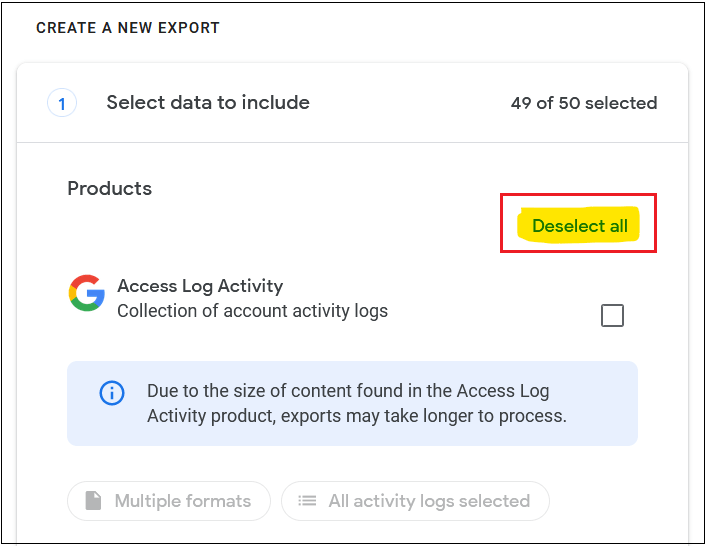
2. Now, choose the data to include and deselect all that you don’t want to include. Click Next.
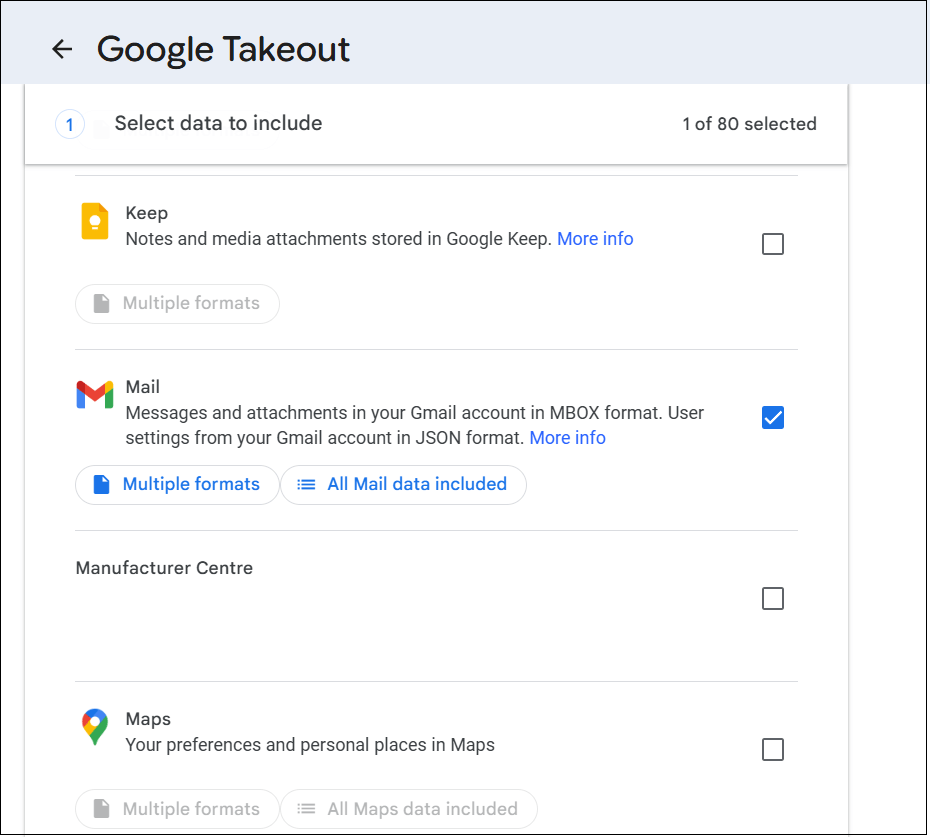
3. Then, select the Mail option and click Next Step.
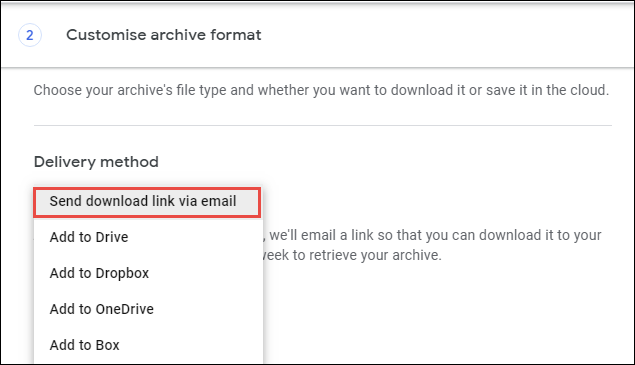
4. Choose Send a download link via email in this case.
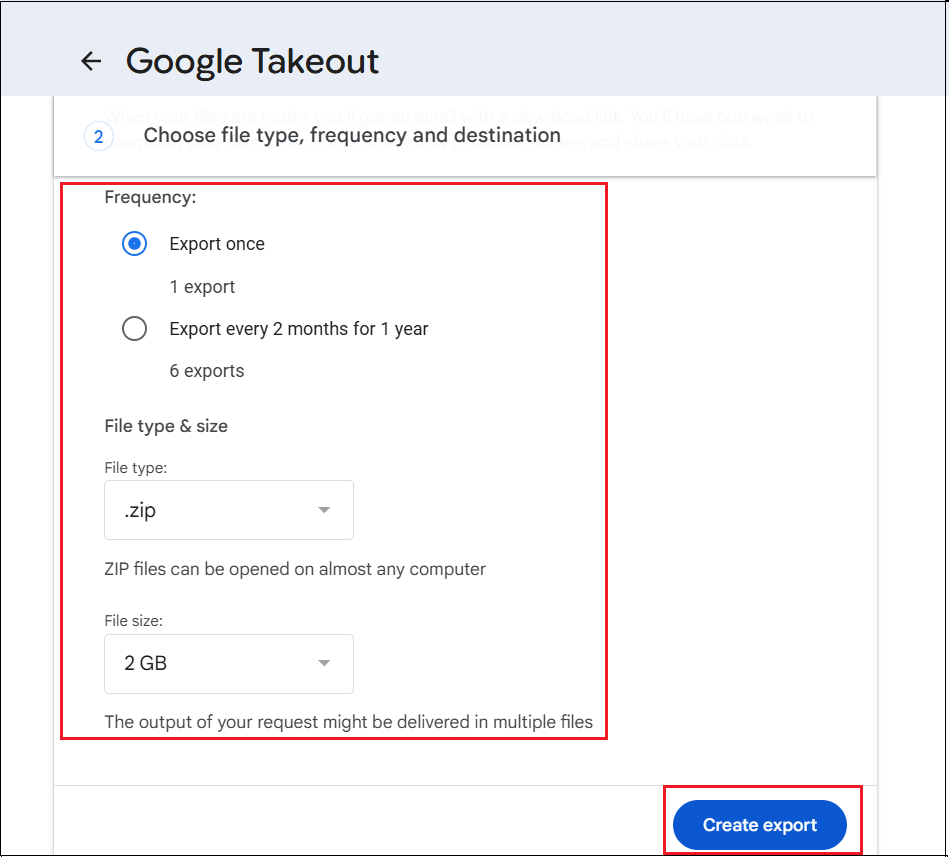
5. Choose the Frequency, File Type & Size, and click Create Export.
6. Google will start preparing your email archive. Once ready, you’ll receive an email with a download link.
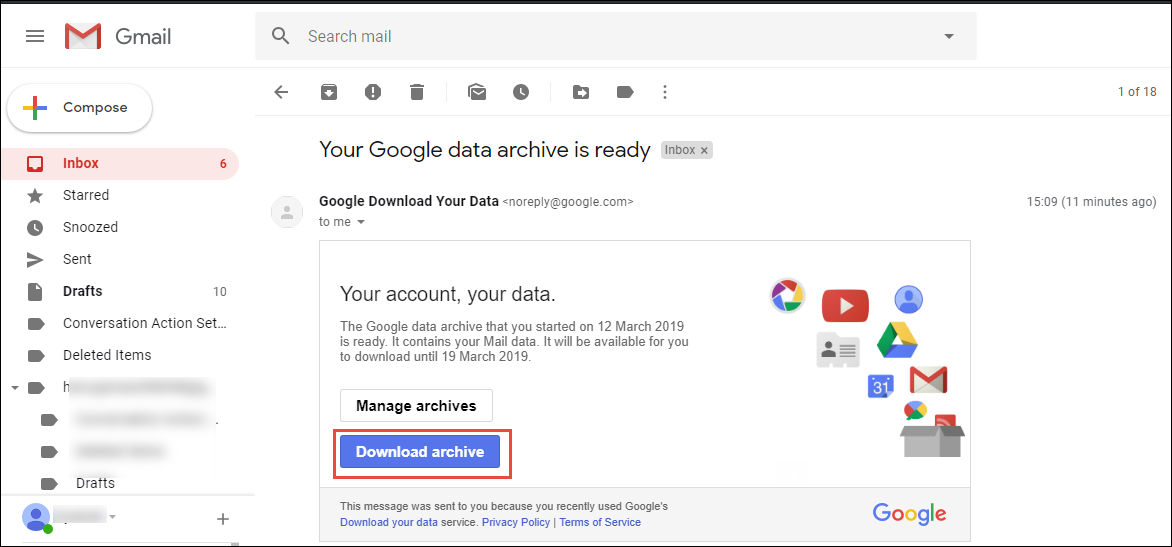
7. Click Download Archive and extract the .zip file to get the .mbox file inside.
The process is complete!
Advantages of the Manual Method
There are several benefits of the manual approach:
- Completely free to use
- No need to install external tools
- Official and secure Google service
- Suitable for small-scale and one-time exports
Disadvantages of This Approach
- This is a time-consuming process if you need to export a large amount of data.
- It requires little technical knowledge to perform the exporting process.
- It does offer an option to save specific emails only.
Instant Way to Convert Gmail Emails to MBOX
Everyone wants a simple and effective process for perfect results, that’s why users opt for the professional solution to export Gmail to MBOX. Advik Gmail Backup Tool provides an all-in-one solution for exporting emails. Using this tool, you can save Gmail emails to MBOX in bulk while maintaining data integrity & folder structure. Moreover, it enables you to use advanced filter options to convert emails based on various criteria such as date, folders, name, and sender/receiver.
Download the free demo version to try it out and see how smoothly it works.

Steps to Export Gmail Emails to MBOX
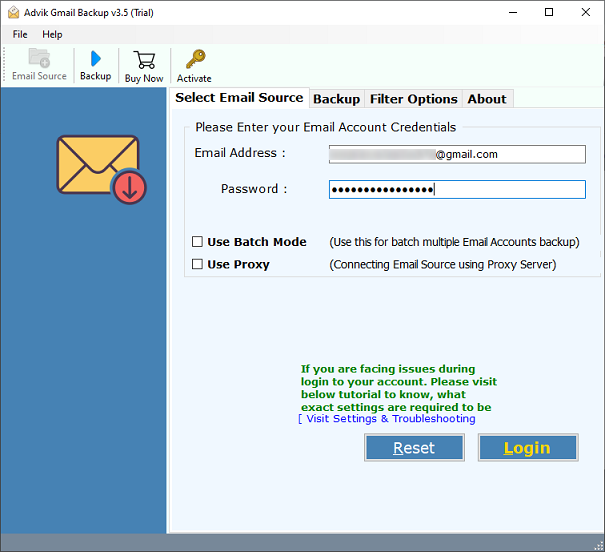
- Run software and enter Gmail credentials to sign in.
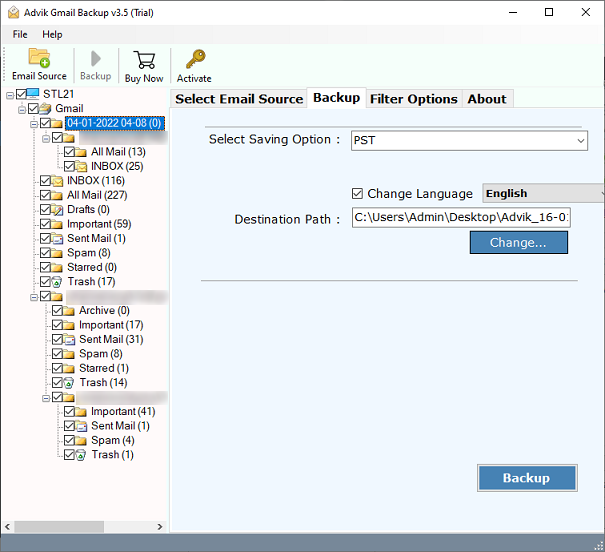
- Select the required email folder to export.
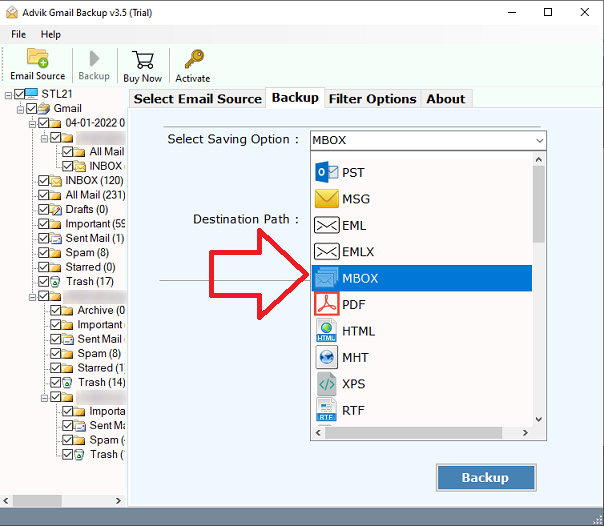
- Click the select saving option and select MBOX from the list.
- Now, choose your desired destination path and click the Backup button.
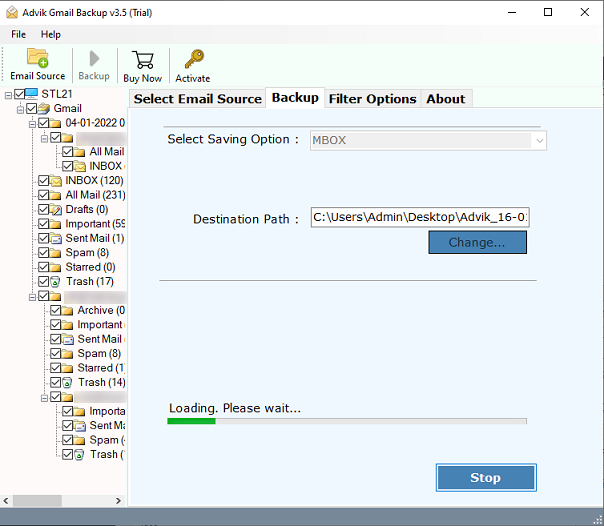
Now sit back and relax! The software will export emails from Gmail to MBOX file.
Now, you will be automatically redirected to your chosen location. Access all your exported Gmail emails in MBOX file.
Watch How to Convert Gmail Emails to MBOX Format
Advantages of Using Gmail to MBOX Conversion
The software offers a wide range of features that make the Gmail to MBOX conversion process easy and efficient:
- Directly export MBOX from Gmail folders in bulk with full accuracy.
- Preserves email structure, including folder and sub-folder hierarchy.
- Download Gmail attachments along with email content.
- Advanced filters (By Date Range, Subject, To, From) for selective export.
- Export Gmail emails to PST, EML, PDF, HTML, and more.
- Supports exporting Gmail to Excel/CSV file, including email metadata.
- A batch mode option to export emails from multiple Gmail accounts at once.
- Works with all types of Gmail accounts, including free, business (G Suite), and Google Workspace.
- No dependency on any third-party app or Thunderbird installation.
- Download entire Gmail account data, including Inbox, Sent, Drafts, Spam, and custom folders.
- Compatible with all Windows OS versions, including Windows 11, 10, 8, 7, Vista, and XP.
- Simple and intuitive interface, suitable for beginners and non-technical users.
- Includes a free trial version to test all features before purchase.
Wrapping up
In this guide, we covered how to export Gmail to MBOX format. Here, we have explained the two best methods to accomplish this task. You can manually export Gmail emails to MBOX using Google Takeout service but this is not suitable for large mailboxes. However, if you want an easier process without manual steps.
Frequently Asked Questions
Q1. Can I convert only selected Gmail folders to MBOX?
Ans. Yes, if you’re using an automated tool like Advik Software, you can select specific folders (like Inbox, Sent, or Labels) to export. This isn’t possible directly through Google Takeout unless you’ve properly labeled your emails.
Q2. How do I export emails from Gmail to MBOX, including attachments?
Ans. The automated method preserves all email attachments along with the original formatting, metadata, and folder structure. With Google Takeout, attachments are usually included, but viewing them may require additional steps.
Q3. How long does it take to export MBOX from Gmail?
Ans. It depends on the size of your mailbox. Google Takeout may take several hours or even days. The automated software completes the export process much faster, even for large mailboxes.