How to Export Google Workspace to PST File?
One of the most popular business email platforms out there is Google Workspace. However, there are scenarios where users need to export Google Workspace to PST format. This is often part of Google Workspace to Microsoft Outlook migration, Microsoft 365 adoption, email archiving, employee offboarding, legal compliance or creating an Outlook-compatible backup.
Unfortunately Google Workspace doesn’t have a feature to export mailbox data to PST files. Users usually export emails using Microsoft Outlook or a specialised export solution to migrate mailbox data to Outlook PST format and save emails, attachments and folder structure.
What is Google Workspace?
Google Workspace is one of the top business email platforms out there. But there are scenarios when users want to export Google Workspace emails to PST format. This is often a part of a Google Workspace to Microsoft Outlook migration, Microsoft 365 adoption, email archiving, employee offboarding, legal compliance or creating an Outlook-compatible backup.
It lacks a feature to export mailbox data to PST files. Usually, users export emails with Microsoft Outlook or a dedicated export solution to migrate mailbox data to Outlook PST format and save emails, attachments and folder structure.
Google Workspace Mailbox Format vs Outlook PST Format
Before exporting emails, it is important to understand the difference between Google Workspace and Outlook mailbox formats.
| Feature | Google Workspace | Microsoft Outlook |
|---|---|---|
| Email Storage | Cloud-Based Gmail Servers | PST Files |
| Offline Access | Limited | Supported |
| Native PST Support | No | Yes |
| Email Backup Format | MBOX (via Google Takeout) | PST |
| Outlook Compatibility | Requires Configuration | Native |
Outlook uses the PST file format, so you will need to export or convert your Google Workspace mailbox data in order to open it directly in Outlook.
Why Export Google Workspace Emails to PST?
Reasons for users to export Google Workspace emails to PST
- Migrate to Microsoft Outlook from Google Workspace.
- Move mailboxes to Microsoft 365.
- Back up your email locally.
- Archive old emails for long-term storage.
- To comply with legal, compliance or audit requirements.
- Move mailbox data between systems.
- Use Outlook to access emails offline.
- Maintain a record of business communications.
Real-World Migration Scenario
During a Google Workspace to Microsoft 365 migration an IT administrator had to move dozens of employee mailboxes into Outlook. PST files are how Outlook imports mail box data, so the administrator required a way to export emails and keep all folders, attachments and historical conversations.
Another use case involved a legal team that needed PST copies of employee mailboxes for retention and compliance. As Google Workspace does not provide a native PST export, they needed an alternative way to create mailbox archives that are ready for Outlook.
Here are some most common scenarios when users search for options to export Google Workspace email to PST format.
How to Export Google Workspace Mailbox to PST Free?
Follow the steps below to export emails from your Google Workspace account to PST file.
Step 1. First of all, Go to Google Takeout services.
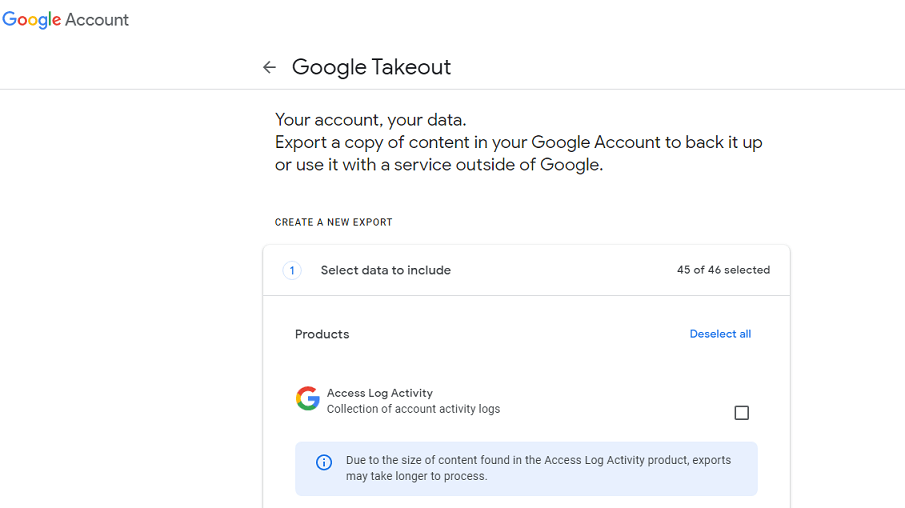
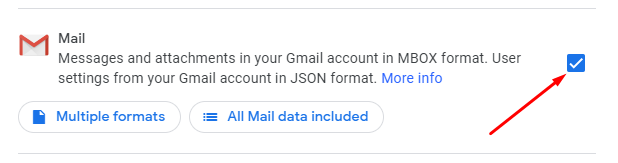
Step 2. Select Gmail and deselect other items.
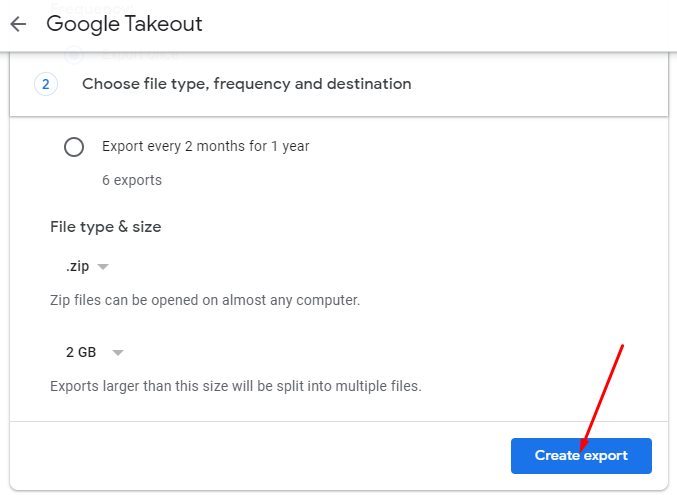
Step 3. Choose the file type and click the Create Export button.
Step 4. Within 24-48 hours you will get a download link on your respective email.
Step 5. Download and extract the zip file in .mbox file format.
Step 6. Open Mozilla Thunderbird on your computer.
Step 7. Right-click on the Folder menu and click Add Folder.
Step 8. Name your folder as per your choice.
Step 9. Select emails for conversion and move them to a new Folder.
Step 10. All your emails are now available in a new folder.
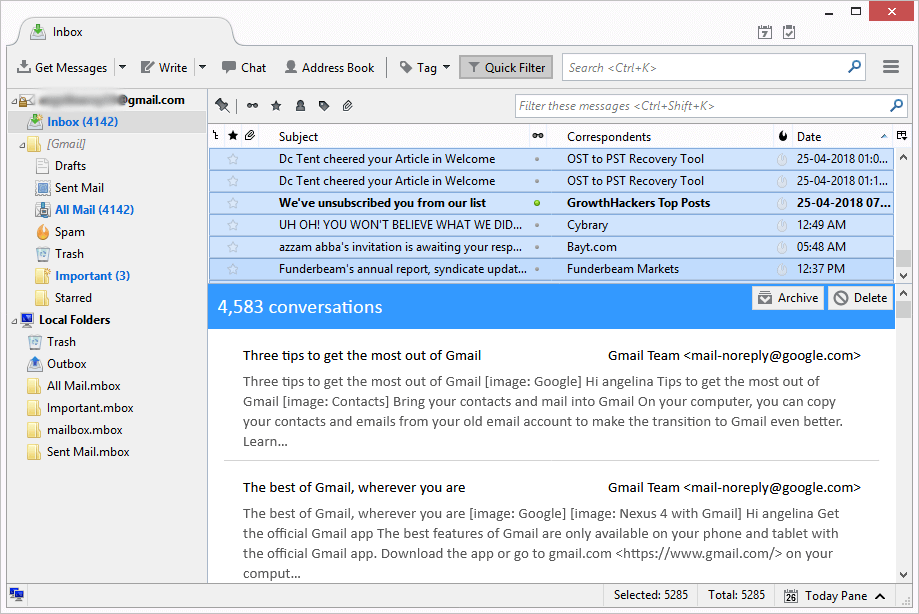
Step 11. Select all emails and Right-click to choose Save as an option.
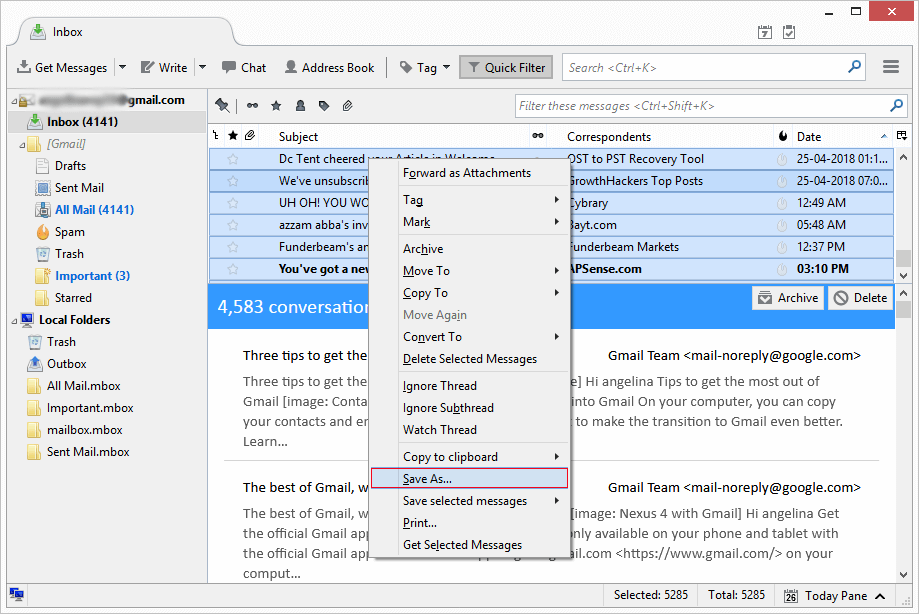
Step 12. All emails will be saved in .eml file format.
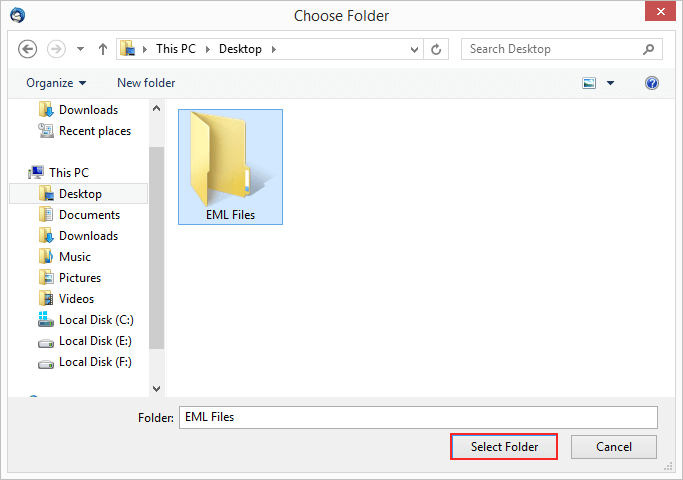
Step 13. Open MS Outlook, and now drag and drop the EML folder in Outlook.
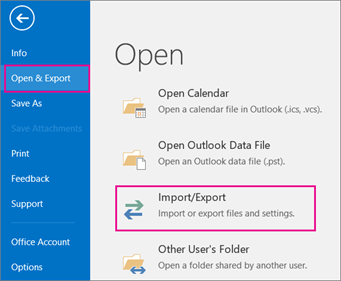
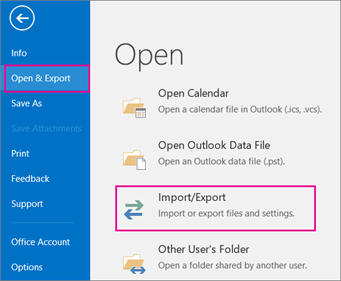
Step 14. Click the Open and Export option and select the Import/Export option.
Thus, it is an alternate free way to export Google Workspace email to .pst file.
Why this solution is not recommended?
Google Takeout has a lot of limitations. If you want to convert the Google Workspace folder to PST, you have to convert the entire Inbox folder. No email filter option and no email folder selection option will be provided. Therefore, Google Takeout is not a wise choice as it lacks many useful features. Don’t miss a single step as the method is quite difficult.
Please Note: This method will only export the Inbox Folder. No other folders will be exported.
How to Convert Google Workspace Emails to PST Using Outlook?
This method is free too. You need to be familiar with Microsoft Outlook. This is quite simple as compared to method 1. However, the time consumption is very high, and it also requires MS Outlook installation.
Follow the steps below to export emails from Google Workspace to PST file;
Step 1. Open the MS Outlook application on your computer.

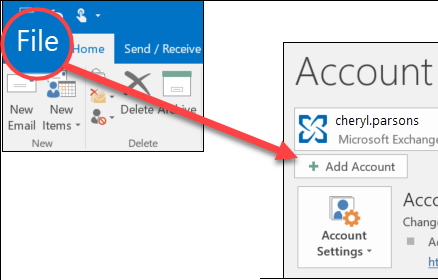
Step 2. Click Add Account from File menu.
Step 3. Enter your Google Workspace login credentials with IMAP details then click Next.
Step 4. After configuring your Workspace account with Outlook, go to the Open and Export menu.
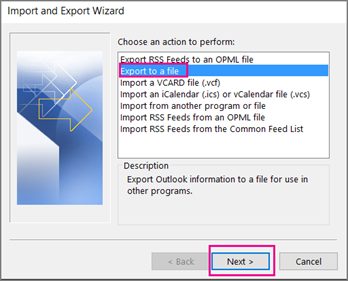
Step 5. A pop-up window will appear, click Export to a file and hit the next button.
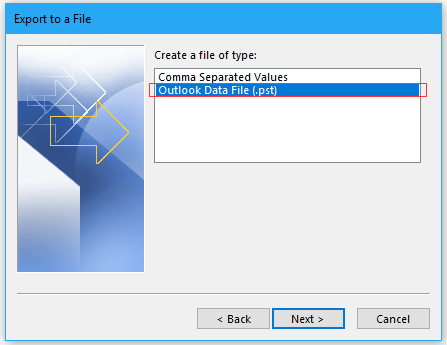
Step 6. Choose Outlook Data File i.e. PST and click Next.
Step 7. Here you have an option to select folders that you want to convert. Select folders and click Next.
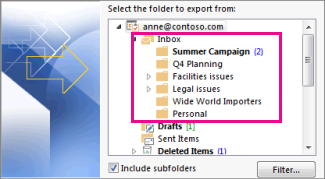
Now Outlook will export PST from Google Workspace account in a few minutes.
Limitations: No Email Filter Available, Time-Consuming Process, and requires Outlook Installation.
How to Export Google Workspace Mailbox to PST Automatically?
If you want a simple and quick solution, use the Advik Google Workspace Backup Tool on your system. This software will let you export Google Workspace email to PST file without Outlook. You can download all mailbox folders into .pst format. Also, this software will maintain a complete folder hierarchy of Google Workspace mailbox throughout the process. Thus, no data loss will take place at any step.
Click on the FREE download button and analyze the working process.


Steps to Export Google Workspace Emails to PST
Step 1. Run the software and log in with your account credentials.
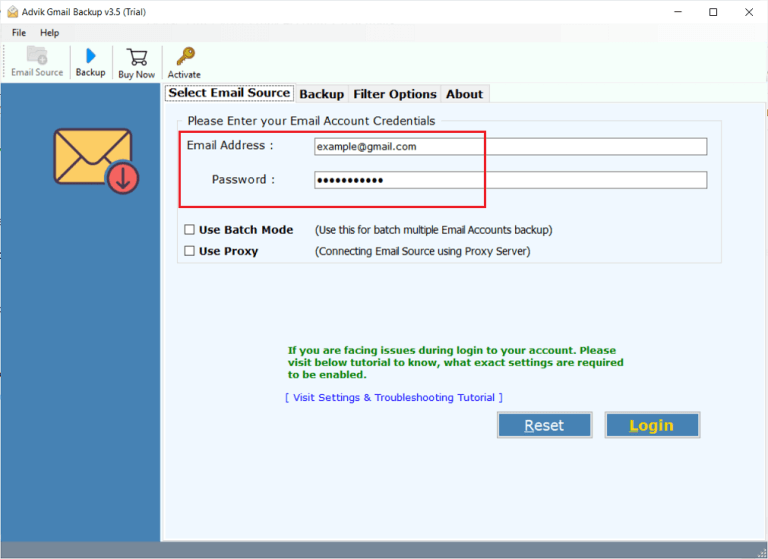
Step 2. Select mailbox folders and proceed to other steps.
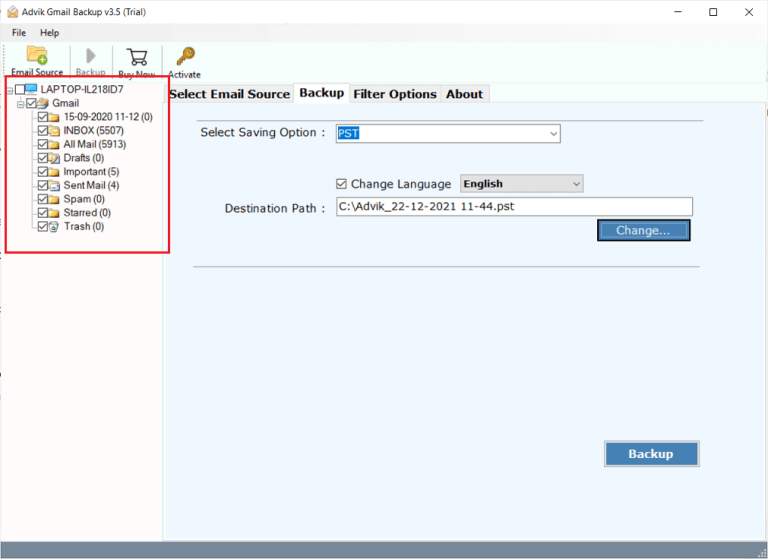
Step 3. Choose PST as a saving option from the list.
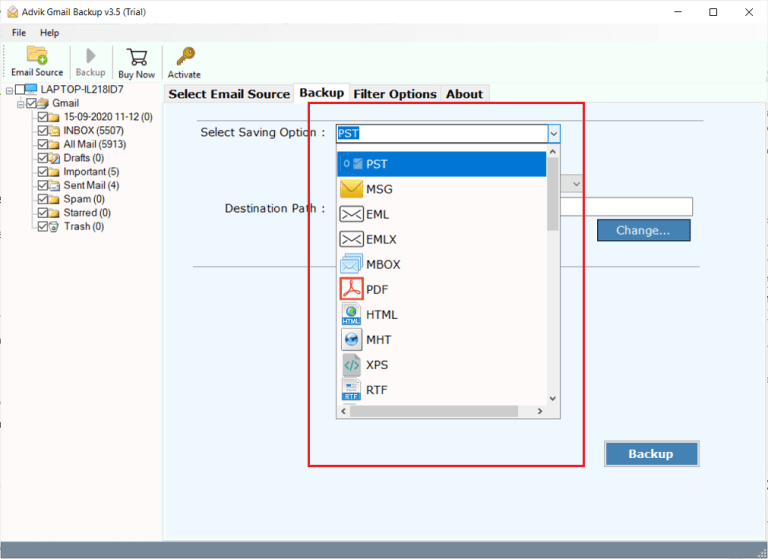
Step 4. Select the Destination Path where you want to export file.
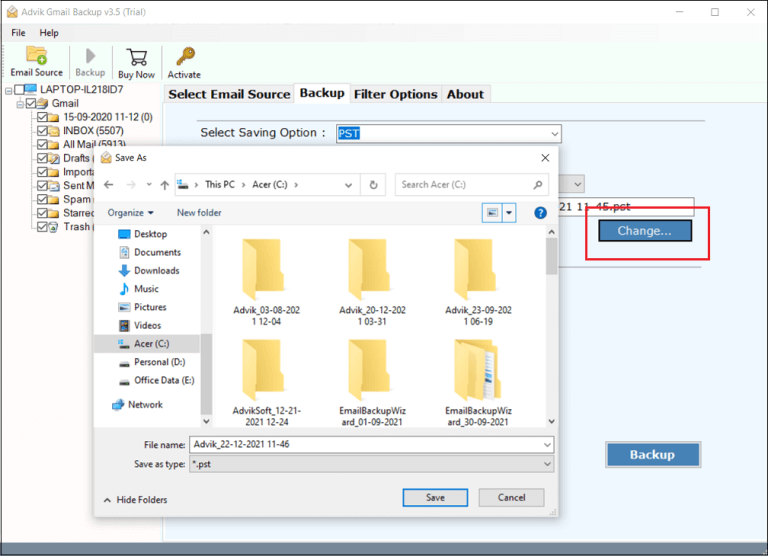
Step 5. Apply email filters if required.
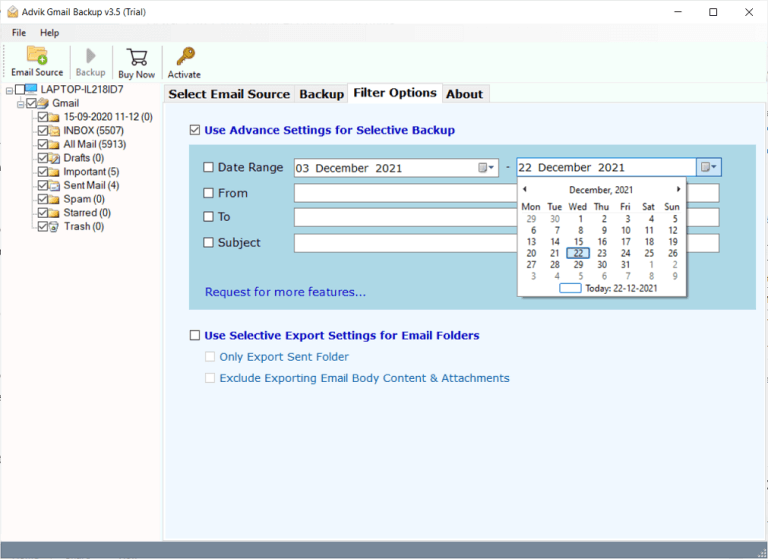
Step 6. Click the Backup button to start the email conversion process.
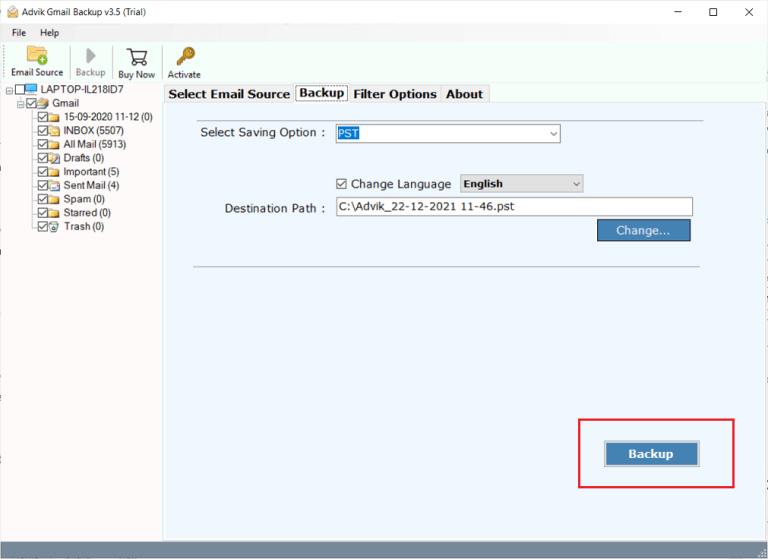
Now, the software will start exporting Google Workspace mailboxes to PST in no time.
Once completed, you will be redirected to your chosen location, where you can access the exported PST file.
Watch How to Export Google Workspace to PST
Key Features of the Google Workspace to PST Export Tool
- Simple and Secure Export: Easily export Google Workspace emails to PST files without any complicated steps. Your account details and all data will remain secure throughout the process.
- Preserves All Email Details: The tool keeps important information intact, such as recipients, dates, subjects, attachments, headers, and inline images, and ensures your data’s accuracy.
- Bulk Export Feature: This software allows for bulk export of multiple Google Workspace email accounts. Admins can select specific user accounts to export mailboxes individually with the batch mode feature.
- Extract Attachments: This software also allows to extract attachments or email addresses if needed. It will be useful for marketing or data management.
- Compatible with Multiple Outlook Versions: The PST files created work seamlessly with Outlook versions 2021, 2019, 2016, and earlier.
Conclusion
You have learned the best 3 ways to export Google Workspace email to PST. You can use any method to execute the exporting process. However, as you may have noticed, the automated solution is the easiest way to export Google Workspace mailbox to PST. You will get an email filter option, folder selection option, multiple export options, and designed to preserve mailbox structure and email properties in a few minutes.
Frequently Asked Questions
Q 1. Can I export PST from Google Workspace?
Ans. Yes, you can save PST file from Google Workspace using Outlook or an automated solution. All these explained methods are comprehensively discussed in this article.
Q 2. Does Google Workspace export mailbox to PST file?
Ans. Yes, it has a useful tool called the Data Export Tool. Google Workspace Data Export generally exports data in formats such as:
- MBOX
- ZIP archives
Just follow these steps:
- Open a web browser.
- Sign in to your Google Admin Console and click Next.
- Enter your Google Workspace account password and click Next.
- Go to the Google Admin Console dashboard & click on the (<) symbol.
- Find Data Export under the Tools section and click on it.
- Click on the Start Export button.
- Monitor the status of the data backup.
You’ll get an email notification when it’s done.
Q3. Can I export specific Google Workspace email folders to PST with the automated tool mentioned in this article?
Ans. Yes, the automated Google Workspace to PST Converter will give you a preview of all folders where you can choose only the ones you want to export.
Q4. Is the Google Workspace to PST Export Tool compatible with Windows 11?
Ans. Yes, the tool supports all the latest versions of Windows and Mac.

Related Articles