How to Export Webmail Emails to RTF Files?
Jenny Lowrence | February 11th, 2026 | Data Backup
Wondering how to export Webmail emails to RTF files? You’re at the right place. In this post, we will walk you through the simplest and most effective method to convert Webmail to RTF. Stay tuned with us to get step-by-step instructions to complete this task without any hassle.
In this digital era, millions of users have Webmail accounts. It has become very crucial for all organizations due to the fact that users can directly access their Webmail data through a web browser while sitting away from the office. However, managing emails inside Webmail can become difficult when you need them for reports, documentation, or sharing. Exporting Webmail emails into RTF format helps you organize email content into editable and well-structured documents. In this write-up, we’ll explain a simple and quick solution to do it.
Before proceeding with the solution, we understand the benefits of converting Webmail emails to RTF files.
Why Export Webmail to RTF?
Here are some reasons why users save Webmail emails as RTF format:
- Easy Accessibility: The RTF file can be easily opened and accessed on any device in MS Word or Google Docs.
- Wide Compatibility: RTF files are compatible with Windows, macOS, and other platforms.
- Editable: Once you convert Webmail emails to RTF format, you can easily edit it if you need.
- Maintains Email Formatting: RTF file will maintain the formatting of your email, such as fonts, images, and links.
- Lightweight: RTF file is small in size that can easy to store on your system.
Since Webmail does not offer an option to save emails as .rtf format. We are left using the automated solution for Webmail to RTF conversion.
How to Convert Webmail Emails to RTF Files?
Try the Advik Webmail Backup Tool on your system. The software can easily export Webmail emails to RTF files. With this tool, you can also export emails from multiple Webmail accounts at once. Its simple graphical user interface allows professional as well as non-technical users to easily operate it without any specific technical knowledge.
Click on the below link to download it for FREE.


Steps to Export Webmail Emails to RTF Files
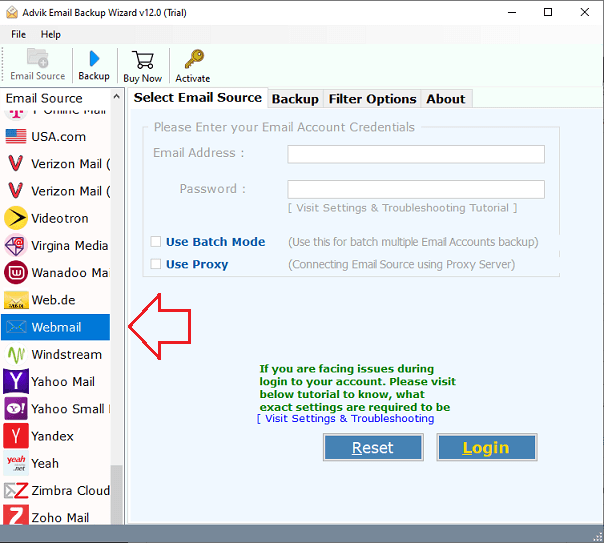
1. Run the tool and choose Webmail as the email source.
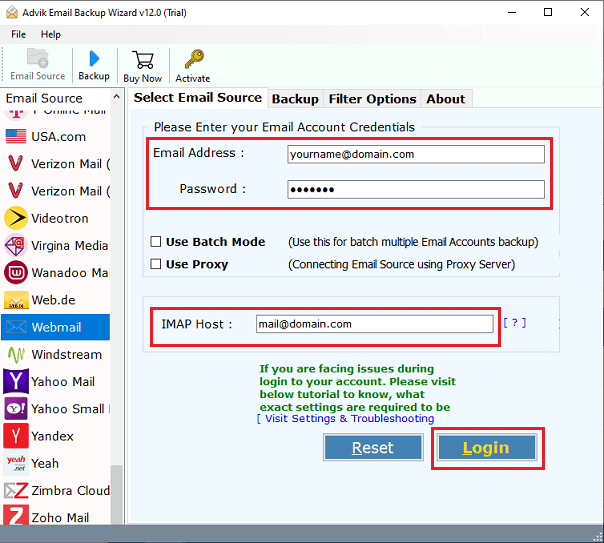
2. Enter your Webmail account credentials and press Login to sign in.
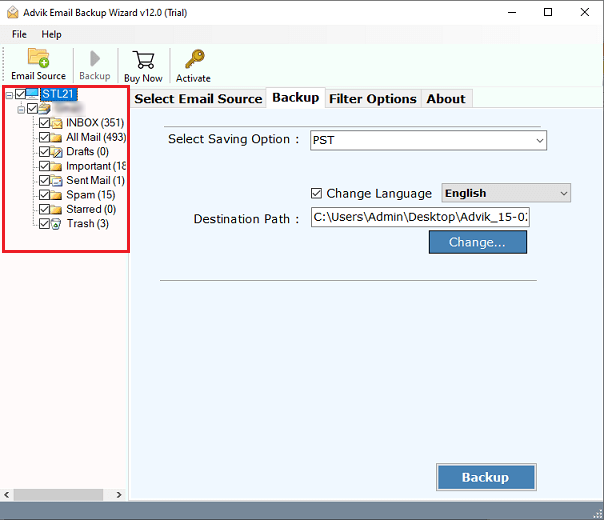
3. Choose the required email folders & subfolders.
4. Now, select RTF as a saving option.
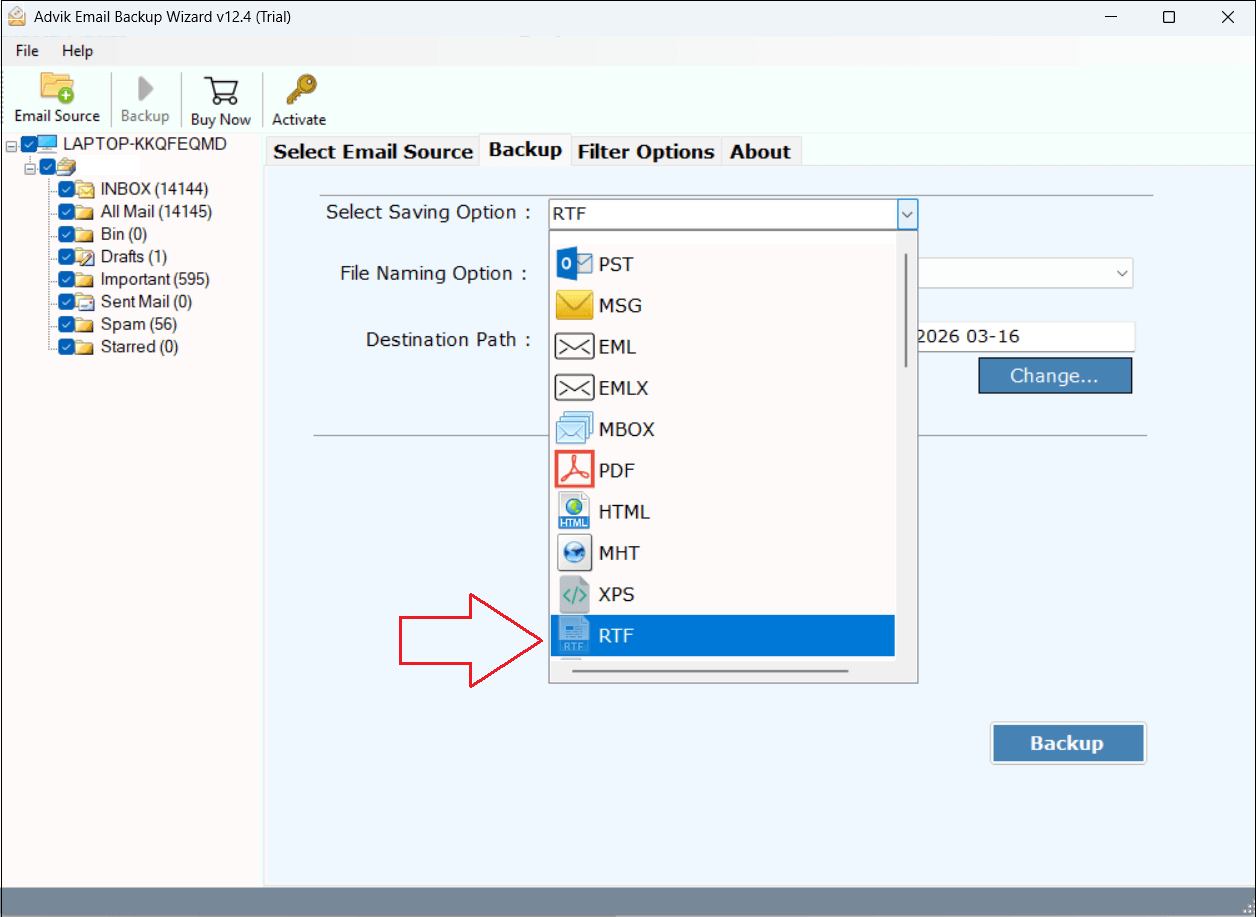
5. Browse the destination location and click the Backup button.
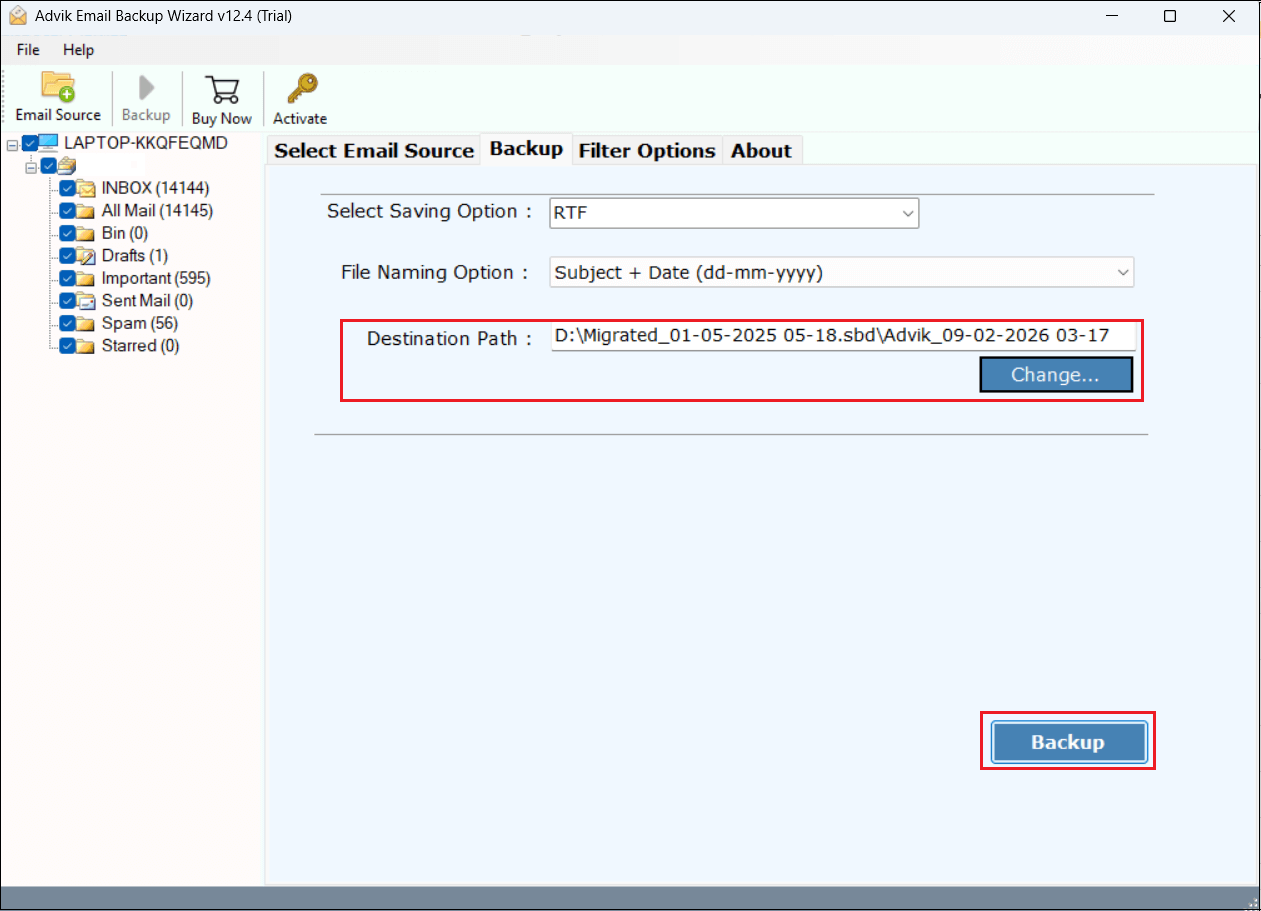
The software will start converting Webmail emails into RTF format. After completing the process, it will automatically redirect to the destination folder.
Prime Features of Webmail to RTF Converter
- The software can export Webmail emails to RTF in bulk to save time and effort.
- Also, it offers the facility to convert selective emails as per need.
- The tool preserves all email attributes like attachments, images, hyperlinks, etc.
- This application keeps the original strcture of email folders during the conversion.
- This software is able to export Webmail to PST, PDF, MBOX, and many other formats.
- The tool gives you the freedom to choose the destination path to save the output files.
- It is designed with advanced algorithms and a simple graphical user interface.
- The tool is suitable for all versions of the Mac and Windows operating systems.
- A free demo version is available, and 24/7 customer support to solve user issues while exporting.
Conclusion
In this article, we’ve explored the most effective method to export Webmail emails to RTF files with just a few simple steps. The software described in the above blog allows you to securely convert multiple emails to RTF without losing any data. You can download the free version of this utility, which allows you to export e5 emails from each folder without any cost. Once you have satified then you can purchase its licensed edition.
